
Introduction
This manual provides detailed instructions for setting up, operating, maintaining, and troubleshooting your GMKtec M5 Ultra Mini PC. Please read this manual thoroughly before using the device to ensure optimal performance and longevity.
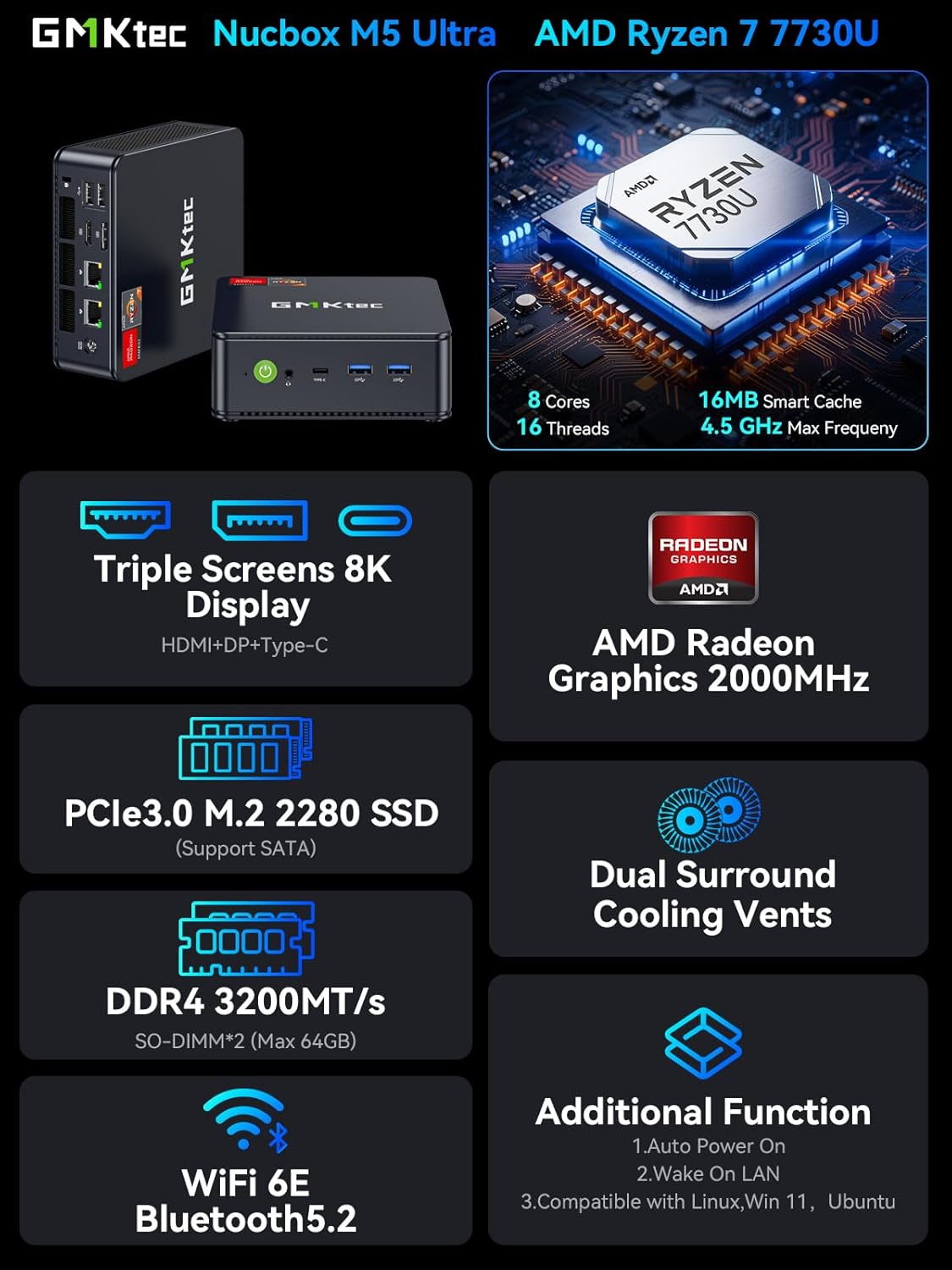
Image: The GMKtec M5 Ultra Mini PC, showcasing its compact design and key features like the AMD Ryzen 7 7730U processor, PCIe 3.0 M.2 2280 SSD, DDR4 RAM, Dual Surround Cooling Vents, WiFi 6E, Bluetooth 5.2, and triple 8K display support.
What's in the Box
Verify that all items are present in the packaging before proceeding with setup.
- GMKtec Nucbox M5 Ultra AMD Ryzen 7 7730U Mini PC Computer
- Power Supply & Cable
- HDMI Cable
- VESA Mount and Screws
- User Manual (this document)

Image: Contents of the GMKtec M5 Ultra Mini PC retail box, including the mini PC, power supply, HDMI cable, VESA mount with screws, and user manual.
Setup Guide
1. Connecting Peripherals
- Connect Display: Use the provided HDMI cable or a DisplayPort/USB-C cable to connect your monitor(s) to the Mini PC. The device supports up to three displays simultaneously.
- Connect Keyboard and Mouse: Plug your USB keyboard and mouse into the available USB 2.0 or USB 3.2 ports. Wireless peripherals can be connected via Bluetooth 5.2.
- Connect Network (Optional): For a wired internet connection, connect an Ethernet cable to one of the two 2.5GbE RJ45 LAN ports. For wireless, the device supports WiFi 6E.
- Connect Power: Plug the power supply into the DC Power Port on the Mini PC, then connect the power cable to an electrical outlet.

Image: Detailed view of the GMKtec M5 Ultra Mini PC's front and rear ports, including USB 3.2, USB 2.0, USB-C, HDMI, DisplayPort, 2.5G Ethernet, and audio jack.
2. Initial Power On and Operating System Setup
- Press the power button located on the front of the Mini PC.
- Follow the on-screen instructions to complete the Windows 11 Pro setup. This typically involves selecting your region, language, creating a user account, and connecting to a network.
3. VESA Mount Installation (Optional)
The GMKtec M5 Ultra Mini PC can be mounted to the back of a compatible monitor using the included VESA mount and screws for a clutter-free workspace.

Image: The GMKtec M5 Ultra Mini PC shown in both desktop placement and VESA mount installation configurations, highlighting its space-saving design.
Operating Instructions
Power On/Off
- Power On: Press the power button once.
- Power Off: From Windows, go to Start > Power > Shut down. Alternatively, press and hold the power button for 5 seconds to force a shutdown (use only when necessary).
- Auto Power On: This feature can be enabled in the BIOS settings.
- Wake On LAN: This feature can be enabled in the BIOS settings.
Network Connectivity
- Wired LAN: Connect an Ethernet cable to the 2.5GbE RJ45 ports for high-speed wired network access.
- Wireless (WiFi 6E): Connect to available Wi-Fi networks through the Windows network settings. The device supports 2.5G/5G/6G triple band for faster speeds and lower latency.
- Bluetooth 5.2: Pair Bluetooth devices such as headsets, mice, or keyboards through Windows Bluetooth settings.

Image: The GMKtec M5 Ultra Mini PC connected via its dual 2.5G Ethernet ports, illustrating high-speed wired LAN capabilities.
Triple Display Output
The Mini PC supports connecting up to three displays simultaneously via HDMI 2.0, DisplayPort, and USB-C, providing 4K@60Hz UHD video output for enhanced productivity or entertainment.

Image: The GMKtec M5 Ultra Mini PC connected to three external monitors, demonstrating its triple-display output capability with 4K support.
Performance Modes
The AMD Ryzen 7 7730U processor can operate in different power modes. You can adjust these settings in the BIOS:
- Power Saving Quiet Mode: Base 2.00GHz. Optimized for lower power consumption and reduced fan noise.
- Performance Mode: Turbo Boost up to 4.50GHz. Optimized for maximum processing power.
RAM & SSD Upgrades
The GMKtec M5 Ultra Mini PC features an easily accessible design for memory and storage upgrades.
- RAM: Two SO-DIMM slots support DDR4 3200MT/s RAM. The device comes with 32GB (2x16GB) pre-installed and can be expanded up to 64GB.
- SSD: Two M.2 2280 SSD slots are available. One slot supports both SATA and PCIe 3.0, while the other supports PCIe 3.0 only. Storage can be expanded up to 4TB per slot.

Image: Internal components of the GMKtec M5 Ultra Mini PC, highlighting the dual M.2 2280 SSD slots and dual SO-DIMM RAM slots for easy upgrades.
Maintenance
Cooling System
The GMKtec M5 Ultra features an advanced cooling design with dual surround air intakes to ensure quiet and efficient operation. Regular maintenance helps maintain optimal performance.
- Dust Removal: Periodically clean the air vents to prevent dust buildup, which can hinder airflow and lead to overheating. Use compressed air for best results.
- Fan Operation: Ensure the cooling fan operates correctly. If you notice unusual noises or reduced airflow, inspect the fan for obstructions.

Image: Illustration of the GMKtec M5 Ultra Mini PC's advanced cooling design, showing air intake and exhaust for efficient heat dissipation.
Driver Updates
To ensure optimal performance and compatibility, regularly check for and install the latest drivers from the official GMKtec website. Outdated drivers can lead to performance issues, especially in graphics-intensive applications or games.
Troubleshooting
- No Display Output:
- Ensure all display cables (HDMI, DP, USB-C) are securely connected to both the Mini PC and the monitor.
- Verify the monitor is set to the correct input source.
- Test with a different cable or monitor if possible.
- System Overheating / Fan Issues:
- Ensure the Mini PC is placed in a well-ventilated area and that air vents are not obstructed.
- Clean dust from the air vents and fan.
- If the fan is not spinning, gently nudge it to see if it starts. If the issue persists, contact support.
- Poor Performance / Lag:
- Update all drivers, especially graphics drivers, from the GMKtec website.
- Ensure the Mini PC is operating in "Performance Mode" if high performance is required (check BIOS settings).
- Close unnecessary background applications.
- Network Connectivity Issues:
- For wired connections, check Ethernet cable connections and router status.
- For Wi-Fi, ensure you are connected to the correct network and the signal strength is adequate. Restart your router if necessary.
- Update network drivers.
- Security Concerns (Malware/Viruses):
- It is recommended to perform a full system scan with reputable antivirus software immediately after initial setup and before connecting to the internet, especially if you have concerns about pre-installed software.
- Keep your operating system and antivirus software updated.
Specifications
| Component | Detail |
|---|---|
| Processor | AMD Ryzen 7 7730U (8 Cores, 16 Threads, Base 2.00GHz, Turbo up to 4.50GHz) |
| Graphics | AMD Radeon Graphics (8 Cores, 2000 MHz) |
| RAM | 32GB DDR4 3200MHz (2x16GB SO-DIMM, expandable to 64GB) |
| Storage | 512GB M.2 2280 PCIe 3.0 SSD (Dual slot, expandable up to 4TB per slot) |
| Operating System | Windows 11 Pro |
| Wired Network | Dual 2.5GbE RJ45 LAN Ports (Realtek RTL8125) |
| Wireless Connectivity | WiFi 6E (2.5G/5G/6G Triple Band), Bluetooth 5.2 |
| Video Output | 1x HDMI 2.0 (4K@60Hz), 1x DisplayPort, 1x USB-C (supports DP Alt Mode) - Triple Display Support |
| USB Ports | 2x USB 3.2, 2x USB 2.0, 1x USB-C (PD/DP/DATA) |
| Audio | 1x 3.5mm Audio Jack (Headphone & Microphone) |
| Power Input | DC 19V/3.42A |
| Dimensions | Approximately 7.36 x 7.28 x 4.29 inches |
| Weight | Approximately 2.79 pounds |

Image: A performance graph illustrating the capabilities of the AMD Ryzen 7 7730U processor, comparing its multi-core performance against other CPUs.
Warranty & Support
GMKtec offers a 1-year limited warranty for each Mini PC, effective from the date of purchase. This warranty covers all defects due to design and workmanship.
Customer Support
For technical assistance, warranty claims, or any product-related inquiries, please use the following contact methods:
- Amazon Support: Log in to your Amazon account, navigate to "Your Orders," and select "Ask Product Question" for your GMKtec M5 Ultra purchase.
- After-Sales Support Email: Contact the GMKtec After-Sales Team directly at support@gmktec.com.

Image: GMKtec warranty and support details, including contact information for Amazon support and direct email for after-sales service.


