
1. Introduction
Welcome to the Redragon M695CT Transparent Wired Gaming Mouse user manual. This guide provides detailed instructions for setting up, operating, maintaining, and troubleshooting your new gaming mouse. Please read this manual thoroughly to ensure proper usage and to maximize your gaming experience.
2. Package Contents
- Redragon M695CT Wired Gaming Mouse
- USB-C to USB-A Cable (Braided)
- User Manual
3. Product Overview
The Redragon M695CT is a transparent wired gaming mouse designed for performance and aesthetics. It features a high-precision optical sensor, seven programmable buttons, and customizable RGB lighting. Its ergonomic design ensures comfort during extended use.

This image displays the Redragon M695CT Transparent Wired Gaming Mouse, highlighting its key features such as 24,000 DPI Max, 1000Hz Max polling rate, 7 programmable buttons, 8 RGB backlit modes, comfortable grip, soft cable, and transparent design.

The image illustrates the comfortable grip of the Redragon M695CT mouse, designed to fit the palm for good tactility during long periods of use.
4. Setup
Follow these steps to connect your Redragon M695CT mouse to your computer:
- Connect the USB-C end of the braided cable to the port on the front of the mouse.
- Connect the USB-A end of the cable to an available USB port on your computer.
- The mouse will automatically be detected and installed by your operating system. No additional drivers are typically required for basic functionality.

The image demonstrates the wide compatibility of the Redragon M695CT mouse, showing it connected to a laptop and indicating support for desktop computers, notebooks, and Mac systems.
5. Operating Instructions
5.1. Basic Functions
The Redragon M695CT mouse features standard mouse functions:
- Left Click: Primary action, selection.
- Right Click: Secondary action, context menu.
- Scroll Wheel (Roller Button): Scroll up/down, middle click.
- Forward/Backward Buttons: Navigate web pages or folders (default function).

This diagram illustrates the seven programmable buttons on the Redragon M695CT mouse, including the Left Button, Right Button, Roller Button (scroll wheel), Forward Button, Backward Button, DPI+ Switch, and DPI- Switch.
5.2. DPI Adjustment
The mouse features adjustable DPI settings to change cursor sensitivity on the fly. This allows you to adapt to different tasks or gaming scenarios.
- Press the DPI+ Switch (Button 6) to increase DPI.
- Press the DPI- Switch (Button 7) to decrease DPI.
The mouse supports a wide DPI range from 100 to 24000.
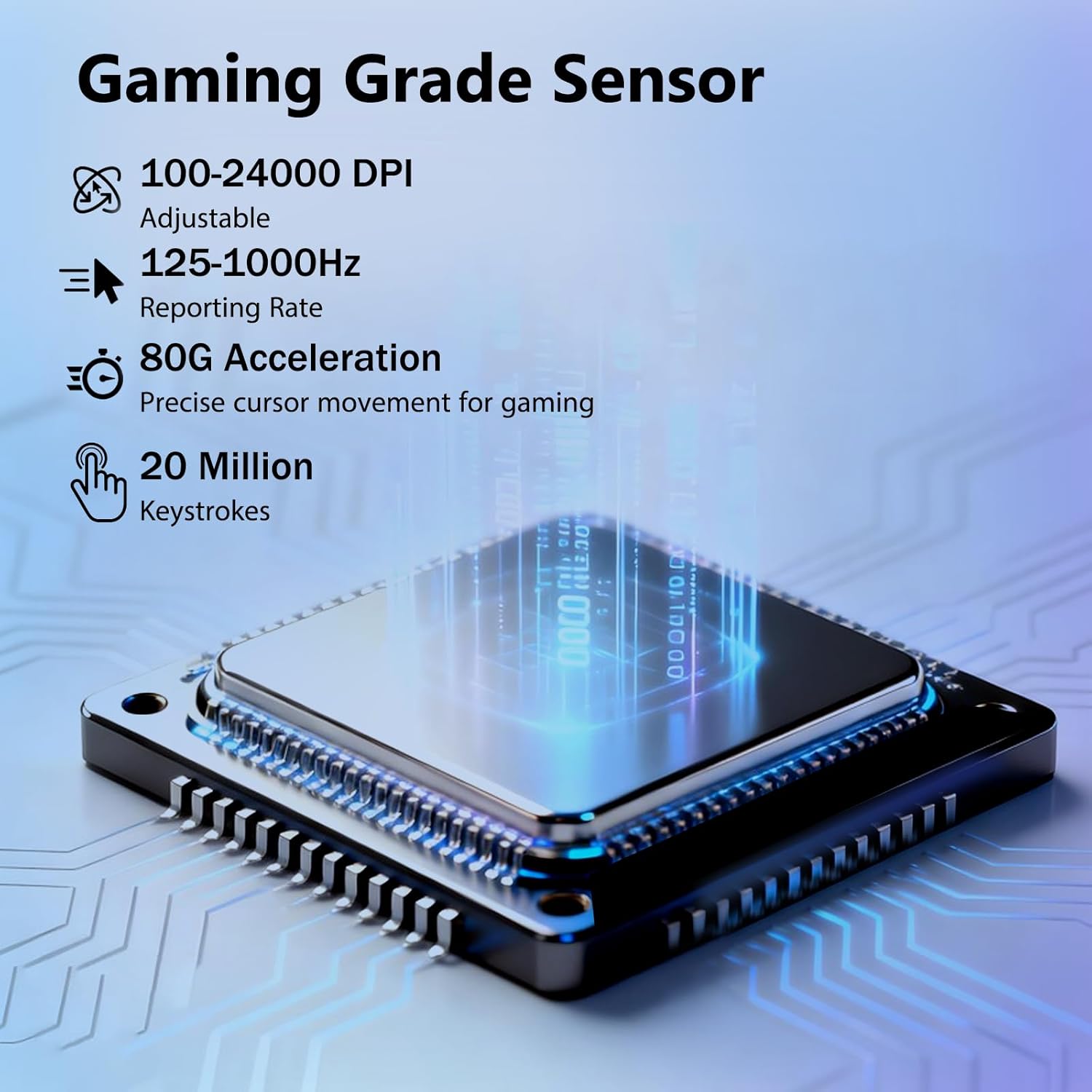
This image highlights the gaming-grade sensor of the Redragon M695CT, detailing its adjustable 100-24000 DPI, 125-1000Hz reporting rate, 80G acceleration, and 20 million keystroke durability.
5.3. RGB Lighting Control
The M695CT mouse features dynamic RGB backlighting with 8 different modes. You can cycle through these modes using a dedicated button on the bottom of the mouse or customize them further using the Redragon software.

The image shows the Redragon M695CT mouse illuminated with vibrant RGB lighting, demonstrating its "Cool RGB Light Effect" feature and the ability to choose from 8 different RGB light modes.
5.4. Software Customization (Macro Programming)
For advanced customization, including macro programming, button remapping, and fine-tuning RGB lighting effects, download the official Redragon software from the Redragon website.
- Install the software on your computer.
- Use the intuitive software interface to create custom DPI profiles, personalize RGB lighting, and assign complex macros or functions to the 7 programmable buttons.

This image displays the Redragon software interface, illustrating options for macro programming, DPI settings, lighting customization, and button assignments for the M695CT mouse.
6. Maintenance
To ensure the longevity and optimal performance of your Redragon M695CT mouse, follow these maintenance guidelines:
- Cleaning: Use a soft, dry, lint-free cloth to clean the mouse surface. For stubborn dirt, slightly dampen the cloth with water.
- Avoid Chemicals: Do not use harsh chemicals, abrasive cleaners, or solvents, as these can damage the transparent material and internal components.
- Sensor Care: Keep the optical sensor on the underside of the mouse clean and free from dust or debris for accurate tracking.
- Storage: Store the mouse in a clean, dry environment when not in use.
- Disassembly: Do not attempt to disassemble the mouse. This may cause damage and void your warranty.
7. Troubleshooting
If you encounter any issues with your Redragon M695CT mouse, please refer to the following common solutions:
7.1. Mouse Not Responding
- Check Connection: Ensure the USB cable is securely connected to both the mouse and a functional USB port on your computer.
- Try Different Port: Connect the mouse to a different USB port on your computer.
- Restart Computer: Restart your computer to refresh USB device detection.
- Test on Another Computer: If possible, test the mouse on another computer to determine if the issue is with the mouse or your system.
7.2. DPI or Lighting Not Changing
- Check Mouse Connection: Ensure the mouse is properly connected and powered.
- Software Check: If using the Redragon software, ensure it is running and that any changes have been applied and saved.
- Button Functionality: Verify that the DPI and lighting control buttons are functioning correctly.
7.3. Cursor Movement is Erratic
- Clean Sensor: Clean the optical sensor on the bottom of the mouse with a soft, dry cloth.
- Mouse Pad: Ensure you are using the mouse on a clean, uniform surface or a high-quality mouse pad. Avoid highly reflective or transparent surfaces.
8. Specifications
| Feature | Specification |
|---|---|
| Brand | Redragon |
| Model | M695CT |
| Connectivity | Wired (USB-C to USB-A) |
| Sensor Type | Optical |
| DPI Range | 100-24000 (Adjustable) |
| Polling Rate | 125-1000Hz |
| Acceleration | 80G |
| Buttons | 7 Programmable Buttons |
| Lighting | 8 RGB Backlit Modes |
| Material | Metal, Plastic (Transparent Shell) |
| Hand Orientation | Ambidextrous |
| Product Dimensions | 15.24 x 6.1 x 0.25 cm |
| Weight | 134 g |
| Compatible OS | PC/Mac/Linux/Unix, Windows |
9. Warranty and Support
Redragon products typically come with a standard manufacturer's warranty. For specific warranty terms, duration, and conditions, please refer to the warranty card included with your product or visit the official Redragon website.
For technical support, troubleshooting assistance, or service inquiries, please contact Redragon customer support through their official channels:
- Official Redragon Website: www.redragonzone.com
- Refer to the website for contact information, FAQs, and driver downloads.


