
Introduction
This manual provides essential information for setting up, operating, maintaining, and troubleshooting your new WIWB Gaming PC Desktop. Please read this guide thoroughly before using your computer to ensure optimal performance and longevity.
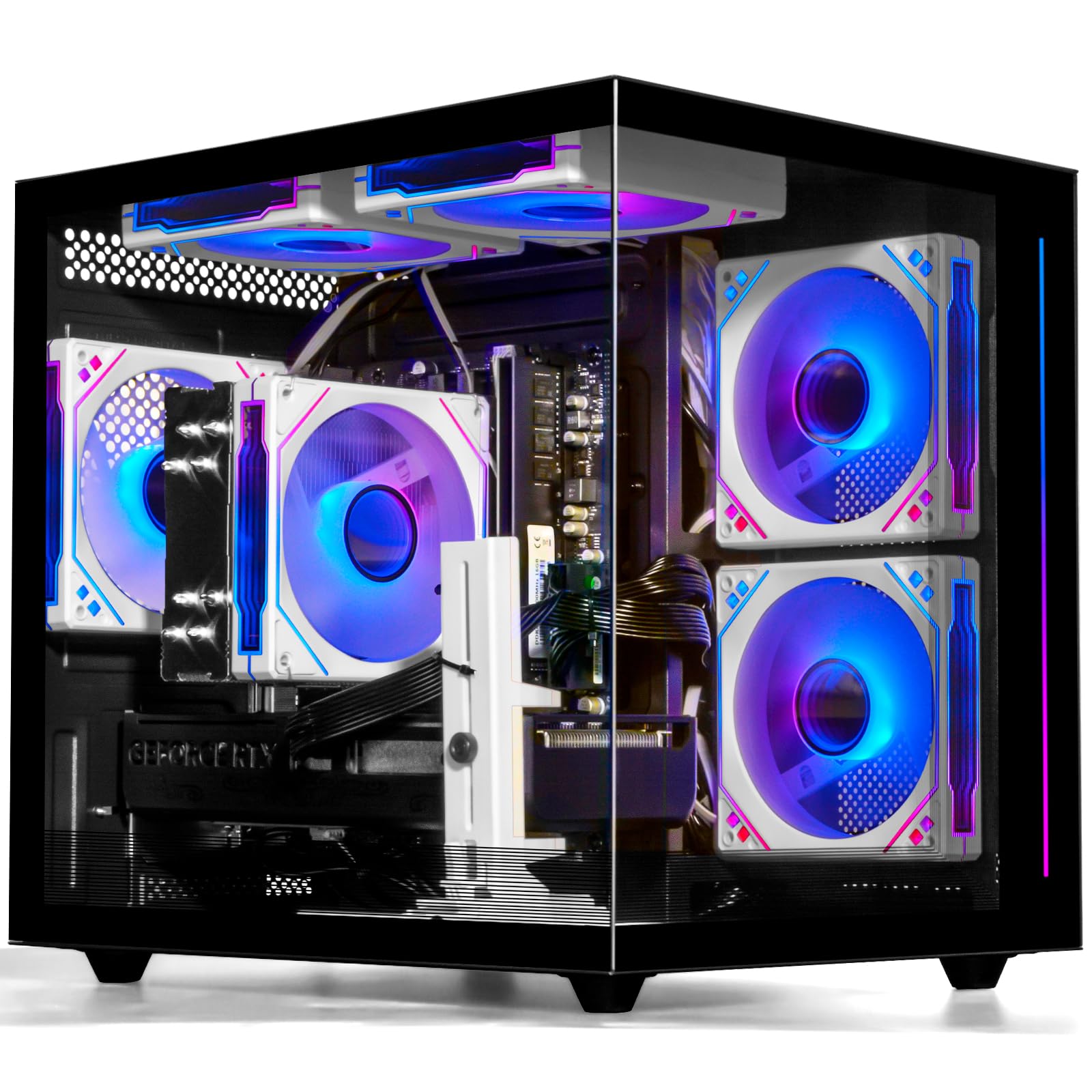
Figure 1: WIWB Gaming PC Desktop, front view with internal RGB lighting.
Package Contents
Verify that all items are present in the package:
- One computer tower
- Power cord
- Signal receiver
Setup Guide
1. Unpacking and Placement
- Carefully remove the PC from its packaging.
- Place the computer tower on a stable, flat surface with adequate ventilation. Ensure no vents are obstructed.
2. Connecting Peripherals
Refer to the back panel diagram below for port identification.

Figure 2: Rear panel connectivity ports, including USB, audio, and video outputs.
- Monitor: Connect your monitor to the graphics card's video output ports (DisplayPort or HDMI). The motherboard's video ports are automatically disabled when a dedicated GPU is present. This PC features 3x DisplayPort and 1x HDMI.
- Keyboard and Mouse: Connect your keyboard and mouse to any available USB ports. The PC has 3x USB 3.0 and 8x USB 2.0 ports.
- Audio: Connect speakers or headphones to the audio output jack on the rear panel. A microphone can be connected to the microphone input jack.
- Network: For wired internet, connect an Ethernet cable to the network port. This PC also supports Wi-Fi 6 for wireless connectivity.
- Power: Connect the provided power cord to the PC's power input and then to a grounded electrical outlet.

Figure 3: Example of a fully connected WIWB Gaming PC Desktop setup.
3. Initial Power-On
- After connecting all peripherals and power, press the power button located on the top of the computer tower.
- The system will boot up, and the operating system (Windows) will load. Follow any on-screen instructions for initial setup.
Operating Instructions
Powering On/Off
- To Power On: Press the power button on the top of the tower.
- To Shut Down: Use the operating system's shutdown function (Start Menu > Power > Shut down). Avoid direct power-off unless necessary to prevent data loss.
RGB Lighting Control
The PC features customizable RGB fans. Lighting effects can be controlled via a dedicated button on the top of the tower or through compatible motherboard software (e.g., ASUS Aura, MSI Mystic Light) if connected.
Operating System
Your WIWB Gaming PC Desktop comes with Windows pre-installed. Ensure you complete the initial Windows setup process, including creating a user account and connecting to the internet.

Figure 4: The WIWB Gaming PC Desktop is suitable for gaming, content creation, and everyday use.
Maintenance
Cleaning
- Regularly clean the exterior of the PC with a soft, dry cloth.
- Use compressed air to clear dust from vents and fans periodically (every 3-6 months) to maintain optimal airflow and cooling. Ensure the PC is powered off and unplugged before cleaning internal components.
Ventilation
Ensure the PC is placed in an area with good airflow. Avoid placing it in enclosed spaces or directly against walls that could block vents. Proper ventilation is crucial for preventing overheating and maintaining component lifespan.
Software Updates
Keep your operating system, drivers (especially graphics drivers), and applications updated to ensure security, stability, and performance. Windows Update and your graphics card manufacturer's software can assist with this.
Troubleshooting
No Display on Monitor
- Check that the monitor is powered on and correctly connected to the graphics card's video output (DisplayPort or HDMI).
- Ensure the correct input source is selected on your monitor.
- Try a different video cable or monitor if available.
PC Not Powering On
- Verify the power cord is securely connected to both the PC and the electrical outlet.
- Check if the power supply switch on the back of the PC is in the 'On' position.
- Test the outlet with another device to ensure it has power.
Peripherals Not Responding
- Ensure USB devices (keyboard, mouse) are securely plugged into the correct ports.
- Try connecting the device to a different USB port.
- Restart the computer.
System Performance Issues
- Close unnecessary background applications.
- Ensure drivers and operating system are up to date.
- Check for malware or viruses.
- Monitor system temperatures to ensure the PC is not overheating.
Product Specifications
Detailed technical specifications for your WIWB Gaming PC Desktop.

Figure 5: Internal components, showcasing RAM and SSD.
| Feature | Specification |
|---|---|
| Brand | WIWB |
| Model Number | wwr7mid |
| Operating System | Windows |
| CPU Model | AMD Ryzen 7 5700X |
| CPU Speed | 3.4 GHz (Max 4.6 GHz) |
| Processor Cores | 8 |
| Graphics Card | NVIDIA GeForce RTX 5060 (8GB GDDR5) |
| RAM Memory | 16 GB DDR4 (Max 128 GB) |
| Storage | 1 TB NVMe SSD |
| Connectivity | Wi-Fi 6, Ethernet |
| Video Output | 3x DisplayPort, 1x HDMI |
| USB Ports | 3x USB 3.0, 8x USB 2.0 (Total 11) |
| Cooling Method | Air Cooling (4x customizable RGB fans) |
| Item Weight | 8.87 Kilograms |
| Color | Black |
Warranty Information
Your WIWB Gaming PC Desktop comes with a manufacturer's warranty. For specific details regarding warranty coverage, duration, and terms, please refer to the documentation included with your product or contact WIWB customer support directly. Keep your proof of purchase for warranty claims.
Customer Support
If you encounter any issues not covered in this manual or require further assistance, please contact WIWB customer support. You can typically find contact information on the manufacturer's official website or through your retailer.