
Introduction
This manual provides essential information for the setup, operation, and maintenance of your Alesis Nitro Ultimate Electric Drum Set, including the Gibraltar Hi-Hat Stand. The Nitro Ultimate kit is a nine-piece electronic drum set designed to offer an authentic drumming experience with mesh pads and a versatile sound module.
The kit features dual-zone mesh pads, a stand-mounted movable hi-hat, and a drum module with 640 authentic BFD sounds and 52 pre-configured kits. It also includes Bluetooth connectivity and access to educational resources like Drumeo lessons and BFD Player software.

Image: A drummer performing on the Alesis Nitro Ultimate kit, highlighting its authentic feel and sound capabilities.
Product Overview Video
Video: A detailed overview of the Alesis Nitro Ultimate Electric Drum Set, demonstrating its features and components. (Duration: 5:42)
What's in the Box
Verify that all components listed below are present in your package before beginning assembly.
- Alesis Nitro Ultimate Drum Module
- 10-inch Dual-Zone Mesh Snare Pad with metal hoops
- Three (3) 8-inch Dual-Zone Mesh Tom Pads with metal hoops
- 8-inch Mesh Kick Tower Pad
- Kick Pedal
- Three (3) 10-inch Dual-Zone Cymbal Pads with choke (one ride, two crashes)
- 10-inch Stand-Mounted Movable Hi-Hat Controller
- Gibraltar Medium Weight, Double-Braced Hi-Hat Stand
- 4-Post Adjustable Steel Rack with locking clamps
- Drum Sticks
- Drum Key
- Connection Cables (snake cable for pads/cymbals, power supply)

Image: The Alesis Nitro Ultimate kit fully assembled, showing the various components and accessories included.

Image: A detailed diagram of the Alesis Nitro Ultimate kit, labeling each drum and cymbal component.
Setup Instructions
Follow these steps to assemble your Alesis Nitro Ultimate Electric Drum Set.
- Assemble the Rack: Unfold the 4-post steel rack and secure all locking clamps. Adjust the height and position of the rack arms to your preference.
- Mount the Pads and Cymbals: Attach the snare, tom pads, and kick tower to the rack using the provided clamps. Mount the cymbal pads (ride, crashes) to their respective arms.
- Install the Hi-Hat Stand: Place the Gibraltar Hi-Hat Stand in the desired position. Mount the 10-inch movable hi-hat controller onto the hi-hat stand.
- Connect the Drum Module: Securely attach the Alesis Nitro Ultimate Drum Module to the rack.
- Connect Cables: Use the included snake cable to connect all drum pads and cymbal pads to the corresponding inputs on the drum module. Ensure each connection is firm.
- Power Connection: Connect the power adapter to the drum module's power input and then to a power outlet.
- Audio Output: For sound, connect headphones to the 1/8-inch stereo headphone output or connect external speakers/amplifier to the 1/4-inch TRS main outputs.

Image: A visual guide to the main components of the Alesis Nitro Ultimate kit, useful for assembly.
Connectivity Diagram

Image: The rear panel of the Nitro Ultimate Drum Module, detailing all connection ports for power, USB, triggers, and audio.
Operating Instructions
This section covers the basic operation of your Alesis Nitro Ultimate Drum Module.
Drum Module Overview
The Nitro Ultimate Drum Module is the central control unit for your drum set. It features a clear display, navigation buttons, and dedicated controls for various functions.
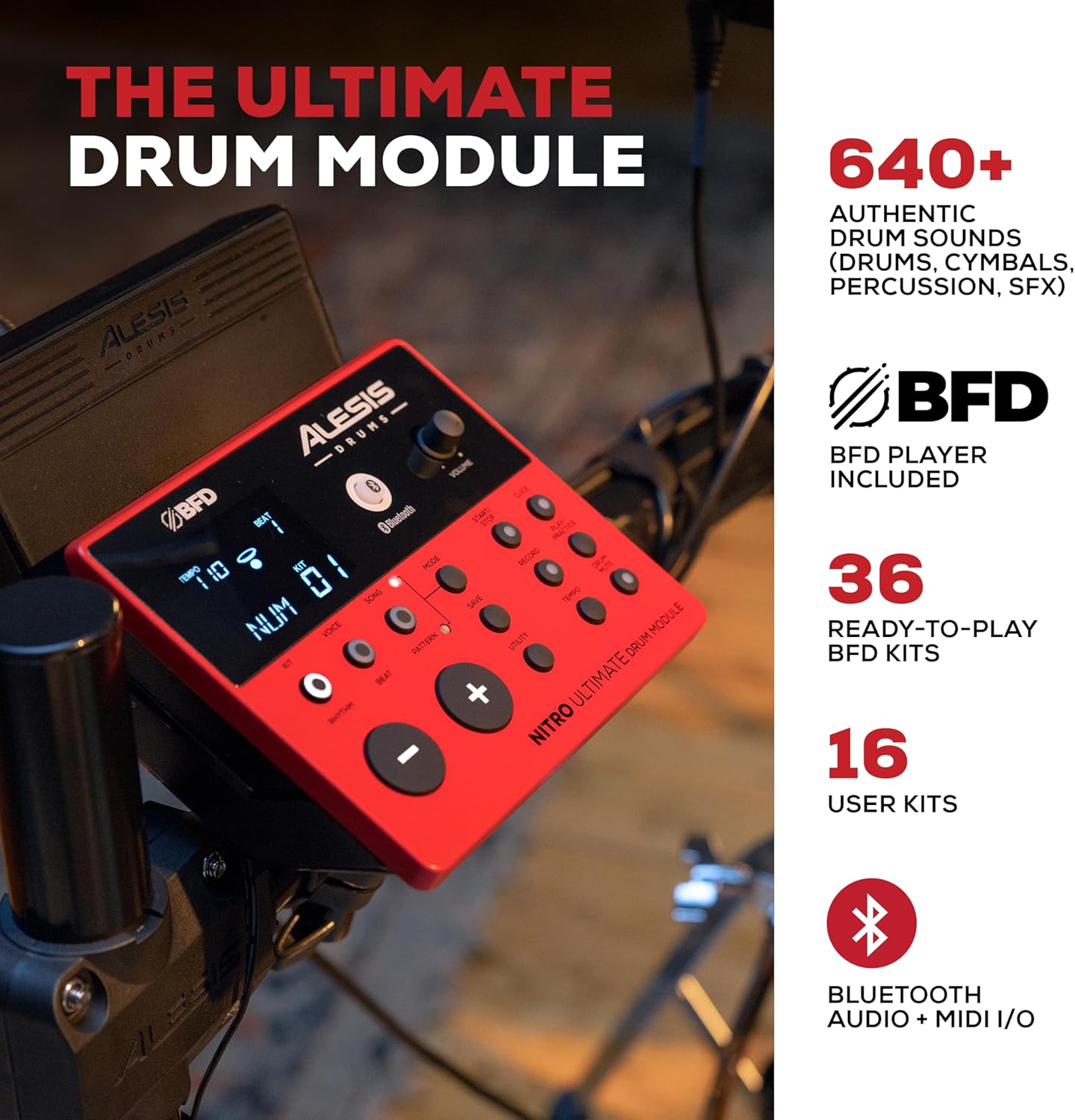
Image: The Alesis Nitro Ultimate Drum Module, showing its interface and controls.
Basic Operation
- Power On/Off: Press the Power button on the module to turn the unit on or off.
- Kit Selection: Use the 'Kit' buttons to navigate through the 52 pre-set drum kits or your 16 user kits.
- Volume Control: Adjust the main volume using the dedicated knob on the module.
- Tempo Adjustment: Use the 'Tempo' button and navigation controls to set the desired tempo for practice or songs.
Advanced Features
- Bluetooth Connectivity: The module supports Bluetooth audio and MIDI I/O. Pair your device to stream audio or send/receive MIDI data wirelessly.
- USB MIDI: Connect the module to a computer via USB for MIDI recording with virtual instruments or recording software.
- Auxiliary Input: Use the 1/8-inch stereo auxiliary input to connect an external audio device (e.g., smartphone, MP3 player) and play along with your favorite tracks.
- Built-in Tools: Utilize the integrated sequencer, recorder, and metronome functions for practice and performance.

Image: The Alesis Nitro Ultimate kit in use, illustrating its educational and practice tools.
Software Integration
Your Nitro Ultimate kit includes access to Drumeo lessons and BFD Player software.
- Drumeo: Access 90 days of interactive drum lessons from various instructors to enhance your skills.
- BFD Player: This virtual drum instrument includes the BFD Player Core Library and Dark Mahogany expansion pack, offering a wide range of high-quality drum sounds and mixing options for recording and performance.

Image: A tablet showing the Drumeo application, demonstrating the integration of learning tools with the drum kit.

Image: A laptop running BFD Player software, showcasing the high-quality drum kits, grooves, and mixing options available.
Maintenance
Proper maintenance ensures the longevity and optimal performance of your drum set.
- Cleaning: Use a soft, dry cloth to wipe down the drum module, pads, and cymbals. Avoid abrasive cleaners or solvents.
- Mesh Head Tension: The mesh heads are tension-adjustable. Use the included drum key to adjust the tension for your preferred feel. Do not overtighten.
- Cable Management: Ensure all cables are neatly routed and secured to prevent damage or accidental disconnection.
- Storage: When not in use for extended periods, store the drum set in a clean, dry environment away from extreme temperatures.

Image: A close-up of an Alesis mesh head, emphasizing its design for quiet and responsive play.
Troubleshooting
If you encounter issues with your Alesis Nitro Ultimate Electric Drum Set, refer to the following common problems and solutions.
| Problem | Possible Cause | Solution |
|---|---|---|
| No sound from headphones/speakers. | Volume too low; incorrect cable connection; module not powered on. | Check module volume, external speaker volume, and headphone connection. Ensure power is on. Verify audio cables are correctly inserted into the module's output. |
| Pads not triggering sounds. | Loose cable connection; incorrect pad sensitivity settings. | Ensure all pad cables are securely connected to the module's trigger inputs. Check the module's sensitivity settings for each pad and adjust if necessary. |
| Bluetooth device not connecting. | Module not in pairing mode; device too far; interference. | Ensure the module's Bluetooth is enabled and in pairing mode. Move the device closer to the module. Try restarting both the module and your Bluetooth device. |
| Inconsistent pad response. | Mesh head tension uneven; worn drum sticks; sensitivity settings. | Adjust mesh head tension evenly using the drum key. Ensure you are using appropriate drum sticks. Review and adjust pad sensitivity and threshold settings in the module. |
Specifications
| Feature | Detail |
|---|---|
| Model Name | Nitro Ultimate |
| Brand | Alesis |
| Set Configuration | 9-piece electronic drum kit |
| Snare Pad | 10-inch Dual-Zone Mesh |
| Tom Pads | Three (3) 8-inch Dual-Zone Mesh |
| Kick Pad | 8-inch Mesh Kick Tower with Pedal |
| Cymbal Pads | Three (3) 10-inch Dual-Zone with Choke (1 Ride, 2 Crash) |
| Hi-Hat | 10-inch Stand-Mounted Movable Controller |
| Hi-Hat Stand | Gibraltar Medium Weight, Double-Braced |
| Drum Module | Nitro Ultimate Module (640+ sounds, 52 kits, 16 user kits) |
| Connectivity | Bluetooth Audio + MIDI I/O, USB MIDI, DB25-pin snake cable input, 2x 1/4-inch TRS Main Outs, 1/8-inch TRS Stereo Aux In, 1/8-inch Stereo Headphone Out |
| Rack | 4-Post Adjustable Steel Rack |
| Material Type | Metal, Silicone |
| Color | Red |
| Weight | Approximately 46.9 lbs (21.27 kg) |
Warranty and Support
For detailed warranty information and technical support, please refer to the official Alesis website or contact their customer service directly. Keep your purchase receipt as proof of purchase for any warranty claims.
Online resources, including FAQs and additional documentation, may be available on the Alesis support page.

