Welcome to the NIMO N179 17-inch Laptop user manual. This guide provides essential information for setting up, operating, maintaining, and troubleshooting your new laptop. The NIMO N179 is designed for versatile use, offering a large display, powerful AMD Ryzen 7 7735HS processor with Radeon 680M graphics, 16GB DDR5 RAM, and a 512GB NVMe SSD for efficient performance in business, study, and light gaming applications.
2. What's in the Box
Please check the contents of your package to ensure all items are present:
1 x NIMO N179 Laptop
1 x Type-C 100W PD Fast Charger
1 x User Manual (this document)
Windows 11 Home (pre-installed)
Warranty Information (2 Years Warranty, 90 Days Return)
3. Setup Guide
Follow these steps to set up your NIMO N179 laptop for the first time.
3.1 Initial Charging
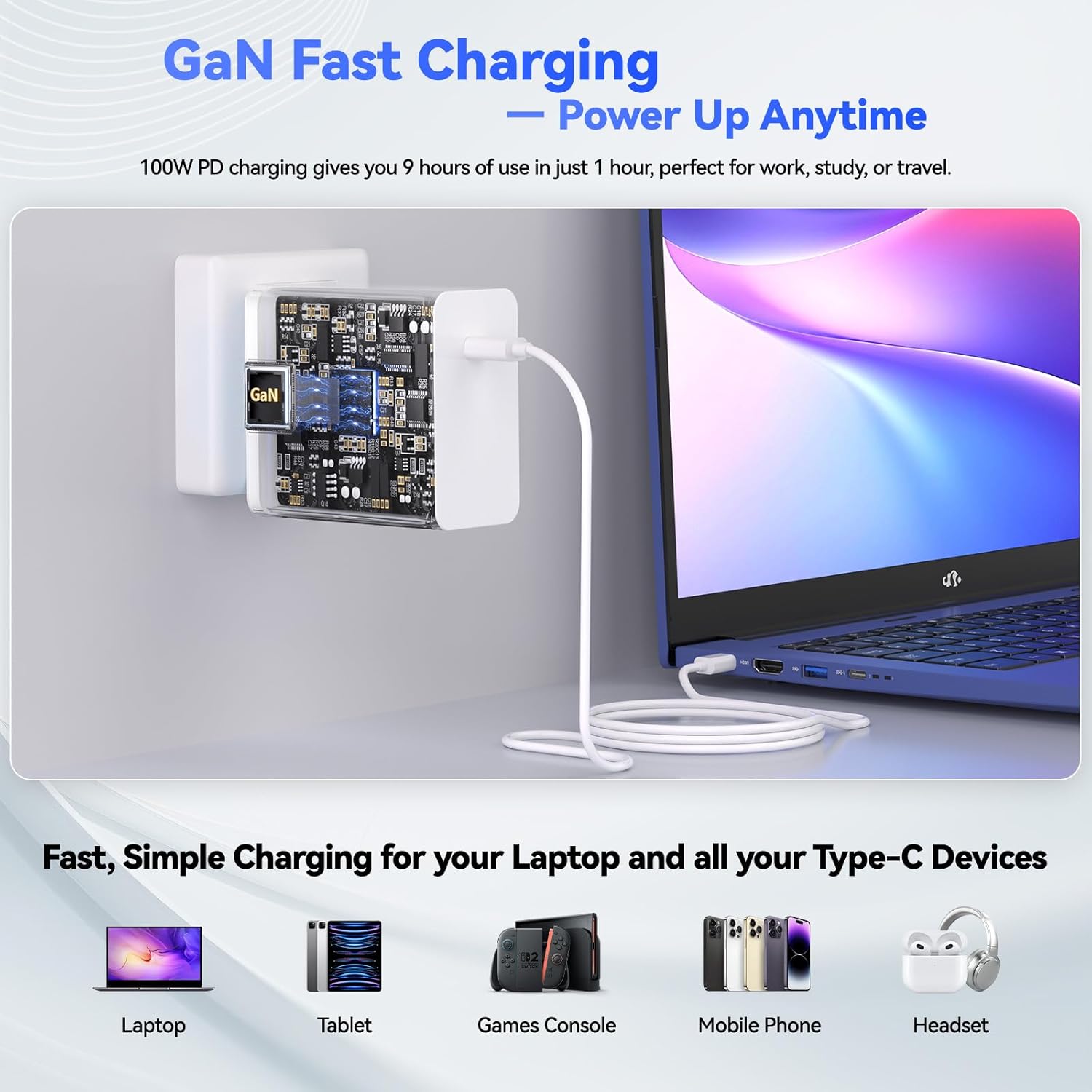
Before first use, it is recommended to fully charge your laptop. Connect the provided 100W Type-C PD Fast Charger to the laptop's Type-C port and a power outlet. The charging indicator light will illuminate.
Figure 3.1: Connecting the 100W Type-C PD Fast Charger to the NIMO N179 laptop.
3.2 Powering On
Open the laptop lid and press the power button, usually located on the top right of the keyboard or side panel. The laptop will boot up, and you will be guided through the Windows 11 initial setup process.
3.3 Windows 11 Setup
Follow the on-screen instructions to configure Windows 11. This includes selecting your region, keyboard layout, connecting to a Wi-Fi network, and creating a user account. Ensure you have your Wi-Fi password ready.
4. Operating Instructions
This section details the primary functions and features of your NIMO N179 laptop.
4.1 Display and Visuals
The NIMO N179 features an immersive 17.3-inch Full HD (1920 x 1080 pixels) display. This large screen provides ample workspace for multitasking and an enhanced viewing experience for various applications.
Figure 4.1: The 17.3-inch Full HD display offers a broad visual experience for productivity.
4.2 Processor and Performance
Your laptop is equipped with an AMD Ryzen 7 7735HS processor (8 cores, 16 threads) and integrated AMD Radeon 680M graphics. This combination delivers responsive performance for demanding applications, creative tasks, and light gaming.
Figure 4.3: AMD Radeon 680M graphics for gaming and creative work.
4.3 Memory and Storage
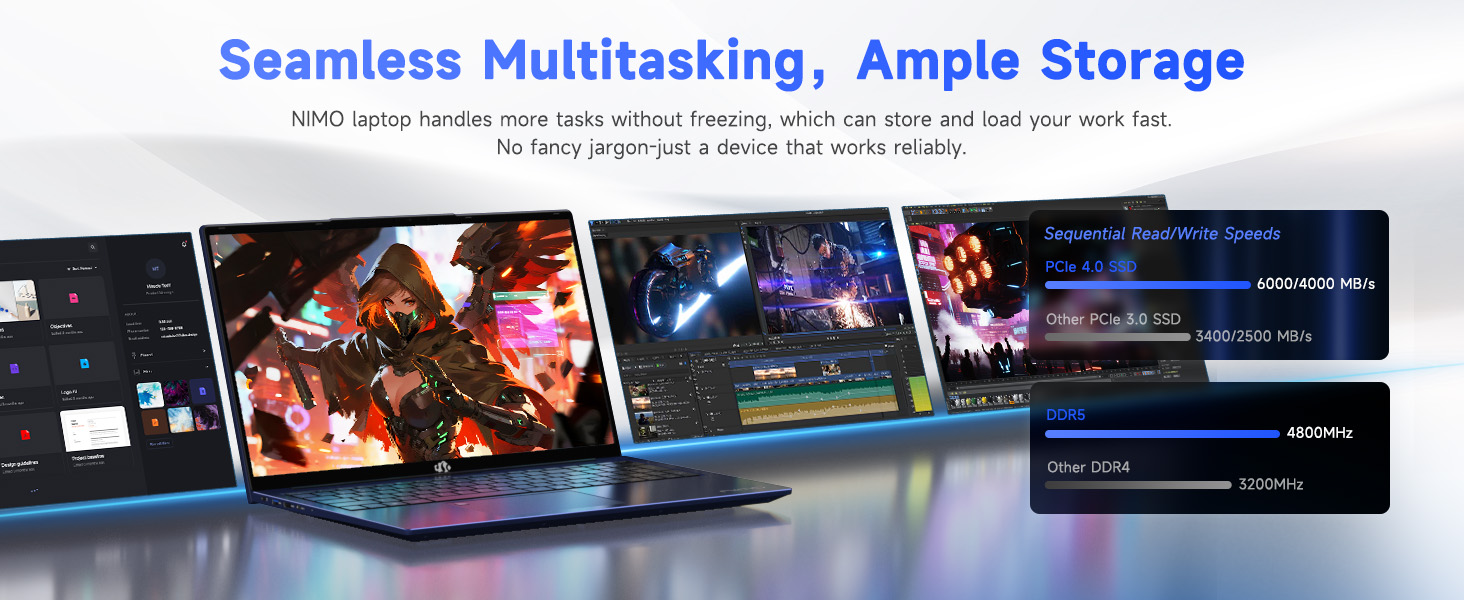
The laptop includes 16GB of DDR5 RAM for efficient multitasking and a 512GB NVMe SSD for fast boot times and quick application loading. The storage is designed for rapid data access.
Figure 4.4: High-speed DDR5 memory and NVMe SSD for seamless operation.
4.4 Connectivity
The NIMO N179 supports Wi-Fi 6E for faster and more stable wireless connections, and Bluetooth 5.2 for connecting wireless peripherals. It also features multiple ports for external devices:
USB 3.2 Gen1 ports
USB 2.0 port
Type-C Gen2 (multifunction) ports
HDMI 2.0 port
Audio Jack
SD Card Reader
Kensington Lock slot
Figure 4.5: Overview of laptop ports for various connections.
Figure 4.6: Wi-Fi 6E provides advanced wireless connectivity.
4.5 Security and Comfort Features
The laptop integrates several features for security and user comfort:
Webcam Privacy Shutter: A physical slider to cover the webcam when not in use, ensuring privacy.
Fingerprint Recognition: For secure and quick login.
Backlit Keyboard: Allows for comfortable typing in low-light conditions. Press F9 to cycle through backlight settings (temporary light, constant light, off).
Numeric Keypad: A dedicated numeric keypad for enhanced data entry efficiency.
Figure 4.7: Fingerprint unlock and backlit keyboard for security and comfort.
Figure 4.8: Detailed view of security and comfort features.
5. Maintenance
Proper maintenance ensures the longevity and optimal performance of your NIMO N179 laptop.
5.1 Cleaning
Use a soft, lint-free cloth to clean the screen and exterior surfaces.
For stubborn marks, slightly dampen the cloth with water or a screen-safe cleaner. Avoid harsh chemicals.
Regularly clean the keyboard with compressed air to remove dust and debris.
5.2 Battery Care
The laptop is equipped with a 58Wh battery. To maximize battery life:
Avoid extreme temperatures.
Do not leave the laptop fully charged or fully discharged for extended periods.
For long-term storage, charge the battery to about 50-60%.
Figure 5.1: Battery features and charging efficiency.
5.3 Software Updates
Regularly update your Windows operating system and drivers to ensure optimal performance, security, and compatibility. You can check for updates via Windows Settings.
5.4 Cooling System
The NIMO N179 features an efficient cooling system to maintain performance. Ensure the vents are not obstructed to allow proper airflow.
Figure 5.2: Internal cooling system for sustained performance.
6. Troubleshooting
This section addresses common issues you might encounter with your NIMO N179 laptop.
6.1 No Power / Laptop Not Turning On
Ensure the power adapter is securely connected to both the laptop and a working power outlet.
Verify the power outlet is functional by plugging in another device.
If the battery is completely drained, it may take a few minutes of charging before the laptop can power on.
6.2 Wi-Fi Connectivity Issues
Check if Wi-Fi is enabled in Windows settings.
Restart your router and modem.
Ensure you are within range of your Wi-Fi network and have entered the correct password.
Update your Wi-Fi drivers through Device Manager.
If issues persist, try restarting the network adapter via Windows Network Settings.
6.3 Keyboard Backlight Not Working
Press the F9 key to cycle through the backlight settings (off, temporary, constant).
Ensure your laptop's power settings are not configured to disable the backlight to save power.
6.4 Fingerprint Reader Issues
Ensure your finger is clean and dry when using the sensor.
Re-register your fingerprint in Windows Settings if you experience consistent issues.
Update fingerprint reader drivers.
6.5 System Slowdown or Freezing
Close unnecessary applications running in the background.
Check Task Manager for processes consuming high CPU or RAM.
Ensure your system has sufficient free storage space on the SSD.
Run a virus scan.
Ensure the laptop's cooling vents are clear and not obstructed.
7. Specifications
Detailed technical specifications for the NIMO N179 laptop:
Feature
Detail
Model Name
NIMO N179
Screen Size
17.3 Inches
Screen Resolution
1920 x 1080 pixels (Full HD)
Processor
AMD Ryzen 7 7735HS (8 Cores, 16 Threads, up to 4.75 GHz)
NIMO provides comprehensive support for your N179 laptop.
8.1 Warranty Information
Your NIMO N179 laptop comes with a 2-year warranty. Additionally, a 90-day return policy is offered from the date of purchase. Please retain your proof of purchase for warranty claims.
8.2 Customer Support
For technical assistance or any inquiries, NIMO offers 24/7 online technical support. Refer to the contact information provided with your product packaging or visit the official NIMO support website for details.
Ask about setup, troubleshooting, compatibility, parts, safety, or missing instructions. Manuals+ will review the question and use this page’s manual context to help answer it.