
1. Overview
The Bigme HiBreakS Epaper Smart Phone is designed to provide a comfortable reading experience with the functionality of a modern smartphone. It features an Epaper display, runs on Android 14, and is equipped with an 8-core processor, 6GB RAM, and 128GB internal storage, expandable up to 1TB. This device supports 4G connectivity and includes dual cameras.

Image 1.1: Front and back view of the Bigme HiBreakS phone highlighting its octa-core processor, Android 14 OS, voice-to-text capability, 4G connectivity, and GPS.
2. Setup
2.1. Package Contents
Verify that your package contains the following items:
- Bigme HiBreakS Epaper Mobile Phone
- Charging Cable (USB-C)
- User Guide (this document)
2.2. Charging the Device
Before first use, fully charge the device. Connect the provided USB-C cable to the phone's charging port and the other end to a compatible power adapter (not included) or a computer's USB port. The charging indicator will show the charging status.
2.3. Inserting SIM Card
Locate the SIM card tray on the side of the phone. Use the provided SIM ejector tool to open the tray. Insert your 4G compatible Nano-SIM card into the designated slot. Ensure the card is correctly oriented as shown in the tray diagram. Close the tray securely.
2.4. Inserting TF Card (Optional)
The device supports expandable storage up to 1TB via a TF card. To insert a TF card, open the SIM card tray as described above. Place the TF card into its dedicated slot on the tray, ensuring correct orientation. Close the tray securely.

Image 2.1: Close-up view of the Bigme HiBreakS phone's side, illustrating the insertion of a TF card into the card slot for storage expansion.
2.5. Initial Power On
Press and hold the power button located on the side of the device until the Bigme logo appears. Follow the on-screen instructions to complete the initial setup, including language selection, Wi-Fi connection, and account setup.
3. Operating Instructions
3.1. Android 14 Operating System
The Bigme HiBreakS runs on Android 14, providing access to a wide range of applications and features. Navigate the interface using touch gestures: swipe, tap, pinch, and long-press.

Image 3.1: Multiple views of the Bigme HiBreakS phone's screen, demonstrating the smooth operation of the Android 14 OS with various applications and system interfaces.
3.2. Epaper Display Features
The Epaper display is designed for comfortable viewing, especially for reading. It offers various refresh modes to optimize performance for different tasks:
- HD Mode: Standard high-definition display for general use.
- Regal Mode: Enhanced clarity for detailed images and text.
- Fast Mode: Quicker refresh rate for smoother scrolling.
- Extreme Mode: Highest refresh rate (up to 30FPS) for dynamic content, with potential ghosting.
Adjust refresh modes in the display settings to suit your activity.

Image 3.2: The Bigme HiBreakS phone screen showing different refresh modes (HD, Regal, Fast, Extreme) and settings for optimizing the Epaper display experience.
3.3. Making Calls and Connectivity
Utilize the 4G connection for making and receiving calls. Ensure your SIM card is properly inserted and activated. Access the phone application from the home screen to dial numbers or manage contacts.
3.4. Using the Cameras
The device features dual cameras: a 5MP front camera and a 13MP rear camera. Open the camera application to capture photos and videos. Tap the screen to focus and use the on-screen shutter button.

Image 3.3: Front and back views of the Bigme HiBreakS phone, indicating the presence of dual cameras: a 5MP front camera and a 13MP rear camera.
3.5. Reading Features
The Bigme HiBreakS is optimized for reading. It includes features such as:
- Highlight & Annotate: Long-press text to highlight or add notes.
- Translate: Convert selected text into multiple languages.
- Text-to-Speech: Switch to audio mode to listen to content at your preferred speed and volume.
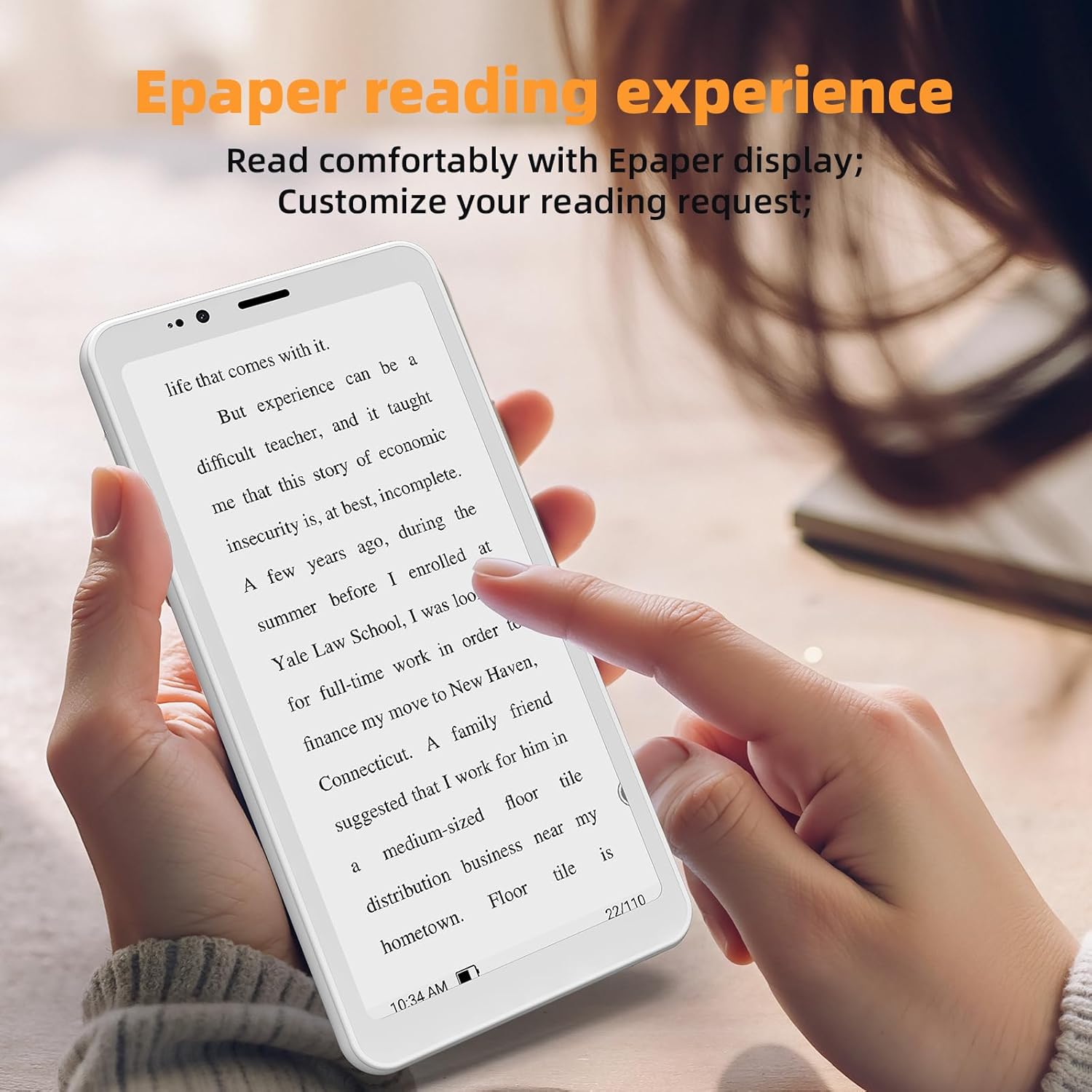
Image 3.4: A person holding the Bigme HiBreakS phone, demonstrating the comfortable Epaper reading experience.
4. Maintenance
4.1. Cleaning the Device
Use a soft, lint-free cloth to clean the screen and body of the phone. Avoid using harsh chemicals or abrasive materials, as these can damage the Epaper display and device finish.
4.2. Battery Care
The device is equipped with a 3300mAh battery. To prolong battery life:
- Avoid extreme temperatures.
- Do not leave the device fully discharged for extended periods.
- Use only compatible charging accessories.
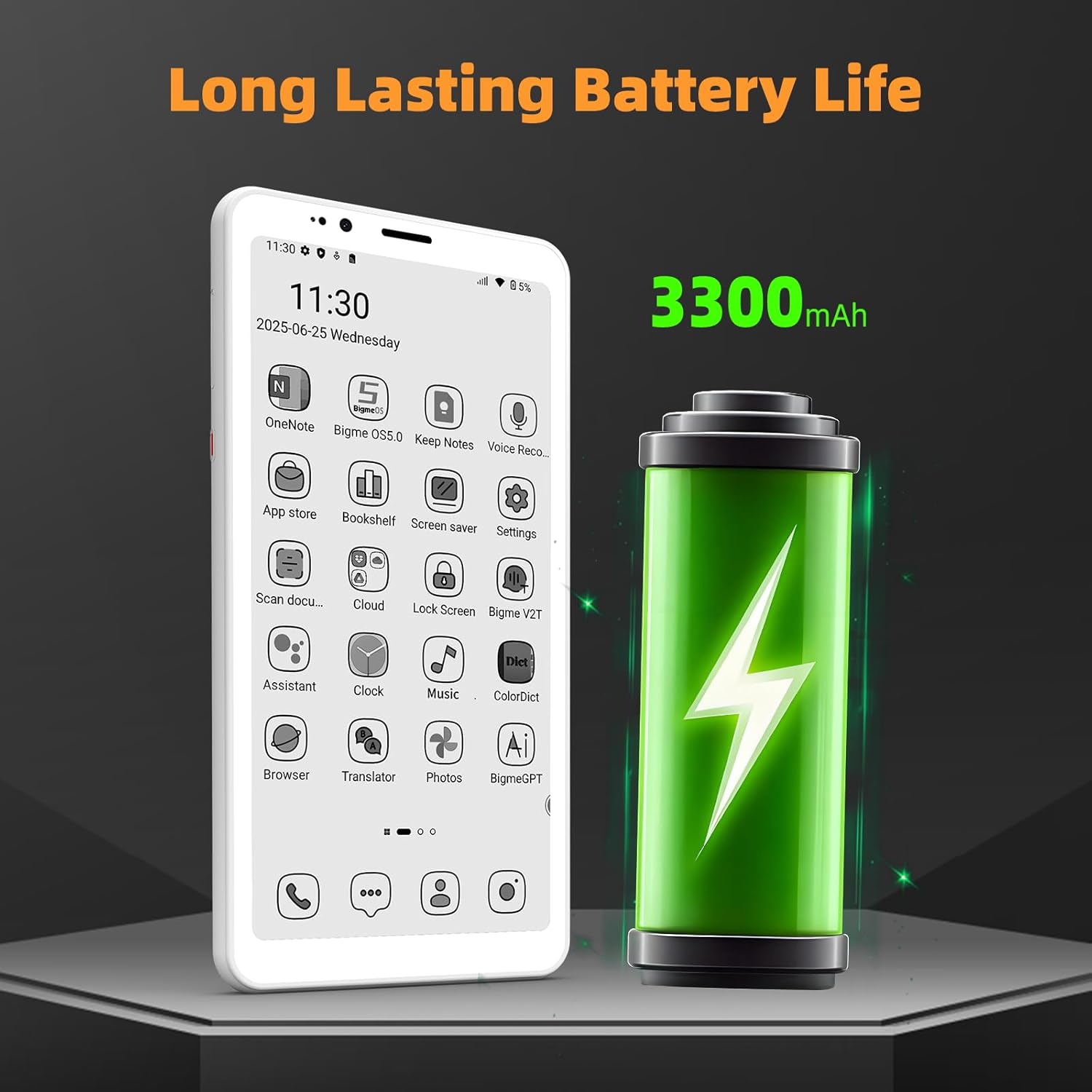
Image 4.1: The Bigme HiBreakS phone displayed next to a large battery icon, indicating its 3300mAh long-lasting battery life.
4.3. Software Updates
Regularly check for and install system updates (OTA updates) to ensure optimal performance and security. Navigate to Settings > System > System update to check for available updates.
5. Troubleshooting
If you encounter issues with your Bigme HiBreakS, refer to the following common solutions:
5.1. Device Not Powering On
- Ensure the battery is charged. Connect the device to a charger for at least 30 minutes.
- Press and hold the power button for 10-15 seconds to perform a forced restart.
5.2. Poor 4G Connectivity
- Check if your SIM card is properly inserted and activated.
- Verify that you are in an area with 4G network coverage.
- Restart the device.
- Go to Settings > Network & internet > Mobile network and ensure mobile data is enabled.
5.3. Applications Crashing or Freezing
- Close and reopen the application.
- Clear the app's cache: Settings > Apps > [App Name] > Storage & cache > Clear cache.
- Ensure the app is updated to its latest version.
- If the issue persists, consider uninstalling and reinstalling the app.
5.4. Epaper Display Ghosting
Ghosting is a common characteristic of Epaper displays, where faint remnants of previous images may remain. This device features Auto Ghost Removal technology. If ghosting is noticeable, try switching to a different refresh mode or performing a full screen refresh (if available in settings).
5.5. Factory Reset
If other troubleshooting steps do not resolve the issue, a factory reset may be necessary. Warning: This will erase all data on your device. Back up important data before proceeding. Go to Settings > System > Reset options > Erase all data (factory reset).
6. Specifications
| Feature | Specification |
|---|---|
| Model Name | US-HiBreak S |
| Operating System | Android 14 |
| Processor | 8-Core |
| RAM | 6 GB |
| Internal Storage | 128 GB |
| Expandable Storage | Up to 1 TB (TF Card Slot) |
| Display | 5.84 Inch Epaper Display, 1024 x 768 Resolution |
| Rear Camera | 13 MP |
| Front Camera | 5 MP |
| Battery Capacity | 3300 mAh |
| Connectivity | 4G Cellular Technology |
| Dimensions | 6.06 x 3.2 x 0.3 inches |
| Item Weight | 4.8 ounces |

Image 6.1: The Bigme HiBreakS phone being placed into a pocket, illustrating its compact 5.84-inch size.
7. Warranty and Support
7.1. Warranty Information
For detailed warranty terms and conditions, please refer to the warranty card included with your product or visit the official Bigme website. The warranty typically covers manufacturing defects for a specified period from the date of purchase.
7.2. Customer Support
If you require further assistance or encounter issues not covered in this manual, please contact Bigme customer support through their official website or the contact information provided in your product packaging. Have your product model and purchase details ready when contacting support.

