
1. Introduction
Thank you for choosing the PHILIPS EVNIA SPK9418 Wireless Gaming Mouse. This ultra-lightweight (52g) mouse is engineered for precision, speed, and comfort, offering versatile connectivity options and advanced features for both gaming and professional use. Please read this manual carefully to ensure proper setup, operation, and maintenance of your device.
2. Product Overview
The PHILIPS EVNIA SPK9418 mouse features an ergonomic design, multiple programmable buttons, and a high-precision optical sensor. Familiarize yourself with the components:
- Left/Right Click Buttons
- Scroll Wheel (TTC Silver Wheel)
- Side Buttons (Programmable)
- DPI Adjustment Button (on bottom)
- Connection Mode Switch (on bottom)
- USB-C Charging/Wired Connection Port
- 2.4GHz USB Receiver Storage Compartment (on bottom)
- PAW3311 Optical Sensor
- Huano Micro Switches (approx. 100 million click lifespan)
- Built-in 500mAh Battery

Figure 2.1: Exploded view showing internal components like the 500mAh battery, PAW3311 optical sensor, and Huano micro switches.

Figure 2.2: Top view of the mouse indicating the location of its 6 programmable buttons.
3. Setup
Follow these steps to set up your PHILIPS EVNIA SPK9418 mouse:
- Unpack the Mouse: Carefully remove the mouse and all accessories from the packaging.
- Charge the Mouse: For optimal performance, it is recommended to fully charge the mouse before first use. Connect the supplied USB-C cable to the mouse and a USB power source (e.g., computer USB port, wall adapter). The LED indicator will show charging status.
- Select Connection Mode: The mouse supports three connection modes: 2.4GHz Wireless, Bluetooth, and USB-C Wired. Use the switch on the bottom of the mouse to select your desired mode.

Figure 3.1: The 2.4GHz USB receiver is stored in a compartment on the bottom of the mouse for convenience.
4. Operating Instructions
4.1. Connecting the Mouse
The mouse offers three connection methods:
- 2.4GHz Wireless: Remove the USB receiver from the bottom of the mouse and plug it into an available USB port on your computer. Switch the mode selector on the mouse bottom to 2.4GHz. The mouse should connect automatically.
- Bluetooth: Switch the mode selector on the mouse bottom to Bluetooth. The mouse will enter pairing mode (LED may flash). On your device (PC, tablet, smartphone), go to Bluetooth settings and select "PHILIPS EVNIA SPK9418" to pair.
- USB-C Wired: Connect the supplied USB-C cable to the mouse and the other end to a USB port on your computer. Switch the mode selector on the mouse bottom to Wired. The mouse will function as a wired mouse and charge simultaneously.
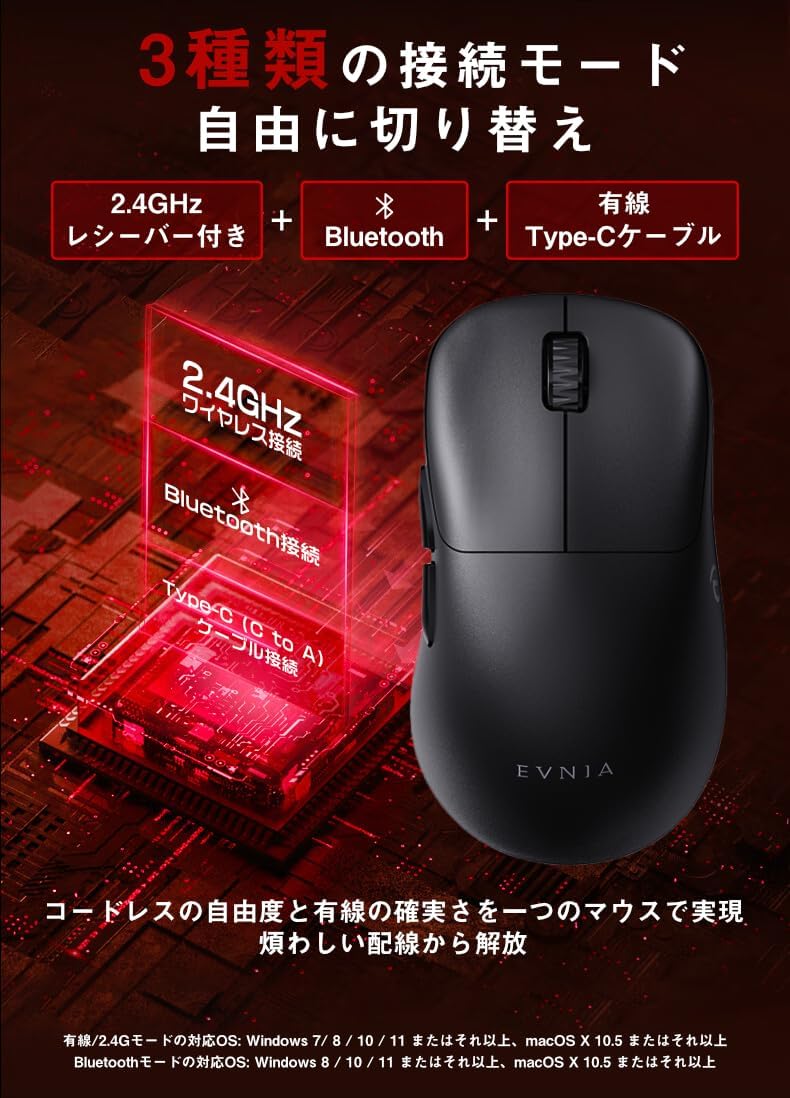
Figure 4.1: The mouse supports 2.4GHz wireless, Bluetooth, and USB-C wired connections, easily switchable via a button on the bottom.
4.2. DPI Adjustment
The mouse features a DPI adjustment button on its bottom, allowing you to cycle through 6 preset DPI levels up to 12000 DPI. This enables fine-tuning of cursor sensitivity for different tasks or game genres.

Figure 4.2: The DPI adjustment button on the mouse bottom allows switching between 6 sensitivity levels (800, 1200, 1600, 3200, 5000, 12000 DPI).
4.3. Programmable Buttons
The PHILIPS EVNIA SPK9418 mouse is equipped with 6 programmable buttons. To customize these buttons, download and install the "Evnia Precision Center" software from the official PHILIPS support website. This software allows you to assign macros, key functions, and other commands to enhance your workflow or gaming experience.

Figure 4.3: The Evnia Precision Center software provides comprehensive customization options for the mouse buttons and settings.
5. Battery and Charging
The mouse features a built-in 500mAh rechargeable battery, providing up to 60 hours of continuous use on a full charge. It supports Type-C charging, allowing you to use the mouse in wired mode while it charges.
- Charging: Connect the USB-C cable to the mouse and a power source. The LED indicator will show charging status.
- Low Battery Indicator: When the battery level drops below 15%, the LED indicator will flash red.
- Power Saving: The mouse incorporates smart power-saving features to maximize battery life.

Figure 5.1: The mouse can be charged via its USB-C port, allowing for continuous use even while charging.
6. Maintenance
To ensure the longevity and optimal performance of your mouse, follow these maintenance guidelines:
- Cleaning: Use a soft, dry cloth to clean the mouse surface. For stubborn dirt, a slightly damp cloth can be used, but ensure no moisture enters the device. Avoid harsh chemicals or abrasive cleaners.
- Sensor Cleaning: Occasionally, use a cotton swab or compressed air to gently clean the optical sensor area on the bottom of the mouse.
- Storage: When not in use for extended periods, store the mouse in a cool, dry place away from direct sunlight and extreme temperatures.
- Avoid Drops: Protect the mouse from drops and impacts, which can damage internal components.
7. Troubleshooting
If you encounter issues with your PHILIPS EVNIA SPK9418 mouse, refer to the following common solutions:
| Problem | Solution |
|---|---|
| Mouse not responding | Check battery level and charge if necessary. Ensure the correct connection mode (2.4GHz, Bluetooth, or Wired) is selected. For 2.4GHz, ensure the USB receiver is properly inserted. For Bluetooth, re-pair the device. Try a different USB port or cable. |
| Cursor movement is erratic or slow | Clean the optical sensor on the bottom of the mouse. Ensure you are using the mouse on a suitable surface (e.g., mouse pad). Adjust DPI settings if sensitivity is too high or low. |
| Buttons not working | Ensure the mouse is properly connected. If using custom button assignments, check the Evnia Precision Center software settings. |
| Bluetooth connection issues | Ensure your device's Bluetooth is enabled and the mouse is in Bluetooth pairing mode. Remove the mouse from your device's paired list and attempt to re-pair. Ensure the mouse is within range of your device. |
If the problem persists, please refer to the support section or contact customer service.
8. Specifications
Detailed technical specifications for the PHILIPS EVNIA SPK9418 mouse:
| Feature | Description |
|---|---|
| Model | SPK9418 |
| Optical Sensor | PAW3311 |
| DPI Settings | 6 stages, up to 12000 DPI |
| Polling Rate | 1000Hz (1ms response) |
| Acceleration | 35G |
| Tracking Speed (IPS) | 300 IPS |
| Weight | 52g |
| Battery Capacity | 500mAh |
| Continuous Use Time | Up to 60 hours |
| Connectivity | 2.4GHz Wireless, Bluetooth, USB-C Wired |
| Dimensions (L x W x H) | 11.9 x 6.6 x 0.1 cm (Note: Height value may be a typo in source data) |
| Compatible OS | Windows 7/8/10/11, Android 3.2+, Mac OS 10.5+ |
| Programmable Buttons | 6 |
| Material | Plastic |
9. Warranty and Support
Your PHILIPS EVNIA SPK9418 mouse comes with a warranty. Please refer to the included warranty card and after-service card for details regarding warranty coverage and service procedures.
For driver downloads, additional support, or to contact customer service, please visit the official PHILIPS support website:
You can also find the Evnia Precision Center software for button customization and advanced settings on the support website.


