
Introduction
This manual provides essential information for the safe and efficient use of your Daewoo 50DM55QV QLED Smart TV. Please read these instructions thoroughly before operating the device and retain them for future reference. This 50-inch 4K Ultra HD HDR television features QLED technology, Dolby Vision & Dolby Atmos, and smart functionalities including Alexa compatibility.
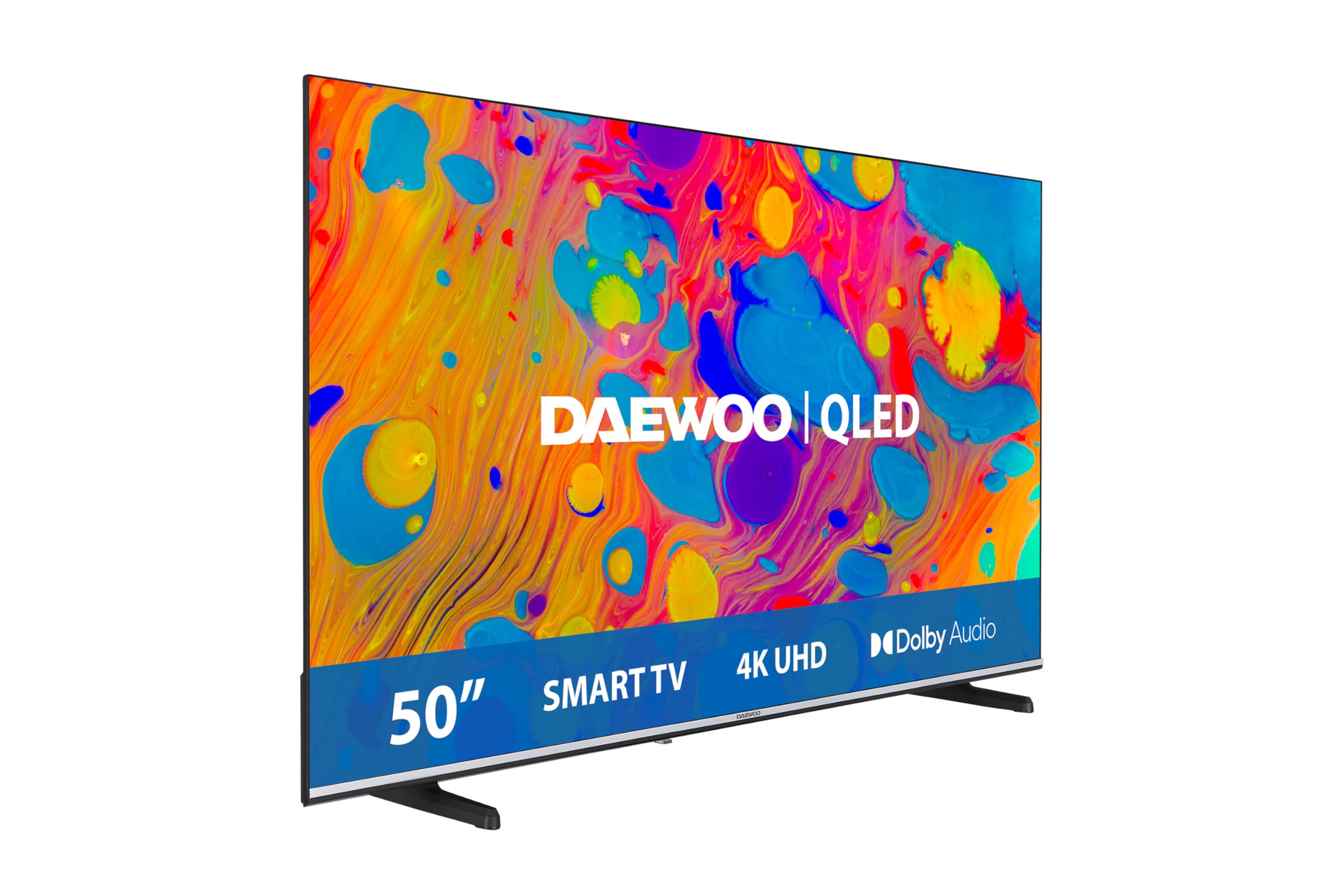
Front view of the Daewoo 50DM55QV QLED Smart TV, showcasing its frameless design and side stands.
What's in the Box
Upon unpacking, please ensure all the following items are present:
- Daewoo 50DM55QV QLED Smart TV
- Remote Control
- AAA Batteries (2 required, included)
- User Manual (this document)
- H.265/HEVC (component, likely related to video decoding)
- Side Stands
- Power Cable

The included remote control for your Daewoo Smart TV.
Setup
1. Attaching the Stands
- Carefully place the TV screen-down on a soft, flat surface to prevent damage.
- Align the side stands with the corresponding slots on the bottom of the TV.
- Secure the stands using the provided screws. Ensure they are firmly attached.
- Carefully lift the TV and place it on a stable, level surface.
2. Connecting Power
- Connect the power cable to the TV's power input.
- Plug the other end of the power cable into a suitable wall outlet (220 Volts).
3. Initial Power-On and Configuration
- Press the power button on the remote control or the TV itself.
- Follow the on-screen instructions to select your language, region, and perform initial channel scanning.
- Connect to your Wi-Fi network during the setup process to enable Smart TV features.
Operating the TV
Remote Control Functions
The included remote control allows you to navigate the TV's features. Insert the two AAA batteries into the remote control, ensuring correct polarity.
- Power Button: Turns the TV on or off.
- Volume Up/Down: Adjusts the audio level.
- Channel Up/Down: Changes TV channels.
- Navigation Buttons (Up, Down, Left, Right, OK): Used to navigate menus and select options.
- Source/Input: Selects input sources (HDMI, USB, etc.).
- Smart TV/Home: Accesses the Smart TV interface.
- App Buttons: Dedicated buttons for popular streaming services (if present).
Smart TV Features
Your Daewoo 50DM55QV Smart TV runs on the VIDAA operating system, providing access to a variety of applications and smart functionalities.
Applications
Access popular streaming services and other applications directly from your TV. Pre-installed applications may include:
- Netflix
- Prime Video
- YouTube
- Disney+
- Apple TV
Voice Control
The TV is compatible with voice assistants, allowing for hands-free control:
- Works With Alexa: Control your TV using compatible Amazon Alexa devices.
- Works With OK Google: Control your TV using compatible Google Assistant devices.
Screen Mirroring
Utilize Miracast technology to mirror content from your compatible mobile devices directly to the TV screen.
Connectivity
Your TV offers various connectivity options for external devices and network access.
- HDMI Ports: 2 ports for connecting devices like game consoles, Blu-ray players, or set-top boxes.
- USB Ports: 1 port for connecting USB storage devices to play media or for software updates.
- Wi-Fi: Integrated wireless connectivity for internet access.
- Ethernet: RJ45 port for a wired internet connection.
- Bluetooth 5.0: For connecting compatible wireless accessories such as headphones or soundbars.
- Audio Output: Digital audio output, 3.5mm audio jack, and HDMI ARC/eARC support for external audio systems.
- DVB-S2 Tuner: Integrated tuner for satellite television.

Illustration of the TV's rear panel, highlighting various input and output ports.
Maintenance
Cleaning the TV
- Always unplug the TV from the power outlet before cleaning.
- Use a soft, dry, lint-free cloth to gently wipe the screen and cabinet.
- For stubborn marks, lightly dampen the cloth with water or a mild, non-abrasive screen cleaner. Never spray cleaner directly onto the screen.
- Avoid using abrasive cleaners, waxes, or solvents as they can damage the TV's finish.
Battery Replacement
- Replace the remote control batteries when its range decreases or it becomes unresponsive.
- Use two new AAA batteries, ensuring correct polarity (+/-).
Troubleshooting
If you encounter issues with your TV, refer to the following common solutions before contacting support.
| Problem | Possible Cause / Solution |
|---|---|
| No Power |
|
| No Picture / Black Screen |
|
| No Sound |
|
| Smart Features Not Working / No Internet |
|
| Remote Control Not Responding |
|
Specifications
Detailed technical specifications for the Daewoo 50DM55QV QLED Smart TV.
| Feature | Detail |
|---|---|
| Model Number | 50DM55QV |
| Screen Size | 50 Inches |
| Display Technology | QLED |
| Resolution | 4K Ultra HD (3840 x 2160 pixels) |
| Refresh Rate | 120 Hz |
| HDR Support | HDR10, HLG, Dolby Vision |
| Audio Technology | Dolby Atmos, Dolby Digital Plus (5.1 channels) |
| Operating System | VIDAA |
| Connectivity | Wi-Fi, Ethernet, Bluetooth 5.0 |
| HDMI Ports | 2 |
| USB Ports | 1 |
| Other Inputs/Outputs | 3.5mm Audio, Digital Audio Output, DVB-S2 Tuner |
| Voice Assistant Compatibility | Works With Alexa, Works With OK Google |
| Screen Mirroring | Miracast |
| Dimensions (W x H x D) | 112 cm x 68.6 cm x 26.1 cm (with stand) |
| Weight | 10.83 kg |
| VESA Mount Standard | 200 x 200 mm |
| Power Supply | 220 Volts |
| Energy Efficiency Class | D |
| Included Components | Remote control, 2 AAA batteries, Manual, H.265/HEVC |

Official product information sheet detailing technical parameters. For more details, refer to the EPREL database (QR code link).

Energy efficiency label indicating the TV's power consumption and class.
Warranty and Support
Warranty Information
Your Daewoo 50DM55QV QLED Smart TV comes with a three-year manufacturer's warranty. Please retain your proof of purchase for warranty claims.
Replacement parts for this model are guaranteed to be available for a duration of 5 years from the date of product introduction.
Customer Support
For technical assistance, troubleshooting beyond this manual, or warranty service, please contact Daewoo customer support. Refer to the official Daewoo website or your purchase documentation for contact details.