
1. Introduction
This manual provides detailed instructions for the installation, operation, and maintenance of your MISONDA MSD 6G+128G 9-inch Android 15 Autoradio. This unit is specifically designed for Mercedes Benz GLK-Class X204 models manufactured between 2012 and 2015. Please read this manual thoroughly before using the product to ensure proper function and safety.
The MISONDA Autoradio features an Android 15 operating system, 6GB RAM, 128GB ROM, and an Octa-Core processor for smooth performance. It integrates advanced functionalities such as wireless CarPlay, Android Auto, GPS navigation, DAB+ digital radio, Bluetooth 5.0, and support for various camera systems.

Image 1.1: Overview of the MISONDA Autoradio's key features, including Android 15, wireless CarPlay and Android Auto, 4G support, DAB+, AHD and 360 camera compatibility, Octa-core processor, dual-band Wi-Fi, 6GB RAM, 128GB ROM, Bluetooth 5.0, DSP, and 4x50W high power amplifier.
2. Package Contents
Please check the package contents upon unboxing to ensure all components are present. If any items are missing or damaged, contact customer support immediately.
- Autoradio Unit
- Power Cable
- RCA Cable Set (A, B, C)
- GPS Antenna
- USB Cables (x2)
- External Microphone
- Rear Camera
- User Manual (this document)
- Installation Brackets
- Canbus Decoder (if applicable)
- Frame Kit (if applicable)
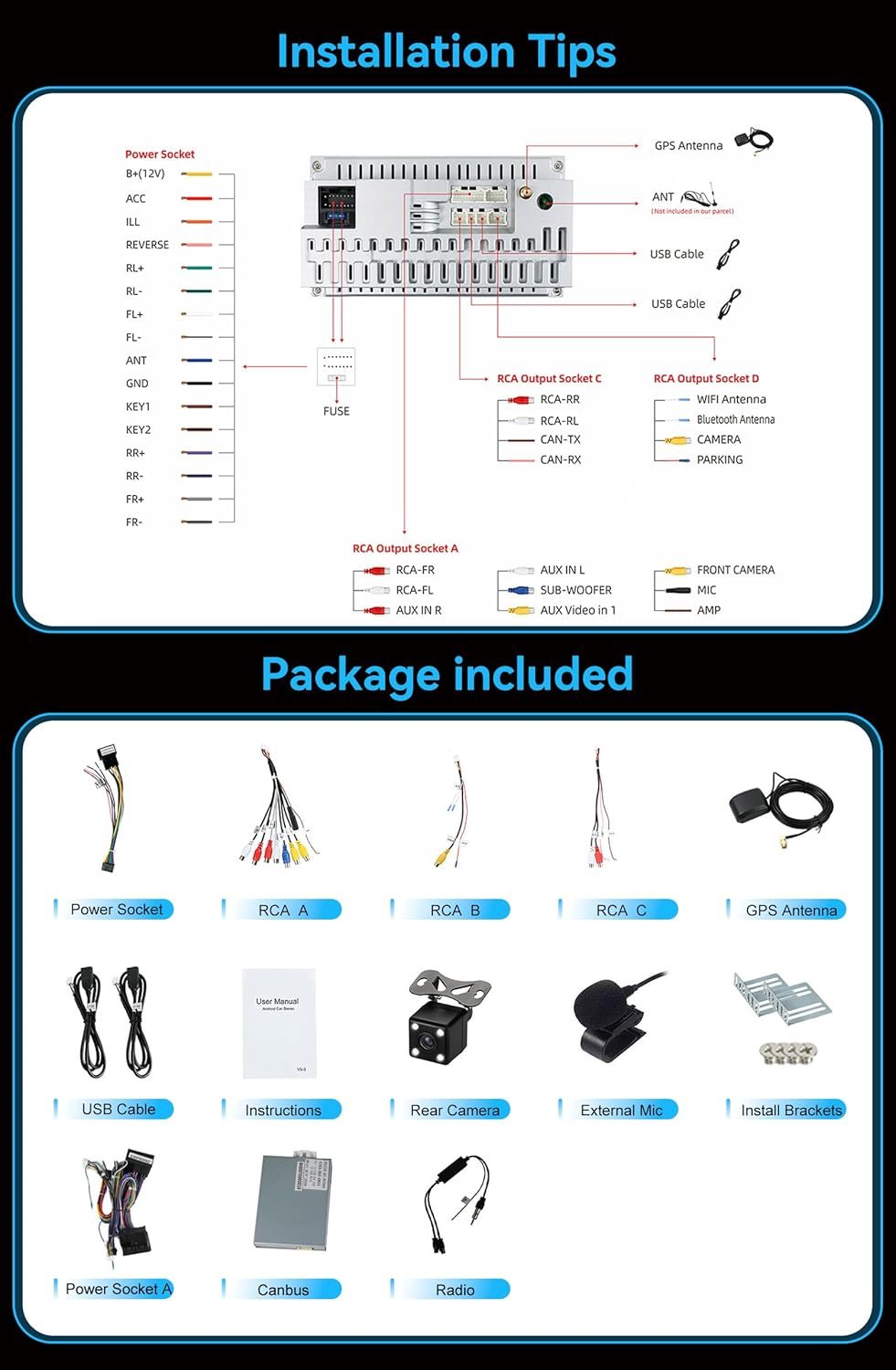
Image 2.1: Visual representation of the components included in the MISONDA Autoradio package, such as the main unit, power socket cables, RCA cables, GPS antenna, USB cables, external microphone, rear camera, installation brackets, and user manual.
3. Specifications
| Feature | Specification |
|---|---|
| Operating System | Android 15 |
| RAM | 6 GB |
| ROM | 128 GB |
| CPU | Rockchip AC8257 A53 Octa-Core, 2.0 GHz |
| Display | 9-inch QLED Digital Screen, 1280 x 720 Resolution |
| Audio Output | 4 x 50 W Max, DSP (Digital Sound Processor) |
| Bluetooth | Bluetooth 5.0 (Hands-free, Phonebook, Music) |
| Connectivity | Wi-Fi (Dual Band), 4G LTE (SIM card slot, antenna included), USB |
| Navigation | Integrated GPS, Online/Offline Map Support |
| Radio | FM RDS, DAB+ (Digital Audio Broadcasting) |
| Additional Features | Wireless CarPlay, Android Auto, Mirror Link, Split Screen, Steering Wheel Control, 1080P HD Video Playback, 26 UI Themes, AHD Camera Support, 360 Camera Input (Optional) |
| Dimensions | 27 x 24 x 17 cm (Package) |
| Weight | 2 Kilograms (Package) |
4. Installation
Installation of the MISONDA Autoradio requires technical knowledge. It is recommended to have the unit installed by a qualified professional. Before starting, ensure the vehicle's battery is disconnected to prevent electrical damage.
4.1. Pre-Installation Check
- Verify the compatibility of the unit with your Mercedes Benz GLK-Class X204 (2012-2015).
- Ensure all package contents are present and undamaged.
- Familiarize yourself with the vehicle's dashboard and existing wiring.
4.2. Wiring Diagram
Refer to the following diagram for proper wiring connections. Incorrect wiring can damage the unit or the vehicle's electrical system.
Image 4.1: Detailed wiring diagram for the MISONDA Autoradio, showing connections for power (B+/12V, ACC, GND), speaker outputs (RL+, RL-, RR+, RR-, FL+, FL-, FR+, FR-), control wires (REVERSE, ANT, KEY1, KEY2, PARKING), and RCA input/output sockets (AUX IN, SUB-WOOFER, FRONT CAMERA, MIC, AMP, Video Out).
4.3. General Installation Steps
- Carefully remove the original car radio and dashboard trim.
- Connect the main power harness, ensuring correct polarity and secure connections.
- Connect the GPS antenna, USB cables, external microphone, and any optional accessories like the rear camera or DAB+ antenna.
- If your vehicle requires a CANbus decoder, connect it according to the vehicle's specific instructions.
- Mount the new MISONDA Autoradio using the provided installation brackets and frame kit.
- Before fully reassembling the dashboard, perform a functional test of the unit.
- Once confirmed working, reassemble the dashboard trim.
5. Operating Instructions
5.1. Initial Setup
- Power On: Turn on the vehicle's ignition. The unit should power on automatically.
- Language Settings: Navigate to "Settings" > "System" > "Languages & input" to select your preferred language.
- Time and Date: Set the correct time zone and synchronize time via GPS or network.
- Wi-Fi Connection: Go to "Settings" > "Network & internet" > "Wi-Fi" to connect to an available Wi-Fi network or mobile hotspot.
- 4G LTE Connection: Insert a 4G SIM card into the designated slot (ensure the device is off before inserting). Configure APN settings if necessary in "Settings" > "Network & internet" > "Mobile network".
5.2. Key Features
5.2.1. Wireless CarPlay & Android Auto
Connect your iPhone or Android smartphone wirelessly to access navigation, music, calls, and messages directly on the autoradio screen. This feature supports both CarPlay and Android Auto.
- Ensure Bluetooth and Wi-Fi are enabled on your smartphone.
- On the autoradio, open the CarPlay or Android Auto application.
- Follow the on-screen prompts to pair your device via Bluetooth. Once paired, the system will establish a Wi-Fi connection for full functionality.

Image 5.1: Display showing the wireless CarPlay and Android Auto interfaces, along with the Mirror Link function and steering wheel control integration. This allows for seamless smartphone integration and convenient control.
5.2.2. GPS Navigation
The unit comes with integrated GPS for accurate navigation. It supports both online and offline maps. For offline maps, download them via Wi-Fi before traveling to areas with limited network coverage.
- Open the pre-installed navigation application (e.g., Google Maps).
- Enter your destination and select your preferred route.
- Voice guidance will provide turn-by-turn directions.
5.2.3. DAB+ Digital Radio
Enjoy high-quality digital audio broadcasting with DAB+. Ensure the DAB+ antenna (if included or purchased separately) is properly connected.
- Open the DAB+ application.
- Perform a station scan to find available digital radio stations in your area.
- Select your desired station from the list.

Image 5.2: Visual representation of the DAB+ digital radio interface, showing station lists and signal quality. Also depicted is the Bluetooth 5.0 interface for phone calls and music streaming, and the DSP audio processing for enhanced sound quality.
5.2.4. Bluetooth 5.0
Connect your smartphone for hands-free calling and audio streaming.
- Enable Bluetooth on your phone and the autoradio.
- On the autoradio, go to the Bluetooth application and search for devices.
- Select your phone from the list and confirm the pairing code.
- Once connected, you can access your phonebook, make/receive calls, and play music.
5.2.5. DSP (Digital Sound Processor)
The integrated DSP allows for advanced audio customization. Access the equalizer settings to adjust sound profiles, bass, treble, and balance to your preference.
5.2.6. Split Screen Function
Multitask by running two applications simultaneously on the screen. For example, use navigation on one side and music playback on the other.
- Open the first application.
- Long-press the recent apps button or drag an app to one side of the screen (depending on UI version).
- Select the second application to fill the other half of the screen.
5.2.7. Steering Wheel Control
The unit supports original steering wheel controls, allowing you to manage audio, calls, and other functions without taking your hands off the wheel. Configuration may be required in the settings menu under "Steering Wheel Control" or "SWC".
5.2.8. Camera Support (Rear View & 360)
The autoradio supports AHD rear view cameras and optional 360-degree camera systems for enhanced parking and safety. The rear camera input automatically displays the view when the vehicle is in reverse gear.

Image 5.3: Illustration of the 360-degree rear view image input options and the high-quality QLED display. The image also highlights AHD camera compatibility, showing various camera angles for comprehensive vehicle surroundings.
6. Maintenance
- Screen Cleaning: Use a soft, lint-free cloth to clean the touchscreen. Avoid abrasive cleaners or solvents.
- Software Updates: Periodically check for software updates via the system settings to ensure optimal performance and access to new features. Connect to Wi-Fi for updates.
- General Care: Keep the unit free from dust and moisture. Avoid exposing it to extreme temperatures.
7. Troubleshooting
| Problem | Possible Cause | Solution |
|---|---|---|
| Unit does not power on. | Incorrect wiring, blown fuse, power supply issue. | Check power cable connections. Inspect vehicle's fuse box. Consult a professional for wiring verification. |
| No sound. | Volume too low, mute activated, incorrect speaker wiring, DSP settings. | Increase volume. Check mute status. Verify speaker connections. Adjust DSP equalizer settings. |
| GPS signal lost or inaccurate. | GPS antenna not properly connected or obstructed, poor satellite reception. | Ensure GPS antenna is securely connected and placed in an unobstructed location (e.g., dashboard). Move to an open area. |
| Bluetooth connection issues. | Phone not discoverable, incorrect pairing, interference. | Ensure phone's Bluetooth is on and discoverable. Delete previous pairings and re-pair. Restart both devices. |
| CarPlay/Android Auto not connecting. | Incorrect phone settings, Wi-Fi/Bluetooth issues, app not updated. | Verify phone's Wi-Fi and Bluetooth are active. Ensure CarPlay/Android Auto app is updated. Try restarting the phone and autoradio. |
| Touchscreen unresponsive. | System freeze, temporary software glitch. | Perform a soft reset (refer to device-specific reset instructions, usually a small reset button or holding power button). If issue persists, contact support. |
8. Warranty and Support
MISONDA provides comprehensive customer support for your autoradio.
- Refund Policy: Enjoy a 30-day refund service from the date of purchase.
- Warranty: The product is covered by a 24-month after-sales support warranty.
- Technical Support: 24/7 technical support is available to assist with installation and usage issues.
- Contact: For any questions or support needs, please contact us via the provided contact information in your purchase documentation or through the seller's platform.