
1. Introduction
Thank you for choosing the Biuone M88 4K+2K Dash Cam. This device is designed to provide comprehensive video surveillance for your vehicle, enhancing driving safety and providing crucial evidence in case of incidents. This manual will guide you through the installation, operation, and maintenance of your dash cam.
For optimal performance and to ensure your safety, please read this manual thoroughly before using the product. Keep this manual for future reference.
2. What's in the Box
Carefully unpack the box and ensure all items are present and in good condition. If any items are missing or damaged, please contact customer support.
- 1 x 4K Front Camera
- 1 x 2K Rear Camera
- 1 x 64GB SD Card
- 1 x USB Card Reader
- 1 x Car Wire Trim Tool
- 1 x User Manual
- 1 x USB Charging Cable
- 1 x Cigarette Lighter Power Adapter
- Adhesive Stickers
- Pcs Cable Clips
- Dust Free Cloth
- Electrostatic Stickers

Image: All components included in the Biuone M88 Dash Cam package.
3. Product Overview
The Biuone M88 Dash Cam features a compact design with a 3.2-inch IPS screen for clear viewing. It includes a front camera for 4K recording and a rear camera for 2K recording, providing comprehensive coverage.
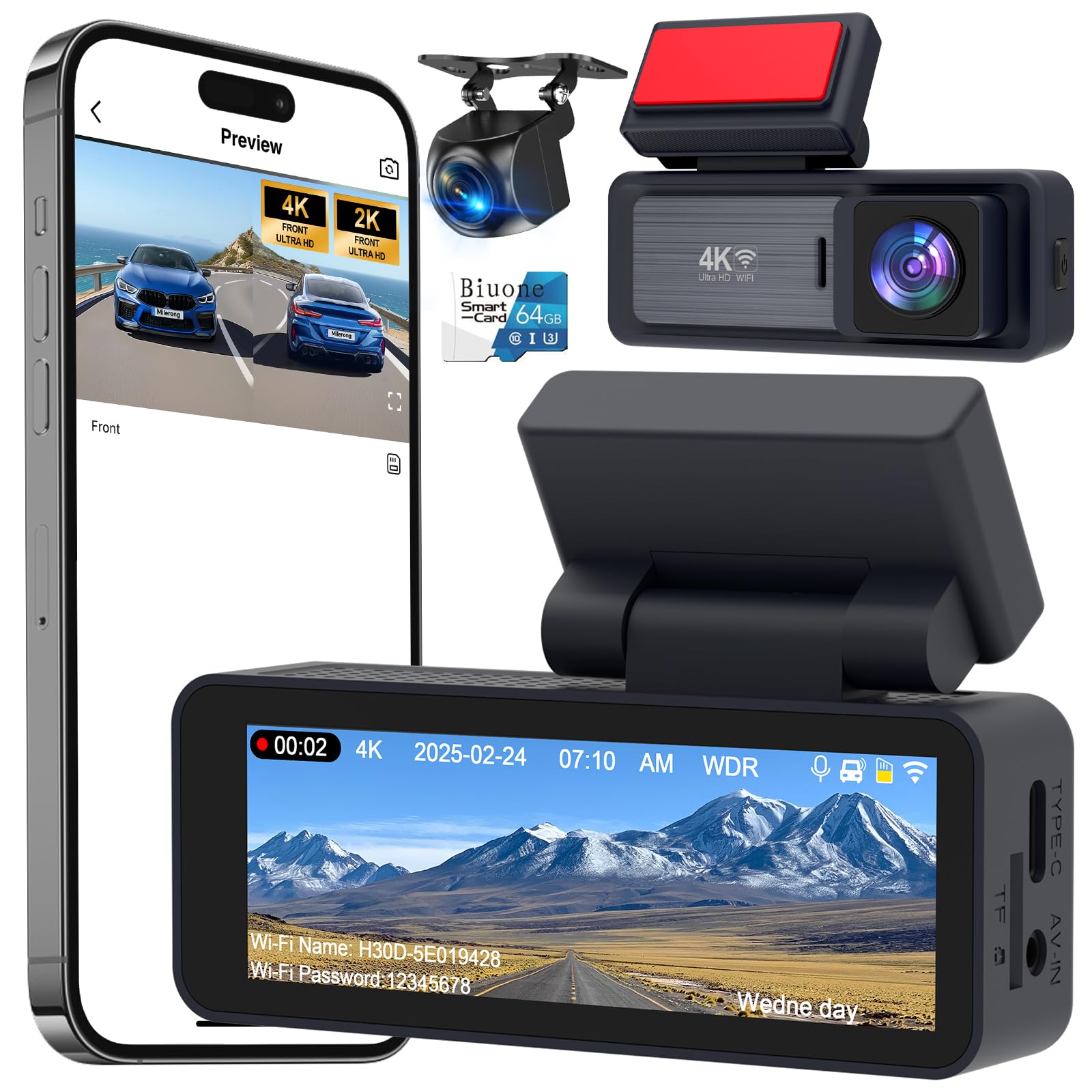
Image: Front view of the Biuone M88 Dash Cam main unit.

Image: Detailed view of the compact Biuone M88 Dash Cam.
4. Setup and Installation
Follow these steps to properly install your Biuone M88 Dash Cam in your vehicle.
- Prepare the Windshield: Clean the area on your windshield where you intend to mount the front camera. Ensure it is free of dust and grease.
- Apply Electrostatic Sticker: Place the electrostatic sticker on the cleaned area of the windshield. This helps in easy removal and prevents residue.
- Mount the Front Camera: Attach the front camera to the electrostatic sticker using the adhesive bracket. Adjust the angle to ensure a clear view of the road ahead.
- Install the Rear Camera: Mount the rear camera on the rear windshield or license plate area. Connect the rear camera cable to the main unit. For reversing assistance, connect the red wire of the rear camera cable to your car's reversing lamp positive lead.
- Connect Power: Route the USB charging cable from the main unit to the cigarette lighter power adapter. Plug the adapter into your car's cigarette lighter socket. Use the included wire trim tool and cable clips to neatly hide the cables along the car's interior trim.
- Insert SD Card: Insert the provided 64GB SD card into the designated slot on the dash cam. Ensure it is inserted correctly.

Image: Step-by-step installation guide for the dash cam and rear camera.

Image: Rear camera installation example.
5. Operating Instructions
5.1 Power On/Off
- Automatic Power: The dash cam will automatically power on and begin recording when your vehicle's engine starts.
- Manual Power: Press and hold the power button for a few seconds to manually turn the device on or off.
5.2 Recording Modes
- Loop Recording: The dash cam continuously records video in segments (e.g., 1, 3, or 5 minutes). When the SD card is full, the oldest unlocked footage will be overwritten by new recordings.
- Emergency Recording (G-Sensor): In the event of a sudden impact or collision, the built-in G-sensor will automatically detect the event and lock the current video segment, preventing it from being overwritten.
5.3 Menu Navigation
Use the buttons on the dash cam to navigate through the menu options on the 3.2-inch IPS screen. Refer to the on-screen prompts for specific settings such as resolution, loop recording duration, G-sensor sensitivity, and parking monitor settings.
6. Advanced Features
6.1 Built-in WiFi & App Control
The Biuone M88 features built-in 5GHz WiFi for fast data transfer and seamless connection to your smartphone. Download the dedicated app (available for iOS and Android) to access live footage, play back recordings, and download videos directly to your phone.

Image: WiFi connection and app control interface.
6.2 Smart Driving ADAS System
The Advanced Driver-Assistance System (ADAS) provides timely alerts for potential hazards such as lane departure and forward collisions. The intelligent Blind Spot Detection (BSD) monitors hard-to-see areas, warning you during lane changes to enhance driving safety.

Image: Visual representation of the ADAS and BSD features in action.
6.3 24-Hour Parking Monitor & Time-Lapse Recording
With the optional hardwiring kit (sold separately), the dash cam can monitor your vehicle 24/7. The parking monitor detects impacts while parked, and time-lapse recording captures footage at a reduced frame rate, conserving power and storage while providing continuous surveillance.

Image: Parking monitor and time-lapse recording features.
6.4 Super Night Vision
Equipped with a premium F1.5 aperture, a 6-layer optical lens, and WDR (Wide Dynamic Range) technology, the M88 dash cam ensures exceptionally clear footage in low-light conditions. It captures vivid colors and details, enhancing visibility during night driving.

Image: Night vision clarity demonstration.
6.5 G-Sensor and Loop Recording
The built-in G-sensor automatically detects collisions and locks the corresponding video footage to prevent it from being overwritten. Loop recording ensures continuous recording by overwriting the oldest unlocked files when the memory card is full. The included 64GB SD card provides ample storage, and the system supports cards up to 512GB.

Image: G-Sensor and loop recording features explained.
7. Maintenance
- Clean the Lenses: Regularly clean the front and rear camera lenses with a soft, lint-free cloth to ensure clear video quality.
- SD Card Maintenance: Format the SD card monthly to prevent data corruption and ensure optimal recording performance. Back up any important footage before formatting.
- Firmware Updates: Check the Biuone website or app periodically for firmware updates to ensure your dash cam has the latest features and bug fixes.
- Operating Temperature: Avoid exposing the dash cam to extreme temperatures for extended periods, as this can affect battery life and device performance.
8. Troubleshooting
| Problem | Possible Cause | Solution |
|---|---|---|
| Dash cam does not power on. | No power supply; faulty cable; loose connection. | Check power connection to cigarette lighter. Ensure cable is securely plugged in. Test with another power source if possible. |
| Recording stops unexpectedly. | SD card full; SD card error; low power. | Format the SD card. Replace with a new, high-speed SD card if issues persist. Ensure continuous power supply. |
| Video footage is blurry or unclear. | Dirty lens; protective film still on lens; incorrect focus. | Clean the camera lenses. Remove any protective film. Ensure the camera is securely mounted and not vibrating. |
| WiFi connection issues. | Incorrect password; app issues; interference. | Ensure correct WiFi password. Restart the dash cam and your phone. Try connecting in a different location to rule out interference. |
| Parking monitor not working. | No hardwiring kit; incorrect settings. | A hardwiring kit is required for 24-hour parking monitoring. Check parking monitor settings in the menu. |
9. Specifications
| Feature | Detail |
|---|---|
| Brand | Biuone |
| Model Name | M88 Dash Cam |
| Video Capture Resolution | 4K (Front) + 2K (Rear) |
| Display Type | 3.2" IPS LCD |
| Field Of View | 170 Degrees (Front), 150 Degrees (Rear) |
| Connectivity Technology | 5GHz Wi-Fi |
| Special Features | App Control, 24H Parking Monitor, G-Sensor, Super Night Vision, Loop Recording, ADAS System |
| Included SD Card | 64GB (Supports up to 512GB) |
| Mounting Type | Dashboard Mount |
| Battery Cell Type | Lithium Polymer |
| Frame Rate | 30 FPS |
| Item Dimensions (D x W x H) | 3.26"D x 0.6"W x 2"H |
| Item Weight | 500 Grams |
10. Warranty and Support
Biuone stands behind the quality of its products. Your Biuone M88 Dash Cam comes with the following:
- Warranty: 1-Year Warranty.
- Return Policy: 30-Day Return/Replacement.
- Customer Support: 24/7 customer assistance.
- Lifetime After-Sales Support: Biuone provides lifetime support for its products.
Should you have any questions, encounter issues, or require assistance, please do not hesitate to contact our support team. You can find contact information on the official Biuone website or through the dedicated app.

Image: Biuone customer support and warranty information.