
EPOMAKER QK108
EPOMAKER QK108 Full Size Mechanical Keyboard User Manual
Model: QK108 | Brand: EPOMAKER
1. Introduction
The EPOMAKER QK108 is a full-sized mechanical keyboard designed for versatility and customization. It features 104 keys, a customizable volume knob, and a vibrant smart screen. This keyboard supports QMK/VIA for advanced customization, offers tri-mode connectivity (2.4GHz wireless, Bluetooth, and wired USB-C), and includes hot-swappable switches for personalized typing experiences. It is equipped with an 8000mAh battery for extended use and a 5-layer acoustic enhancement design for a satisfying typing sound.

Image 1: EPOMAKER QK108 Full Size Mechanical Keyboard with RGB backlighting.
2. What's in the Box
Verify that all items are present in the package:
- QK108 Mechanical Gaming Keyboard
- Detachable USB A to C Cable
- User Manual
- 2.4Ghz Wireless Receiver (Stored under the kick-stand on Keyboard)
- 2-in-1 Switch-and-Keycap Puller
- Additional Keycap for Mac
- Additional Switches
Video 1: An unboxing video demonstrating the contents of the EPOMAKER QK108 package.
3. Setup
3.1. Connectivity Modes
The QK108 keyboard supports three connection modes: 2.4GHz Wireless, Bluetooth, and Wired USB-C. A toggle switch on the keyboard allows selection between 2.4G, USB, and BT modes.
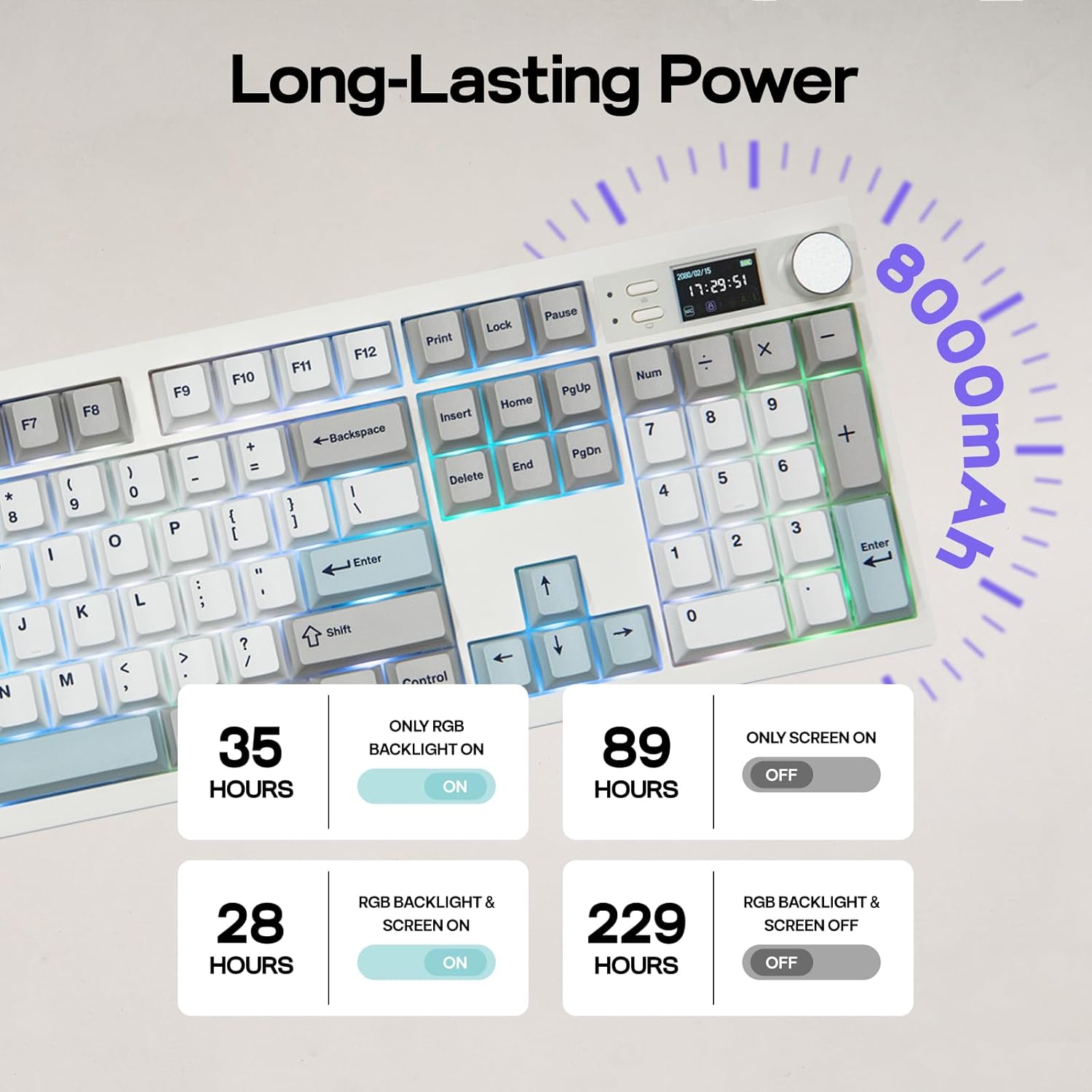
Image 2: Diagram illustrating the tri-mode connection options: Bluetooth, 2.4GHz Wireless, and USB-C wired.
3.1.1. 2.4GHz Wireless Connection
- Locate the 2.4GHz wireless receiver stored under the keyboard's kick-stand.
- Plug the receiver into an available USB port on your device.
- Set the keyboard's mode switch to '2.4G'.
- The keyboard should automatically connect.
3.1.2. Bluetooth Connection
- Set the keyboard's mode switch to 'BT'.
- On your device, enable Bluetooth and search for new devices.
- Select 'EPOMAKER QK108' from the list of available devices to pair.
- The keyboard can store up to 3 Bluetooth devices. Use Fn+Q/W/E to switch between paired devices.
3.1.3. Wired USB-C Connection
- Connect the provided USB A to C cable to the keyboard's USB-C port and your device's USB-A port.
- Set the keyboard's mode switch to 'USB'.
- The keyboard will function as a wired device and charge simultaneously.
3.2. Compatibility
The QK108 keyboard is compatible with Windows and Mac operating systems. Dedicated Mac modifier keycaps are included for seamless cross-platform use.
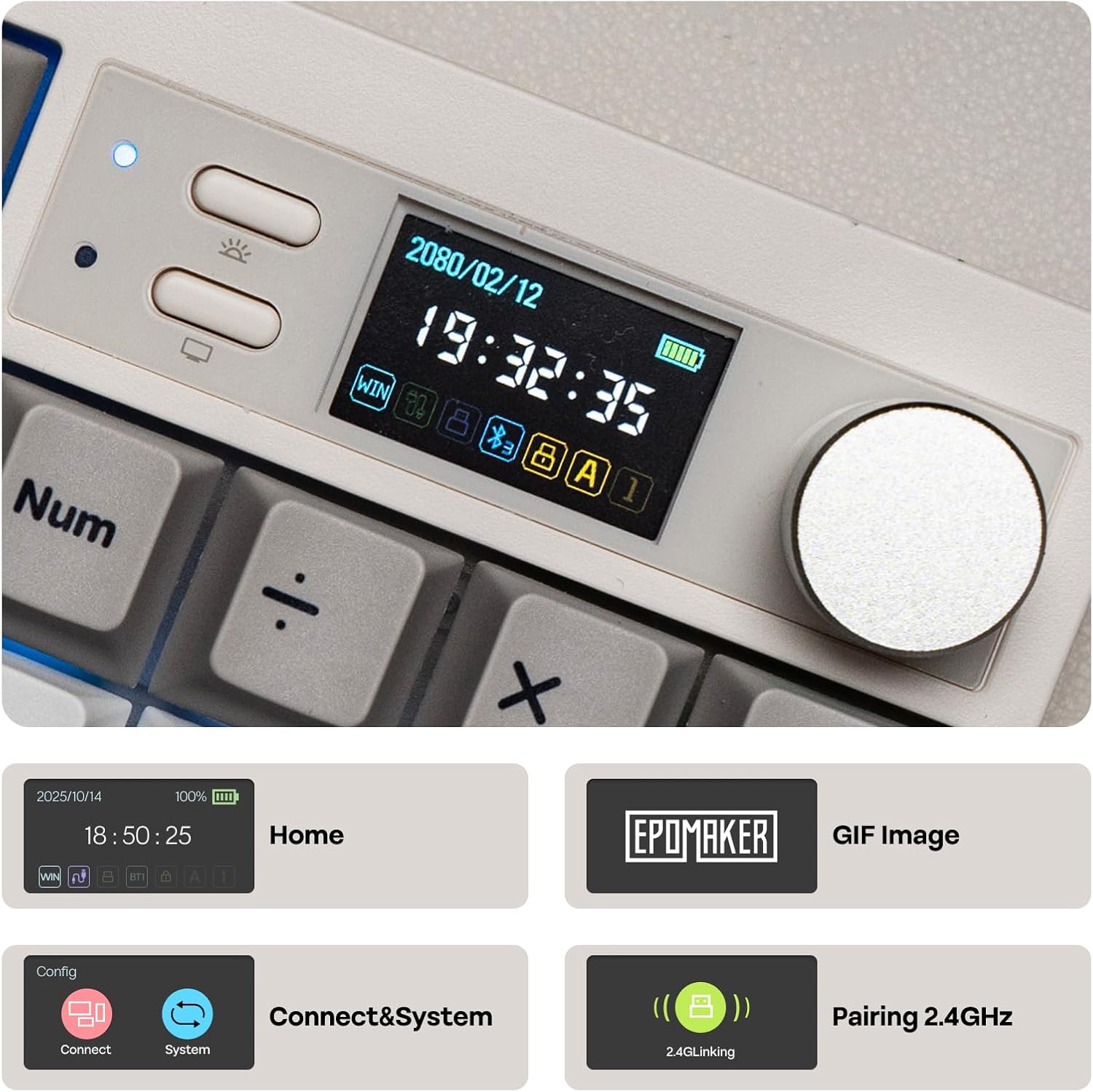
Image 3: Overview of keyboard features, including WIN/Mac compatibility switch and 2.4GHz dongle storage.
3.3. Battery Information
The keyboard is equipped with an 8000mAh battery. Battery life varies depending on usage and backlight/screen settings:
- Only RGB Backlight ON: Approximately 35 hours
- Only Screen ON: Approximately 89 hours
- RGB Backlight & Screen ON: Approximately 28 hours
- RGB Backlight & Screen OFF: Approximately 229 hours
The keyboard charges via the USB-C connection.

Image 4: Visual representation of the EPOMAKER QK108's 8000mAh battery and estimated usage times under different conditions.
4. Operating Instructions
4.1. RGB Backlight Control
The keyboard features a customizable RGB backlight. Use the following key combinations to adjust:
- Fn + \|: Toggle backlight colors/effects.
- Fn + Down Arrow: Decrease backlight brightness.
- Fn + Up Arrow: Increase backlight brightness.
- Fn + -_: Decrease backlight effect speed.
- Fn + =+: Increase backlight effect speed.
- Fn + [{: Decrease backlight hue/saturation.
- Fn + ]}: Increase backlight hue/saturation.
- The dedicated top key next to the screen toggles the backlight on/off.
Video 2: Demonstration of RGB backlight settings and controls on the EPOMAKER QK108 keyboard.
4.2. Screen and Knob Functionality
The QK108 features a smart screen and a customizable knob for enhanced control and information display.

Image 5: Various display modes available on the EPOMAKER QK108's smart screen, including time, date, battery, and custom GIFs.
- The knob can be programmed to control various functions such as brightness, volume, or scrolling.
- The screen can display date, time, keyboard status, or custom GIFs.
- Fn + Enter: Toggle screen display modes (e.g., typing mode, GIF display).
- Fn + Right Shift: Toggle screen animation display.
- The dedicated bottom key next to the screen toggles the screen on/off.
Video 3: Instructions on how to use the screen features, including toggling display modes and animations.
4.2.1. Custom GIF Upload
Custom GIFs can be uploaded to the screen using the web-based LCD Screen Driver Software. Connect the keyboard via USB-C to your computer to access the software.
Video 4: A guide on how to load custom GIFs onto the keyboard's smart screen using the dedicated software.
4.3. QMK/VIA Customization
The QK108 is fully compatible with QMK and VIA software, allowing for extensive key remapping, macro creation, and lighting adjustments. Connect the keyboard via USB-C to your computer to use the software.

Image 6: Screenshot of the QMK/VIA customization interface for the EPOMAKER QK108.
- QMK Firmware: For advanced users, allows ground-up function remapping using custom code.
- VIA Software: User-friendly interface for easy customization, including macros and Mod-Tap functions.
- Save up to 4 layouts with on-board layer switch keys.
Video 5: A tutorial on how to use the VIA software for customizing the keyboard's functions and settings.
4.4. Hot-Swappable Switches
The QK108 features 5-pin hot-swappable sockets, allowing users to easily change mechanical switches without soldering. This enables customization of typing feel and sound.

Image 7: Close-up view of the hot-swappable PCB, south-facing LEDs, and plate-mounted stabilizers.
The included 2-in-1 puller facilitates easy switch and keycap removal. The keyboard comes with pre-lubed EPOMAKER switches (Sea Salt Silent V2 in this variant) for a smooth and consistent typing experience.

Image 8: Specifications for the EPOMAKER Sea Salt Silent V2 Switch, including trigger force, bottom-out force, pre-travel, and total travel.
4.5. Keycaps
The QK108 uses dye-sublimated PBT keycaps in a Cherry profile. PBT plastic is known for its durability and resistance to shine from prolonged use. The legends are dye-subbed, ensuring they do not fade over time.
4.6. Acoustic Design
The keyboard features a 5-layer acoustic enhancement internal design, including sandwich foam (latex), IXPE switch pad, Sound-Enhancement PET, bottom foam (sponge), and bottom silicone. This gasket-mounted structure aims to provide a creamy and thocky sound profile and comfortable typing experience by cushioning keypresses.
5. Maintenance
5.1. Cleaning
- Disconnect the keyboard from all power sources before cleaning.
- Use a soft, dry cloth to wipe down the keycaps and chassis.
- For deeper cleaning, remove keycaps using the provided puller and use compressed air to clear debris from between switches.
- Keycaps can be gently washed with mild soap and water, ensuring they are completely dry before reattaching.
5.2. Switch and Keycap Replacement
- Use the 2-in-1 puller to carefully remove keycaps by gripping them firmly and pulling straight up.
- To remove switches, use the switch puller to depress the clips on the top and bottom of the switch, then gently pull the switch straight up.
- When installing new switches, ensure the pins are straight and align with the hot-swap sockets before pressing down firmly until they click into place.
- Reattach keycaps by aligning them with the switch stem and pressing down gently.
6. Troubleshooting
- Keyboard not responding: Ensure the keyboard is charged and correctly connected (wired, 2.4G receiver, or Bluetooth paired). Check the mode switch.
- Wireless connectivity issues: Ensure the 2.4GHz receiver is securely plugged in or Bluetooth is properly paired. Try moving closer to the receiver/device to reduce interference.
- Backlight not working/incorrect: Adjust backlight settings using Fn key combinations. Ensure the backlight toggle key is not off.
- Screen not displaying: Ensure the screen toggle key is not off. If using custom GIFs, verify they were uploaded correctly via the software.
- Keys not registering: For hot-swappable switches, ensure the switch is fully seated in its socket. Try replacing the switch if the issue persists.
- QMK/VIA software not detecting keyboard: Ensure the keyboard is connected via USB-C and the mode switch is set to 'USB'. Follow the software's connection instructions.
7. Specifications
| Feature | Detail |
|---|---|
| Product Dimensions | 17.26 x 5.43 x 1.7 inches (43.85cm L x 13.85cm W x 4.31cm H) |
| Item Weight | 3.43 pounds (1.56 kg) |
| Manufacturer | EPOMAKER |
| Item Model Number | QK108 |
| Batteries | 1 Lithium Ion battery required (included) |
| Connectivity Technology | 2.4Ghz Wireless, Bluetooth, USB A-to-C Wired |
| Keyboard Description | Full Size Mechanical Keyboard |
| Special Features | Backlit, Creamy Sound & Silent Switches, Hot-Swappable, VIA Programmable, with Screen & Knob |
| Keyboard Backlighting | RGB |
| Compatible Devices | Gaming Console, Laptop, PC, Projector, Tablet |
8. Warranty and Support
For warranty information and technical support, please refer to the official EPOMAKER website or contact their customer service directly. Protection plans may be available for purchase separately.
Visit the EPOMAKER Store for additional products and support resources.
Related documentsQK108


Ask a question about this manual
Ask about setup, troubleshooting, compatibility, parts, safety, or missing instructions. Manuals+ will review the question and use this page’s manual context to help answer it.