
Introduction
This manual provides essential information for setting up, operating, maintaining, and troubleshooting your Dell OptiPlex 3040 Micro PC. The Dell OptiPlex 3040 is a compact and efficient mini desktop computer, ideal for various computing tasks. This renewed unit comes equipped with an Intel Core i3-6100T processor, 8GB of DDR4 RAM, a 256GB SSD, and pre-installed Windows 11 Pro, along with integrated Wi-Fi and Bluetooth capabilities.
Package Contents
Verify that all items are present in the package before proceeding with setup.
- 1 x Dell OptiPlex 3040 Mini Desktop Computer
- 1 x Wired Keyboard and Mouse Combo
- 1 x Power Cable
Setup
Follow these steps to set up your Dell OptiPlex 3040 Micro PC.
1. Connect Peripherals
Connect your monitor, keyboard, and mouse to the appropriate ports on the PC.
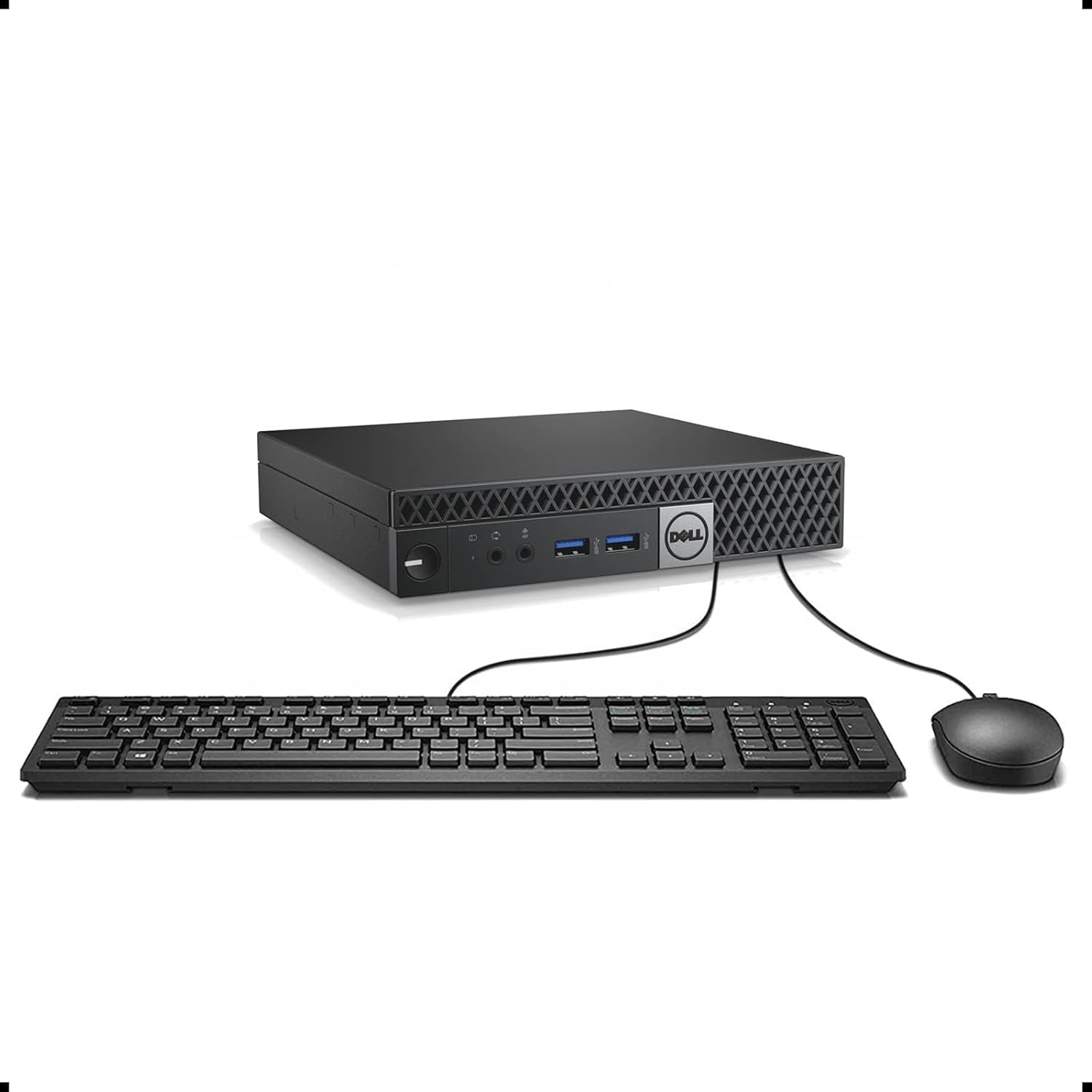
Image: Dell OptiPlex 3040 Micro PC connected to a wired keyboard and mouse, ready for use.
- Monitor: Use an HDMI or DisplayPort cable to connect your monitor to the corresponding port on the back of the PC.
- Keyboard and Mouse: Plug the wired keyboard and mouse into any available USB ports (USB 2.0 or USB 3.0).

Image: Rear view of the Dell OptiPlex 3040 Micro PC, highlighting the Ethernet, USB, DisplayPort, and HDMI connections.
2. Connect Power
Connect the power cable to the PC's power input and then plug it into a wall outlet.
3. Power On
Press the power button located on the front of the PC. The system will boot up, and you should see the Dell logo on your monitor.
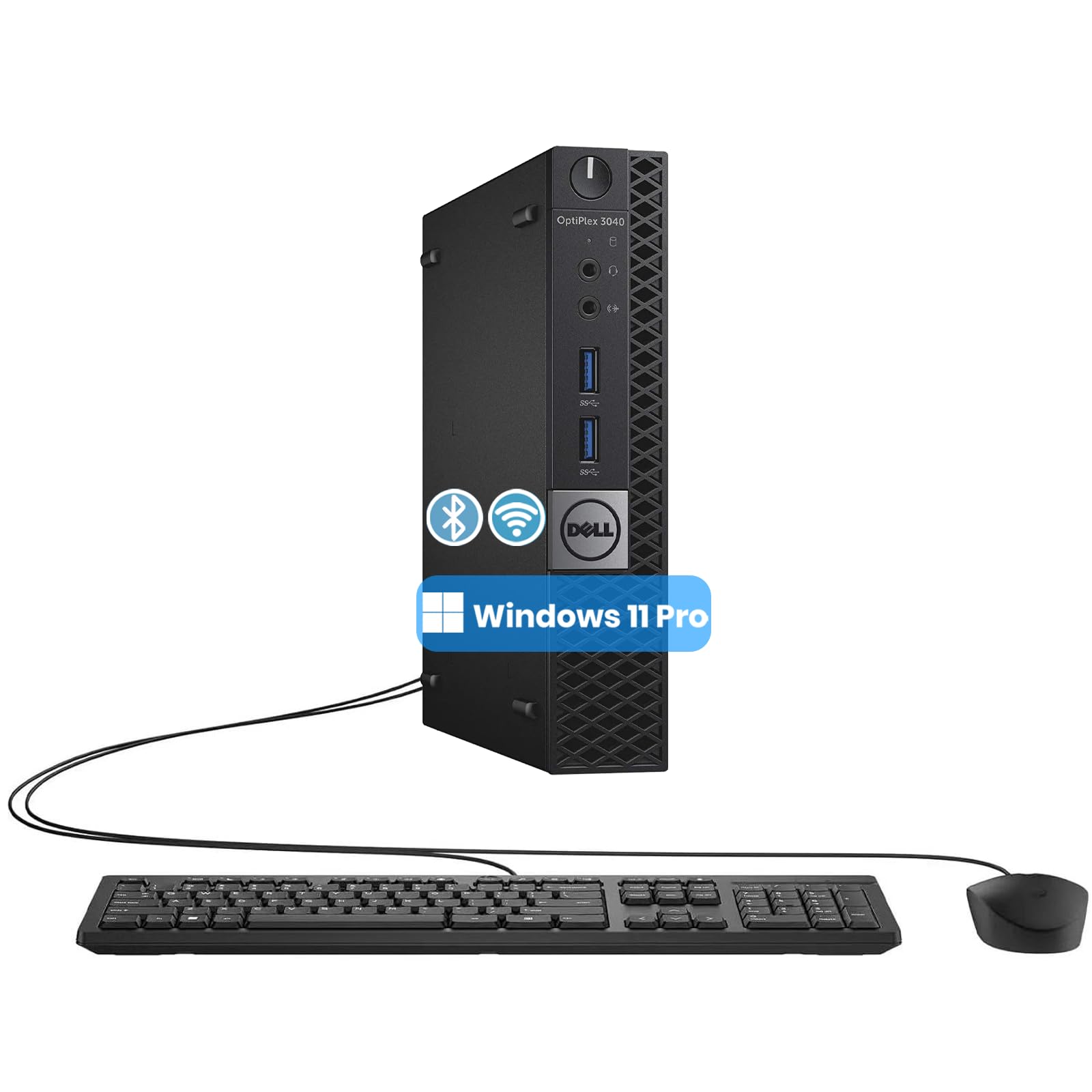
Image: Front view of the Dell OptiPlex 3040 Micro PC, showing the power button and front USB ports.
4. Initial Windows 11 Pro Setup
Follow the on-screen instructions to complete the initial setup of Windows 11 Pro. This typically involves selecting your region, language, creating a user account, and connecting to a network.
Operating Instructions
Your Dell OptiPlex 3040 Micro PC runs on Windows 11 Pro, offering a familiar and intuitive user experience.
- Power On/Off: Press the power button to turn the PC on. To turn off, click the Start button, then Power, and select Shut down.
- Restart: To restart the PC, click the Start button, then Power, and select Restart.
- Sleep Mode: To put the PC into sleep mode, click the Start button, then Power, and select Sleep.
- Connecting to Wi-Fi: Click the Wi-Fi icon in the taskbar, select your network, enter the password, and click Connect.
- Connecting to Bluetooth Devices: Go to Settings > Bluetooth & devices, turn on Bluetooth, and pair your device.
- USB Ports: The PC features 4 USB 3.0 ports and 2 USB 2.0 ports for connecting various peripherals and external storage devices.
Maintenance
Regular maintenance helps ensure the longevity and optimal performance of your PC.
- Cleaning: Use a soft, dry cloth to clean the exterior of the PC. Avoid liquid cleaners directly on the device. Use compressed air to clear dust from vents periodically.
- Software Updates: Regularly check for and install Windows updates to ensure your system has the latest security patches and performance improvements. Go to Settings > Windows Update.
- Antivirus Protection: Ensure your antivirus software is up-to-date and performing regular scans to protect against malware.
- Data Backup: Periodically back up important data to an external drive or cloud storage to prevent data loss.
Troubleshooting
This section addresses common issues you might encounter.
- PC Does Not Power On:
- Ensure the power cable is securely connected to both the PC and the wall outlet.
- Verify the wall outlet is functional by plugging in another device.
- No Display on Monitor:
- Check that the monitor is powered on and the video cable (HDMI or DisplayPort) is securely connected to both the PC and the monitor.
- Try a different video cable or monitor if available.
- Keyboard or Mouse Not Responding:
- Ensure the USB cables for the keyboard and mouse are firmly plugged into the PC's USB ports.
- Try plugging them into different USB ports.
- No Internet Connection (Wi-Fi):
- Check if Wi-Fi is enabled in Windows settings.
- Ensure you have selected the correct Wi-Fi network and entered the password accurately.
- Restart your Wi-Fi router and the PC.
Specifications
Key technical specifications for the Dell OptiPlex 3040 Micro PC.
| Feature | Detail |
|---|---|
| Model | Dell OptiPlex 3040 Mini PC |
| Processor | Intel Core i3-6100T (6th Gen), 3.2 GHz, 2 Cores |
| Operating System | Windows 11 Pro |
| RAM | 8 GB DDR4 |
| Storage | 256 GB SSD |
| Graphics | Integrated Intel HD Graphics 530 |
| Connectivity | Wi-Fi, Bluetooth, Ethernet |
| USB Ports | 4 x USB 3.0, 2 x USB 2.0 (Total 6) |
| Video Output | 1 x HDMI, 1 x DisplayPort |
| Included Peripherals | Wired Keyboard, Wired Mouse |
| Form Factor | Mini PC |
Warranty and Support
This renewed product typically comes with a limited warranty.
- Warranty: This Dell OptiPlex 3040 Micro PC includes a 90-day warranty. Please refer to your purchase documentation for specific terms and conditions.
- Technical Support: For technical assistance, please contact the seller or Dell support. You can find contact information on your purchase invoice or Dell's official website.


