1. Introduction
Thank you for choosing the DREAME L40 Ultra Gen 2 Robot Vacuum and Mop. This device is designed to provide efficient and comprehensive cleaning for your home, combining powerful vacuuming with advanced mopping capabilities. Please read this manual thoroughly before use to ensure proper operation, maintenance, and safety.
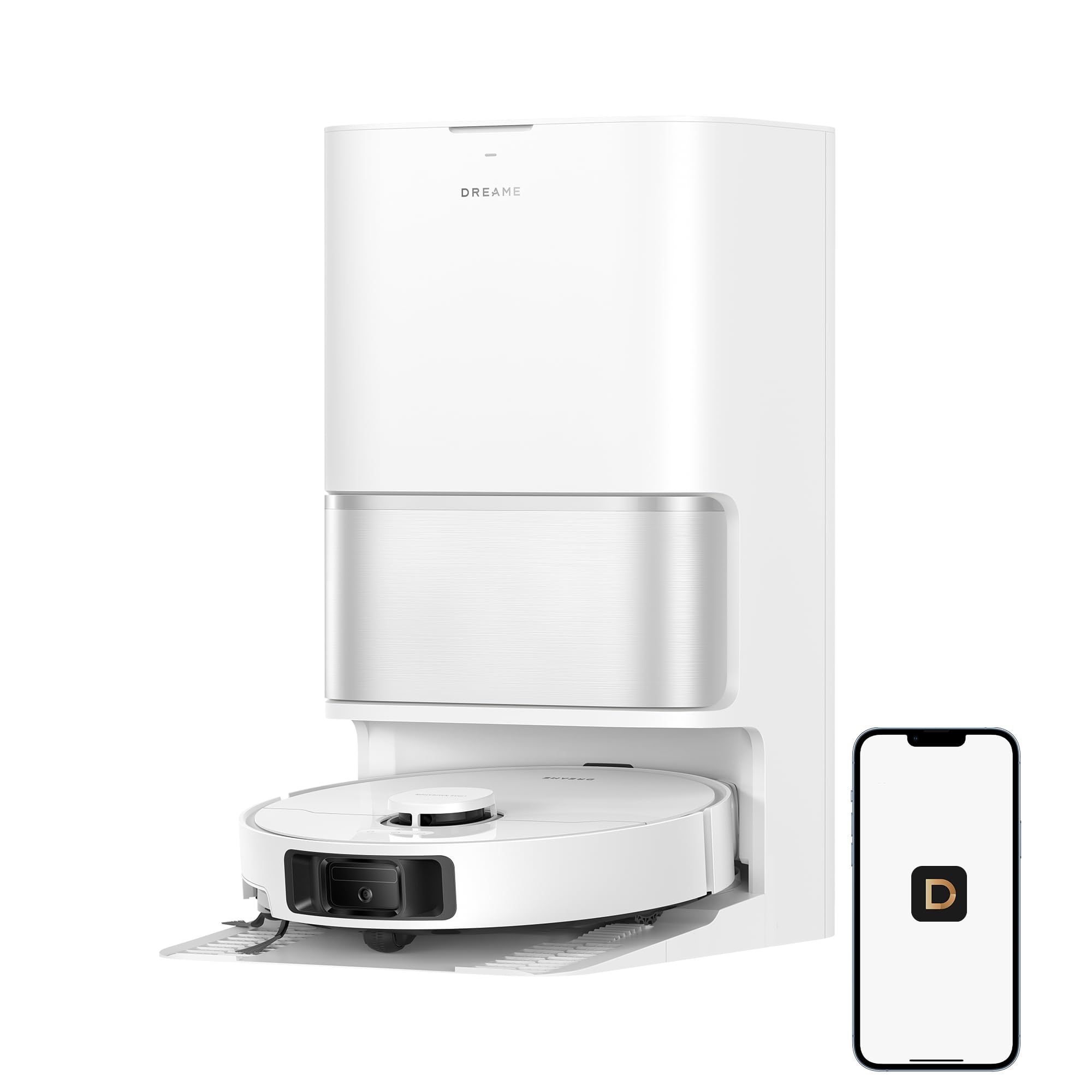
Figure 1: DREAME L40 Ultra Gen 2 Robot Vacuum and Mop with its All-in-One Self-Cleaning Dock.
2. Safety Information
To reduce the risk of injury or damage, read these safety instructions carefully and keep them for future reference.
- This appliance can be used by children aged 8 years and above and persons with reduced physical, sensory or mental capabilities or lack of experience and knowledge if they have been given supervision or instruction concerning use of the appliance in a safe way and understand the hazards involved.
- Children should be supervised to ensure that they do not play with the appliance.
- Cleaning and user maintenance shall not be made by children without supervision.
- Do not use the robot in wet environments or near water sources.
- Ensure all power cords, curtains, and other objects that could entangle the robot are cleared from the cleaning path.
- Do not use the robot to pick up large debris, sharp objects, or liquids.
- Only use the original charging dock and power adapter provided with the product.
3. Package Contents
Verify that all components are present in the package:
- DREAME L40 Ultra Gen 2 Robot Vacuum
- All-in-One Self-Cleaning Dock
- Power Cord
- Side Brush
- Mop Pads (2 installed, 2 spare)
- Dust Bag (1 installed, 1 spare)
- Cleaning Tool
- User Manual
4. Product Overview
The DREAME L40 Ultra Gen 2 features advanced technology for superior cleaning performance.
4.1. High-Powered Suction
Equipped with 25,000Pa suction power, the robot effectively removes dust, hair, and debris from various floor types.

Figure 2: The robot vacuum's powerful 25,000Pa suction for particle pickup and hair removal.
4.2. Extendable Side Brush and Mop
The robot features an extendable side brush and mop pads to reach deep into corners and along edges, ensuring thorough cleaning coverage.
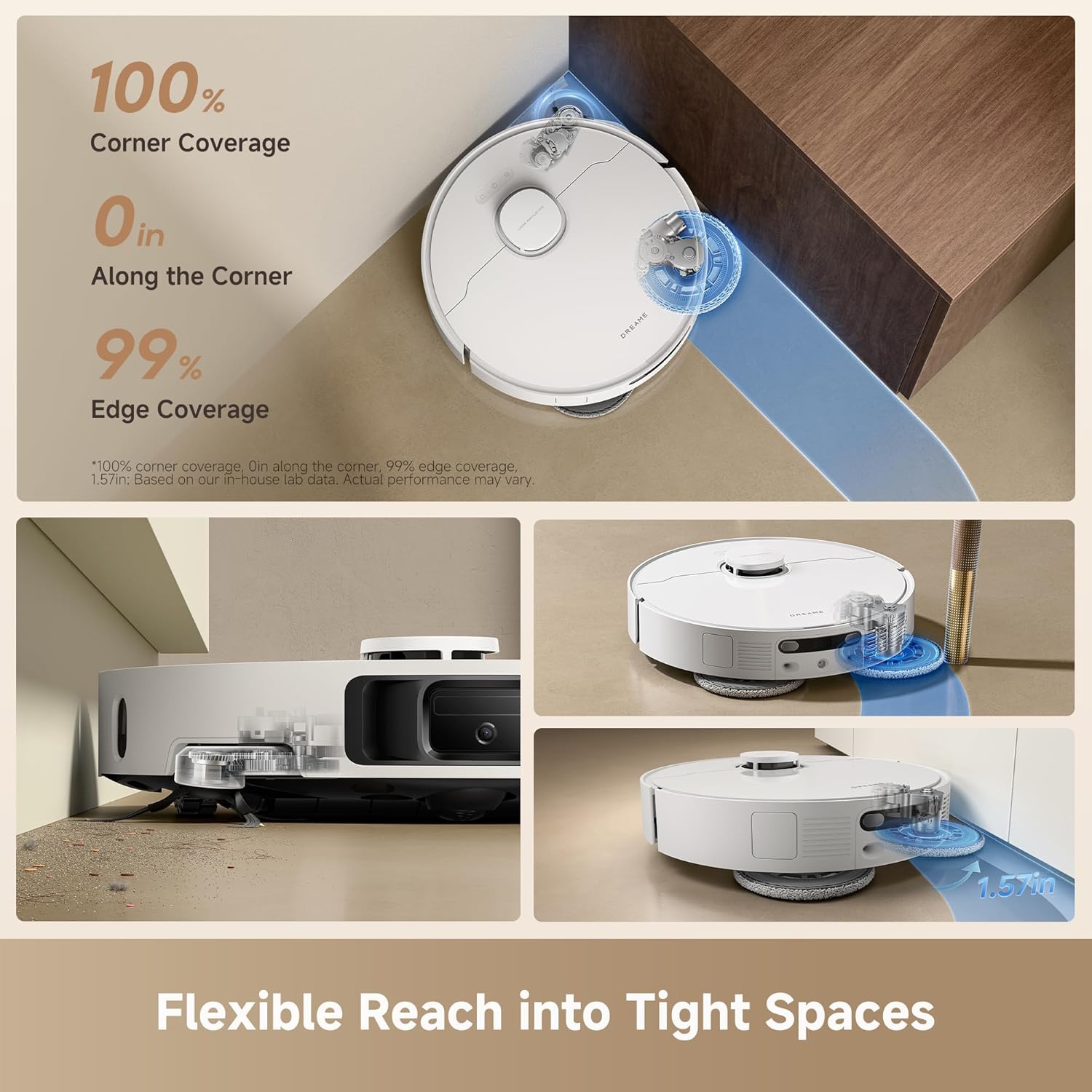
Figure 3: The extendable side brush and mop system for enhanced corner and edge cleaning.
4.3. DuoScrub Mopping System
The DuoScrub mopping system with 32-level moisture control provides effective stain removal and a fast-drying finish.

Figure 4: The DuoScrub Mopping System with precise moisture control.
4.4. All-in-One Self-Cleaning Dock
The multifunctional dock automates mop washing, hot air drying, and dust emptying, minimizing manual intervention.

Figure 5: Overview of the Multifunctional PowerDock features.
4.5. Smart Navigation and Obstacle Avoidance
Using Smart Pathfinder and 3DAdapt technologies, the robot precisely maps your home and avoids obstacles.

Figure 6: The robot vacuum utilizing 3DAdapt for precise obstacle avoidance.
4.6. Carpet Detection and Mop Lifting
The robot intelligently detects carpets and lifts its mop pads by 0.41 inches to prevent wetting and ensure effective vacuuming.

Figure 7: Automatic mop lifting for carpet protection.
5. Setup
5.1. Unpacking and Placement
- Remove all packaging materials and protective films from the robot and the dock.
- Place the All-in-One Self-Cleaning Dock on a hard, level surface against a wall. Ensure there is at least 0.5 meters (1.6 feet) of clear space on both sides and 1.5 meters (4.9 feet) in front of the dock.
- Connect the power cord to the dock and plug it into a power outlet.
5.2. Initial Charging
Place the robot onto the charging dock. Ensure the charging contacts align. The robot will automatically power on and begin charging. Fully charge the robot before its first use.
5.3. App Download and Connection
- Download the DREAME Home app from your mobile app store.
- Open the app and create an account or log in.
- Follow the in-app instructions to add your DREAME L40 Ultra Gen 2. Ensure your Wi-Fi network is 2.4GHz.

Figure 8: Connecting the robot vacuum to the DREAME Home app.
5.4. Initial Mapping
After connecting to the app, initiate a quick mapping run. The robot will navigate your home to create a detailed map, which is essential for efficient cleaning and advanced features.
6. Operating Instructions
6.1. Starting and Stopping Cleaning
- Start Cleaning: Press the power button on the robot or tap 'Start Cleaning' in the DREAME Home app.
- Pause Cleaning: Press the power button on the robot or tap 'Pause' in the app.
- Return to Dock: Press the home button on the robot or tap 'Recharge' in the app.
6.2. App Control Features
The DREAME Home app provides extensive control and customization options:
- Scheduled Cleaning: Set specific times for the robot to clean automatically.
- Custom Routines: Define cleaning sequences for different areas or times.
- Cleaning Intensity: Adjust suction power and mop moisture levels.
- No-Go Zones/Virtual Walls: Create virtual boundaries to restrict cleaning in certain areas.
- Multi-Level Mapping: Store maps for up to 4 different floors.
- 3D Map Display: View a detailed 3D representation of your home's map.
- Off-Peak Charging: Optimize charging times to save energy costs.
- Child Lock: Prevent accidental operation by children.

Figure 9: Overview of DREAME Home app features.
6.3. Voice Control
The robot supports voice control via Alexa, Siri, and Google Home. Link your DREAME Home account to your preferred voice assistant for hands-free operation.

Figure 10: Voice and smart device control options.
7. Maintenance
Regular maintenance ensures optimal performance and extends the lifespan of your robot vacuum.
7.1. Mop Pad Self-Cleaning and Drying
The dock automatically washes and hot-air dries the mop pads after each cleaning cycle. Ensure the clean and dirty water tanks are properly installed and maintained.

Figure 11: Mop pad self-cleaning in progress within the dock.
7.2. Dust Bag Replacement
The dock automatically empties the robot's dustbin into a 3.2L dust bag, providing up to 100 days of hands-free dust disposal. Replace the dust bag when the app indicates it is full.
7.3. Optional Auto-Dispensing Module
The base station supports an automatic cleaning solution replenishment function. An optional auto-dispensing module is required to activate this feature. This module can be purchased separately and enabled in the DREAME Home app.

Figure 12: The optional auto-dispensing module for cleaning solution.
7.4. Cleaning Brushes and Filters
- Main Brush: Remove the main brush cover and clean any tangled hair or debris using the provided cleaning tool.
- Side Brush: Remove the side brush and clean any hair or debris. Replace if damaged.
- Filter: Tap the filter to remove dust. Rinse the filter with water if necessary, and ensure it is completely dry before reinstallation.
7.5. Cleaning Sensors
Wipe all sensors on the robot (cliff sensors, wall sensor, charging contacts) with a soft, dry cloth to ensure proper functionality.
8. Troubleshooting
If you encounter issues with your robot vacuum, refer to the following common solutions:
| Problem | Possible Cause | Solution |
|---|---|---|
| Robot does not power on or charge. | Low battery; charging contacts not aligned; power cord disconnected. | Ensure robot is properly docked; check power cord connection; allow to charge for several hours. |
| Robot gets stuck frequently. | Obstacles (cables, rugs); dirty sensors. | Clear obstacles; clean sensors; set No-Go Zones in the app. |
| Poor cleaning performance. | Full dust bag; clogged filter; worn brushes; low suction setting. | Replace dust bag; clean/replace filter; clean/replace brushes; increase suction setting in app. |
| Mop not cleaning effectively. | Dirty mop pads; low water level; low moisture setting. | Ensure mop pads are clean; check water tanks; increase mop moisture setting in app. |
| App connection issues. | Incorrect Wi-Fi password; 5GHz Wi-Fi network; router issues. | Ensure 2.4GHz Wi-Fi; re-enter password; restart router and robot. |
For further assistance, please refer to the DREAME Home app or contact customer support.
9. Specifications
| Feature | Specification |
|---|---|
| Brand | DREAME |
| Model Name | L40 Ultra Gen2 |
| Model Number | RLL53SE |
| Suction Power | 25,000Pa |
| Special Features | DuoScrub Mopping System, Auto-empty, Hot Air Drying, Mop Washing, Precise Obstacle Avoidance, Smart Carpet Cleaning |
| Color | White |
| Product Dimensions | 13.8"L x 13.4"W x 23.3"H |
| Battery Life | 200 minutes (up to 231 minutes in Quiet Mode) |
| Battery Capacity | 5,200mAh |
| Voltage | 110 Volts |
| Control Method | App, Voice (Alexa, Siri, Google Home) |
| Surface Recommendation | Wood, Marble, Tile |
| Item Weight | 38.1 pounds |
| UPC | 810142562751 |
10. Warranty and Support
DREAME is committed to providing excellent customer service and product support.

Figure 13: DREAME Service Policy overview.
10.1. Product Warranty
This product typically comes with a manufacturer's warranty of up to 3 years. Please refer to your purchase documentation or the DREAME official website for specific warranty terms and conditions applicable to your region.
10.2. Returns Policy
DREAME offers a 30-day hassle-free return policy. For details on eligibility and process, please consult your retailer or the DREAME official website.
10.3. Customer Support
For technical support, troubleshooting assistance, or warranty claims, please contact DREAME customer support through the DREAME Home app or visit the official DREAME website. Have your product model number (RLL53SE) and purchase information ready.
11. Product Video Demonstration
Watch this video for a visual guide on the DREAME L40 Ultra Gen 2's features and operation.
Video 1: DREAME L40 Ultra Gen 2 Robot Vacuum and Mop product demonstration.


