
1. Product Overview
The Nulea M512 is an ergonomic wireless trackball mouse designed for comfort and precise control. It features a 55mm trackball, adjustable DPI settings, and multi-device connectivity via Bluetooth or 2.4GHz wireless. Its ambidextrous design ensures usability for both left and right-handed users.

Image: The Nulea M512 Wireless Trackball Mouse, showcasing its ergonomic design and central trackball.
2. Package Contents
- Nulea M512 Wireless Trackball Mouse
- USB-C Charging Cable
- 2.4GHz USB Receiver (stored in the mouse)
- Wrist Rest Pad
- User Manual
3. Setup
3.1 Charging the Device
Before initial use, fully charge the Nulea M512 trackball mouse using the provided USB-C cable. Connect the USB-C end to the mouse and the USB-A end to a power source (e.g., computer USB port, wall adapter). The charging indicator will show the charging status.

Image: The Nulea M512 mouse connected via USB-C cable for charging.
3.2 Connecting to Your Device
The Nulea M512 supports three connection modes: 2.4GHz wireless via USB receiver and two independent Bluetooth 5.0 channels (BT1, BT2).
- Power On: Locate the ON/OFF switch on the bottom of the mouse and slide it to the 'ON' position.
- Select Connection Mode: Press the Mode Switch Key located on the side of the mouse to cycle through the connection options: USB (2.4GHz), BT1, BT2. The corresponding LED indicator will light up.
- 2.4GHz Wireless Connection:
- Retrieve the 2.4GHz USB receiver from its storage slot on the bottom of the mouse.
- Plug the USB receiver into an available USB-A port on your computer.
- Ensure the mouse is set to USB mode. The connection should be established automatically.
- Bluetooth Connection (BT1/BT2):
- Set the mouse to either BT1 or BT2 mode using the Mode Switch Key.
- On your computer or device, open Bluetooth settings and search for new devices.
- Select "Nulea M512" from the list of available devices to pair.
- Once paired, the LED indicator for BT1 or BT2 will remain solid.

Image: The Nulea M512 connected to multiple devices (laptop, tablet, monitor) via Bluetooth and 2.4GHz wireless.
Video: An overview of the Nulea M512 Trackball Mouse, demonstrating its features and connectivity.
4. Operating Instructions
4.1 Button Functions
The Nulea M512 features a 55mm trackball and multiple buttons for enhanced control. Refer to the diagram below for button identification:

Image: Diagram illustrating the button layout and functions of the Nulea M512 trackball mouse.
- 1. Middle Key: Functions as a scroll lock or middle-click.
- 2. Back Key: Navigates back in web browsers or file explorers.
- 3. Left Button: Standard left-click function.
- 4. Right Button: Standard right-click function.
- 5. Right Scroll Wheel: Vertical scrolling.
- 6. Left Scroll Wheel: Horizontal scrolling.
- Mode Switch Key (Side): Cycles between 2.4GHz, BT1, and BT2 connection modes.
- DPI Key (Side): Adjusts cursor sensitivity.
- Left/Right Hand Mode Switch Key (Side): Toggles between left-handed and right-handed button assignments.
Note: All buttons are non-programmable. The Middle and Back buttons are not compatible with macOS.
4.2 Adjusting DPI Sensitivity
The Nulea M512 offers four adjustable DPI levels (400/800/1200/1600) for precise cursor control. Press the DPI Key on the side of the mouse to cycle through these settings. The LED indicator will flash to indicate the current DPI level (e.g., one flash for 400 DPI, two flashes for 800 DPI, etc.).
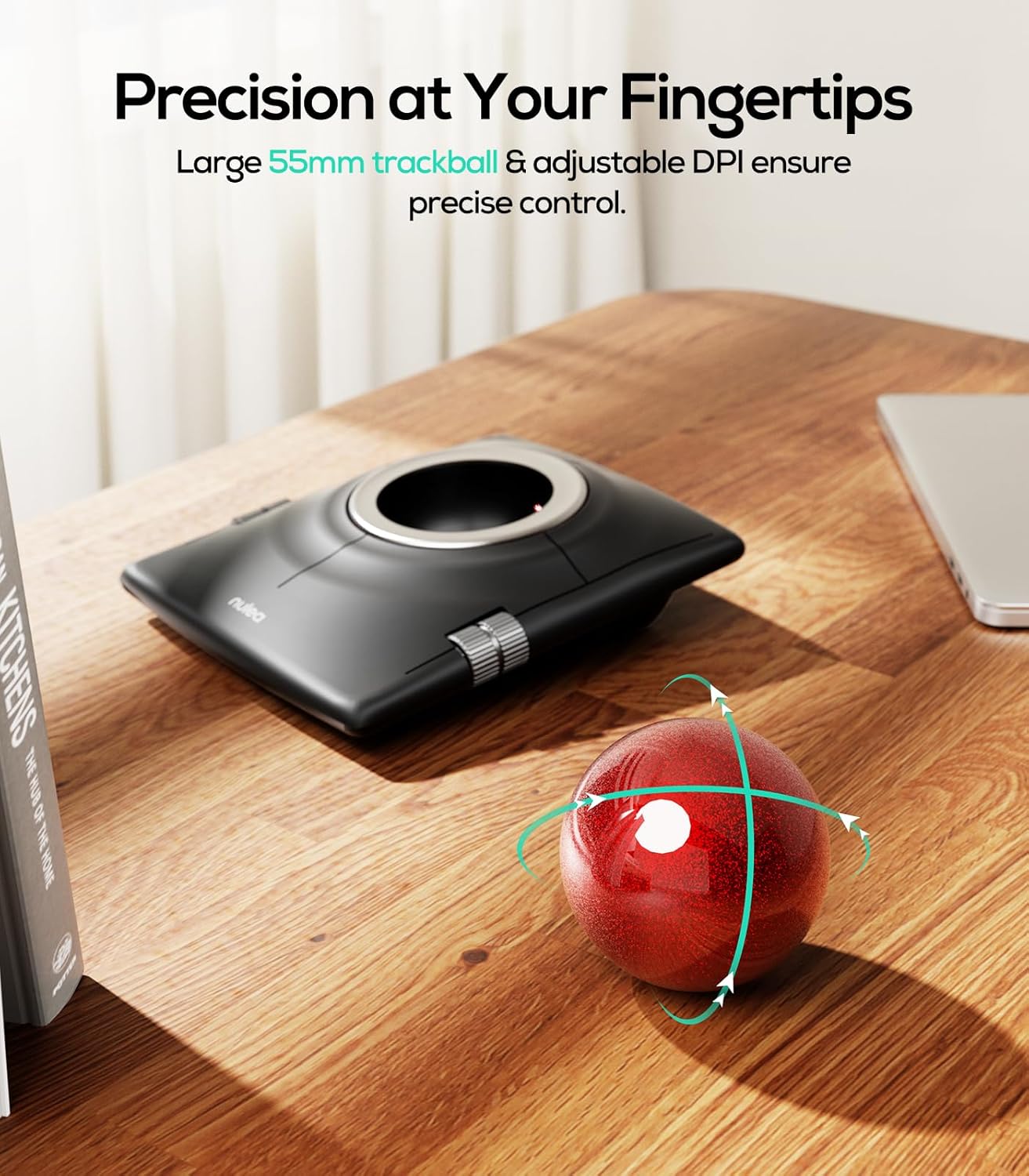
Image: The Nulea M512 trackball mouse highlighting its 55mm trackball and adjustable DPI for precise control.
4.3 Ambidextrous Mode
The M512 is designed for both left and right-handed users. Press the Left/Right Hand Mode Switch Key on the side of the mouse to swap the functions of the main buttons, adapting to your dominant hand for a natural grip.

Image: Top-down view of the Nulea M512, illustrating its dual-handed design and the ability to switch between left and right-hand modes.
4.4 Drag-Hold Function
Activate the drag-hold function by simultaneously pressing the Middle Key and Back Key. This allows you to drag items without continuously holding down a button. Exit this mode by pressing any of the four main buttons.
4.5 Ergonomic Use with Wrist Rest
For optimal comfort and to reduce forearm strain during extended use, it is recommended to use the included wrist rest pad. Position the wrist rest in front of the trackball mouse to support your wrist and maintain a neutral hand posture.

Image: A hand using the Nulea M512 trackball mouse with the included wrist rest, demonstrating ergonomic finger control.

Image: Detailed view of the ergonomic wrist rest pad, highlighting its memory foam and skin-friendly fabric for pressure relief.
5. Maintenance
5.1 Cleaning the Trackball
Over time, lint, dust, and hair may accumulate around the trackball bearings, affecting smooth movement. To clean:
- Turn off the mouse using the ON/OFF switch.
- Gently push the trackball out from the hole on the bottom of the mouse.
- Wipe the trackball and the inside of the trackball socket with a soft, dry cloth.
- If necessary, use a brush or cotton swab to clean the optical sensor and the three support bearings inside the socket.
- Reinsert the trackball into the socket.
5.2 Battery Care
To prolong battery life, turn off the mouse when not in use for extended periods. Recharge the mouse when the battery indicator shows low power.
6. Troubleshooting
- Mouse not responding:
- Ensure the mouse is powered on.
- Check battery level and recharge if necessary.
- Verify the correct connection mode (2.4GHz, BT1, BT2) is selected.
- For 2.4GHz, ensure the USB receiver is securely plugged into the computer.
- For Bluetooth, re-pair the device if the connection is lost.
- Trackball movement is erratic or sticky:
- Clean the trackball and its socket as described in the Maintenance section.
- Buttons not functioning correctly:
- Ensure the mouse is in the correct left/right-handed mode.
- Note that the Middle and Back keys are not compatible with macOS.
- DPI sensitivity issues:
- Press the DPI Key to cycle through the four sensitivity settings until a suitable level is found.
7. Specifications
| Feature | Detail |
|---|---|
| Brand | Nulea |
| Model Number | M512 |
| Connectivity Technology | Bluetooth, 2.4GHz USB |
| Movement Detection | Trackball |
| Trackball Size | 55mm |
| Adjustable DPI | 400, 800, 1200, 1600 |
| Button Quantity | 7 |
| Hand Orientation | Ambidextrous |
| Power Source | Battery Powered (Rechargeable) |
| Compatible Devices | Laptop, Personal Computer |
| Operating System | Windows, macOS, Android |
| Range | 33 feet |
| Item Weight | 0.56 Kilograms |
8. Warranty
The Nulea M512 Wireless Trackball Mouse comes with a 12-month hassle-free replacement warranty from the date of purchase. Please retain your proof of purchase for warranty claims. This warranty covers manufacturing defects and malfunctions under normal use.
9. Support
For technical assistance, troubleshooting, or warranty inquiries, please contact Nulea customer support through the official Nulea website or your retailer's support channels. Provide your product model number (M512) and a detailed description of the issue for efficient service.


