Introduction
The VAULTEK Smart Station DS2 is an advanced biometric smart safe designed for secure storage and convenient access. Featuring the ViSN (VAULTEK Intelligent Safe Network) platform, this safe offers WiFi connectivity for remote management and real-time alerts. It includes a built-in wireless phone charger, USB/USB-C accessory charging ports, and a customizable LED display for time, temperature, and humidity. The auto-open drawer provides quick access to contents, while robust anti-theft features ensure security.

Image: The VAULTEK Smart Station DS2, showcasing its sleek design and integrated wireless charging pad with a smartphone in use.
Setup
Unpacking and Initial Power
Carefully remove the safe from its packaging. Connect the included AC power adapter to the safe and a wall outlet. The safe requires continuous AC power for full functionality, including the wireless charging pad and ViSN features. A built-in battery provides short-term backup power during outages.

Image: The VAULTEK Smart Station DS2 with its power adapter connected, illustrating the required power setup.
Manual Key Access
Two manual backup keys are included. Store these keys in a secure location away from the safe. These keys provide access in case of power failure or if electronic access methods are unavailable.

Image: Detail of the manual key entry point on the VAULTEK Smart Station DS2.
Security Cable Installation
Use the included high-strength steel security cable to tether the safe to a fixed object. This provides an additional layer of anti-theft protection.
ViSN App and Connectivity
Download the VAULTEK ViSN smartphone app (iOS/Android) for guided setup and full smart safe management. The app allows you to connect the safe to your WiFi network, program access methods, and monitor safe activity.
- Scan the QR code provided in the manual or on the product packaging to download the app.
- Follow the in-app instructions for initial pairing and WiFi setup.

Image: The VAULTEK ViSN app interface on a smartphone, demonstrating remote monitoring capabilities.
Download the app: https://qrco.de/bfCd27
Biometric Fingerprint Enrollment
The safe features an HD fingerprint scanner capable of storing up to 80 unique fingerprints. Use the ViSN app for guided enrollment of fingerprints. Ensure your finger is clean and dry for optimal scanning.
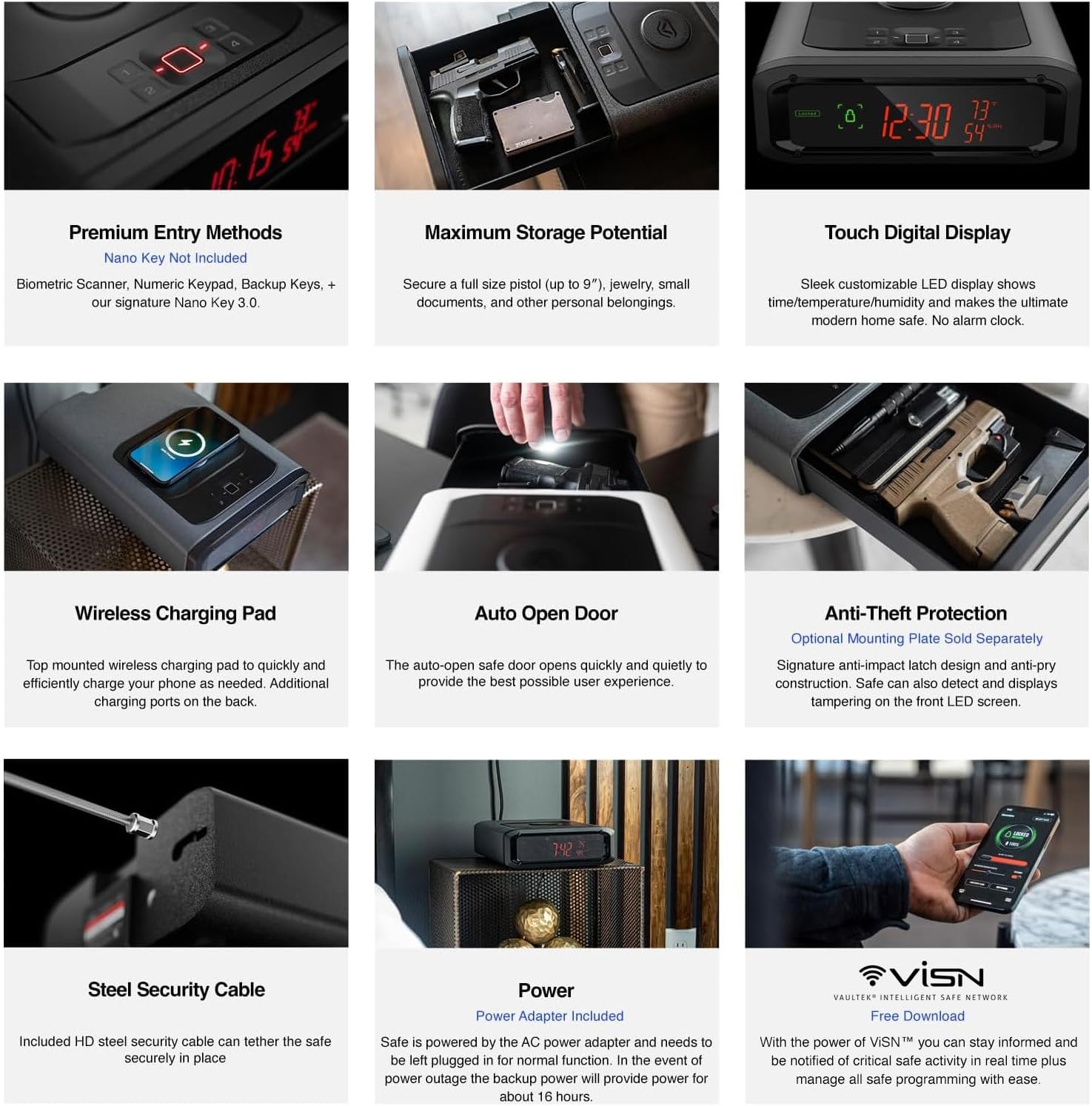
Image: Detail of the biometric fingerprint scanner on the VAULTEK Smart Station DS2.
Digital Keypad Code Setup
Program a 4-8 digit master code using the backlit numeric keypad or through the ViSN app. The proximity sensor illuminates the keypad for easy navigation.
Customizable Display Settings
The integrated LED display shows time, temperature, and humidity. Customize display options, brightness, and sound levels via the ViSN app or the safe's touch screen interface.
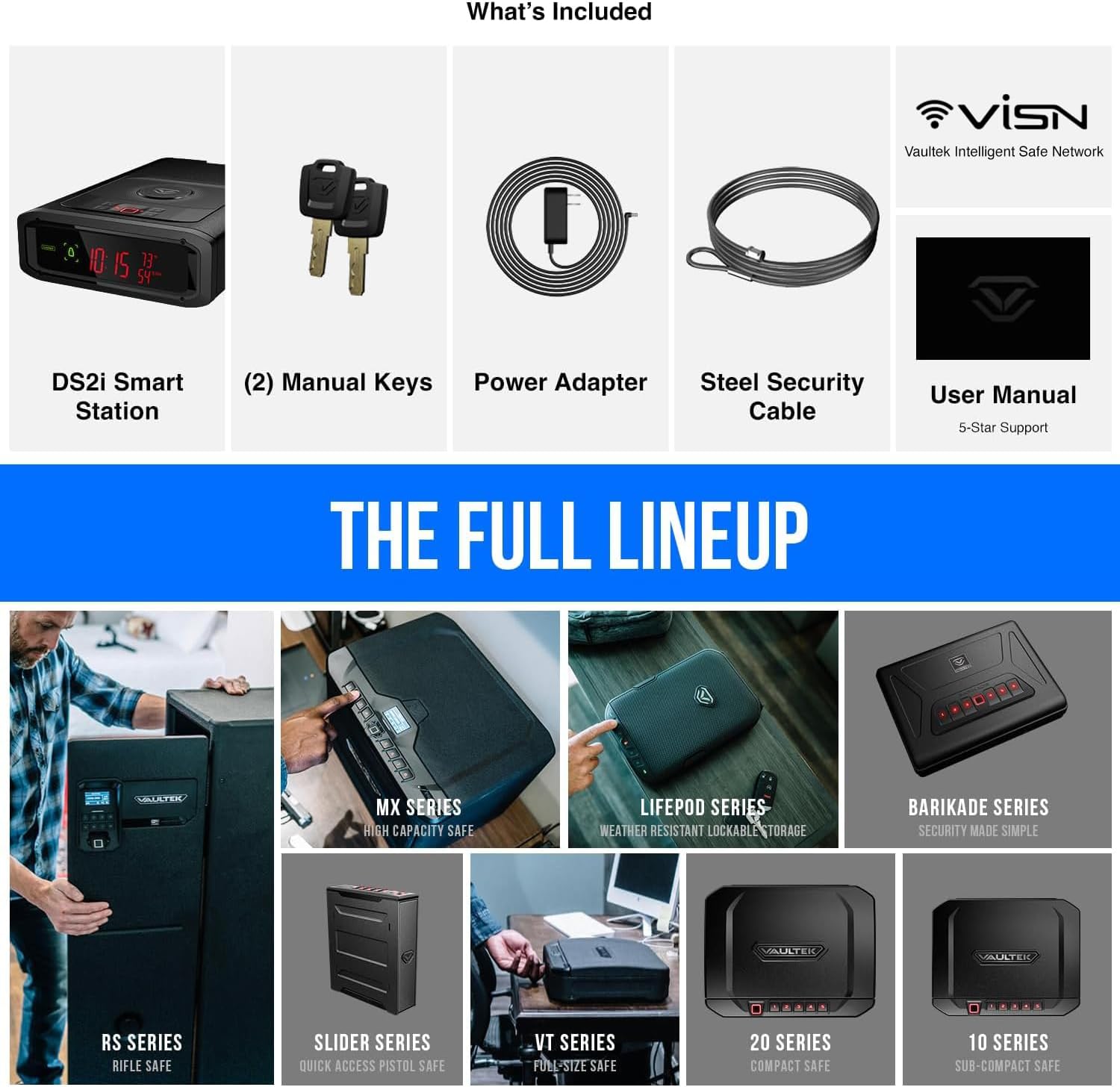
Image: The customizable touch display of the VAULTEK Smart Station DS2, showing various information.
Operating the Smart Station
Accessing the Safe
- Biometric Scan: Place an enrolled finger on the biometric scanner. The safe will verify the fingerprint and automatically open the drawer.
- Digital Keypad: Enter your programmed 4-8 digit code on the backlit numeric keypad. The drawer will open automatically upon correct entry.
- Manual Key: Insert and turn one of the backup keys to unlock and open the drawer.
- Nano Key 3.0 (Sold Separately): If you have a Nano Key 3.0, press the button for immediate access. This can be discreetly carried or hidden as a panic button.

Image: The Nano Key 3.0, an optional accessory for quick access, shown in use.
Auto-Open Drawer
Upon successful authentication, the precision ball bearing twin rail system automatically deploys the safe drawer open quickly and silently. The interior LED light will illuminate the contents.

Image: The auto-open drawer of the VAULTEK Smart Station DS2, displaying its interior capacity.
Wireless Charging Pad
Place your compatible smartphone on the top-mounted wireless charging pad to initiate charging. Ensure the phone is centered for optimal charging efficiency.

Image: A smartphone charging wirelessly on the VAULTEK Smart Station DS2's integrated pad.
USB/USB-C Charging Ports
Utilize the USB and USB-C ports on the back of the safe to charge additional accessories.
ViSN Smart Safe Management
The ViSN app provides comprehensive control and monitoring:
- Real-time Alerts: Receive notifications for tampering, impacts, and changes in temperature/humidity.
- Remote Monitoring: Check safe status, battery level, and access history from anywhere.
- Programming: Easily add/remove fingerprints, change codes, and adjust settings.
- History Log: Review a detailed log of all safe activity.
Maintenance
Power and Backup Battery
The safe is designed to be continuously plugged into AC power. The built-in battery provides short-term backup power during outages. Ensure the safe remains connected to AC power for optimal performance and to keep the backup battery charged.
Cleaning
Wipe the exterior of the safe with a soft, dry cloth. Avoid using abrasive cleaners or solvents that could damage the finish or electronic components. Keep the biometric scanner and keypad clean for reliable operation.
Security Cable Check
Periodically inspect the steel security cable and its attachment points to ensure it remains securely fastened.
Troubleshooting
| Issue | Possible Cause | Solution |
|---|---|---|
| Biometric scanner not recognizing fingerprint | Finger is wet, dirty, or not properly placed; fingerprint not enrolled; scanner dirty. | Ensure finger is clean and dry. Try different angles. Re-enroll fingerprint via the app. Clean the scanner surface. |
| Safe not opening with digital code | Incorrect code entered; keypad malfunction. | Verify the code. Ensure the keypad illuminates. Try the manual key. |
| Wireless charging not working | Phone not compatible; phone not centered; safe not receiving AC power. | Ensure your phone supports wireless charging. Reposition the phone. Confirm the safe is plugged into AC power. |
| No power/display off | AC power disconnected; power outage. | Check AC power connection. If power outage, use manual keys. The internal backup battery provides temporary power. |
| ViSN app connectivity issues | WiFi signal weak; safe not connected to WiFi; app outdated. | Ensure strong WiFi signal. Reconnect safe to WiFi via app. Update the ViSN app. |
| Tamper Alert notification | Multiple incorrect code/fingerprint entries; physical impact detected. | Review the history log in the ViSN app for details. Assess the safe for any signs of tampering. |
Specifications
- Brand: VAULTEK
- Model: DS2
- Product Dimensions: 12.13"D x 8.25"W x 3"H
- Interior Dimensions: 9"L x 7.5"W x 1.5"H
- Item Weight: 11.64 pounds
- Lock Type: Anti-Impact Latch, Biometric Fingerprint, Backlit LED Smart Sense™ Capacitive Keypad
- Material: Alloy Steel
- Color: Black
- Special Features: Anti-Theft, Auto Open Drawer, Built-in Wireless Phone Charger, USB/USB-C Charging Ports, ViSN™ Vaultek Intelligent Safe Network, Customizable LED Display (Time/Temp/Humidity)
- Mounting Type: High Strength Steel Security Cable (Accessory mounting plate sold separately for hard mounting)
- Included Components: DS2i Smart Station, (2) Manual Keys, AC Power Adapter, Steel Security Cable
- Smart Home Compatibility: Smart Home Compatible (via ViSN)
- Power Source: AC Power Adapter (with built-in short-term backup battery)
Warranty and Support
For warranty information, product registration, or technical assistance, please visit the official VAULTEK website or contact VAULTEK customer support directly. Keep your purchase receipt for warranty claims.
VAULTEK Official Website: www.vaulteksafe.com