
1. Introduction
The EVDO-LINK Orbic Speed RC400L Mobile Hotspot provides portable, high-speed internet access. This device allows you to connect multiple Wi-Fi enabled devices to a 4G LTE network, offering reliable connectivity for travel, work, or home use. It supports WLAN connectivity with Wi-Fi 802.11a/b/g/n/ac standards, featuring dual-band Wi-Fi (2.4 GHz and 5.0 GHz) for speeds up to 150 Mbps. This manual will guide you through the setup, operation, and maintenance of your mobile hotspot.
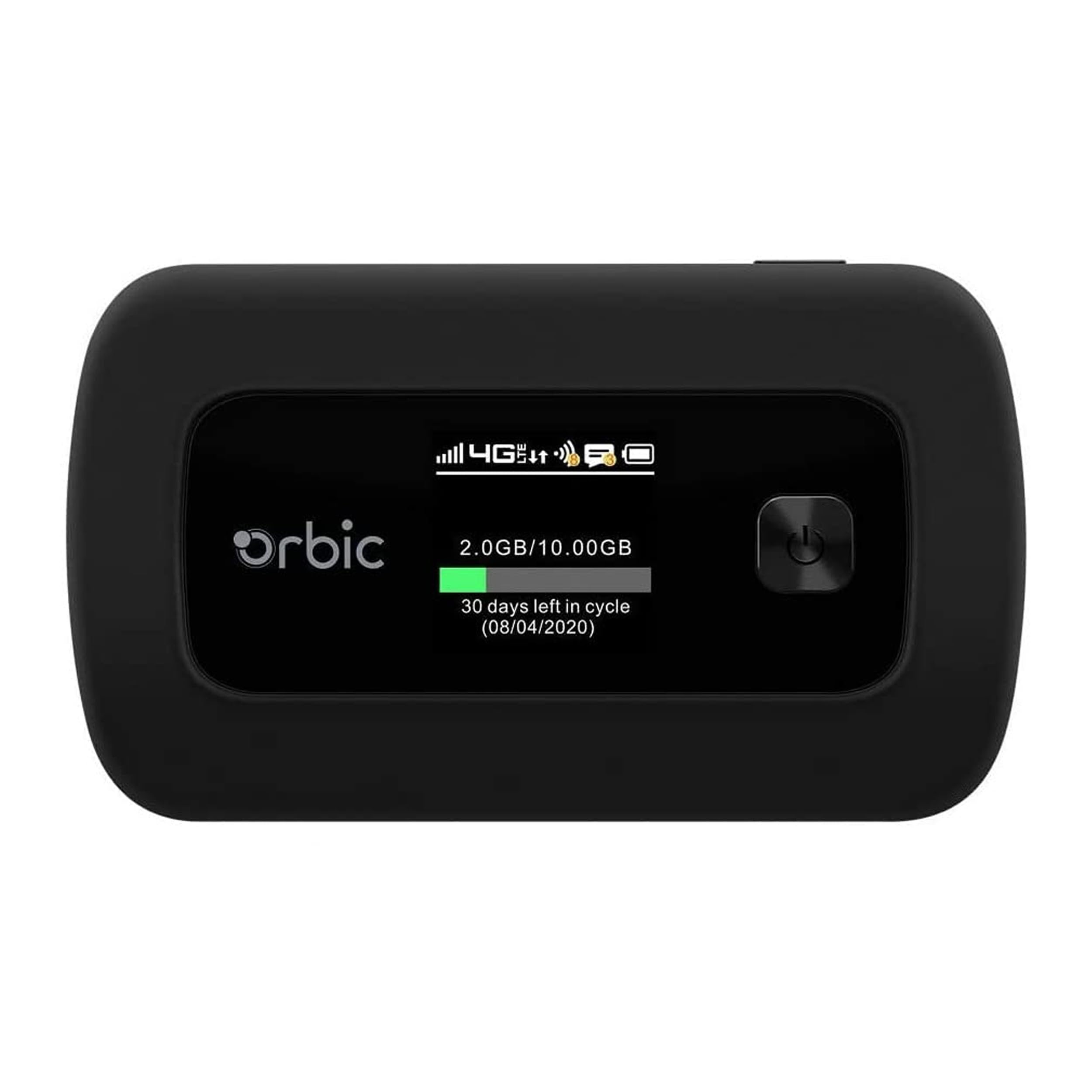
Image: The Orbic Speed RC400L Mobile Hotspot device, shown in its black casing.
2. What's in the Box
Verify that all the following items are included in your package:
- Orbic Speed RC400L Hotspot Device with battery
- 2 Replacement Batteries
- QC Charger with USB Type C Cable
- Verizon SIM card (requires data plan activation)
- Hard Protective Case + EVDO-LINK Soft Travel Bag
3. Setup and Activation
Before using your mobile hotspot, you must activate the included SIM card with your chosen carrier (Verizon, as per the product description). The following steps outline the general activation process. Please note that the accompanying images are for illustrative purposes and may show an AT&T activation guide.
3.1. Gather Necessary Information
- Locate your device's IMEI number and the SIM Card ICCID number. These are typically found on the device's packaging box or printed inside the battery compartment (remove the battery to check). The ICCID is also on the back of the SIM card holder.
- Copy these numbers for reference.
3.2. Begin Activation
- Open your web browser and navigate to your carrier's prepaid account activation page (e.g., for Verizon, visit their official activation portal).
- Select the number of lines you wish to activate (typically 1 for a hotspot).
- Follow the on-screen prompts to continue.

Image: An illustrative guide showing the first steps of activation, including gathering IMEI and ICCID. Note: This image displays an AT&T activation guide for demonstration purposes.
3.3. Enter Device Information
- Choose to enter the ICCID or SIM number (default selection).
- Enter the ICCID number in the first field.
- Enter the IMEI number in the second field.
- Enter the service ZIP code where you will primarily use your wireless service.
- Proceed to the next step.
3.4. Choose Your Plan
- Select a preferred data plan from the available options provided by your carrier.
- Review the plan details and confirm your selection.
- Proceed to the next step.

Image: An illustrative guide showing steps for entering device information and selecting a data plan. Note: This image displays an AT&T activation guide for demonstration purposes.
3.5. Contact & Payment Information
- Enter your contact details in the designated fields.
- Enter your billing details under the Credit or Debit Card section.
- Review the order summary carefully, then submit to complete the payment.
3.6. Payment Confirmation & Account Activation
- Activation may take up to 5 minutes. Do not close your browser or navigate away during this process.
- Upon successful payment, you will receive a confirmation message.
- Your account details, including phone number, email, and ZIP code, will be displayed.
- You may receive an email with instructions to access your prepaid account.
3.7. Restart Your Device
- After activation is complete, restart your Orbic Speed RC400L device to ensure the prepaid plan is fully activated and recognized.
Enjoy Your Data!
4. Operating Instructions
4.1. Powering On/Off
- To Power On: Press and hold the Power button (usually located on the side or front) until the screen illuminates.
- To Power Off: Press and hold the Power button until a power-off option appears on the screen, then confirm. Alternatively, hold the power button for an extended period until the device shuts down.
4.2. Connecting Devices to Wi-Fi
- Ensure your Orbic Speed RC400L is powered on.
- On your Wi-Fi enabled device (smartphone, laptop, tablet), open the Wi-Fi settings.
- Search for available networks. The hotspot's Wi-Fi name (SSID) will appear in the list. This is typically displayed on the hotspot's screen or on a sticker inside the battery compartment.
- Select the hotspot's SSID.
- Enter the Wi-Fi password (also displayed on the hotspot's screen or sticker).
- Your device should now be connected to the internet via the mobile hotspot.
4.3. Accessing the Web Interface
For advanced settings, such as changing Wi-Fi name/password, managing connected devices, or checking data usage, you can access the hotspot's web interface:
- Connect your device to the hotspot's Wi-Fi network.
- Open a web browser and enter the hotspot's IP address (e.g., 192.168.1.1 or 192.168.0.1). This IP address is usually displayed on the hotspot's screen or in the manual.
- Enter the administrator username and password when prompted. Default credentials are often 'admin' for both, but check your device or manual for specifics.
4.4. Guest Wi-Fi Mode
The Orbic Speed RC400L supports Guest Mode, allowing you to provide internet access to guests without sharing your main Wi-Fi password or network resources. This feature can be enabled and configured through the web interface.
5. Maintenance
5.1. Battery Care
- Use only the provided charger and USB Type C cable.
- Avoid exposing the battery to extreme temperatures.
- If the device will not be used for an extended period, charge the battery to about 50% and store it in a cool, dry place.
- Replace the battery if you notice a significant decrease in battery life. Two replacement batteries are included with your purchase.
5.2. Cleaning
- Wipe the device with a soft, dry cloth.
- Do not use liquid cleaners or aerosols directly on the device.
5.3. Software Updates
Periodically check the hotspot's web interface for available firmware updates. Keeping the software updated ensures optimal performance and security.
6. Troubleshooting
6.1. No Internet Connection
- Check SIM Card: Ensure the SIM card is correctly inserted and activated with a valid data plan.
- Signal Strength: Verify that the hotspot has adequate cellular signal strength (indicated on the device screen). Move to an area with better reception if needed.
- Data Plan: Confirm your data plan has not expired or run out of data.
- Restart: Power off the hotspot, wait 10 seconds, then power it back on.
6.2. Slow Connection Speed
- Signal Strength: A weak cellular signal can cause slow speeds.
- Number of Devices: Too many devices connected simultaneously can reduce speed for each.
- Network Congestion: Performance may vary based on network traffic in your area.
- Interference: Other electronic devices can cause Wi-Fi interference. Try moving the hotspot.
6.3. Cannot Connect to Wi-Fi
- Correct Password: Double-check that you are entering the correct Wi-Fi password.
- Hotspot On: Ensure the hotspot is powered on and broadcasting its Wi-Fi signal.
- Device Wi-Fi: Make sure Wi-Fi is enabled on the device you are trying to connect.
- Restart Both: Restart both the hotspot and the connecting device.
7. Specifications
| Model Name | Orbic SPEED RC400L |
| Brand | EVDO-LINK |
| Connectivity Technology | Wi-Fi |
| Wireless Communication Standard | 802.11a, 802.11ac, 802.11b, 802.11g, 802.11n |
| Frequency Band Class | Dual-Band (2.4 GHz, 5.0 GHz) |
| Special Feature | Guest Mode |
| Compatible Devices | Device, Laptop, Personal Computer, Smartphone, Tablet |
| Recommended Uses | Business, Home, Travel |
| Item Weight | 4.6 ounces |
| Batteries | 1 9V battery required (included, with 2 replacements) |
8. Warranty Information
For specific warranty details regarding your EVDO-LINK Orbic Speed RC400L Mobile Hotspot, please refer to the warranty card included in your product packaging or visit the official EVDO-LINK website. Warranty terms typically cover manufacturing defects for a specified period from the date of purchase.
9. Support
If you encounter issues not covered in this manual or require further assistance, please contact EVDO-LINK customer support. Contact information can usually be found on the product packaging, the official EVDO-LINK website, or through your retailer. When contacting support, please have your device model number (Orbic SPEED RC400L) and purchase information readily available.
