
Introduction
This manual provides detailed instructions for the setup, operation, maintenance, and troubleshooting of your HP ProStudio 4 AiO G1i All-in-One Computer. Refer to this guide for optimal performance and longevity of your device.
Your HP ProStudio 4 AiO G1i is a powerful all-in-one desktop computer designed for efficiency. This package includes the main unit, power adapter, HP 125 v2 Wired Keyboard, and HP 125 Wired Mouse.
Setup
1. Unpacking and Placement
Carefully remove all components from the packaging. Place the HP ProStudio 4 AiO G1i on a stable, flat surface with adequate ventilation around the unit.
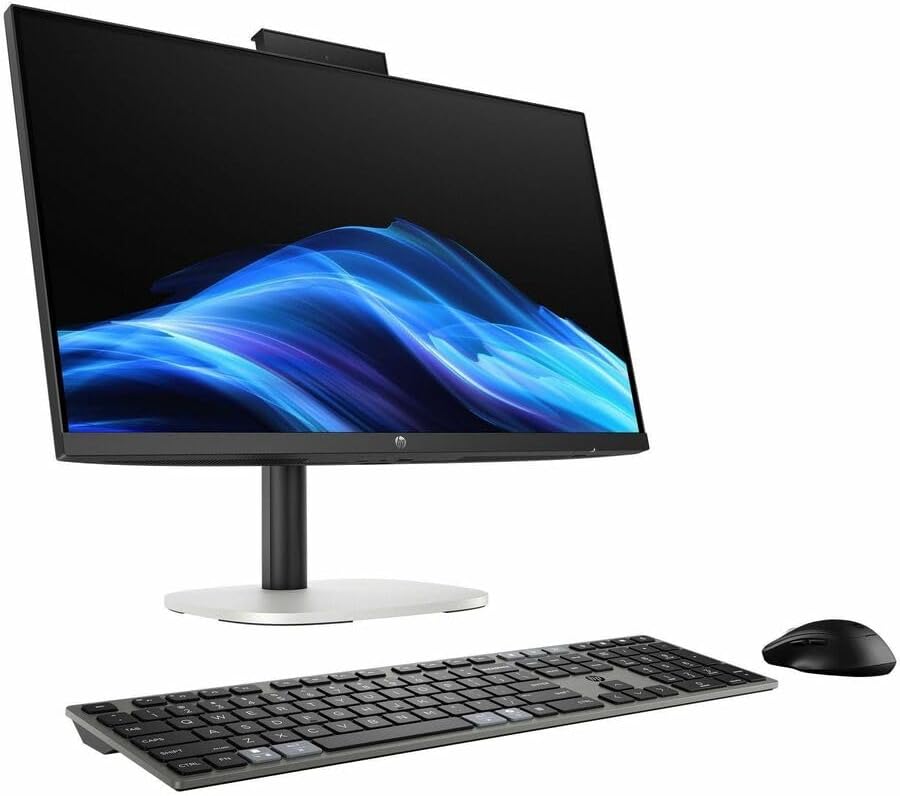
Figure 1: HP ProStudio 4 AiO G1i All-in-One Computer with included keyboard and mouse.
2. Connecting Peripherals
- Connect the HP 125 v2 Wired Keyboard to an available USB port on the computer.
- Connect the HP 125 Wired Mouse to another available USB port.
- Refer to the rear view image for port locations.

Figure 2: Rear view of the HP ProStudio 4 AiO G1i, showing various ports for connectivity.
3. Power Connection
- Connect the power adapter cable to the power input port on the rear of the computer.
- Plug the other end of the power adapter into a grounded electrical outlet.
4. Initial Boot-up
- Press the power button, typically located on the side or bottom bezel of the display.
- Follow the on-screen instructions to complete the Windows 11 Pro operating system setup, including language selection, network connection, and user account creation.
Operating
1. Windows 11 Pro Basics
The HP ProStudio 4 AiO G1i runs on Windows 11 Pro. Familiarize yourself with the Start Menu, Taskbar, and File Explorer for basic navigation and application management. Consult Microsoft's official documentation for detailed Windows 11 Pro usage guides.
2. Network Connectivity
- Wi-Fi: To connect to a wireless network, click the Wi-Fi icon in the system tray, select your desired network, and enter the password if prompted. The system supports 802.11ax for high-speed wireless connections.
- Bluetooth: To pair Bluetooth devices, go to Settings > Bluetooth & devices. Ensure Bluetooth is enabled and select 'Add device' to pair.
3. Using Integrated Features
The All-in-One design includes an integrated webcam and microphone, typically located at the top bezel of the display. These are ready for use with video conferencing applications and voice commands.

Figure 3: Top view of the HP ProStudio 4 AiO G1i, showing the integrated webcam and microphone.
4. AI Capabilities
Equipped with an Intel Core Ultra 7 processor, this system features integrated AI capabilities designed to enhance performance and user experience in compatible applications. These features operate in the background to optimize tasks and workflows.
Maintenance
1. Cleaning
- Screen: Use a soft, lint-free cloth specifically designed for electronics. Dampen the cloth slightly with water or a screen cleaner solution (do not spray directly onto the screen).
- Exterior: Wipe the exterior surfaces with a soft, dry cloth. Avoid abrasive cleaners or solvents.
- Ventilation: Ensure the ventilation openings are clear of dust and obstructions to prevent overheating.
2. Software Updates
Regularly check for and install updates for Windows 11 Pro and HP drivers. This ensures system stability, security, and optimal performance. You can typically find updates through Windows Update in Settings.
3. Data Backup
Periodically back up your important data to an external drive or cloud storage service to prevent data loss in case of system failure.
Troubleshooting
This section addresses common issues you might encounter. For more complex problems, refer to HP's official support resources.
No Power
- Ensure the power adapter is securely connected to both the computer and a working electrical outlet.
- Verify the power outlet is functional by plugging in another device.
No Display
- Check if the computer is powered on.
- If an external monitor is connected, ensure it is powered on and correctly connected.
Keyboard or Mouse Not Responding
- Ensure the USB cables for the keyboard and mouse are firmly plugged into the computer's USB ports.
- Try connecting them to different USB ports.
Slow Performance
- Close unnecessary applications running in the background.
- Check for and install any pending Windows or driver updates.
- Ensure adequate ventilation to prevent thermal throttling.
Specifications
| Feature | Specification |
|---|---|
| Model Number | C72S2UT#ABA |
| Display Size | 23.8 Inches |
| Screen Resolution | 1920 x 1080 (Full HD) |
| Processor | Intel Core Ultra 7 (5.3 GHz) |
| RAM | 16 GB DDR5 |
| Storage | 512 GB NVMe SSD |
| Operating System | Windows 11 Pro |
| Wireless Connectivity | 802.11ax, Bluetooth |
| Product Dimensions (LxWxH) | 29.3 x 18.9 x 7.8 inches |
| Item Weight | 13.89 pounds |
Warranty and Support
This HP product is covered by a standard manufacturer's warranty. For detailed warranty information, terms, and conditions, please refer to the documentation included with your product or visit the official HP support website.
For technical assistance, driver downloads, or further troubleshooting, please visit the HP Support website. When contacting support, please have your product model number (C72S2UT#ABA) and serial number readily available.


