
Introduction
This manual provides detailed instructions for the OpenRock Link 20 Open-Ear Headphones. It covers initial setup, usage, maintenance, and troubleshooting to ensure optimal performance and user experience. The OpenRock Link 20 features an open-ear design, a detachable magnetic boom mic, 5-mic AI ENC noise reduction, and extended battery life, designed for versatile use in various environments.
What's in the Box
- OpenRock Link 20 Wireless Headphones
- Magnetic Detachable Mic
- Charging Case
- Charging Cable (USB-A to USB-C)
- User Manual

Image: All components included in the OpenRock Link 20 package.
Setup
First-Time Setup & Pairing
- Remove the protective film from the earbuds.
- Place both earbuds back into the charging case. They will automatically enter pairing mode, indicated by flashing red and blue lights.
- Open your device's Bluetooth settings (e.g., smartphone, laptop).
- Select "OpenRock Link 20" from the list of available devices to connect. A voice prompt will confirm successful connection.
Video: Step-by-step guide on how to use the OpenRock Link 20, including initial setup and pairing.
Wearing Options
The OpenRock Link 20 offers flexible wearing options for comfort and functionality.
Option 1: Earbuds Only
- Gently slide the earbuds over your ears, ensuring the ear hook sits comfortably and securely behind your ear.
- Adjust the earbud speaker to align with your ear canal for optimal sound delivery without blocking your ear.
Option 2: Earbuds with Detachable Boom Mic
- Attach the magnetic boom mic to either the left or right earbud. The mic will snap into place securely.
- Wear the earbud with the attached mic over your ear, positioning the boom mic towards your mouth for clear voice pickup. The system automatically switches to HD Meeting Mode when the mic is attached.

Image: Instructions for wearing the earbuds and attaching the boom mic.

Image: Detailed steps for wearing the OpenRock Link 20 headphones.
Button Functions
The OpenRock Link 20 earbuds feature intuitive physical buttons for easy control of music, calls, and other functions.
- Single Press (Either Earbud): Play/Pause music, Answer/Hang up call.
- Double Press (Left Earbud): Previous track.
- Double Press (Right Earbud): Next track.
- Double Press (Either Earbud): Reject incoming call.
- Triple Press (Left Earbud): Switch sound modes (Music, Beast, Vocal).
- Triple Press (Right Earbud): Activate voice assistant.
- Press and Hold 1s (Right Earbud): Volume up.
- Press and Hold 1s (Left Earbud): Volume down.
- Press (Boom Mic Button): Mute/Unmute microphone.
- Quadruple Press (Either Earbud): Redial last number.
Video: Demonstrates various button functions for music control, call management, and mode switching.

Image: Visual summary of key features and controls.
App Customization
Enhance your experience with the OpenRock App, available for download on your smartphone. The app allows for personalized settings and access to additional features.
- Battery Levels: Check real-time battery levels for both earbuds and the charging case.
- Equalizer: Switch between preset sound modes (Music, Beast, Vocal) or create your own custom EQ settings.
- Max Volume Limiter: Protect your hearing by setting a maximum volume limit.
- Over-time Wear Reminder: Receive reminders to take breaks from wearing the earbuds.
- Gestures: Customize single, double, triple, quadruple, and long press functions for each earbud.
- Spatial Sound & Sound Balance: Adjust these settings to suit your audio preference.
- Auto Power Off: Set the earbuds to automatically shut down after a period of inactivity (e.g., 15, 30, 60 minutes).
- Voice Prompts: Adjust the voice prompt style and volume.
- Find My Buds: If you misplace your earbuds, use this feature to make them beep, helping you locate them.
- Firmware Upgrade: Update the earbuds' firmware to get new features and improvements.

Image: The OpenRock app interface for deep customization.

Image: The 'Find My Buds' feature in the OpenRock app to locate misplaced earbuds.
Connecting a Second Device (Multipoint Connection)
The OpenRock Link 20 supports multipoint connection, allowing you to seamlessly switch between two paired devices.
- Ensure the earbuds are already connected to your first device.
- Open the charging case and press and hold the button on the back of the case for 2 seconds until the red and blue lights flash, indicating pairing mode.
- On your second device, open Bluetooth settings and select "OpenRock Link 20" to connect.
- The earbuds will now be connected to both devices. You can pause audio on one device and play on the other, and the earbuds will automatically switch.

Image: Multipoint connection allowing seamless switching between phone and laptop.
Power On/Off
Power On
- Automatic: Open the charging case, and the earbuds will power on automatically.
- Manual: Press and hold the earbud button for 1 second.
Power Off
- Automatic: Close the charging case, and the earbuds will power off automatically.
- Manual: Press and hold the earbud button for 3 seconds.
Factory Reset
If you experience connectivity issues or other malfunctions, a factory reset can help resolve them.
- Place both earbuds into the charging case.
- Press and hold the button on the back of the case for 10 seconds until the red light flashes.
- The earbuds are now reset to their factory settings. You will need to re-pair them with your devices.
Video: Demonstrates how to perform a factory reset on the OpenRock Link 20.
LED Indicators (Charging Case)
The LED indicator on the charging case provides information about the battery status:
- Blue Light: Indicates more than 20% charge remaining.
- Red Light: Indicates 20% or less charge remaining, time to recharge.
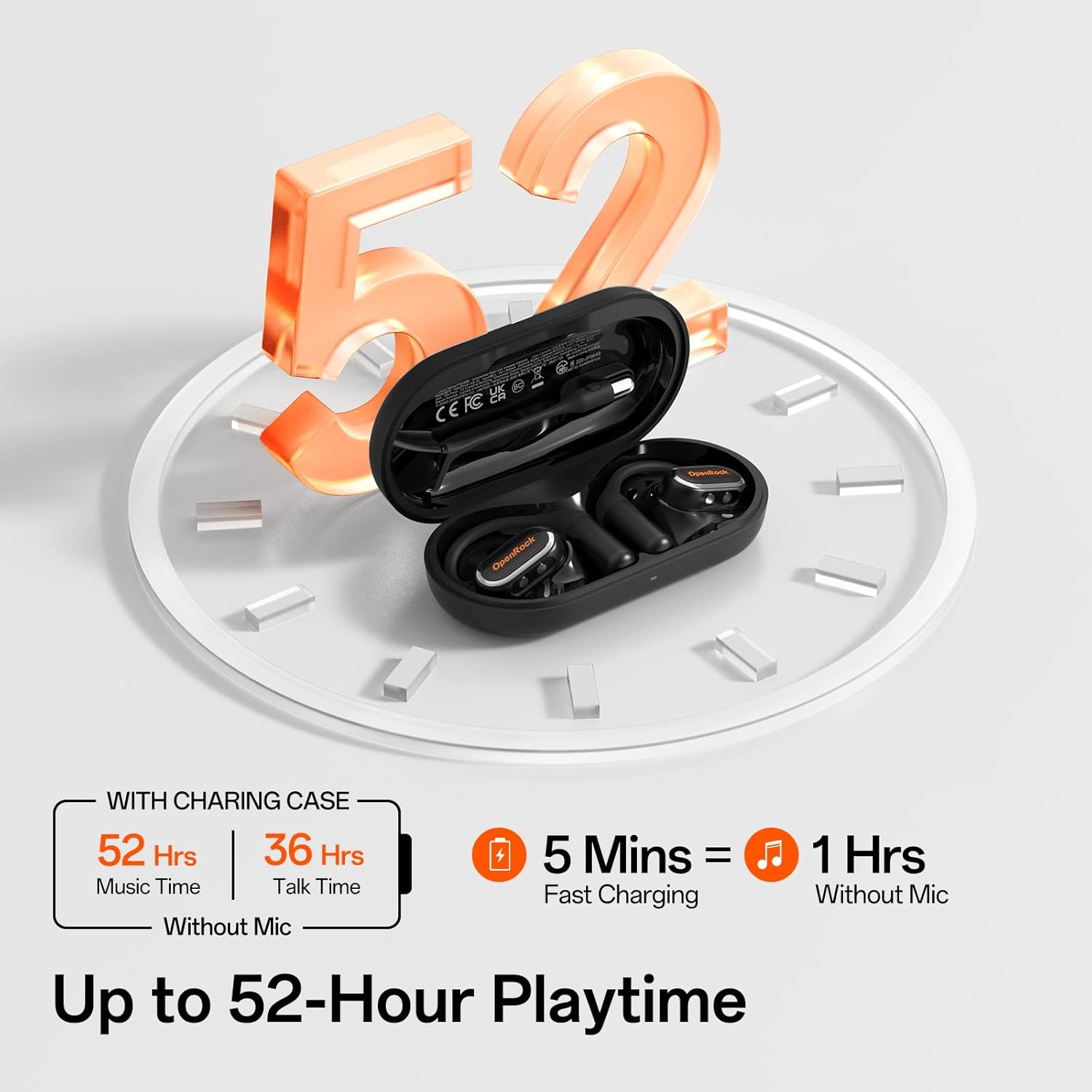
Image: The charging case with LED indicator and battery life details.
Specifications
| Feature | Detail |
|---|---|
| Model Name | Openrock Link 20 |
| Brand | OpenRock |
| Connectivity Technology | Wireless (Bluetooth 5.4) |
| Noise Control | Environmental Noise Cancellation (AI ENC) |
| Battery Life (Earbuds) | Up to 13 hours (music), 9 hours (talk) |
| Total Battery Life (with Charging Case) | Up to 52 hours (music), 36 hours (talk) |
| Fast Charging | 5 minutes charge for 1 hour use |
| Water Resistance Level | IPX7 (earbuds), IP55 (detachable mic) |
| Item Weight | 9g (each earbud) |
| Audio Driver Type | Dynamic Driver (15x10mm high-flux NdFeB) |
| Material | Acrylonitrile Butadiene Styrene (ABS), Metal, Silicone |
| Compatible Devices | Cellphones, Laptops, Telephones |
| Control Type | Button Control |
Maintenance
Proper maintenance ensures the longevity and optimal performance of your OpenRock Link 20 headphones.
- Cleaning: Use a soft, dry cloth to clean the earbuds and charging case. Avoid using harsh chemicals or abrasive materials.
- Storage: Store the earbuds in their charging case when not in use to protect them from dust and damage. Keep in a cool, dry place.
- Battery Care: To prolong battery life, avoid fully discharging the earbuds frequently. Charge them regularly, even if not in constant use.
- Water Exposure: While IPX7 rated, avoid prolonged submersion in water. Ensure the earbuds are dry before placing them back in the charging case.
Troubleshooting
If you encounter any issues with your OpenRock Link 20 headphones, try the following steps:
- No Sound/Connectivity Issues:
- Ensure the earbuds are charged.
- Verify Bluetooth is enabled on your device and the earbuds are paired.
- Try disconnecting and re-pairing the earbuds.
- Perform a factory reset (refer to the 'Factory Reset' section).
- Mic Not Working:
- Ensure the detachable boom mic is securely attached.
- Check if the mic is muted (press the button on the boom mic).
- Verify mic settings on your connected device.
- Charging Issues:
- Ensure the charging cable is properly connected to both the case and a power source.
- Check the LED indicator on the case for charging status.
- Clean the charging contacts on both the earbuds and the case.
Warranty and Support
OpenRock products come with a standard manufacturer's warranty. For detailed warranty information, product support, or service inquiries, please refer to the official OpenRock website or contact their customer service directly. The user manual included in the box also contains specific warranty terms and contact details.
For additional assistance, visit the OpenRock Store on Amazon.


