
1. Product Overview
The Shimbol CP5 Ultra is a 5-inch Full Touch HD monitor designed to enhance mobile videography and photography for both iPhone and Android users. It provides real-time screen mirroring, touch control, and wireless connectivity, allowing users to utilize their phone's superior rear camera for vlogging, selfies, and live streaming.
- 5-inch Full HD Display: Offers a clear 1080P resolution for precise framing and previewing.
- Real-Time Screen Mirroring with Touch Control: Operate your phone directly from the monitor, including zoom, focus adjustment, and recording initiation.
- Dual-Band Wireless Connectivity: Features 2.4G/5G dual-band technology for ultra-low latency (0.04s) and stable transmission up to 50 meters in open areas.
- Magnetic Attachment: Built-in magnet securely attaches to compatible phones. A magnetic ring is included for phones without built-in magnetic support.
- Bluetooth Remote Shutter: Enables contactless shooting for solo or group photos and videos.
- Long Battery Life: Provides approximately 3.5 hours of continuous use.

2. Setup Guide
2.1 Unboxing and Initial Charge
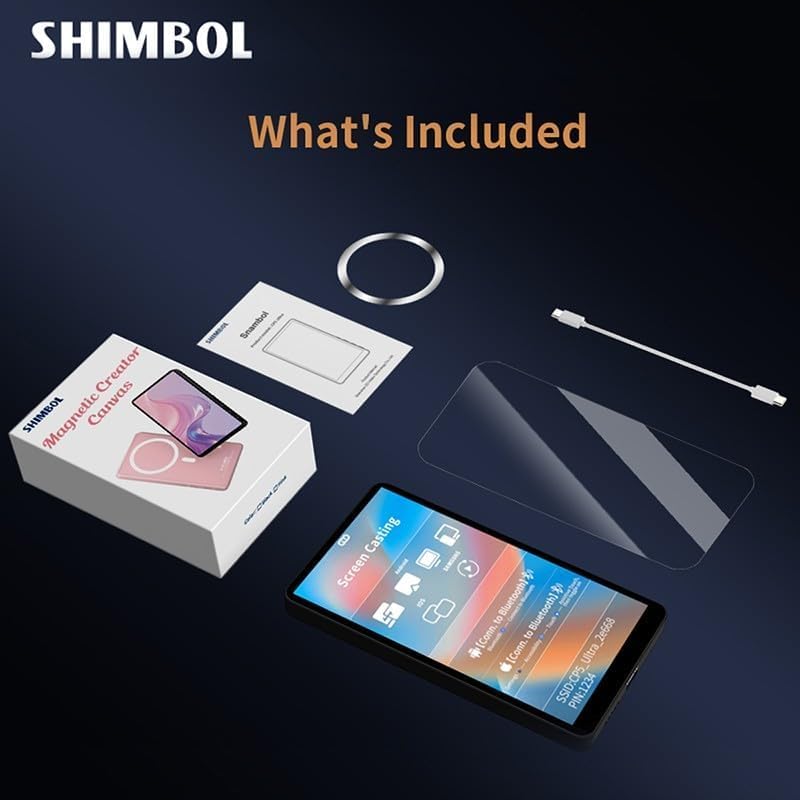
Upon unboxing, ensure all components are present: the CP5 Ultra monitor, a magnetic ring, a USB-C charging cable, and a screen protector. It is recommended to fully charge the device before first use using the provided USB-C cable.
2.2 Powering On and Connectivity
- Power On: Press and hold the power button on the side of the CP5 Ultra until the screen illuminates.
- Connect to Wi-Fi: The monitor will display a QR code and Wi-Fi network details (SSID and password). Use your phone's camera to scan the QR code to join the local network created by the CP5 Ultra.
- Enable Screen Mirroring: On your iPhone or Android device, swipe down (or up, depending on model) to access the Control Center. Tap the 'Screen Mirroring' icon.
- Select Device: From the list of available devices, select the CP5 Ultra's name (e.g., "CP5_Ultra_XXXXXX"). A checkmark will appear next to the device name when mirroring is active.
- Bluetooth Connection (for Touch Control): Go to your phone's Settings > Bluetooth. Find the CP5 Ultra's Bluetooth name (e.g., "CP5_Ultra_XXXXXX") and tap to connect.
- Enable Accessibility (for Touch Control): For full touch control functionality, navigate to your phone's Settings > Accessibility > Zoom, and ensure 'Zoom' is turned on. To exit the zoom mode, double-tap the screen with three fingers.

2.3 Magnetic Attachment
The CP5 Ultra features a built-in magnet for secure attachment to compatible phones (e.g., MagSafe-enabled iPhones). For phones without built-in magnetic support, an adhesive magnetic ring is provided. Attach this ring to the back of your phone or phone case to enable magnetic mounting.

2.4 Recommended App for 4K Shooting
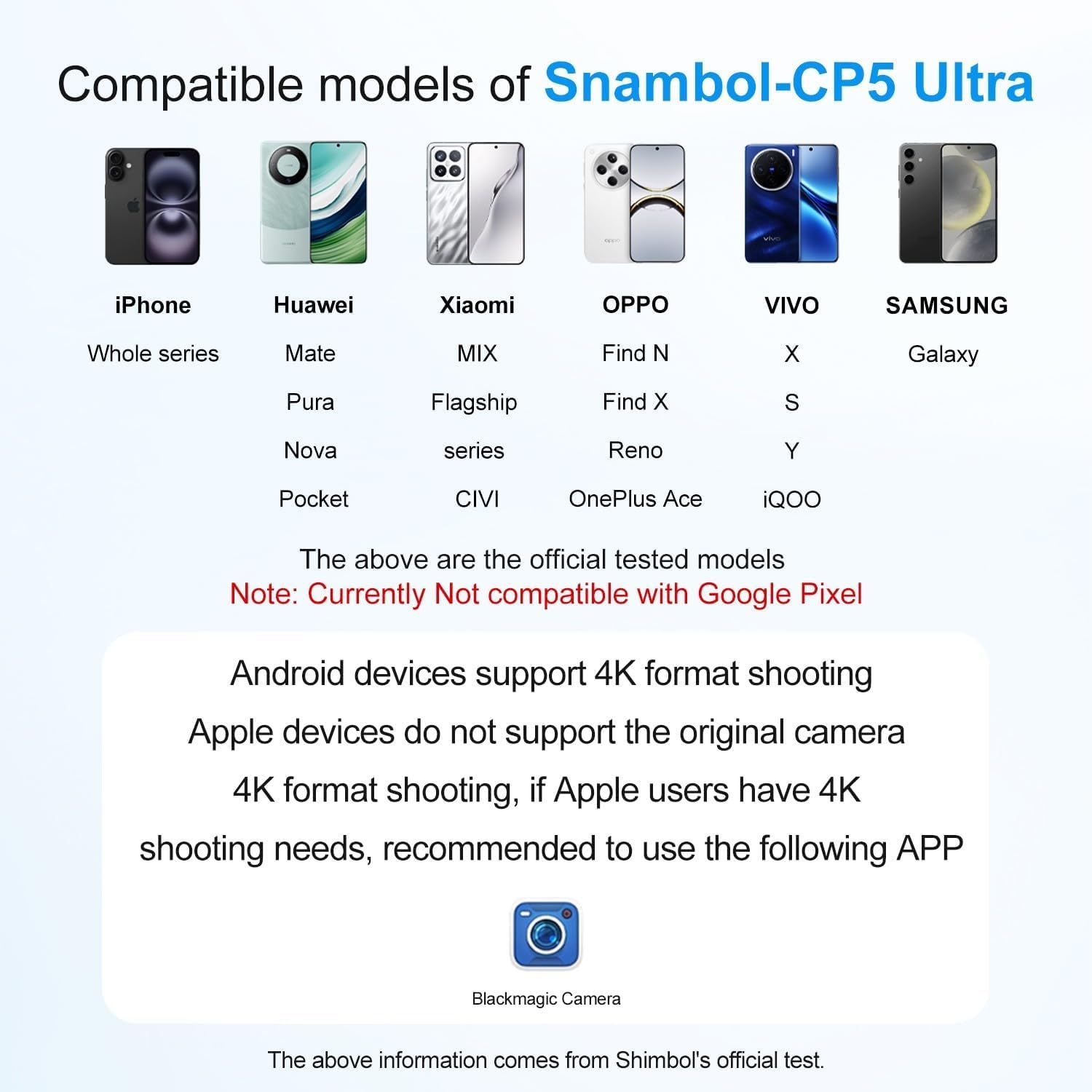
For high-definition 4K shooting without latency, it is recommended to download and use the Blackmagic Camera App with this product.

3. Operating Instructions
3.1 Basic Controls
The CP5 Ultra allows direct interaction with your phone's camera interface through its touch screen. This includes:
- Multi-Touch Zoom & Focus: Pinch, swipe, and tap on the monitor screen to precisely control zoom and focus within your phone's camera app.
- Recording: Tap the record button on the monitor to start or stop video recording.
- Rear Camera Switching: Instantly switch to your phone's rear camera for high-quality selfies and vlogs while viewing yourself on the CP5 Ultra.

3.2 Side Button Functions
The side buttons on the CP5 Ultra provide quick access to essential functions:
- Top Button: Capture (takes a photo or starts/stops video recording).
- Second Button: Mirror (flips the display horizontally, useful for self-recording).
- Third Button: Zoom-in/Mute (controls zoom level or mutes audio).
- Fourth Button: Power/Brightness (short press to adjust brightness, long press to power on/off).
3.3 Bluetooth Remote Shutter
The included Bluetooth remote shutter allows for hands-free photo and video capture. Pair the remote with your phone via Bluetooth settings. Once paired, press the button on the remote to trigger your phone's camera shutter.
3.4 Audio Monitoring
The CP5 Ultra features a built-in speaker, allowing you to play back footage with clear audio directly from the monitor without additional gear.

3.5 Connection Tutorial Video
For a visual guide on connecting your Shimbol CP5 Ultra, please refer to the official tutorial video below:
4. Maintenance
To ensure the longevity and optimal performance of your Shimbol CP5 Ultra monitor, follow these maintenance guidelines:
- Cleaning: Use a soft, lint-free cloth to clean the screen and body. Avoid abrasive materials or harsh chemicals. For stubborn smudges, lightly dampen the cloth with water or a screen-specific cleaning solution.
- Storage: Store the monitor in a cool, dry place away from direct sunlight and extreme temperatures. Use the provided screen protector to prevent scratches when not in use.
- Handling: Avoid dropping the device or subjecting it to strong impacts. Do not attempt to disassemble the unit, as this will void the warranty.
- Water Exposure: The device is not waterproof. Avoid exposure to water or high humidity.
5. Troubleshooting
- No Power: Ensure the device is fully charged. Connect it to a power source using the USB-C cable.
- Connectivity Issues:
- Verify that your phone is connected to the CP5 Ultra's local Wi-Fi network.
- Ensure Screen Mirroring is active and the correct device is selected on your phone.
- Check Bluetooth connection for touch control functionality.
- Restart both the CP5 Ultra and your phone.
- Unresponsive Touchscreen:
- Confirm that the Bluetooth connection is established.
- Ensure 'Zoom' is enabled in your phone's Accessibility settings for touch control.
- If the issue persists, try restarting the device and re-establishing connections.
- Lag or Delay in Mirroring:
- Ensure you are within the recommended operating range (up to 50m in open areas).
- Minimize interference from other wireless devices.
- For 4K shooting, use the recommended Blackmagic Camera App.
- Magnetic Attachment Not Secure:
- If your phone does not have built-in magnetic support, ensure the included magnetic ring is properly attached to your phone or case.
- Check for any obstructions between the monitor and your phone.
6. Specifications
| Feature | Detail |
|---|---|
| Model Number | CP5 Ultra-Black |
| Display Size | 5 inches |
| Resolution | 1080P Full HD |
| Connectivity | 2.4G/5G Dual-Band Wireless, Bluetooth |
| Latency | <0.04s |
| Transmission Range | Up to 50m (open areas) |
| Battery Life | Approx. 3.5 hours |
| Item Weight | 9.5 ounces (0.27 Kilograms) |
| Package Dimensions | 5.75 x 3.54 x 1.42 inches |
| Compatible Devices | Cellphone, Tablet (iPhone, Huawei, Xiaomi, OPPO, VIVO, Samsung Galaxy series. Not compatible with Google Pixel.) |
7. Warranty and Support
For warranty information, product support, or service inquiries, please refer to the official Shimbol website or contact their customer service directly. Keep your purchase receipt as proof of purchase for any warranty claims.
Visit the Shimbol Store on Amazon for additional product information and support resources.


