
1. Introduction
The DUEX DXMO27CF240S is a high-performance 27-inch curved monitor designed to deliver an immersive visual experience. Featuring a 240Hz refresh rate and a rapid 1ms response time, this monitor is optimized for smooth, responsive visuals, making it ideal for gaming and fast-paced applications. It also includes integrated speakers for a complete audio-visual setup without the need for external audio devices.
This manual provides detailed instructions for setting up, operating, maintaining, and troubleshooting your DUEX DXMO27CF240S monitor. Please read this manual thoroughly before using the product to ensure proper operation and to prevent damage.
2. Safety Information
- Always place the monitor on a stable, flat surface to prevent it from falling.
- Do not expose the monitor to rain, moisture, or extreme temperatures.
- Keep the monitor away from direct sunlight and heat sources.
- Ensure proper ventilation around the monitor. Do not block ventilation openings.
- Use only the power adapter and cables supplied by the manufacturer.
- Unplug the monitor from the power outlet before cleaning or if it will not be used for an extended period.
- Do not attempt to open the monitor casing. Refer all servicing to qualified personnel.
- Avoid placing heavy objects on the power cord or monitor cables.
3. Package Contents
Please check the package contents upon unboxing to ensure all items are present and undamaged.
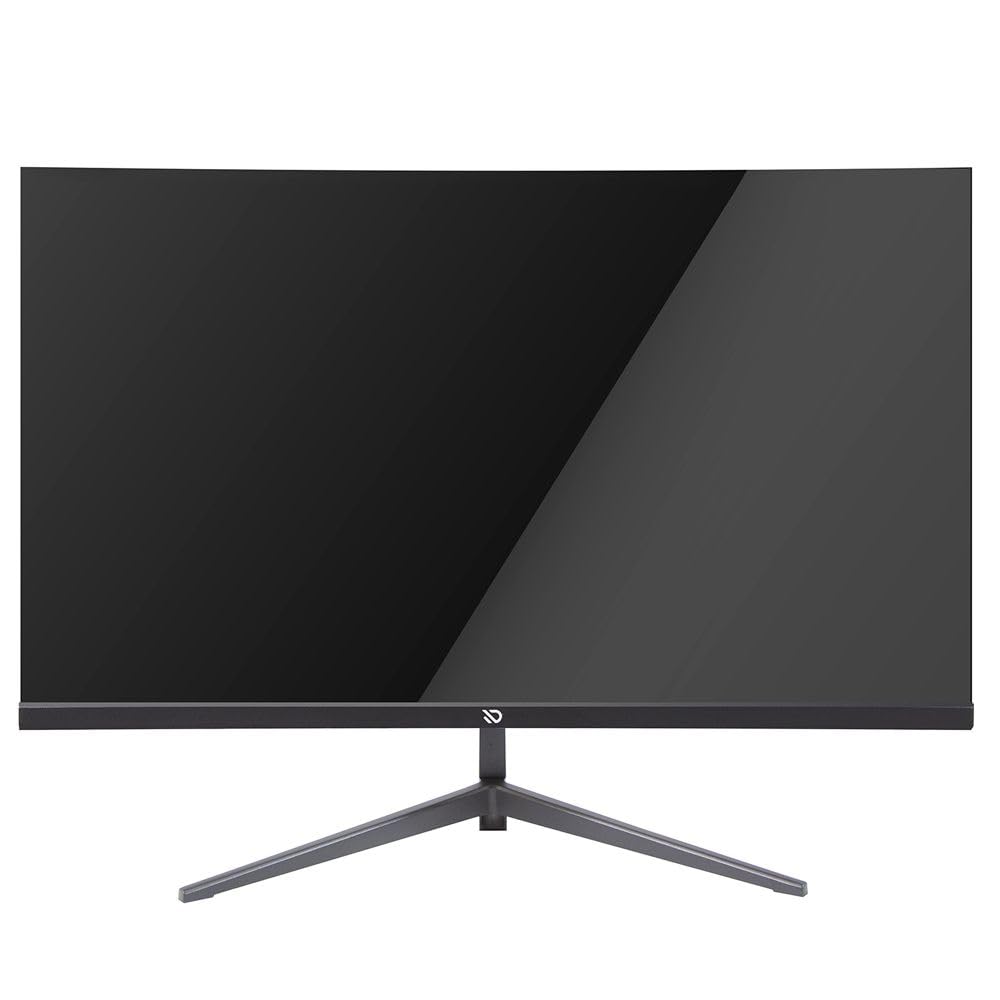
Image 3.1: The DUEX DXMO27CF240S monitor packaging box.
- DUEX DXMO27CF240S 27-inch Curved Monitor
- Monitor Stand (Base and Neck)
- Power Adapter and Power Cable
- Video Cable (e.g., DisplayPort or HDMI)
- User Manual (this document)
- Screws for Stand Assembly
4. Setup
4.1 Stand Assembly
Follow these steps to assemble the monitor stand:
- Carefully remove the monitor from its packaging, keeping it protected on a soft surface (e.g., foam packaging).
- Attach the stand neck to the monitor's rear panel using the provided screws. Ensure it is securely fastened.
- Connect the stand base to the stand neck, typically by aligning and tightening a thumb screw or using additional screws.
- Place the assembled monitor on a stable desk or surface.
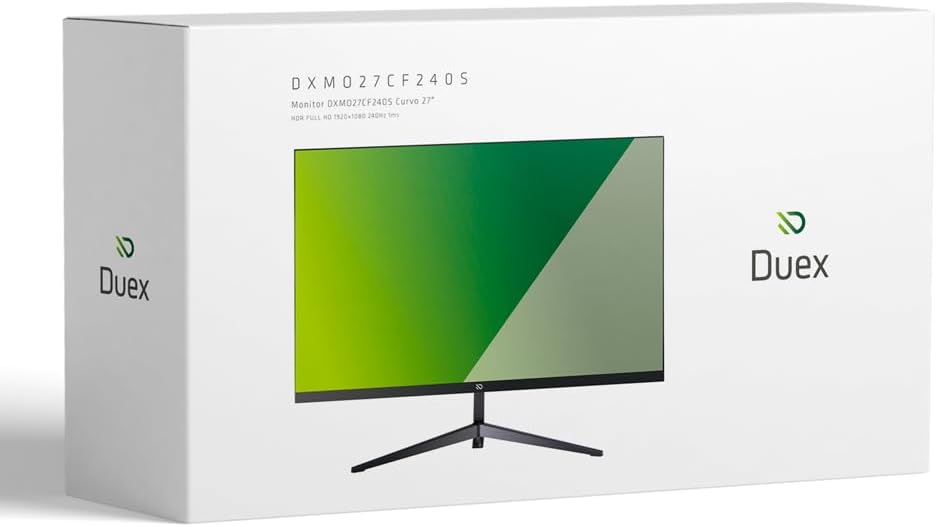
Image 4.1: Side view of the DUEX DXMO27CF240S monitor, illustrating the stand attachment.
4.2 Connecting Cables
Before connecting, ensure both the monitor and your computer are powered off.
- Power Connection: Connect the power adapter to the monitor's power input port, then plug the power cable into a wall outlet.
- Video Connection: Connect one end of the video cable (DisplayPort or HDMI, depending on your computer's output) to the corresponding port on the monitor and the other end to your computer's graphics card output.
- Audio (Optional): If you prefer to use external speakers or headphones, connect them to the monitor's audio output jack (if available) or directly to your computer. The monitor has integrated speakers.
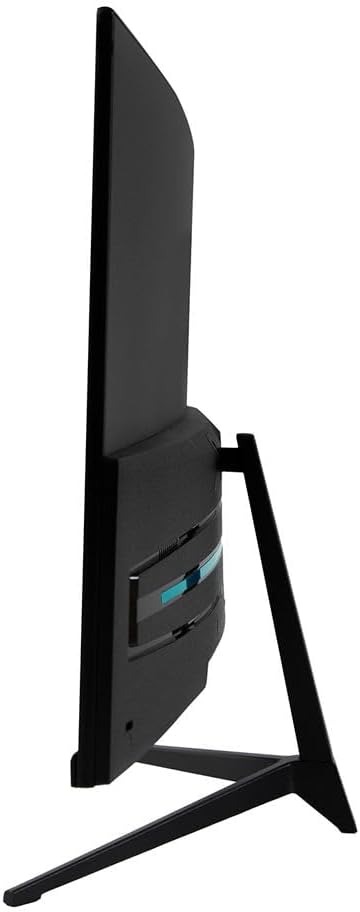
Image 4.2: Front view of the DUEX DXMO27CF240S monitor, showing the display area.
5. Operating
5.1 Power On/Off
- To power on the monitor, press the power button, usually located on the bottom or rear of the monitor. The power indicator light will illuminate.
- To power off, press the power button again.
5.2 On-Screen Display (OSD) Navigation
The OSD menu allows you to adjust various monitor settings. The control buttons are typically located on the bottom or rear of the monitor.
- Press the Menu button to open the OSD menu.
- Use the Up/Down or Left/Right buttons to navigate through menu options.
- Press the Enter or Select button to confirm a selection or enter a sub-menu.
- Press the Exit or Back button to return to the previous menu or exit the OSD.
Common OSD settings include:
- Brightness/Contrast: Adjust the display's luminance and contrast levels.
- Color Settings: Modify color temperature, gamma, and individual RGB levels.
- Input Source: Manually select the video input (e.g., HDMI, DisplayPort).
- Picture Mode: Choose from preset display modes (e.g., Standard, Game, Movie).
- Audio: Adjust volume for integrated speakers.
5.3 Audio Settings
The DUEX DXMO27CF240S monitor features integrated speakers. You can adjust the volume through the OSD menu or directly via your computer's operating system audio settings.
- Navigate to the Audio section in the OSD menu to increase or decrease the volume.
- Ensure your computer's audio output is set to the monitor if you wish to use the integrated speakers.
6. Maintenance
6.1 Cleaning the Monitor
To maintain the clarity and longevity of your monitor, follow these cleaning guidelines:
- Always unplug the monitor from the power outlet before cleaning.
- Use a soft, lint-free cloth slightly dampened with water or a non-abrasive screen cleaner.
- Gently wipe the screen and exterior surfaces. Avoid applying excessive pressure.
- Do not use alcohol, ammonia-based cleaners, or abrasive chemicals, as these can damage the screen coating.
- Never spray liquid directly onto the screen or into any openings.
6.2 Storage
If you need to store the monitor for an extended period:
- Power off and unplug all cables.
- Disassemble the stand if necessary and pack the monitor in its original packaging or a suitable protective box.
- Store in a cool, dry place away from direct sunlight and extreme temperatures.
7. Troubleshooting
If you encounter issues with your monitor, refer to the table below for common problems and solutions.
| Problem | Possible Cause | Solution |
|---|---|---|
| No power | Power cable not connected; Power outlet faulty; Monitor power button off. | Ensure power cable is securely connected; Test outlet with another device; Press monitor power button. |
| No signal | Video cable not connected; Incorrect input source selected; Computer not outputting signal. | Check video cable connections; Select correct input source via OSD; Restart computer. |
| Flickering screen | Loose video cable; Incorrect refresh rate; Interference. | Secure video cable; Adjust refresh rate in computer display settings; Move monitor away from other electronic devices. |
| No audio from speakers | Volume too low; Monitor not selected as audio output; Muted. | Increase volume via OSD or computer; Select monitor as default audio device in OS; Unmute audio. |
| Image too dark/bright | Brightness/Contrast settings incorrect. | Adjust Brightness and Contrast via the OSD menu. |
8. Specifications
Below are the technical specifications for the DUEX DXMO27CF240S monitor:
| Feature | Specification |
|---|---|
| Brand | DUEX |
| Model Number | DXMO27CF240S |
| Screen Size | 27 Inches |
| Resolution | FHD 1080p (1920 x 1080) |
| Refresh Rate | 240 Hz |
| Response Time | 1 Millisecond |
| Display Technology | VA |
| Dimensions (P x L x A) | 20P x 61L x 41A centimeters |
| Color | Black |
| Integrated Speakers | Yes |
9. Warranty and Support
9.1 Warranty Information
The DUEX DXMO27CF240S monitor comes with a 1-year warranty provided through the distribution channel. Please retain your proof of purchase for warranty claims. The warranty covers manufacturing defects under normal use. It does not cover damage caused by misuse, accidents, unauthorized modifications, or improper installation.
9.2 Customer Support
For technical assistance, warranty claims, or any questions regarding your DUEX monitor, please contact your local distributor or the point of purchase. They will be able to provide you with the necessary support and guidance.
Please have your monitor's model number (DXMO27CF240S) and proof of purchase ready when contacting support.