
1. Introduction
This manual provides detailed instructions for the safe and effective use of your PRIXTON Snap Pocket DC600 compact camera. The Snap Pocket DC600 is a high-performance compact camera designed to capture moments with exceptional quality, offering 5K video recording and photos up to 50 megapixels. Its features include a 270° rotating screen, a waterproof casing for depths up to 30 meters, and integrated WiFi and USB-C connectivity. This device is suitable for various environments, including aquatic and outdoor adventures.
2. Product Overview
2.1 Key Features
- High-Definition Video and Photography: Records videos up to 5K at 30 frames per second and captures photos up to 50 megapixels, with multiple resolutions available.
- Multi-Angle Design with Touch Screen: Features a 1.3-inch IPS touch screen with 270° rotation for flexible framing, ideal for selfies and creative shots.
- Waterproof Casing up to 30 Meters: Protected by a waterproof case, making it suitable for water sports, diving, and extreme activities without compromising image quality.
- Smart Connectivity: Includes integrated WiFi for remote control and fast content transfer. Connects via USB-C and allows content management through the SupCam Pro application, compatible with iOS and Android.
- Battery Life and Storage: Equipped with a 1000 mAh battery, providing up to 90 minutes of continuous recording. Supports microSD cards up to 256 GB.
2.2 Camera Components
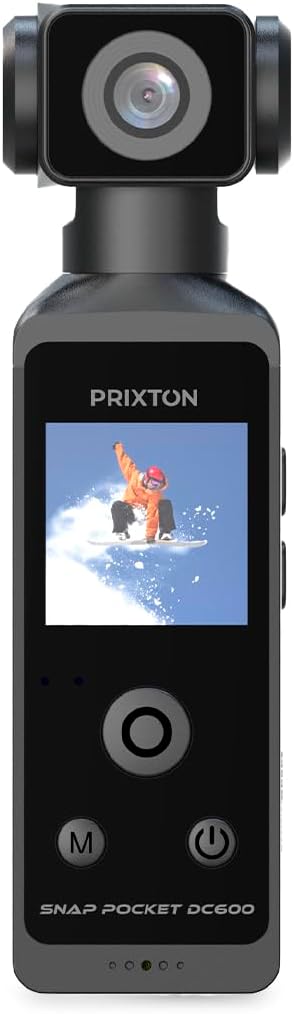


3. Setup
3.1 Charging the Battery
Before first use, fully charge the camera's internal 1000 mAh battery. Connect the included USB-C cable to the camera's USB-C port (refer to Image 3) and the other end to a standard USB power adapter (not included) or a computer's USB port. The charging indicator light will show the charging status.
3.2 Inserting a MicroSD Card
The camera requires a microSD card (up to 256 GB, not included) for storing photos and videos. Locate the microSD card slot on the side of the camera (refer to Image 3). Gently insert the microSD card with the contacts facing down until it clicks into place. To remove, press the card in again until it springs out.
3.3 Initial Power On
Press and hold the Power button (usually marked with a ⑂ symbol) for a few seconds until the screen illuminates. Follow any on-screen prompts for initial setup, such as language and date/time settings.
3.4 Connecting to the Mobile Application
Download the 'SupCam Pro' application from your device's app store (iOS or Android). Enable WiFi on your camera and connect your smartphone to the camera's WiFi network. Open the SupCam Pro app to control the camera remotely and transfer media files.
4. Operating Instructions
4.1 Basic Controls
- Power Button: Press and hold to turn on/off. Short press to switch between modes or confirm selections.
- Mode Button (M): Short press to cycle through different shooting modes (e.g., video, photo, playback).
- Navigation Buttons (Up/Down): Used to navigate menus or zoom in/out in certain modes.
- Shutter/Record Button: Press to start/stop video recording or take a photo.
4.2 Video Recording
In video mode, press the Shutter/Record button to begin recording. Press it again to stop. The camera supports resolutions up to 5K at 30fps. Adjust video settings (resolution, frame rate) via the on-screen menu.
4.3 Photo Capture
In photo mode, press the Shutter/Record button to take a picture. The camera can capture photos up to 50 megapixels. Adjust photo settings (resolution, timer) via the on-screen menu.
4.4 Using the 270° Rotating Screen
The camera's 1.3-inch IPS touch screen can rotate 270 degrees. This allows for flexible viewing angles, making it easy to frame shots from various perspectives, including selfies. Simply adjust the screen to your desired position.


4.5 Waterproof Usage
When using the camera in or near water, ensure it is properly enclosed within its waterproof casing (refer to Image 4). Verify that all seals are clean and securely closed before submersion. The camera is waterproof up to 30 meters with the casing.

5. Maintenance
5.1 Cleaning
- Camera Body: Wipe with a soft, dry cloth. For stubborn dirt, use a slightly damp cloth and then dry thoroughly.
- Lens: Use a lens cleaning cloth or brush to gently remove dust. Avoid touching the lens with fingers.
- Waterproof Casing: After use in saltwater, rinse the casing with fresh water and allow it to air dry. Ensure no sand or debris is trapped in the seals.
5.2 Battery Care
To prolong battery life, avoid exposing the camera to extreme temperatures. Charge the battery regularly, even if not in use, to prevent deep discharge. If storing for extended periods, charge the battery to about 50%.
5.3 Storage
Store the camera in a cool, dry place away from direct sunlight and excessive humidity. When transporting, use a protective case to prevent scratches and damage.

6. Troubleshooting
- Camera does not turn on: Ensure the battery is charged. If the issue persists, try resetting the camera using the small reset button (refer to Image 3) with a thin pin.
- Cannot record or take photos: Check if a microSD card is inserted and has sufficient free space. Ensure the card is formatted correctly (FAT32 or exFAT).
- WiFi connection issues: Ensure WiFi is enabled on the camera and your mobile device. Restart both devices and try connecting again. Verify the 'SupCam Pro' app is up to date.
- Poor image/video quality: Check the lens for smudges or dirt. Ensure settings like resolution and exposure are appropriate for the lighting conditions.
- Water leakage in waterproof case: Immediately remove the camera from water. Inspect the waterproof casing for cracks or damage. Ensure the seals are clean and properly seated before next use.
7. Specifications
| Feature | Specification |
|---|---|
| Brand | PRIXTON |
| Model Name | DC600 |
| Item Model Number | 10006216 |
| Screen Size | 1.3 inches IPS Touch Screen (270° rotating) |
| Effective Still Resolution | 50 Megapixels |
| Video Resolution | Up to 5K @ 30fps |
| Image Stabilization | Yes |
| Focal Length | 2mm - 10mm |
| Maximum Aperture | f/22 |
| Waterproof Depth | Up to 30 meters (with waterproof casing) |
| Connectivity | WiFi, USB-C |
| Battery | 1000 mAh (up to 90 minutes continuous recording) |
| Storage | MicroSD card up to 256 GB |
| Included Components | 1 charging cable |
8. Warranty and Support
8.1 Warranty Information
Specific warranty details are not provided in this manual. Please refer to the product packaging or the official PRIXTON website for warranty terms and conditions.
8.2 Customer Support
For technical assistance, troubleshooting beyond this manual, or inquiries regarding spare parts, please contact PRIXTON customer support through their official website or the contact information provided with your purchase. Spare parts availability information is currently unavailable.


