
1. Important Safety Instructions
Please read all safety instructions carefully before using your television. Keep this manual for future reference.
- Power Source: Connect the TV only to a power outlet of the type specified on the rating label. Ensure the power cord is not damaged.
- Ventilation: Do not block ventilation openings. Allow adequate space around the TV for proper airflow to prevent overheating.
- Water and Moisture: Do not expose the TV to rain or moisture. Do not place objects filled with liquids, such as vases, on the TV.
- Cleaning: Unplug the TV from the wall outlet before cleaning. Use a soft, dry cloth. Do not use liquid cleaners or aerosol cleaners.
- Placement: Place the TV on a stable, level surface. Avoid placing it in direct sunlight or near heat sources.
- Servicing: Do not attempt to service this product yourself. Refer all servicing to qualified service personnel.
- 12V Operation: This TV supports 12V operation, making it suitable for mobile environments like caravans, boats, and camping. Ensure the 12V power source is stable and correctly connected.
2. Product Overview
The AXEN AX24LEDI262C is a 24-inch HD LEDI Smart TV featuring the webOS operating system. It offers a compact design with advanced features for an enhanced viewing experience.
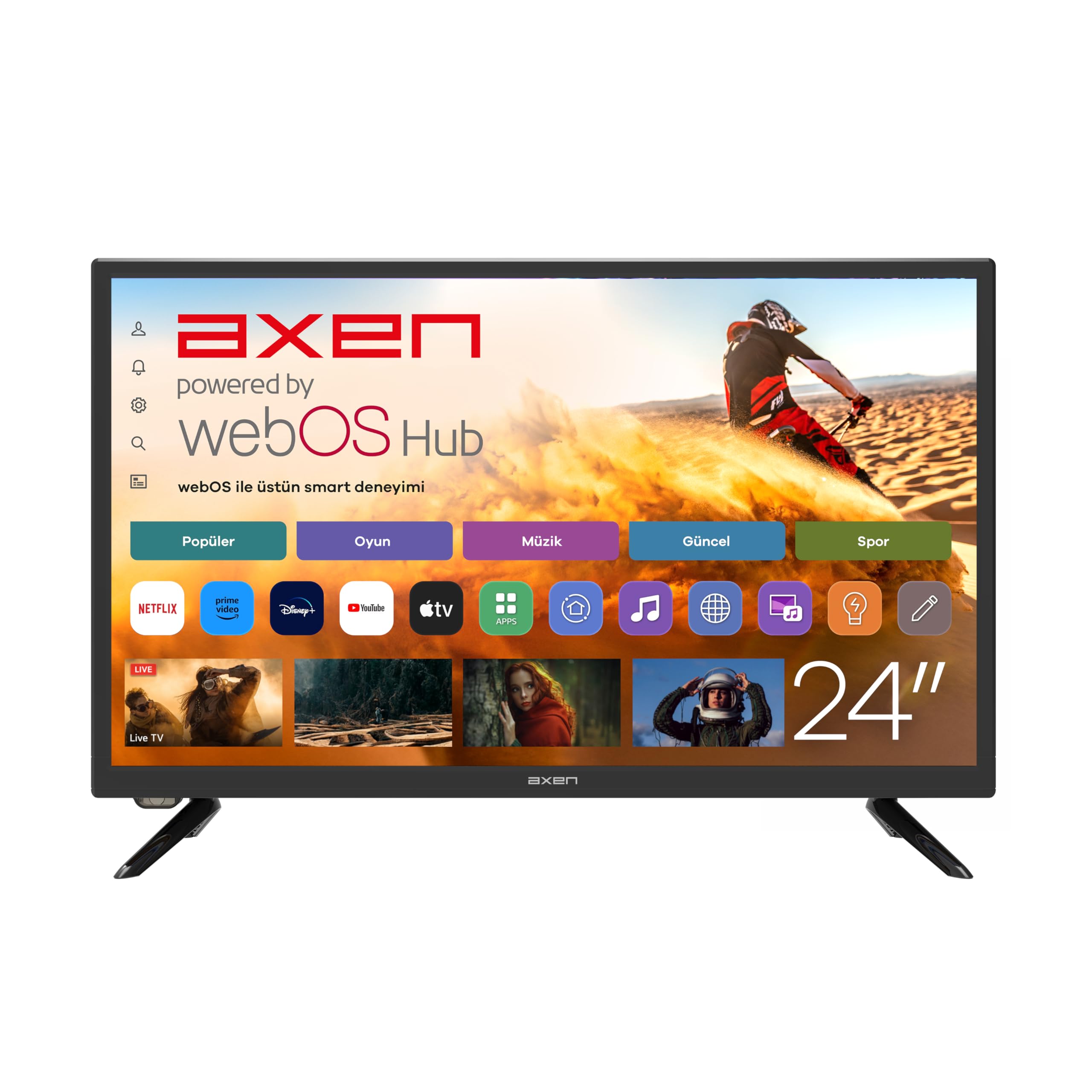
Figure 2.1: Front view of the AXEN AX24LEDI262C Smart TV displaying the webOS interface.
Key Features:
- 24-inch (60 cm) HD Ready (1366x768) LED display
- webOS Smart Operating System
- HDR10 Technology with 10-bit color support
- Dolby Audio for enhanced sound
- Built-in DVB-T2/C/S2 Tuner
- Wi-Fi (2.4 GHz/5 GHz) and Bluetooth 5.0 connectivity
- 3 x HDMI ports, 2 x USB ports (Media Player)
- Apple AirPlay and Apple Home support for screen mirroring
- 12V operation for mobile use
TV Ports and Connections:
The TV features various ports for connecting external devices. Refer to the images below for port locations.

Figure 2.2: Side view of the TV, typically showing USB and some HDMI ports.
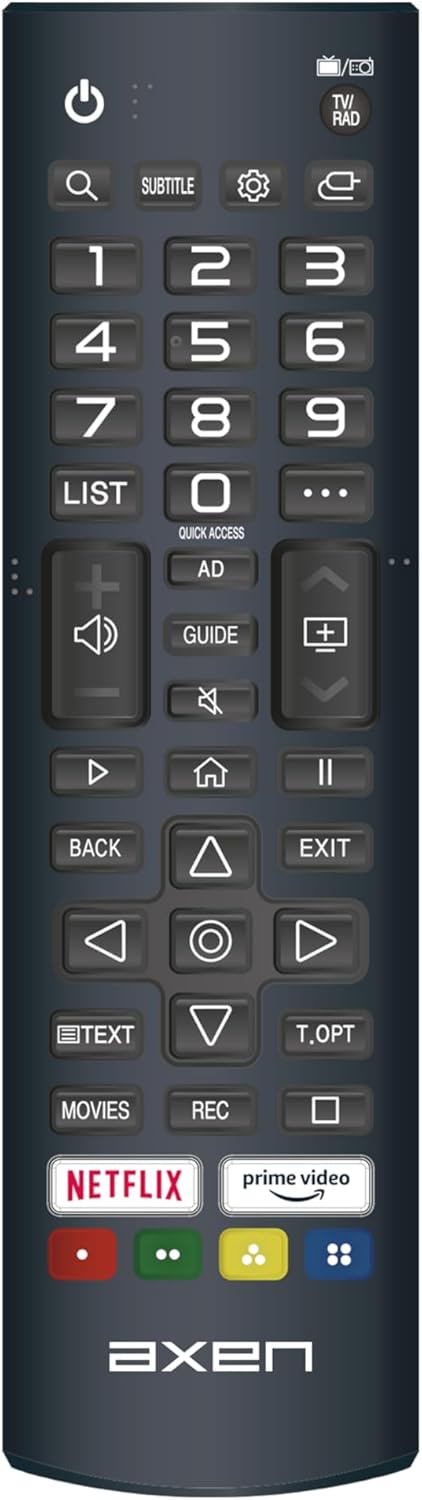
Figure 2.3: Back view of the TV, typically showing antenna, satellite, and additional HDMI/audio ports.
Common ports include:
- HDMI: For connecting high-definition devices like Blu-ray players, game consoles, or set-top boxes.
- USB: For connecting USB storage devices to play media files.
- Antenna/Satellite Input: For connecting terrestrial or satellite broadcast signals.
- SPDIF Digital Audio Output: For connecting to external audio systems.
- 12V DC Input: For connecting to a 12V power source in mobile applications.
3. Setup
3.1 Unpacking
Carefully remove the TV and all accessories from the packaging. Ensure all components listed in the packing list are present:
- AXEN AX24LEDI262C TV
- Remote Control
- Stand (feet)
- User Manual (this document)
- Warranty Certificate
3.2 Stand Installation
If you are not wall-mounting the TV, attach the included stand feet:
- Place the TV face down on a soft, clean surface to prevent screen damage.
- Align each stand foot with the corresponding slots on the bottom of the TV.
- Secure the feet with the provided screws. Do not overtighten.
3.3 Wall Mounting (Optional)
If you plan to wall-mount your TV, you will need a VESA-compatible wall mount kit (sold separately). Follow the instructions provided with your wall mount kit. Ensure the wall can support the weight of the TV and the mount.
3.4 Connecting Peripherals
- Power: Connect the power cord to the TV's power input and then to a suitable power outlet (100-240V AC) or a 12V DC source if using the 12V input.
- Antenna/Satellite: Connect your terrestrial antenna or satellite dish cable to the respective input on the TV.
- HDMI Devices: Connect external devices (e.g., game console, Blu-ray player) to the HDMI ports using HDMI cables.
- USB Devices: Insert USB storage devices into the USB ports for media playback.
3.5 Initial Power On and First-Time Setup
- Plug in the TV and press the power button on the remote control or the TV itself.
- The TV will guide you through the initial setup process, including language selection, country, time zone, and network connection.
- Network Connection: Select your Wi-Fi network and enter the password to connect the TV to the internet. This is essential for webOS smart features.
- Channel Scan: The TV will prompt you to scan for available channels (terrestrial or satellite). Follow the on-screen instructions.
4. Operating Instructions
4.1 Remote Control Functions
The TV comes with a standard remote control. Familiarize yourself with its buttons for easy navigation.
Figure 4.1: Example layout of a typical AXEN Smart TV remote control. Actual layout may vary slightly.
- Power Button: Turns the TV on or off.
- Number Buttons (0-9): For direct channel selection.
- Volume Up/Down: Adjusts the sound level.
- Channel Up/Down: Changes TV channels.
- Input/Source: Selects the input source (HDMI, USB, TV).
- Navigation Buttons (Up/Down/Left/Right/OK): For menu navigation and selection.
- Home Button: Accesses the webOS Home screen.
- Back/Exit: Returns to the previous screen or exits a menu.
- App Shortcut Buttons: Direct access to popular streaming services (e.g., Netflix, Prime Video).
4.2 Basic TV Functions
- Power On/Off: Press the power button on the remote or TV.
- Channel Selection: Use the CH+/- buttons or number buttons.
- Volume Adjustment: Use the VOL+/- buttons.
- Mute: Press the Mute button to temporarily turn off sound.
4.3 webOS Smart Features
The webOS operating system provides a user-friendly interface for accessing smart features.
- Home Screen: Press the Home button on the remote to access the launcher bar, which displays your favorite apps, inputs, and settings.
- App Store: Navigate to the LG Content Store (or similar app store) to download and install additional applications.
- Settings: Access the settings menu to configure picture, sound, network, and other TV options.
- Internet Browser: Use the built-in web browser to surf the internet.
4.4 Input Source Selection
To switch between different connected devices (e.g., HDMI, USB, TV tuner):
- Press the Input or Source button on your remote.
- A list of available input sources will appear on the screen.
- Use the navigation buttons to select your desired input and press OK.
4.5 Media Playback (USB)
You can play photos, music, and videos from a USB storage device:
- Insert your USB device into one of the TV's USB ports.
- The TV may automatically detect the device and prompt you to open the Media Player. If not, navigate to the Media Player app from the Home screen.
- Browse your files and select the content you wish to play.
4.6 Screen Mirroring (Apple AirPlay)
The TV supports Apple AirPlay, allowing you to mirror content from compatible Apple devices:
- Ensure your Apple device and the TV are connected to the same Wi-Fi network.
- On your Apple device, open the Control Center (iOS) or System Preferences (macOS) and select Screen Mirroring or AirPlay.
- Select your AXEN TV from the list of available devices.
- Enter the AirPlay passcode displayed on your TV screen into your Apple device, if prompted.
4.7 Bluetooth Connectivity
Connect Bluetooth devices such as headphones or speakers to your TV:
- Go to the TV's Settings menu.
- Navigate to Sound > Sound Out and select Bluetooth.
- Put your Bluetooth device into pairing mode.
- Select your device from the list of available devices on the TV screen to pair.
5. Maintenance
5.1 Cleaning the TV
- Always unplug the TV before cleaning.
- Use a soft, dry, lint-free cloth to wipe the screen and cabinet.
- For stubborn marks, lightly dampen the cloth with water or a mild, non-abrasive screen cleaner. Do not spray cleaner directly onto the screen.
- Avoid using alcohol, benzene, thinners, or other volatile substances, as they may damage the TV's surface.
5.2 Software Updates
To ensure optimal performance and access to the latest features, keep your TV's software updated:
- Ensure the TV is connected to the internet.
- Go to Settings > General > About This TV > Check for Updates.
- Follow the on-screen prompts to download and install any available updates. Do not turn off the TV during an update.
6. Troubleshooting
If you encounter issues with your TV, refer to the following common problems and solutions:
| Problem | Possible Solution |
|---|---|
| No power | Check if the power cord is securely plugged into the TV and the wall outlet. Try a different outlet. Ensure the 12V adapter is correctly connected if using 12V power. |
| No picture, but sound is present | Ensure the correct input source is selected. Check cable connections (HDMI, antenna). Try another device on the same input. |
| No sound, but picture is present | Check the volume level and ensure the TV is not muted. Verify audio settings in the menu. If using external speakers, check their connections and power. |
| Remote control not working | Replace the batteries in the remote control. Ensure there are no obstructions between the remote and the TV's IR sensor. |
| Cannot connect to Wi-Fi | Ensure your Wi-Fi router is on and working. Re-enter the Wi-Fi password carefully. Try restarting both the TV and the router. |
| Picture quality issues (e.g., blurry, distorted) | Check the antenna or HDMI cable connections. Adjust picture settings (brightness, contrast, sharpness) in the TV menu. Ensure the input source is providing a high-quality signal. |
If the problem persists after trying these solutions, please contact customer support.
7. Specifications
The following table outlines the technical specifications for the AXEN AX24LEDI262C Smart TV:
| Feature | Specification |
|---|---|
| Model Name | AX24LEDI262C |
| Screen Size | 24 inches (60 cm) |
| Display Technology | LED |
| Resolution | HD Ready (1366x768) |
| Aspect Ratio | 16:9 |
| Refresh Rate | 60 Hz |
| Operating System | webOS |
| HDR Support | HDR10 (10-bit color) |
| Audio Output | 2 x 3 W, Dolby Audio, Surround Sound (6.1 channel configuration) |
| Connectivity | Wi-Fi (2.4 GHz/5 GHz), Bluetooth 5.0 |
| Inputs | 3 x HDMI, 2 x USB (Media Player), Antenna, Satellite |
| Outputs | SPDIF Digital Audio Output |
| RAM / ROM | 1.5 GB / 8 GB |
| Special Features | 12V Operation, Apple Home Support, Screen Mirroring (AirPlay) |
| Power Consumption | 12 watts (typical) |
| Product Dimensions (D x W x H) | 15.5 x 55 x 37 cm |
| Product Weight | 3.3 Kilograms |
8. Warranty and Support
8.1 Warranty Information
This AXEN AX24LEDI262C TV comes with a 2-year warranty provided by Sunny Türkiye. Please refer to the warranty certificate included in your product packaging for detailed terms and conditions.
8.2 Customer Support
For technical assistance, troubleshooting beyond this manual, or warranty claims, please contact AXEN customer support or the authorized service center in your region. Keep your purchase receipt and warranty certificate handy when contacting support.


