
Introduction
The G-LAB Combo TUNGSTEN EX is a high-performance wireless gaming keyboard and mouse combo designed for an optimal gaming experience. This combo offers triple-mode connectivity (2.4 GHz, Bluetooth, and wired USB) for versatile use across various platforms. The keyboard features responsive membrane keys, anti-ghosting, multimedia shortcuts, and dedicated keys, while the mouse provides precise control with adjustable DPI and programmable buttons. Both devices feature customizable RGB lighting and macro programming via dedicated software.

Image: The G-Lab Combo Tungsten EX Keyboard and Mouse. This image displays the full keyboard and mouse combo, highlighting their design and RGB lighting.
Setup
1. Unpacking
Carefully remove all components from the packaging. Ensure you have the keyboard, mouse, 2.4 GHz USB receiver, and charging cable.
2. Charging the Devices
The keyboard and mouse come with built-in rechargeable batteries. Before first use, it is recommended to fully charge both devices using the provided USB cable. Connect the cable to a USB power source (e.g., computer USB port, USB wall adapter).
3. Connecting the Combo
The TUNGSTEN EX combo offers three connection modes:
- 2.4 GHz Wireless Mode:
- Locate the 2.4 GHz USB receiver. It is often stored in a compartment on the mouse or keyboard.
- Plug the USB receiver into an available USB port on your PC or console.
- Turn on the keyboard and mouse. For the mouse, ensure the switch on its underside is set to '2.4G'. For the keyboard, ensure it is in 2.4G mode (refer to keyboard indicators).
- The devices should automatically connect.
- Bluetooth Mode:
- Ensure your device (PC, PS4/PS5) has Bluetooth enabled.
- Switch the keyboard and mouse to Bluetooth mode (refer to device-specific instructions for pairing mode activation, usually a button press or switch position).
- On your device, search for new Bluetooth devices and select 'TUNGSTEN EX Keyboard' and 'TUNGSTEN EX Mouse' to pair.
- Wired USB Mode:
- Connect the provided USB cable directly from the keyboard/mouse to your PC or console.
- The devices will function as wired peripherals and will also charge simultaneously.

Image: Triple Mode Wireless Connectivity. This image illustrates the three connection options: 2.4 GHz USB receiver, Bluetooth, and wired USB.
4. Software Installation (Optional)
For advanced customization of RGB lighting and macros, download the official G-LAB TUNGSTEN EX software from the manufacturer's website. Follow the on-screen instructions for installation.
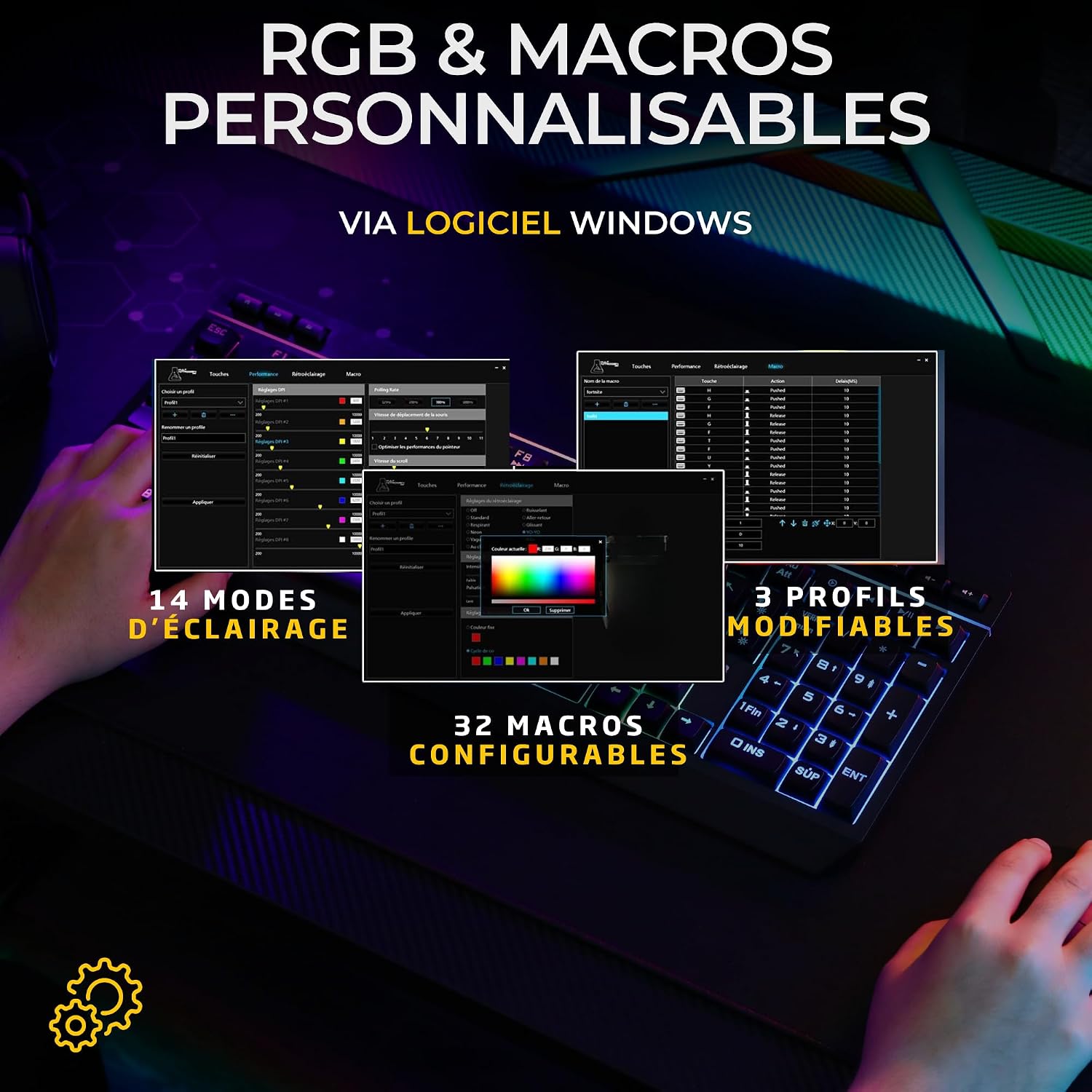
Image: Customizable RGB Lighting and Macro Programming Software. This image shows the software interface for configuring RGB effects and macros.
Operating Instructions
Keyboard Functions
- Anti-Ghosting: The keyboard features 19-key anti-ghosting, allowing multiple key presses to be registered simultaneously without conflict, crucial for gaming.
- Multimedia Shortcuts: Use the 12 dedicated multimedia keys (often accessed via the 'Fn' key + F-keys) to control media playback, volume, and other functions.
- Dedicated Keys: 10 additional dedicated keys provide quick access to various functions.
- Windows Lock Function: Activate the Windows Lock function to prevent accidental presses of the Windows key during gameplay, ensuring uninterrupted sessions.
- RGB Backlighting: Cycle through various RGB lighting effects and adjust brightness directly on the keyboard using specific key combinations (refer to the quick start guide for exact key combinations).
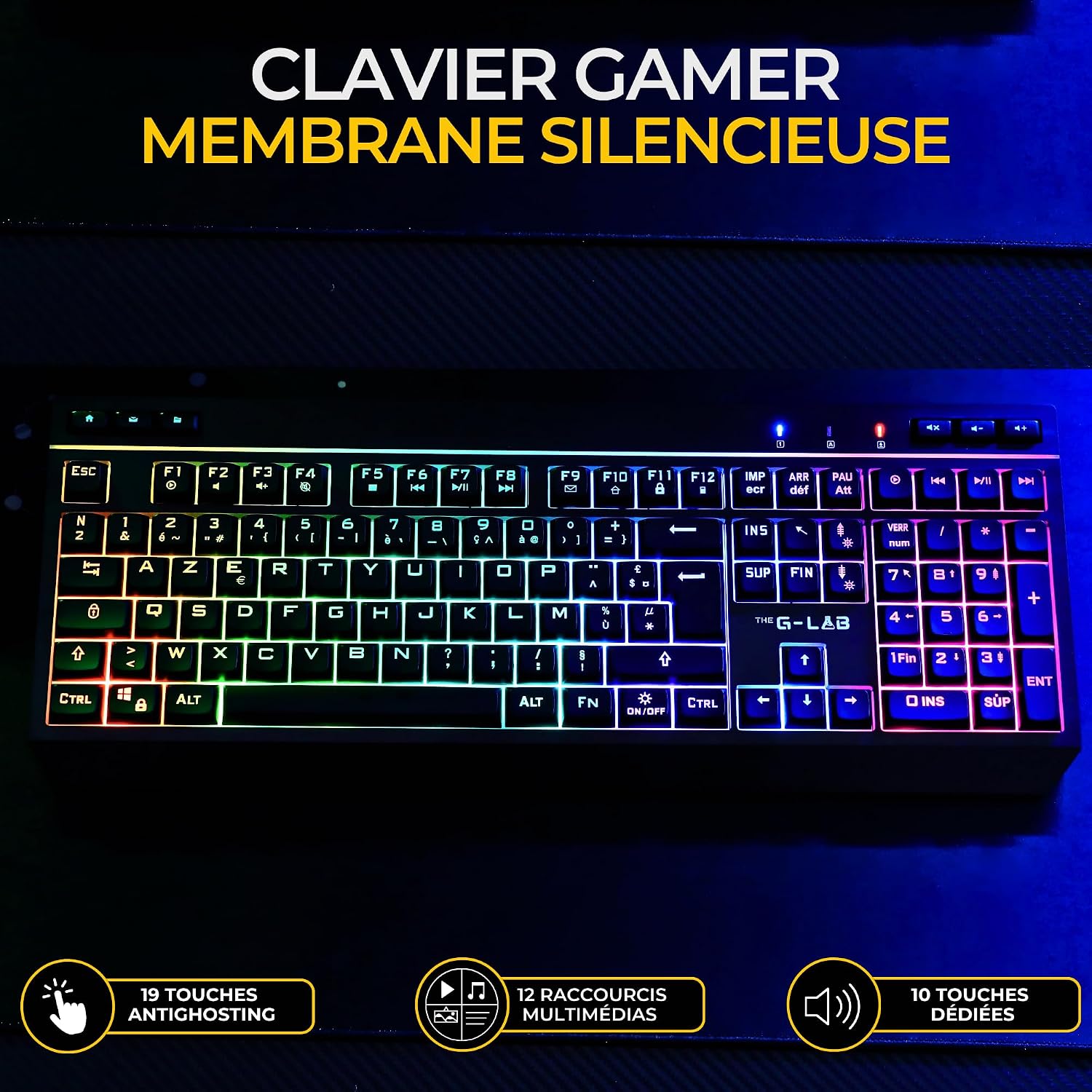
Image: G-Lab Tungsten EX Keyboard with Anti-Ghosting and Multimedia Keys. This image highlights the keyboard layout and its special function keys.
Mouse Functions
- Adjustable DPI: The mouse offers adjustable DPI settings up to 6400. Use the dedicated DPI button (usually located behind the scroll wheel) to cycle through sensitivity levels.
- Programmable Buttons: The mouse features 6 programmable buttons. These can be customized using the G-LAB software to assign macros or specific functions.
- 1000 Hz Refresh Rate: Ensures rapid and precise tracking for competitive gaming.

Image: G-Lab Tungsten EX Gaming Mouse with Programmable Buttons and Adjustable DPI. This image focuses on the gaming mouse, showing its buttons and ergonomic design.
Switching Connection Modes
To switch between 2.4 GHz, Bluetooth, and wired modes, use the physical switches or designated key combinations on the keyboard and mouse. Ensure the correct mode is selected for your intended use.
Maintenance
Cleaning
- Keyboard: Use a soft, dry cloth to wipe the surface. For deeper cleaning, use compressed air to remove dust and debris from between the keys. Avoid using harsh chemicals or abrasive materials.
- Mouse: Wipe the mouse surface and optical sensor area with a soft, slightly damp cloth. Ensure no liquid enters the device.
Battery Care
- To prolong battery life, avoid fully discharging the devices frequently.
- Charge the devices when the low battery indicator appears.
- If storing the devices for an extended period, charge them to about 50% and store in a cool, dry place.
Troubleshooting
- Devices not connecting:
- Ensure both keyboard and mouse are powered on and fully charged.
- Verify the correct connection mode (2.4 GHz, Bluetooth, or wired) is selected on both the devices and your computer/console.
- For 2.4 GHz, ensure the USB receiver is securely plugged into a working USB port. Try a different USB port.
- For Bluetooth, ensure your device's Bluetooth is enabled and the devices are in pairing mode. Remove previous pairings and try pairing again.
- If using wired mode, ensure the cable is securely connected.
- Keys or buttons not responding:
- Check for physical obstructions or debris under the keys/buttons.
- Ensure the devices are properly connected and powered.
- Restart your computer/console.
- RGB lighting not working or customizable:
- Ensure the G-LAB software is installed and up to date.
- Check if the lighting is turned off or set to a very low brightness level.
- Restart the software and/or your computer.
- Lag or input delay:
- Ensure there are no strong wireless interferences nearby (e.g., other 2.4 GHz devices, Wi-Fi routers).
- Move the USB receiver closer to the devices if using 2.4 GHz.
- Try using the wired connection for maximum stability and lowest latency.
Specifications
| Feature | Detail |
|---|---|
| Brand | THE G-LAB |
| Model Number | COMBO-TUNG-EX-B/FR |
| Color | Black |
| Connectivity Technology | 2.4 GHz Wireless, Bluetooth, Wired USB |
| Compatible Devices | PC, PS4, PS5, Xbox (Xbox compatibility via 2.4 GHz or wired only) |
| Keyboard Type | Membrane |
| Keyboard Features | 19-Key Anti-Ghosting, 12 Multimedia Shortcuts, 10 Dedicated Keys, Windows Lock, RGB Backlighting |
| Mouse DPI | Up to 6400 DPI (Adjustable) |
| Mouse Buttons | 6 Programmable Buttons |
| Mouse Refresh Rate | 1000 Hz |
| RGB Lighting | Customizable via Software |
| Battery Type | Lithium-ion (included) |
| Item Weight | 759 Grams |
| Country of Origin | China |

Image: G-Lab Tungsten EX Combo Compatible with PC and Consoles. This image shows the keyboard being used with a gaming setup, emphasizing its multi-platform compatibility.
Warranty
The G-LAB Combo TUNGSTEN EX comes with a 2-year manufacturer's warranty from the date of purchase. This warranty covers defects in materials and workmanship under normal use. It does not cover damage caused by misuse, accidents, unauthorized modifications, or normal wear and tear. Please retain your proof of purchase for warranty claims.
Support
For further assistance, technical support, or warranty claims, please visit the official THE G-LAB website or contact their customer service department. You can usually find contact information on their website or in the product packaging.

