
Introduction
The HyperX CloudX Flight 2 is a wireless gaming headset designed for use with Xbox consoles and PC, offering both 2.4 GHz wireless and Bluetooth connectivity. This manual provides detailed instructions for setting up, operating, and maintaining your headset to ensure optimal performance and longevity.
Key features include customizable RGB lighting, replaceable ear cup plates, long battery life, and versatile microphone options.
What's in the Box
Verify that all items are present in your package:
- HyperX CloudX Flight 2 Wireless Gaming Headset
- Detachable Microphone
- USB Wireless Dongle
- USB-C to USB-A Adapter
- USB-C Charge Cable
- Quick Start Guide
Product Overview
Familiarize yourself with the components and controls of your HyperX CloudX Flight 2 headset.

Image: Overview of the HyperX CloudX Flight 2 headset showing the location of the power button, volume wheel, multifunction button, mute button, game/chat mixer, and wireless mode switch.
Headset Controls
- Power Button: Located on the left earcup. Press and hold to power on/off.
- Volume Wheel: Located on the right earcup. Adjusts overall audio volume.
- Multifunction Button: Located on the right earcup. Controls media playback and call management in Bluetooth mode.
- Mute Button: Located on the left earcup. Mutes/unmutes the microphone.
- Game/Chat Mixer: Located on the right earcup. Balances game audio and chat volume.
- Wireless Mode Switch: Located on the USB wireless dongle. Toggles between Xbox and PC modes.
Microphone Options
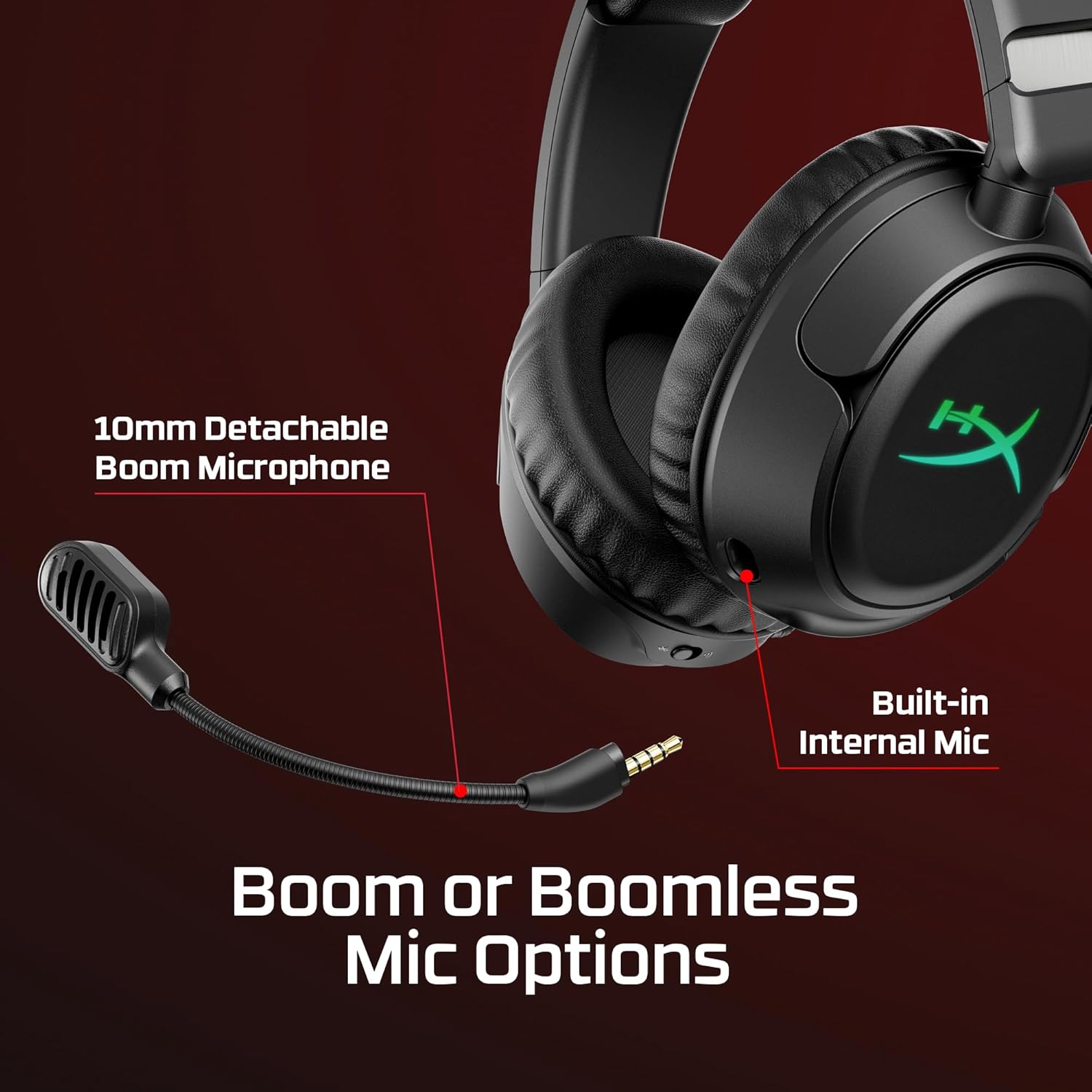
Image: Close-up of the HyperX CloudX Flight 2 headset showing the detachable 10mm boom microphone port and the location of the built-in internal microphone.
The headset features a 10mm detachable boom microphone for clear communication during gaming. An internal microphone is also built into the headset for use when the boom mic is detached, suitable for calls or general use.
Customizable Ear Cup Plates

Image: The HyperX CloudX Flight 2 headset demonstrating the removable magnetic ear cup plates with customizable RGB lighting underneath.
The magnetic ear cup plates can be easily removed and replaced without tools, allowing for customization of the headset's appearance. The full-panel RGB lighting beneath the plates can be configured via HyperX NGENUITY software.
Setup
Charging the Headset
Before initial use, fully charge the headset. Connect the supplied USB-C charge cable to the headset's USB-C port and the other end to a powered USB-A port (e.g., on your console, PC, or a wall adapter).
A full charge provides up to 100 hours of 2.4 GHz wireless use (with lighting off) or up to 150 hours via Bluetooth (with lighting off). RGB lighting reduces battery life to approximately 23 hours.

Image: Graphic illustrating the extended battery life of the HyperX CloudX Flight 2 headset, showing up to 100 hours via 2.4GHz and 150 hours via Bluetooth with RGB lighting off.
Connecting to Xbox (2.4 GHz Wireless)
- Insert the USB wireless dongle into an available USB port on your Xbox console.
- Ensure the switch on the USB wireless dongle is set to the "Xbox" position.
- Power on your HyperX CloudX Flight 2 headset by pressing and holding the power button.
- The headset and dongle should automatically pair. A solid LED indicator on both devices confirms a successful connection.
Connecting to PC (2.4 GHz Wireless)
- Insert the USB wireless dongle into an available USB port on your PC. If your PC only has USB-C ports, use the provided USB-C to USB-A adapter.
- Ensure the switch on the USB wireless dongle is set to the "PC" position.
- Power on your HyperX CloudX Flight 2 headset.
- The headset and dongle should automatically pair. A solid LED indicator on both devices confirms a successful connection.
- On your PC, navigate to Sound Settings and select "HyperX CloudX Flight 2" as your default playback and recording device.
Connecting via Bluetooth
- With the headset powered on, press and hold the multifunction button until the LED indicator flashes blue, indicating pairing mode.
- On your mobile device or other Bluetooth-enabled device, search for Bluetooth devices and select "HyperX CloudX Flight 2".
- Once connected, the LED indicator on the headset will turn solid blue.

Image: The HyperX CloudX Flight 2 headset connected wirelessly to a laptop and a mobile device, illustrating its dual 2.4GHz and Bluetooth connectivity.
Operating the Headset
Audio and Microphone Usage
- Volume Adjustment: Use the volume wheel on the right earcup to increase or decrease audio output.
- Microphone Mute: Press the mute button on the left earcup to toggle microphone mute. The LED on the microphone tip will indicate its status (e.g., red for muted).
- Game/Chat Balance: Adjust the game/chat mixer on the right earcup to prioritize game audio or voice chat.
- Detachable Boom Mic: For optimal voice clarity, attach the 10mm boom microphone. When not needed, it can be detached, and the built-in internal mic will activate.
RGB Lighting Customization
The HyperX CloudX Flight 2 features customizable RGB lighting on the earcups. To personalize lighting effects and save profiles, download and install the HyperX NGENUITY software on your PC. One lighting profile can be saved directly onto the headset.
Power Saving
To conserve battery life, you can turn off the RGB lighting via the HyperX NGENUITY software or through onboard controls if available. The headset will automatically power off after a period of inactivity to save battery.
Maintenance
Proper care ensures the longevity of your HyperX CloudX Flight 2 headset.
- Cleaning: Use a soft, dry cloth to clean the headset. For ear cushions, a slightly damp cloth with mild soap can be used, but ensure they are completely dry before use. Avoid harsh chemicals or abrasive materials.
- Storage: Store the headset in a cool, dry place away from direct sunlight and extreme temperatures.
- Battery Care: Avoid fully discharging the battery frequently. For long-term storage, charge the headset to about 50% to prolong battery health.
- Detachable Parts: Handle the detachable microphone and ear cup plates with care when attaching or removing them.
Troubleshooting
If you encounter issues with your headset, refer to the following common solutions:
No Audio / Low Volume
- Ensure the headset is powered on and fully charged.
- Check the volume wheel on the headset and your device's audio settings.
- Verify the correct wireless mode (Xbox/PC) is selected on the USB dongle.
- For PC, confirm "HyperX CloudX Flight 2" is set as the default playback device in sound settings.
- If using Bluetooth, ensure the headset is properly paired and connected to your device.
Microphone Not Working
- Check if the microphone is muted using the mute button on the headset.
- Ensure the detachable boom microphone is securely inserted.
- For PC, confirm "HyperX CloudX Flight 2" is set as the default recording device in sound settings.
- Adjust the game/chat mixer to ensure chat volume is not too low.
Connection Issues
- 2.4 GHz Wireless: Ensure the USB dongle is firmly plugged into your device and the mode switch is correct. Try a different USB port.
- Bluetooth: Ensure the headset is in pairing mode (flashing blue LED) and your device's Bluetooth is enabled. Try unpairing and re-pairing the headset.
- Move closer to the wireless dongle or Bluetooth device to rule out range issues.
Specifications
| Brand | HyperX |
| Model Number | B5VC6AA#ABA |
| Color | Black |
| Ear Placement | Over Ear |
| Form Factor | Over-ear; Circumaural; closed back |
| Impedance | 32 Ohms |
| Connectivity Technology | Wireless USB 2.4 GHz; Bluetooth 5.3 |
| Bluetooth Range | 20 Meters |
| Battery Life (2.4 GHz, lighting off) | Up to 100 hours |
| Battery Life (Bluetooth, lighting off) | Up to 150 hours |
| Battery Life (RGB on) | Up to 23 hours |
| Microphone | Detachable 10mm Boom Microphone, Built-in Internal Mic |
| Control Type | Volume, headset chat/mix, multifunction button, mic mute/mic monitoring, wireless mode switch |
| Item Weight | 12.64 ounces |
Warranty and Support
The HyperX CloudX Flight 2 Wireless Gaming Headset comes with a Limited 2-Year Warranty from the date of purchase. Please retain your proof of purchase for warranty claims.
For technical support, warranty inquiries, or additional assistance, please visit the official HyperX support website or contact their customer service. You can find more information at www.hyperx.com/support.
Official Product Video
Video: An official product video showcasing the features and design of the HyperX CloudX Flight 2 Wireless Gaming Headset. This video highlights key functionalities and aesthetic elements.


