
1. Overview
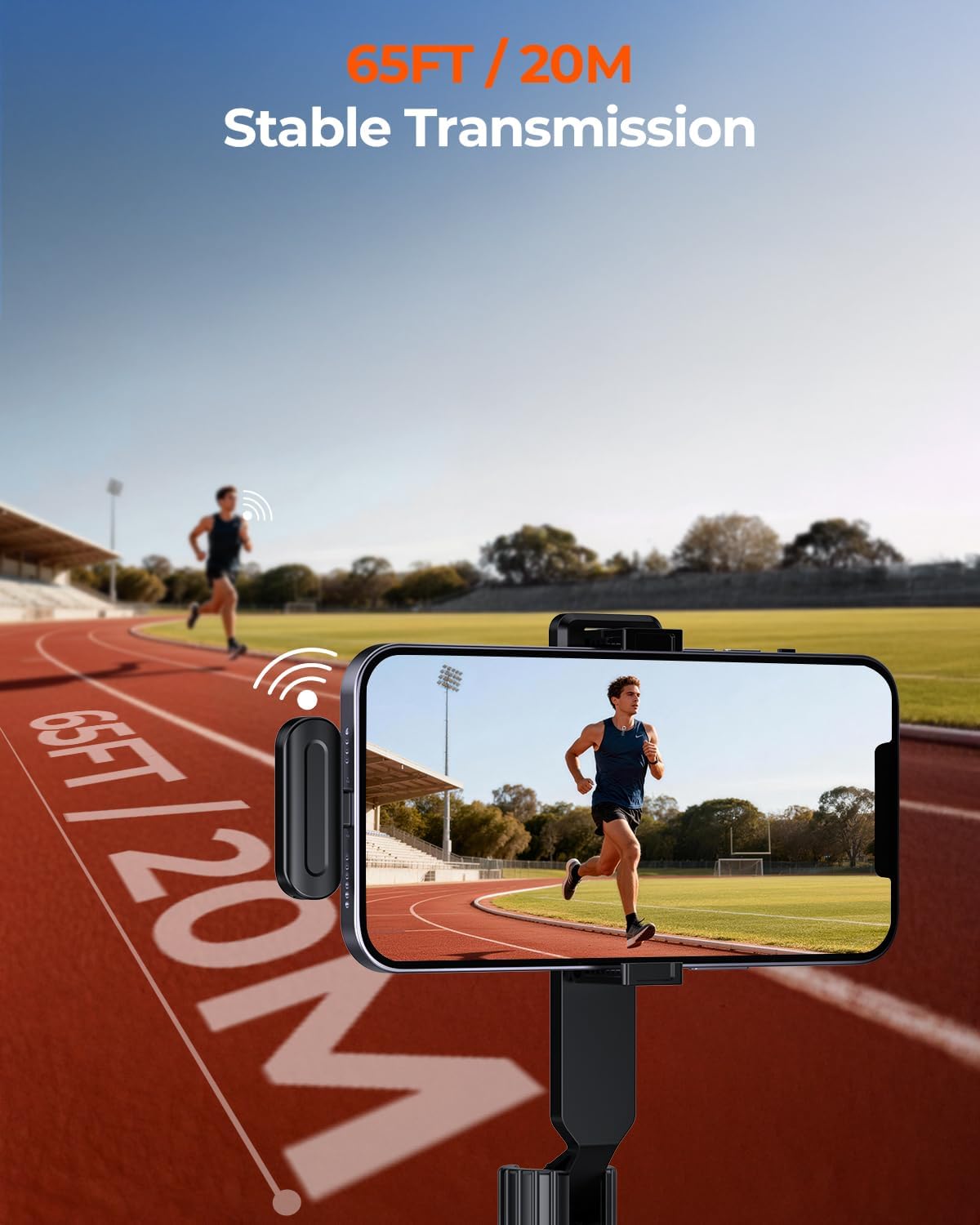
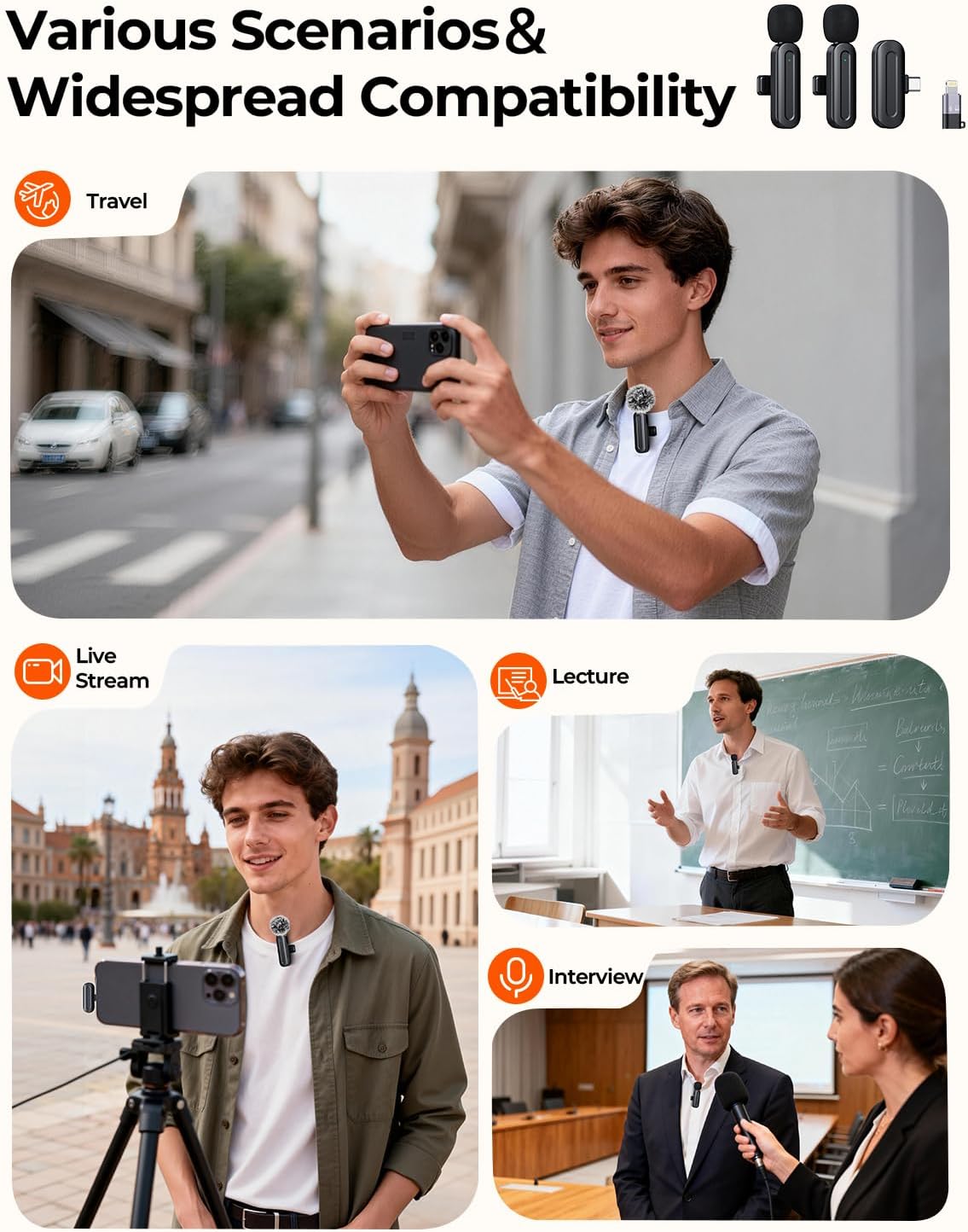
The PQRQP SX21Pro Wireless Mini Microphone system is designed to deliver high-quality, noise-reduced audio for various applications, including interviews, vlogging, and live streaming. It features stable 2.4GHz transmission and versatile multi-device support for smartphones (iPhone, Android) and computers.
- Professional Clear Audio: High-quality, noise-reduced audio with stable 2.4GHz transmission.
- Multi-Device Support: Compatible with iPhone, Android, and computers via included adapters.
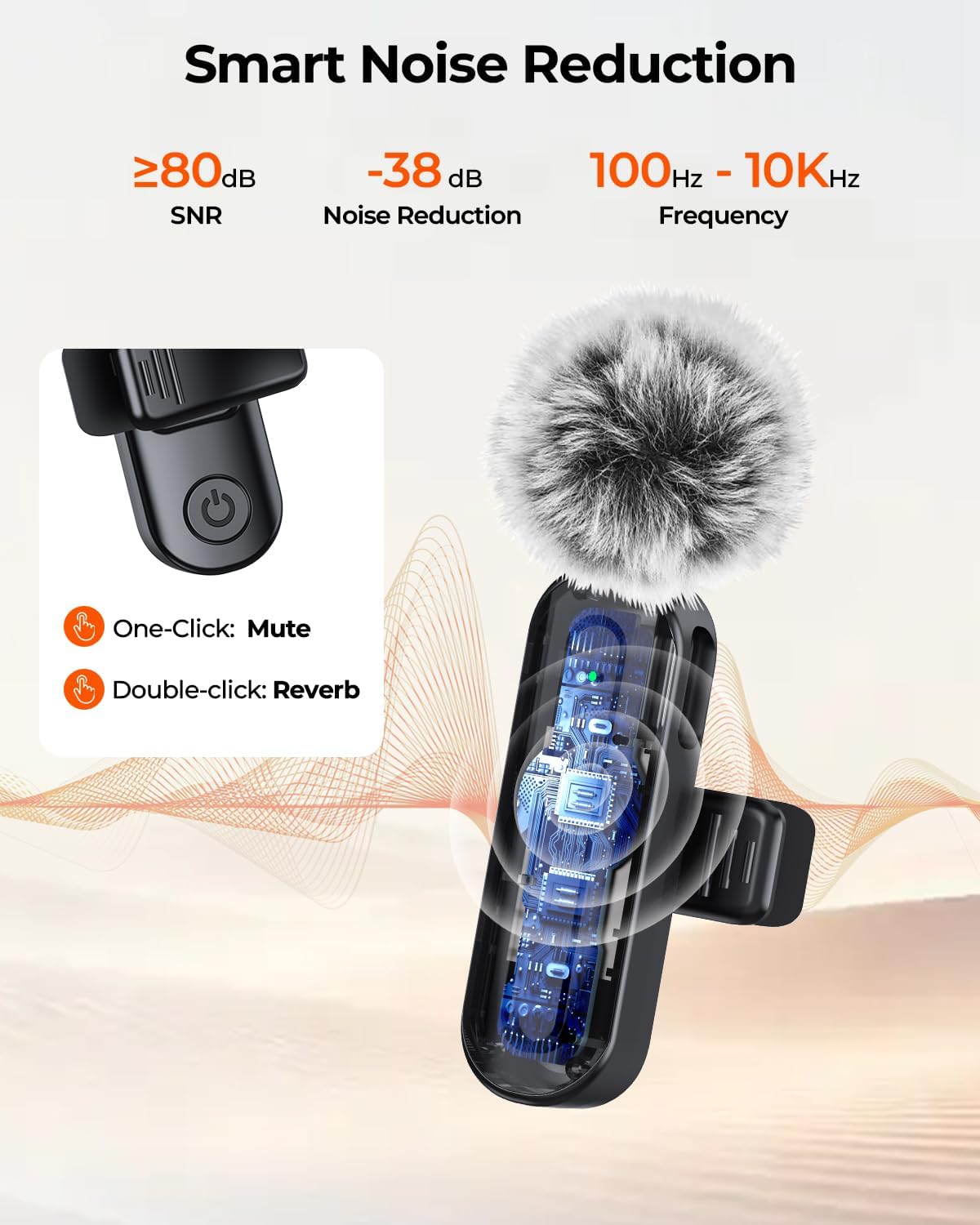
- Noise Cancellation & Clear Voice: Advanced AI technology reduces background noise and wind interference.
- True Plug & Play Operation: No complex pairing or apps required; connect the receiver to start recording.
- Complete All-in-One Kit: Includes transmitters, receivers, cables, windproof fleece, and storage bag.
2. Package Contents
Your PQRQP SX21Pro Wireless Mini Microphone kit includes the following items:
- 2 x Transmitter with Back Clip
- 1 x Receiver
- 1 x Connector Adapter (USB-C to Lightning)
- 1 x USB-C Charging Cable
- 1 x User Manual
- 2 x Windproof Fleece (for outdoor use)
- 2 x High-Density Sponge (for indoor use)
- 1 x Storage Bag

3. Setup
- Charge the Transmitters: Before first use, ensure both microphone transmitters are fully charged using the provided USB-C cable. The charging port is located on the side of each transmitter.
- Connect the Receiver: Plug the receiver directly into your smartphone or compatible device's USB-C port. If you have an iPhone with a Lightning port, use the included USB-C to Lightning adapter. The receiver will light up, indicating it's ready.
- Power On Microphones: Press and hold the power button on each transmitter until the indicator light turns green. The microphones will automatically pair with the receiver. A solid green light indicates a successful connection.
- Attach Wind Protection: For outdoor recording, slide the windproof fleece over the microphone head. For indoor use, the high-density sponge covers can be used to reduce plosives.
Setup Demonstration Video
Video: A seller demonstrating the unboxing and setup process for the PQRQP Wireless Mini Microphone set, including connecting the receiver and attaching accessories.
4. Operating Instructions
- Start Recording: Once the microphone transmitters are paired with the receiver (solid green light), open your device's camera or recording app and begin recording. The audio will automatically be captured by the wireless microphone.
- Noise Reduction & Reverb: The microphones feature advanced AI noise cancellation. A single click on the power button can mute the microphone, while a double-click can activate a reverb effect for enhanced audio.
- Using Two Microphones: The kit includes two transmitters, allowing two individuals to record simultaneously. Both microphones will transmit audio to the single receiver connected to your device.
- Monitoring Audio: Some devices may allow real-time audio monitoring through headphones connected to the device's audio jack (if available) or through the receiver's pass-through port (if applicable).
Audio Quality Demonstration Video
Video: A seller conducting an audio test of the PQRQP Wireless Mini Microphone, demonstrating its sound quality in different environments.
5. Maintenance
- Charging: Recharge the microphone transmitters using the provided USB-C cable when the battery indicator is low.
- Cleaning: Gently clean the windproof fleece or high-density sponge covers as needed. Avoid using harsh chemicals or excessive moisture directly on the microphone unit.
- Storage: When not in use, store all components in the provided storage bag to protect them from dust and damage.
6. Troubleshooting
- No Sound/Poor Audio Quality:
- Ensure the receiver is securely plugged into your device.
- Verify both microphone transmitters are powered on and show a solid green indicator light.
- Check your device's audio input settings to ensure the external microphone is selected.
- Ensure microphones are adequately charged.
- Microphone Not Pairing:
- Turn off and restart both the transmitters and the receiver.
- Ensure no other 2.4GHz wireless devices are causing interference nearby.
- Limited Range:
- Ensure there are no major obstructions between the transmitters and the receiver.
- Avoid using the microphone in environments with strong electromagnetic interference.
7. Specifications
| Brand | PQRQP |
| Model Name | SX21Pro |
| Connectivity Technology | Bluetooth (Wireless 2.4GHz) |
| Connector Type | USB Type-C |
| Compatible Devices | Laptop, Personal Computer, Smartphone, Tablet |
| Microphone Form Factor | Lavalier |
| Audio Sensitivity | 100 Decibels |
| Signal-to-Noise Ratio | 80 dB |
| Frequency Response | 20 Hz - 10 KHz |
| Item Dimensions (L x W x H) | 2.8 x 0.6 x 0.3 inches |
| Item Weight | 2.25 ounces |
| Power Source | Battery Powered |
| Polar Pattern | Omnidirectional |
8. Warranty and Support
For warranty information, technical support, or further inquiries, please refer to the official PQRQP website or contact their customer service directly. Details can typically be found on the product packaging or the manufacturer's online resources.

