
1. Introduction
Welcome to the user manual for your MUNBYN Rugged Tablet ILT03. This device is engineered for durability and high performance in challenging environments, featuring Android 14, IP68 water and dust resistance, MIL-STD-810H certification, and robust connectivity options. This manual provides essential information for setting up, operating, maintaining, and troubleshooting your tablet to ensure optimal performance and longevity.
2. Product Overview
The MUNBYN ILT03 is a rugged 8.68-inch tablet designed for demanding use. It combines advanced features with a durable build.
Key Features:
- Operating System: Android 14 for broad app compatibility and security.
- Processor: Mediatek 8781 CPU for efficient performance.
- Memory & Storage: 8GB RAM and 128GB internal storage, expandable up to 512GB via Micro SD card.
- Display: 8.68-inch screen with 1340x800 resolution.
- Durability: IP68 waterproof and MIL-STD-810H certified for resistance against water, dust, and drops.
- Battery: 8000mAh battery with 33W fast charging, providing up to 11 hours of usage.
- Cameras: 32MP front camera and 48MP rear camera for high-resolution photos and videos.
- Connectivity: 4G LTE, 802.11ac/ax Wi-Fi, Bluetooth, and GPS.
- Audio: Equipped with four speakers for an enhanced audio experience.
Tablet Components:
Familiarize yourself with the physical components of your ILT03 tablet.
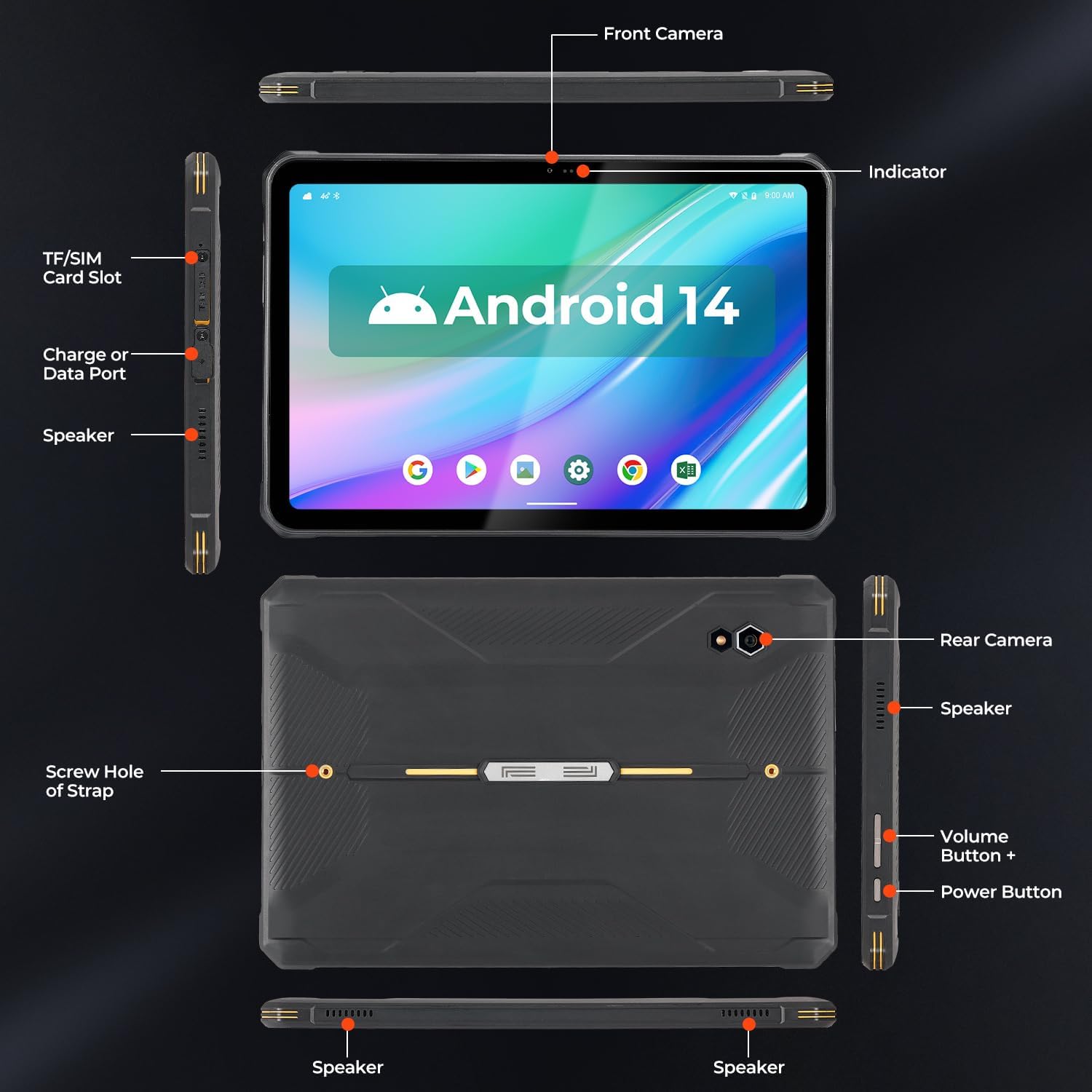
Image: Detailed diagram of the MUNBYN ILT03 tablet, indicating the location of the front camera, indicator light, TF/SIM card slot, charge or data port, speakers, rear camera, volume buttons, power button, and screw holes for the hand strap.

Image: The MUNBYN ILT03 Rugged Tablet showcasing its Android 14 interface with multiple applications open, demonstrating its capability for diverse tasks.
3. Setup
3.1 Initial Charging
Before first use, fully charge your tablet using the provided 33W fast charger. The 8000mAh battery ensures extended use, and fast charging minimizes downtime.

Image: The MUNBYN ILT03 tablet illustrating its 33W fast charging capability and 8000mAh battery, designed for all-day use, even in outdoor settings.
3.2 SIM Card and Micro SD Card Installation
- Locate the TF/SIM card slot on the side of the tablet (refer to the Component Diagram).
- Use the provided tool to open the tray.
- Insert your 4G LTE SIM card and/or Micro SD card (up to 512GB) into the designated slots.
- Carefully close the tray, ensuring it is flush with the tablet's body to maintain water and dust resistance.
3.3 Powering On/Off
- To Power On: Press and hold the Power Button until the MUNBYN logo appears.
- To Power Off: Press and hold the Power Button, then select 'Power Off' from the options on the screen.
- To Restart: Press and hold the Power Button, then select 'Restart' from the options.
3.4 Initial Android Setup
Follow the on-screen prompts to complete the initial setup of Android 14, including language selection, Wi-Fi connection, Google account login, and security settings.
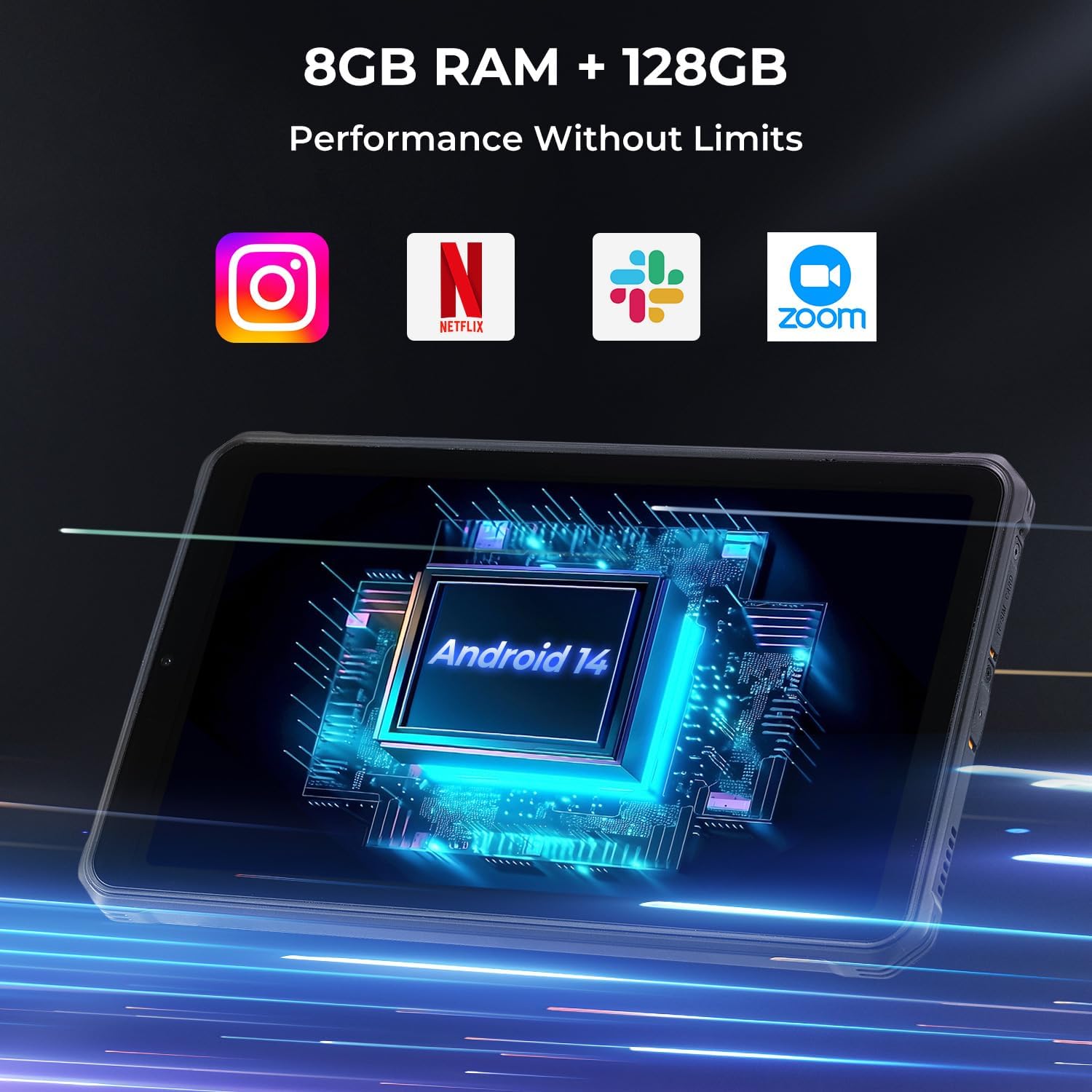
Image: The MUNBYN ILT03 tablet highlighting its Android 14 operating system, 8GB RAM, and 128GB storage, ensuring smooth performance for various applications.
3.5 Attaching the Hand-Strap
The tablet comes with a hand-strap for secure handling. Attach it using the screw holes on the back of the tablet (refer to the Component Diagram) to enhance grip and prevent accidental drops.
4. Operating Instructions
4.1 Basic Navigation
- Touchscreen: Navigate the interface by tapping, swiping, pinching, and zooming.
- Home Screen: Access your apps and widgets.
- Notifications: Swipe down from the top of the screen to view notifications and quick settings.
4.2 Camera Usage
The ILT03 features a 32MP front camera and a 48MP rear camera.
- Open the Camera app from your home screen or app drawer.
- Switch between front and rear cameras as needed.
- Tap the screen to focus and press the shutter button to capture photos or start/stop video recording.

Image: The MUNBYN ILT03 tablet highlighting its 32MP front and 48MP rear cameras, capable of capturing clear images in various scenarios.
4.3 GPS Functionality
The tablet includes GPS hardware for location services. Note: The ILT03 does not come with pre-installed GPS navigation software. You will need to download your preferred navigation or mapping applications from the Google Play Store.
4.4 Connectivity
- Wi-Fi: Connect to available Wi-Fi networks via Settings > Network & internet > Wi-Fi.
- 4G LTE: Once a SIM card is installed, mobile data will be available. Manage settings via Settings > Network & internet > Mobile network.
- Bluetooth: Pair with Bluetooth devices (e.g., headphones, external sensors) via Settings > Connected devices > Bluetooth.
5. Maintenance
5.1 Cleaning Your Tablet
Despite its rugged design, regular cleaning helps maintain performance and appearance.
- Use a soft, lint-free cloth to wipe the screen and body.
- For stubborn dirt, slightly dampen the cloth with water or a screen-safe cleaner.
- Ensure all port covers are securely closed before cleaning with liquids to maintain IP68 rating.
5.2 Battery Care
To maximize the lifespan of your 8000mAh battery:
- Avoid extreme temperatures.
- Do not let the battery completely drain frequently.
- Use the original 33W fast charger for optimal charging.
5.3 Software Updates
Regularly check for and install system updates to ensure your Android 14 tablet has the latest security patches and performance improvements. Go to Settings > System > System update.
6. Troubleshooting
This section addresses common issues you might encounter with your MUNBYN ILT03 tablet.
| Problem | Solution |
|---|---|
| Tablet does not power on. | Ensure the tablet is charged. Connect to the charger and wait a few minutes before attempting to power on again. |
| Apps are running slowly or freezing. | Close unnecessary background apps. Restart the tablet. If the issue persists, consider clearing app caches or performing a factory reset (back up data first). |
| No GPS signal. | Ensure you are in an open area with a clear view of the sky. Verify that location services are enabled in settings. Remember to download a GPS application as none are pre-installed. |
| Cannot connect to Wi-Fi/4G LTE. | For Wi-Fi, ensure the network is active and you have the correct password. For 4G LTE, check SIM card installation and ensure mobile data is enabled in settings. Contact your service provider if issues persist. |
| Tablet is not charging. | Check the charging cable and adapter for damage. Ensure the charging port is clean and free of debris. Try a different power outlet. |
7. Specifications
Detailed technical specifications for the MUNBYN ILT03 Rugged Tablet.
| Feature | Specification |
|---|---|
| Model | ILT03 |
| Operating System | Android 14 |
| Processor | MediaTek 8781 |
| RAM | 8 GB |
| Internal Storage | 128 GB |
| Expandable Storage | Up to 512 GB Micro SD |
| Screen Size | 8.68 Inches |
| Screen Resolution | 1340x800 Pixels |
| Front Camera | 32 MP |
| Rear Camera | 48 MP |
| Battery Capacity | 8000 mAh |
| Charging | 33W Fast Charging |
| Average Battery Life | 11 Hours |
| Durability Rating | IP68, MIL-STD-810H |
| Wireless Type | 802.11ac, 802.11ax (Wi-Fi), Bluetooth, 4G LTE |
| Item Weight | 2.2 pounds |
| Product Dimensions | 12.08 x 2.36 x 6.29 inches |
8. Warranty and Support
8.1 Product Protection
The MUNBYN ILT03 tablet is eligible for extended protection plans. A 2-Year Protection Plan is available for purchase, offering additional coverage beyond the standard warranty.
8.2 Customer Support
For technical assistance, warranty claims, or further inquiries, please refer to the official MUNBYN website or contact their customer support channels. Keep your purchase receipt and product serial number handy for faster service.


