
1. Product Overview
This Surakey Android 13 Car Radio is designed for Jeep Liberty models from 2008 to 2012. It features a 10-inch touch screen, 4GB RAM, 64GB ROM, and integrates advanced functionalities such as GPS navigation, wireless CarPlay, wireless Android Auto, Bluetooth, WiFi, FM/RDS radio, steering wheel control (SWC), and split-screen display. An AHD backup camera is also included for enhanced safety.
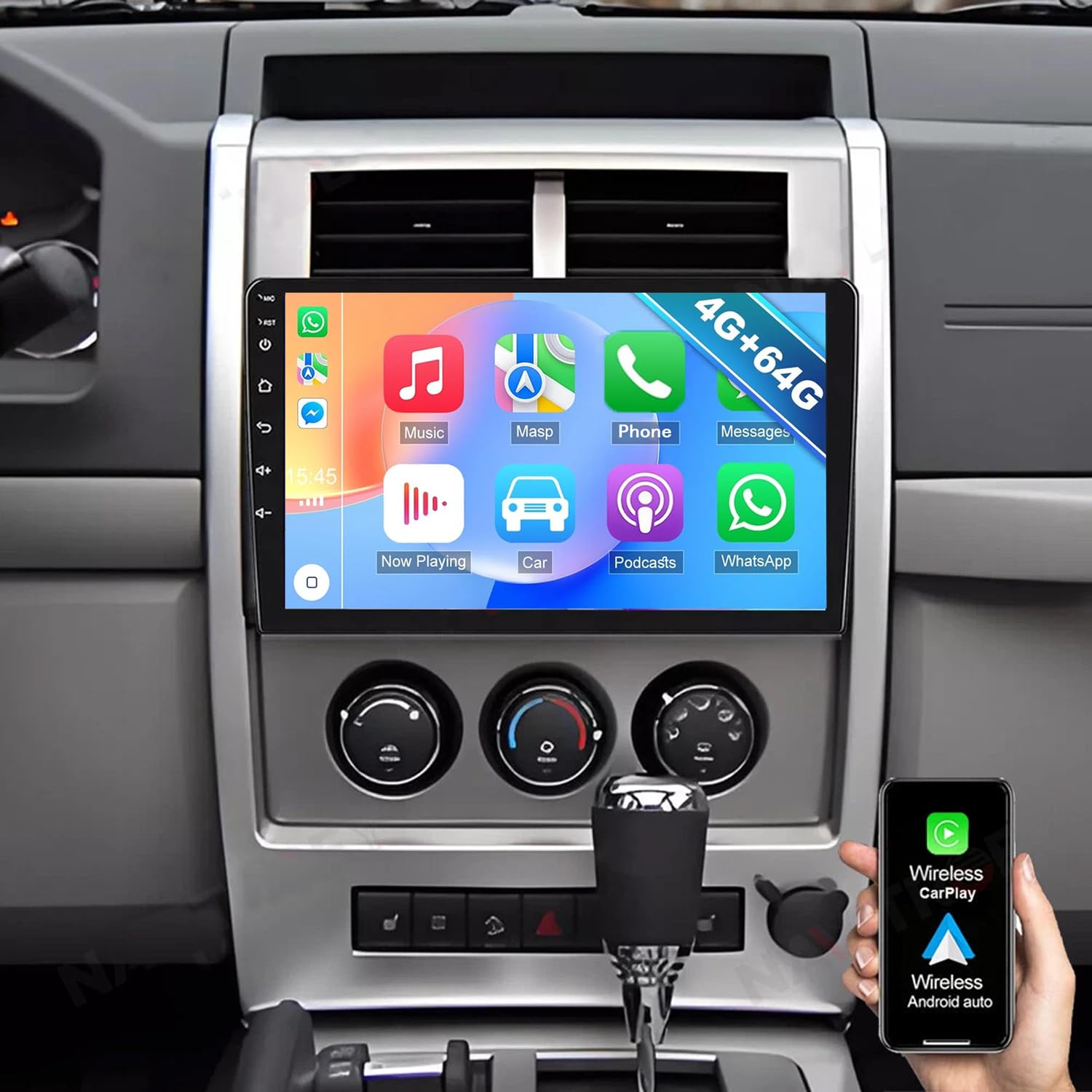
Image 1.1: Front view of the Surakey Android 13 Car Radio unit.
2. Setup and Installation
2.1 Compatibility Check
Before installation, verify that your vehicle is a Jeep Liberty manufactured between 2008 and 2012. It is recommended to send a complete image of the plugs on the back of your vehicle's center console and main unit to the seller to confirm compatibility and identify any additional wiring harnesses or adapters required.

Image 2.1: Reminder to verify vehicle compatibility before installation.
2.2 Product Wiring
Refer to the wiring diagram below for connecting the car radio to your vehicle's electrical system. Ensure all connections are secure and correctly matched to prevent damage to the unit or vehicle.

Image 2.2: Detailed product wiring diagram showing connections for power, speakers, and auxiliary inputs.
2.3 Reversing Camera Installation
The included AHD backup camera provides a clear view when reversing. Follow these steps for proper installation:
- Connect the camera's positive power wire to the positive pole of your car's reversing light.
- Connect the camera's negative power wire to the negative pole of your car's reversing light.
- The reversing trigger is controlled by the stereo and does not require a separate connection.
- Ensure the white plug is connected to the main device for Bluetooth and WiFi signals.

Image 2.3: Wiring diagram for the reversing camera, showing connections to the reversing light and main unit.
2.4 Backup Camera Format and Resolution Setup
To ensure optimal performance of the backup camera, configure its format and resolution:
- Tap the settings icon on the main screen to open the settings menu.
- Select Factory Settings, then enter the password 8888.
- Navigate to Protocol Parameter Settings.
- Select Reverse video resolution settings.
- Choose the correct setting based on your camera type. For OEM cameras, select NTSC/PAL. For the included camera, keep the default AHD/25.

Image 2.4: Steps 1-2 for configuring backup camera settings.

Image 2.5: Steps 3-5 for configuring backup camera settings, including resolution selection.
3. Operating Instructions
3.1 CarPlay and Android Auto
Connect your iOS or Android smartphone via wired USB cable or wirelessly using Bluetooth and WiFi. This allows access to phone functions such as navigation, music, calls, and messages directly from the car radio display. Voice control is supported.

Image 3.1: Display showing Wireless CarPlay and Android Auto interfaces with voice command examples.
3.2 Mirror Link
Mirror Link functionality allows you to display your smartphone screen directly onto the car radio. This can be achieved via USB data cable or WiFi connection for both iOS and Android devices.

Image 3.2: Illustration of the Mirror Link feature, showing a smartphone screen mirrored on the car stereo.
3.3 Split Screen Display
The split-screen feature enables the simultaneous display of two applications, such as navigation and music playback, enhancing multitasking capabilities while driving.

Image 3.3: Example of split-screen functionality, displaying navigation and media player simultaneously.
3.4 GPS Navigation
The car radio supports both offline and online navigation. Use the included GPS module for offline navigation or connect to WiFi/WLAN to download and use online navigation applications.

Image 3.4: GPS navigation screen showing a route and options for online/offline maps.
3.5 Bluetooth and FM/RDS Radio
The unit features Bluetooth for hands-free calling, accessing your phone's address book, and streaming music. The integrated FM/RDS radio provides access to local radio stations, news, and real-time traffic updates.

Image 3.5: Displays for Bluetooth hands-free calling, Bluetooth music, and FM radio tuning.

Image 3.6: Detailed view of the FM Radio interface with frequency display.
3.6 Steering Wheel Control (SWC)
The SWC function allows you to control various features of the car radio, such as answering calls, changing music tracks, and adjusting volume, directly from your steering wheel buttons.

Image 3.7: Illustration of steering wheel controls interacting with the car radio interface.
3.7 Digital Sound Processor (DSP) Function
The integrated DSP feature provides high-quality audio processing, allowing for personalized audio settings and an optimized soundstage for an enhanced in-car audio experience.

Image 3.8: DSP equalizer interface for custom audio adjustments.
3.8 WiFi Connectivity
Connect the car radio to a WiFi network to access online features, download applications, and use online maps. The built-in Bluetooth also allows for hands-free phone operation and music streaming.

Image 3.9: Display showing WiFi connectivity and various online applications.
3.9 General Operation Video
Video 3.1: An official video demonstrating the general operation and features of a universal car stereo radio. This video provides a visual guide to navigating the interface and utilizing key functions.
4. Maintenance
To ensure the longevity and optimal performance of your Surakey car radio, follow these general maintenance guidelines:
- Cleaning: Use a soft, dry cloth to clean the screen and exterior. Avoid abrasive cleaners or solvents.
- Temperature: Avoid exposing the unit to extreme temperatures, both hot and cold, for extended periods.
- Software Updates: Periodically check for and install any available software updates to ensure the system runs efficiently and securely.
- Cable Connections: Ensure all cables remain securely connected. Loose connections can lead to intermittent functionality.
5. Troubleshooting
5.1 Common Issues and Solutions
- No Power: Check all power connections and fuses. Ensure the ignition is on.
- No Sound: Verify speaker connections, volume levels, and audio source selection. Check DSP settings if applicable.
- GPS Not Working: Ensure the GPS module is properly connected and has a clear view of the sky. Check navigation app settings.
- Bluetooth Connection Issues: Ensure Bluetooth is enabled on both the car radio and your phone. Delete previous pairings and try reconnecting.
- Touch Screen Unresponsive: Try restarting the unit. If the issue persists, a factory reset might be necessary (note: this will erase custom settings).
5.2 Backup Camera Compatibility
This unit supports OEM CVBS 720P backup cameras. 360-degree panoramic cameras are not supported. If your OEM backup camera is not compatible, use the included backup camera. If issues persist, contact customer support.
6. Specifications
| Feature | Detail |
|---|---|
| Model Number | B0FT7459ZY |
| Operating System | Android 13 |
| RAM | 4GB |
| ROM | 64GB |
| Screen Size | 10 inches |
| Screen Type | 2.5D HD Touch Screen |
| Connectivity | Bluetooth, WiFi, USB |
| Navigation | GPS (Online/Offline) |
| Compatibility | Jeep Liberty 2008-2012 |
| Item Weight | 1.6 ounces |
| Package Dimensions | 1.97 x 1.18 x 1.18 inches |
7. Warranty Information
Please refer to the manufacturer's official website or your purchase documentation for detailed warranty information regarding the Surakey Car Radio. Warranty terms typically cover manufacturing defects for a specified period from the date of purchase.
8. Customer Support
For technical assistance, troubleshooting, or any inquiries regarding your Surakey Car Radio, please contact the seller directly. The seller for this product is Fuyatong-US.
- Seller: Fuyatong-US
- Email: Fuyatongus@outlook.com

Image 8.1: Visual representation of customer support contact details.