
1. Introduction
This manual provides essential information for setting up, operating, and maintaining your GPD MicroPC 2. Please read it thoroughly before using the device to ensure optimal performance and longevity.
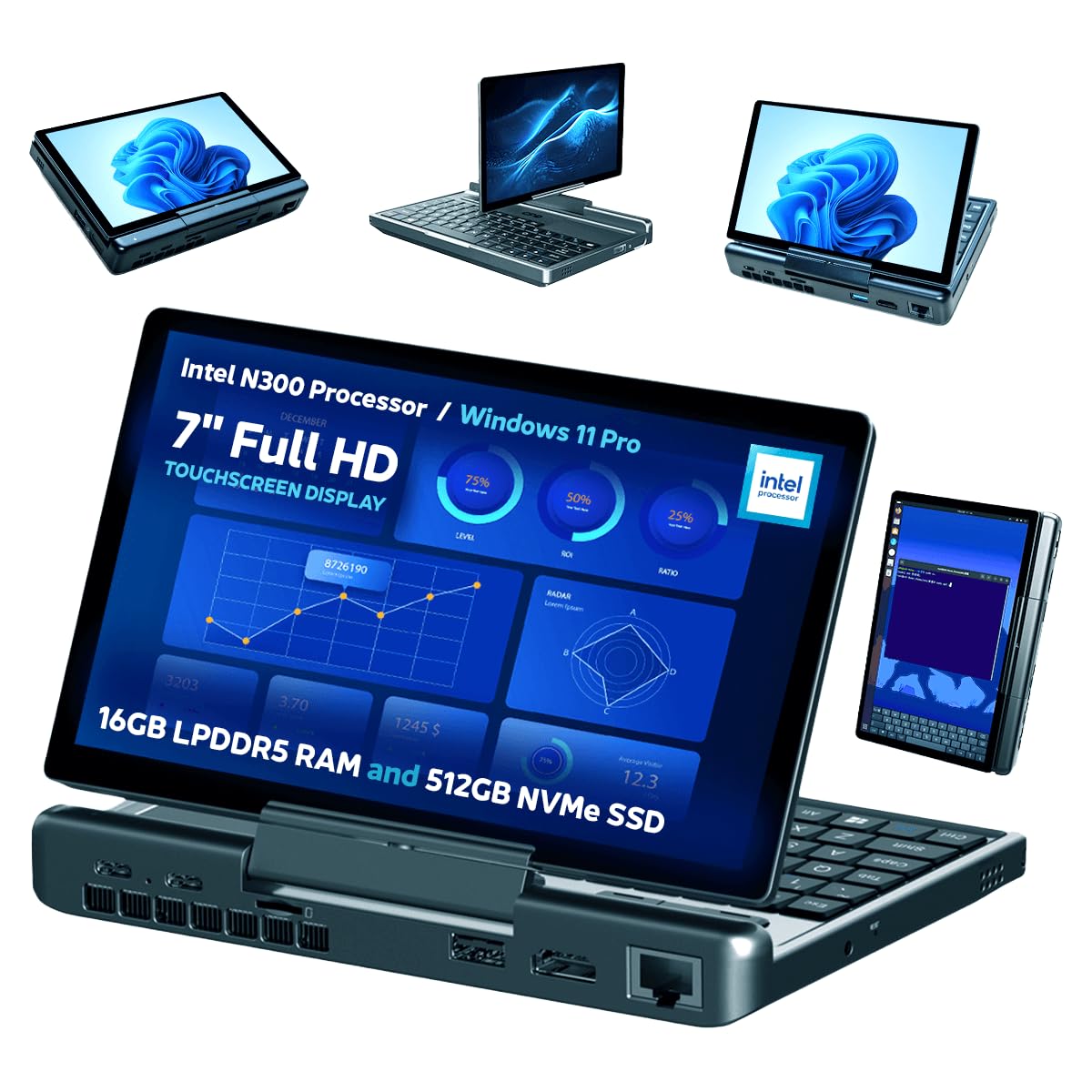
Figure 1: The GPD MicroPC 2 in its open laptop configuration, displaying the Windows desktop.
2. Setup and Initial Use
2.1. Unpacking and Inspection
Carefully remove the GPD MicroPC 2 from its packaging. Inspect the device for any signs of damage. Ensure all accessories, including the power adapter, are present.
2.2. Initial Power On and Charging
Before first use, fully charge the device. Connect the provided power adapter to a USB-C port on the MicroPC 2 and then to a power outlet. The power indicator light will show charging status. A full charge typically takes a few hours.

Figure 2: The GPD MicroPC 2 connected to its 45W PD fast charging adapter. The device supports Battery Threshold Management and Bypass Power Supply.
To power on the device, press and hold the power button located on the right side of the unit until the screen illuminates. Follow the on-screen instructions for initial Windows 11 Pro setup.
3. Operating the GPD MicroPC 2
3.1. Keyboard and Input
The GPD MicroPC 2 features a QWERTY keyboard with backlit keys for use in low-light conditions. It includes a precision touchpad and three dedicated mouse buttons (left, middle, right) for navigation.

Figure 3: The compact QWERTY keyboard, precision touchpad, and three mouse buttons for efficient input.
3.2. Display and Tablet Mode
The device is equipped with a 7-inch 1080P LTPS "Retina" touchscreen. The T-shaped hinge allows the screen to rotate 180 degrees, enabling a tablet mode. This allows for versatile use, including reading or interacting with touch-optimized applications.

Figure 4: The GPD MicroPC 2 in various configurations, highlighting the 180-degree screen rotation and compact design.
Video 1: A detailed review of the GPD MicroPC 2, showcasing its physical features, screen rotation, and various usage modes, including tablet functionality.
4. Connectivity
The GPD MicroPC 2 offers a wide range of ports and wireless connectivity options.
4.1. Ports
- 2x USB 3.2 Gen2 Type-C: Supports Power Delivery (PD) and DisplayPort 1.4.
- 2x USB 3.2 Gen2 Type-A: For connecting various USB devices.
- 2.5Gbps RJ45 Ethernet: Provides fast and stable wired network connection.
- HDMI 2.1: Supports up to three 4K external displays simultaneously.
- UHS-I microSD Card Reader: For expandable storage and quick file transfers.
- 3.5mm Audio Jack: For headphones or external audio devices.

Figure 5: An annotated diagram showing the various ports and their locations on the GPD MicroPC 2.
4.2. Wireless Connectivity
- Wi-Fi 6: For high-speed wireless internet access.
- Bluetooth 5.2: For connecting wireless peripherals and accessories.
5. Specifications
| Feature | Description |
|---|---|
| Processor | Intel Processor N300 (4 Cores / 4 Threads, Max Turbo Frequency 3.8 GHz) |
| Graphics | Integrated Intel UHD Graphics (32 EUs, 1.25 GHz) |
| RAM | 16GB LPDDR5 at 4800 MT/s |
| Storage | 512GB M.2 2280 NVMe SSD (PCIe Gen3 x4), expandable |
| Display | 7-inch 1080P LTPS "Retina" Touchscreen (314 PPI, 97% DCI-P3, 500 nits), 6th Gen Gorilla Glass with AF coating, 180° rotation |
| Operating System | Windows 11 Pro |
| Connectivity | Wi-Fi 6, Bluetooth 5.2, 2.5Gbps RJ45 Ethernet |
| Ports | 2x USB 3.2 Gen2 Type-C (PD, DP 1.4), 2x USB 3.2 Gen2 Type-A, HDMI 2.1, UHS-I microSD, 3.5mm Audio Jack |
| Battery | 27.5Wh, 45W PD Protocol Fast Charging |
| Dimensions | 171.2 x 110.8 x 23.5mm (6.74 x 4.36 x 0.93 inches) |
| Weight | 490g (1.08 lbs) |
| Material | Impact-resistant LG-DOW 121H Aviation ABS resin |
6. Performance Overview
The GPD MicroPC 2 is designed for efficient performance in a compact form factor.
6.1. Processing Power
Equipped with the Intel Processor N300, the device delivers quad-core power with a Max Turbo Frequency of 3.8 GHz, suitable for various computing tasks.
6.2. Memory and Storage
The 16GB LPDDR5 RAM ensures smooth multitasking, while the 512GB M.2 2280 NVMe SSD provides fast boot times and application loading. Storage is expandable to support both single and double-sided M.2 2280 SSDs.
6.3. Battery Life and Cooling
The 27.5Wh battery provides approximately 4 to 6 hours of average use. Under full load, the N300 model can operate for about 1 hour and 47 minutes. The device features a quiet hydraulic fan with active cooling, increasing airflow by 45% compared to the previous GPD MicroPC model, ensuring stable thermal performance.
Video 2: A brief overview of the GPD MicroPC, highlighting its compact size, various ports, and backlit keyboard.
7. Maintenance and Care
7.1. Cleaning
Use a soft, dry cloth to clean the exterior of the device. For the screen, use a microfiber cloth specifically designed for electronics. Avoid using harsh chemicals or abrasive materials.
7.2. Storage
Store the GPD MicroPC 2 in a cool, dry place away from direct sunlight and extreme temperatures. If storing for an extended period, ensure the battery is charged to approximately 50% to prolong its lifespan.
7.3. Software Updates
Regularly check for and install operating system and driver updates to ensure optimal performance and security. These can typically be found through Windows Update or the GPD official support channels.
8. Troubleshooting
8.1. Device Not Powering On
- Ensure the device is fully charged. Connect it to the power adapter and wait a few minutes before attempting to power on again.
- Try holding the power button for 10-15 seconds to perform a hard reset.
8.2. Screen Issues
- If the screen is unresponsive, ensure it is clean and free of debris.
- Restart the device. If the issue persists, check for display driver updates.
8.3. Connectivity Problems
- For Wi-Fi or Bluetooth issues, try toggling the respective settings off and on.
- Ensure you are within range of your wireless network or Bluetooth device.
- For wired connections, check that cables are securely connected and that the network adapter drivers are up to date.
8.4. Keyboard/Touchpad Unresponsive
- Restart the device.
- Ensure no foreign objects are obstructing the keys or touchpad.
9. Warranty and Support
The GPD MicroPC 2 comes with a standard manufacturer's warranty. For specific warranty terms, conditions, and duration, please refer to the warranty card included with your product or visit the official GPD website. For technical support, driver downloads, and further assistance, please visit the GPD Store on Amazon or the official GPD support website.

