Introduction
This manual provides instructions for the NTQinParts Voice TV Remote Control, designed as a replacement for select TCL QM5K Series QD-Mini LED QLED 4K UHD Smart TVs. This remote control is compatible with TCL 50QM5K 50", 55QM5K 55", and 65QM5K 65" models. Please read this manual carefully before using your new remote control.
Product Overview

Figure 1: Front view of the NTQinParts Voice TV Remote Control, showing the array of buttons including navigation, volume, channel, and voice control.
The NTQinParts Voice TV Remote Control is a wireless device used to operate compatible TCL televisions. It features dedicated buttons for common functions and supports voice commands for enhanced control.
Setup
1. Battery Installation
The remote control requires two (2) 1.5V AAA alkaline batteries (not included). Follow these steps to install the batteries:
- Locate the battery compartment cover on the back of the remote control.
- Slide the cover downwards or press the latch and lift to open the compartment.
- Insert two AAA batteries, ensuring the positive (+) and negative (-) terminals align correctly with the markings inside the compartment.
- Replace the battery compartment cover by sliding it back into place until it clicks securely.
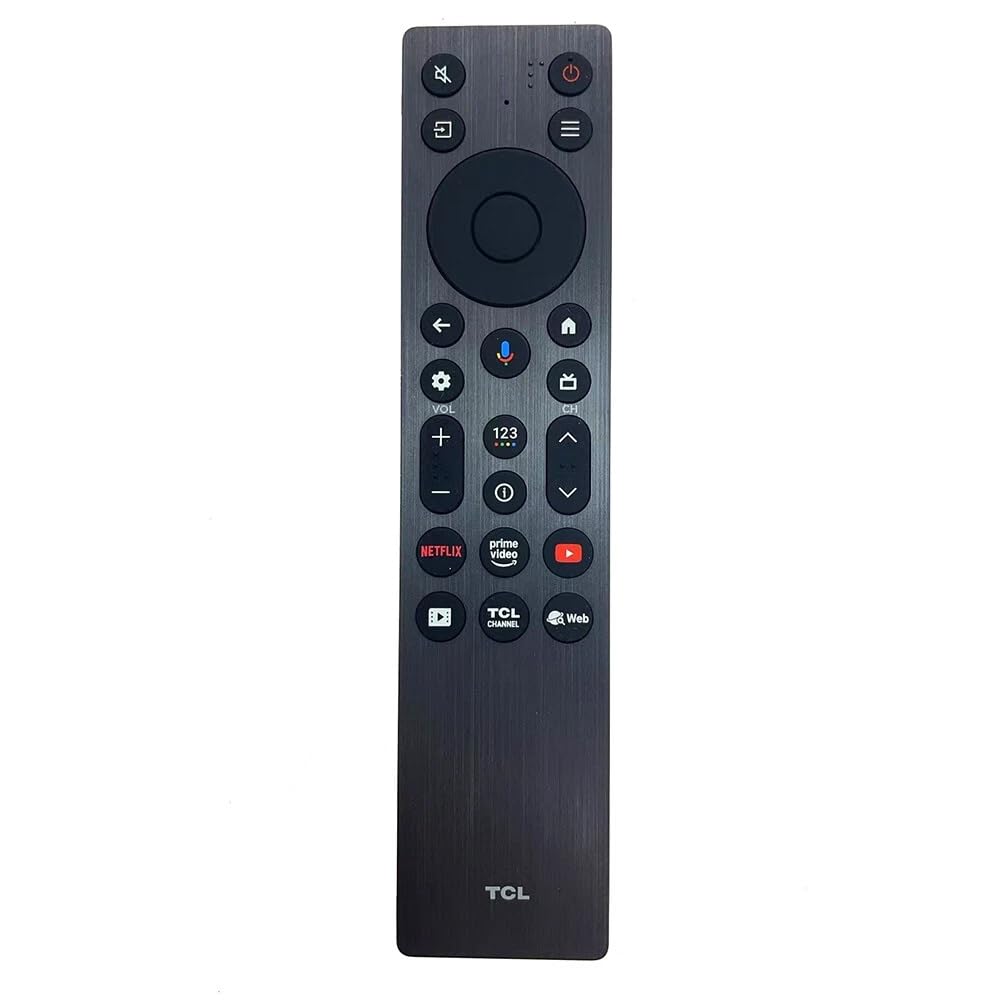
Figure 2: Back view of the remote control with the battery compartment open, illustrating the correct orientation for AAA battery insertion.
2. Initial Use
In most cases, the NTQinParts Voice TV Remote Control does not require programming or pairing. After installing the batteries, it should function immediately with your compatible TCL QM5K Series TV.
3. Pairing Instructions (If Needed)
If the remote control does not respond after battery installation, it may require pairing with your TV. Follow these steps:
- Ensure your TV is powered on.
- Hold the remote control within 3 feet (approximately 1 meter) of your television.
- Simultaneously press and hold the HOME button and the OK button on your remote control.
- Continue holding both buttons until a pairing confirmation message appears on your TV screen (this may vary by TV model).
- Release the buttons once pairing is successful.
Operating the Remote Control
Once paired or recognized by your TV, the remote control functions similarly to your original TCL remote. Use the directional pad for navigation, the volume buttons to adjust audio, and the channel buttons to change channels. The voice control feature can be activated via its dedicated button (if present and supported by your TV model) for hands-free commands.

Figure 3: Back view of the NTQinParts Voice TV Remote Control with the battery compartment securely closed.
Maintenance
Battery Replacement
When the remote control's performance degrades or it stops responding, it is likely time to replace the batteries. Follow the battery installation steps outlined in the 'Setup' section. Always replace both batteries at the same time with new 1.5V AAA alkaline batteries. Do not mix old and new batteries or different types of batteries.
Cleaning
To clean the remote control, gently wipe it with a soft, dry cloth. Do not use liquid cleaners, sprays, or abrasive materials, as these can damage the remote's surface or internal components.
Troubleshooting
- Remote not responding: Ensure batteries are correctly installed and not depleted. Try replacing them with new AAA alkaline batteries.
- Remote not controlling TV: If the remote does not work immediately after battery installation, attempt the pairing process described in the 'Setup' section. Ensure there are no obstructions between the remote and the TV's infrared receiver.
- Voice control not working: Verify that your specific TCL QM5K Series TV model supports voice control and that the remote is properly paired. Ensure there are no software updates pending for your TV that might affect remote functionality.
Specifications
| Feature | Detail |
|---|---|
| Model Number | RC813A FMB1 |
| Compatibility | TCL 50QM5K, 55QM5K, 65QM5K QM5K Series QD-Mini LED QLED 4K UHD Smart TV |
| Power Supply | 2 x 1.5V AAA Alkaline Batteries |
| Connectivity Technology | Wireless |
| Max Number of Supported Devices | 1 (Television) |
| Product Dimensions | 5.31 x 0.2 x 11.02 inches |
| Special Feature | No Programming Required (initial setup) |
Warranty and Support
Information regarding product warranty and customer support for this NTQinParts remote control is not provided in this manual. Please refer to the product packaging or contact the retailer for details on warranty coverage and support options.


