
Introduction
This manual provides detailed instructions for the installation, operation, and maintenance of your PHEZEN Double Din Car Stereo Radio. This unit is designed for 2005-2011 Dodge Dakota vehicles and features a 7-inch touch screen with Android 14, Wireless CarPlay, Android Auto, GPS navigation, FM radio, Steering Wheel Control (SWC), WiFi, Bluetooth, and camera support. Please read this manual thoroughly before use to ensure proper installation and optimal performance.
Safety Information
- Professional Installation Recommended: Due to the complexity of car electrical systems, professional installation is highly recommended to prevent damage to the unit or your vehicle.
- Power Supply: Ensure the unit is connected to a 12V DC power supply with a negative ground.
- Wiring: Incorrect wiring can cause damage. Always refer to the wiring diagram and ensure all connections are secure and insulated.
- Driving Safety: Do not operate the unit in a way that distracts you from driving. Always prioritize road safety.
- Temperature: Avoid exposing the unit to extreme temperatures or direct sunlight for prolonged periods.
- Moisture: Keep the unit away from water and excessive moisture.
Package Contents
Verify that all items listed below are included in your package:
- 1 x Android Stereo Radio
- 1 x Power Cable
- 1 x RCA Input/Output Cable Set
- 2 x USB Cables
- 1 x Camera Input Cable
- 1 x GPS Antenna
- 1 x Instruction Manual (this document)
- 1 x Canbus Box (if applicable for your vehicle model)
- 1 x Radio Adaptor
- 1 x External Microphone
- 1 x Backup Camera (if included in your specific package)

Figure 1: Included Components. This image displays the main head unit along with all accessories such as power cables, RCA cables, USB cables, camera input, GPS antenna, instruction manual, Canbus box, radio adaptor, external microphone, and a backup camera.
Product Overview
The PHEZEN Double Din Car Stereo is an advanced multimedia system designed to enhance your driving experience. Key features include:
- Operating System: Android 14 with 2GB RAM + 32GB ROM for smooth performance.
- Display: 7-inch IPS touch screen with 1024*600 resolution for clear visuals.
- Smartphone Integration: Supports Wireless Apple CarPlay and Android Auto.
- Navigation: Dual GPS navigation system with support for both offline and online maps.
- Connectivity: Built-in WiFi, Bluetooth 5.2 for hands-free calling and music streaming, USB.
- Audio: FM/RDS radio tuner.
- Vehicle Integration: Supports Steering Wheel Control (SWC) and includes a backup camera input with a 170° wide-angle, IP68 waterproof, night vision camera.

Figure 2: PHEZEN Car Stereo Main Unit. This image shows the 7-inch touch screen car stereo installed in a vehicle dashboard, displaying its user interface.
Setup and Installation
1. Pre-Installation Checks
- Ensure your vehicle is a 2005-2011 Dodge Dakota.
- Disconnect the vehicle's negative battery terminal before starting installation to prevent electrical shorts.
- Confirm all package contents are present.
2. Wiring Diagram
Refer to the following general wiring diagram. Specific vehicle wiring may vary. If unsure, consult a professional installer.

Figure 3: General Wiring Diagram. This diagram illustrates the connections for the main power, speaker outputs, RCA inputs/outputs, USB ports, GPS antenna, and the specific wiring for the backup camera, including the reversing detection line.
- Power Connection: Connect the yellow wire to constant 12V, red wire to accessory 12V, and black wire to ground.
- Speaker Connections: Connect speaker wires according to their polarity (positive to positive, negative to negative).
- GPS Antenna: Mount the GPS antenna in a location with a clear view of the sky, typically on the dashboard or under the windshield.
- USB Cables: Route USB cables to a convenient location for connecting external devices.
- Backup Camera Wiring:
- Connect the camera's video output to the "CAMERA IN" RCA input on the stereo.
- Connect the camera's power wire to the vehicle's reverse light positive (+) terminal.
- Connect the camera's ground wire to the vehicle's chassis ground or reverse light negative (-) terminal.
- Connect the "REVERSE" detection wire (usually pink or brown) from the stereo's harness to the vehicle's reverse light positive (+) terminal. This signals the stereo to switch to the camera view when reverse gear is engaged.
- Steering Wheel Control (SWC): If your vehicle has SWC, connect the SWC wires from the stereo harness to your vehicle's SWC wires. Configuration may be required in the stereo settings.
- Canbus Box: If your vehicle requires a Canbus box for integration (e.g., for SWC, vehicle information display), connect it as per the vehicle-specific instructions.
3. Mounting the Unit
- Carefully insert the stereo into the dashboard opening.
- Secure the unit using the provided mounting brackets and screws.
- Reassemble the dashboard trim panels.
- Reconnect the vehicle's negative battery terminal.
Operating Instructions
1. Initial Power On and Setup
- After installation, turn on your vehicle's ignition. The stereo should power on automatically.
- Follow the on-screen prompts for initial setup, including language, time zone, and WiFi connection.
2. Wireless CarPlay & Android Auto
This unit supports both Wireless Apple CarPlay and Android Auto for seamless smartphone integration.
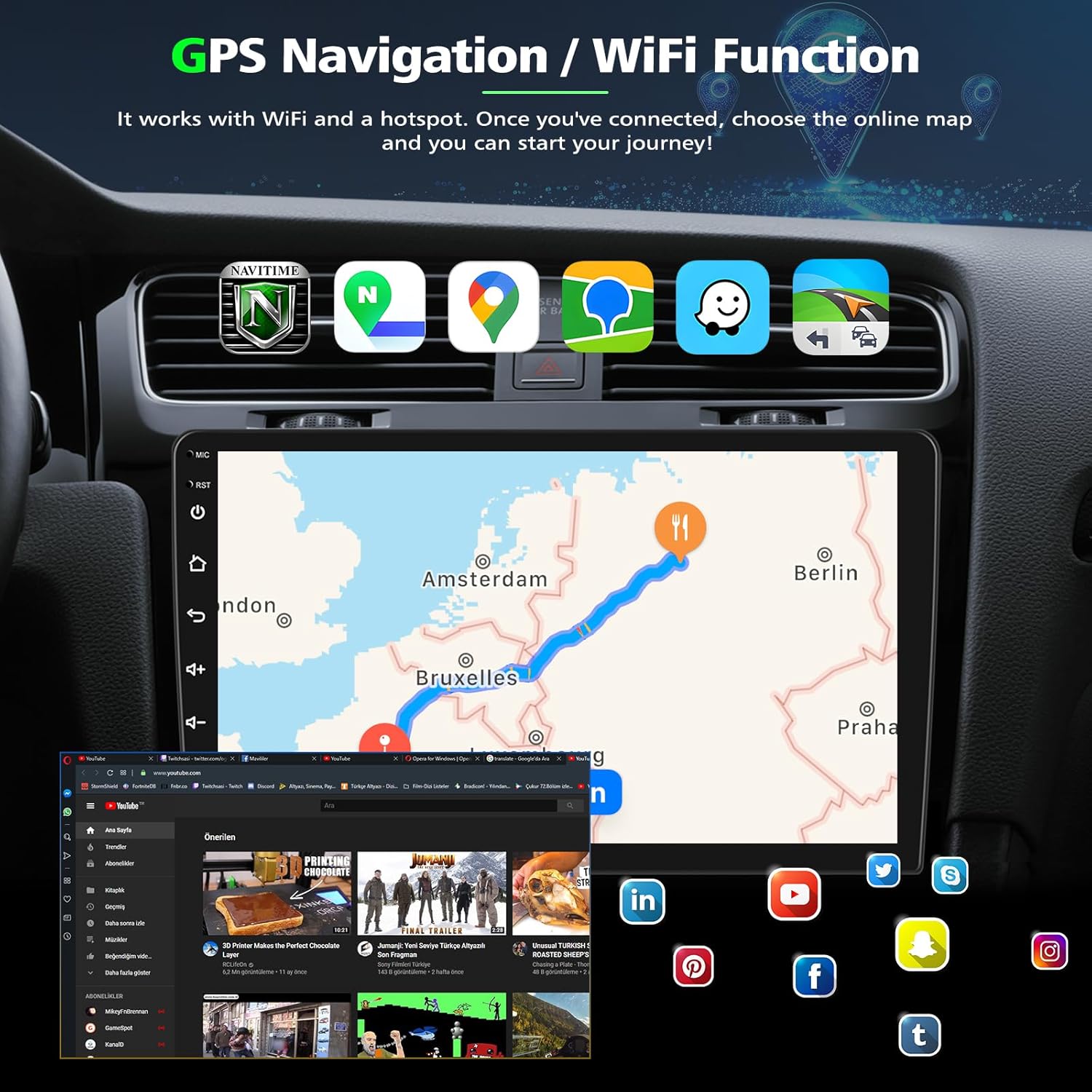
Figure 4: CarPlay and Android Auto Interface. This image shows the car stereo screen running Apple CarPlay, displaying common functions like calls, messages, navigation, and music. It also illustrates the Android Auto interface.
- Connection:
- Ensure your phone's Bluetooth and Wi-Fi are enabled.
- On the stereo, open the "CarPlay" or "Android Auto" application.
- Pair your phone via Bluetooth with the stereo.
- Once paired, the system will automatically establish a Wi-Fi connection for CarPlay/Android Auto.
- Functions: Access phone calls, messages, navigation (Apple Maps, Google Maps, Waze), music streaming, and other compatible apps directly from the stereo's touch screen or via voice commands (Siri/Google Assistant).
3. GPS Navigation & WiFi Connectivity
The unit features a dual navigation system and WiFi for internet access.

Figure 5: GPS Navigation and WiFi Functionality. This image illustrates the car stereo's GPS navigation capabilities, showing a route on the map, and highlights the WiFi function with various online app icons.
- GPS Navigation:
- Pre-installed navigation apps support offline maps (download required).
- Connect to WiFi to use online navigation services (e.g., Google Maps, Waze) for real-time traffic updates.
- WiFi Connection:
- Go to "Settings" > "Network & Internet" > "Wi-Fi".
- Select your desired Wi-Fi network (e.g., mobile hotspot) and enter the password.
- Once connected, you can browse the internet, download apps, and stream content.
4. Bluetooth Functionality
Bluetooth 5.2 enables hands-free calling and wireless audio streaming.

Figure 6: Bluetooth, FM Radio, Split Screen, and Voice Control. This composite image demonstrates the Bluetooth calling interface, the FM radio tuner, the split-screen function showing navigation and media, and the voice control feature.
- Pairing:
- Go to the "Bluetooth" app on the stereo.
- Enable Bluetooth on your phone and search for available devices.
- Select the stereo's Bluetooth name (e.g., "PHEZEN Car Stereo") and confirm pairing.
- Hands-Free Calling: Make and receive calls directly from the stereo. Use the built-in or external microphone for clear communication.
- Audio Streaming: Play music from your phone wirelessly through the car stereo.
5. FM/RDS Radio
Tune into your favorite radio stations with the built-in FM tuner.
- Open the "Radio" app.
- Use the scan function to automatically find and save stations, or manually tune to frequencies.
- RDS (Radio Data System) provides station information where available.
6. Steering Wheel Control (SWC)
Control basic stereo functions using your vehicle's existing steering wheel buttons.

Figure 7: Reverse Display and Steering Wheel Control. This image shows the automatic reverse camera display with parking lines and the menu for configuring steering wheel controls.
- Configuration:
- Go to "Settings" > "Steering Wheel Control" or "SWC Learning".
- Follow the on-screen instructions to program each steering wheel button to its corresponding function on the stereo.
7. Reverse Display (Backup Camera)
When properly installed, the stereo will automatically display the rear view when the vehicle is shifted into reverse gear.
- The included camera features a 170° wide-angle lens, IP68 waterproof rating, and night vision for optimal visibility.
- Parking guidelines may be displayed on the screen to assist with parking.
8. Split Screen Function
Multitask by running two applications simultaneously on the screen.
- To activate, open an app, then long-press the recent apps button or drag an app to one side of the screen (depending on Android version).
- Select a second app to fill the other half of the screen.
9. Voice Control
Use voice commands to control various functions, enhancing convenience and safety.
- Activate voice control through the dedicated button on the screen or by saying a wake word (if configured).
- Commands can include navigation requests, playing music, making calls, and more.
Maintenance
- Screen Cleaning: Use a soft, lint-free cloth to gently wipe the touch screen. For stubborn smudges, slightly dampen the cloth with water or a screen-safe cleaner. Avoid harsh chemicals.
- General Cleaning: Wipe the unit's exterior with a dry or slightly damp cloth. Do not use abrasive cleaners.
- Software Updates: Periodically check for software updates through the system settings or the manufacturer's website to ensure optimal performance and access to new features.
- Avoid Obstruction: Ensure no objects obstruct the unit's ventilation openings to prevent overheating.
Troubleshooting
| Problem | Possible Cause | Solution |
|---|---|---|
| Unit does not power on. | Incorrect power wiring; Blown fuse; Loose connection. | Check power cable connections (yellow, red, black wires). Verify vehicle fuse and stereo fuse. Ensure all connections are secure. |
| No sound. | Volume too low; Mute activated; Incorrect speaker wiring; Amplifier issue. | Increase volume. Check if mute is active. Verify speaker wiring polarity. If an external amplifier is used, check its power and connections. |
| GPS signal lost or inaccurate. | GPS antenna obstructed or improperly installed; Outdated maps. | Ensure GPS antenna has a clear view of the sky. Check antenna connection. Update navigation maps if necessary. |
| Bluetooth not connecting. | Bluetooth not enabled on phone/stereo; Incorrect pairing process; Interference. | Ensure Bluetooth is enabled on both devices. Delete previous pairings and re-pair. Try restarting both devices. |
| Backup camera not displaying. | Incorrect camera wiring; Reverse detection wire not connected; Faulty camera. | Check camera power and video connections. Ensure the "REVERSE" detection wire is correctly connected to the reverse light positive. Test camera functionality. |
| Steering Wheel Controls not working. | SWC wires not connected; Incorrect SWC learning configuration; Canbus issue. | Verify SWC wire connections. Re-perform the SWC learning process in settings. Check Canbus box connection if applicable. |
| Touch screen unresponsive or inaccurate. | Software glitch; Physical damage; Calibration needed. | Restart the unit. Check for physical damage. If available, perform screen calibration in settings. |
Specifications
| Brand | PHEZEN |
| Model Number | B0FT2S1T63 |
| Compatible Vehicles | 2005-2011 Dodge Dakota |
| Operating System | Android 14 |
| RAM + ROM | 2GB RAM + 32GB ROM |
| Screen Size | 7 inch |
| Screen Resolution | 1024*600 |
| Special Features | Android Auto, Apple CarPlay, GPS Navigation, Hands-Free Calling, Touchscreen |
| Connectivity Technology | Bluetooth, USB, Wi-Fi |
| Audio Output Mode | Stereo |
| Compatible Devices | Smartphone |
Warranty Information
The manufacturer states "NON" for warranty description. Please refer to your purchase receipt or contact the seller directly for specific warranty terms and conditions, if any apply.
Customer Support
If you encounter any issues or have questions regarding your PHEZEN car stereo, please contact the seller directly through the platform where you made your purchase. For Amazon purchases, you can typically find the "Ask a question" link on the product page or through your order history.
When contacting support, please provide your product model number (B0FT2S1T63) and a detailed description of the issue.