
1. Introduction
This manual provides detailed instructions for the installation, operation, and maintenance of your Vorally Android Car Stereo. Please read this manual thoroughly before installation and use to ensure proper function and safety. This unit is designed for Dodge Ram 1500, 2500, and 3500 models manufactured between 2006 and 2008.
2. Product Features
- Operating System: Android 13
- Display: 9.7-inch HD Touchscreen (Capacitive)
- Processor: 4-Core
- Memory: 2GB RAM, 32GB Storage
- Smartphone Integration: Wireless CarPlay & Android Auto
- Navigation: Built-in GPS with North American maps
- Connectivity: Bluetooth 5.0, 5G WiFi, USB
- Audio: Built-in DSP (Digital Sound Processor), FM Radio
- Camera Support: AHD 1080P Rear Camera (170° viewing angle)
- Control: Touchscreen, Steering Wheel Control (SWC) compatibility
3. What's in the Box
Verify that all components are present before beginning installation:
- Vorally Android Car Stereo Unit
- GPS Antenna
- AHD Backup Camera
- Power Cable
- RCA Input/Output Cables
- 2 USB Cables
- Camera Input Cable
- Fixed Brackets for mounting
- Instruction Manual (this document)

Image 3.1: Included components of the Vorally Android Car Stereo system.
4. Setup & Installation
Professional installation is recommended. Disconnect the vehicle's battery before starting any electrical work.
4.1. Pre-Installation Check
Before removing your old stereo, ensure the new unit fits your vehicle's dashboard. The unit is designed for a direct fit in 2006-2008 Dodge Ram 1500, 2500, and 3500 models.
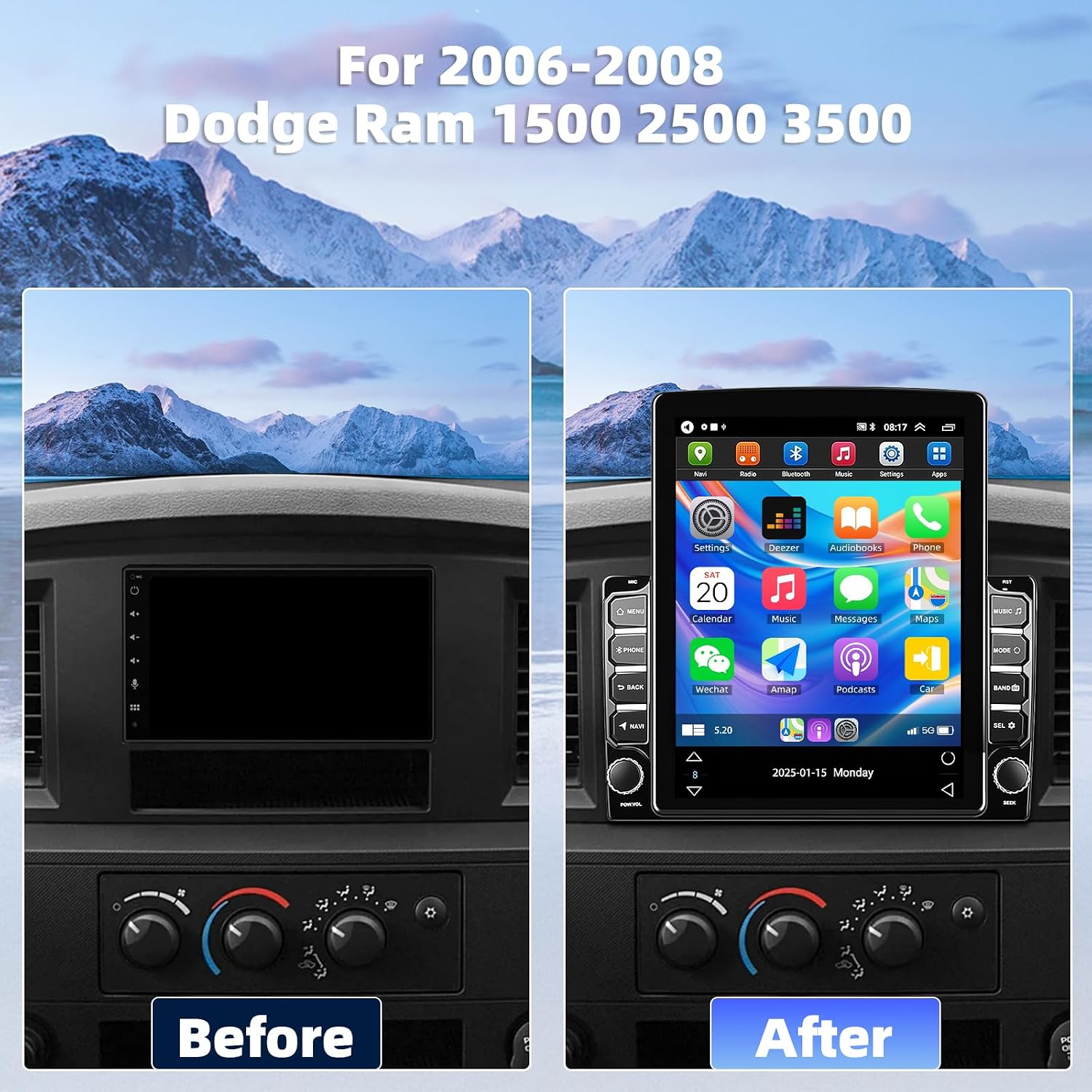
Image 4.1: Visual comparison of the dashboard before and after installing the Vorally car stereo.
4.2. Wiring Connections
Carefully connect all cables according to the provided wiring diagram. Ensure secure connections to prevent malfunctions.
- Power Cable: Connect to the vehicle's power harness.
- RCA Input/Output: For external amplifiers, subwoofers, or video input/output.
- USB Cables: For connecting USB devices, charging, or wired CarPlay/Android Auto.
- GPS Antenna: Mount in a location with a clear view of the sky for optimal signal reception.
- Camera Input: Connect the backup camera cable here.

Image 4.2: Main wiring diagram for the car stereo unit.

Image 4.3: Rear connections of the car stereo unit.
4.3. Backup Camera Connection
Connect the backup camera as follows:
- Connect the reversing detection cable (labeled 'H' in Image 4.2) to the reversing signal wire (labeled 'I').
- Connect the camera's positive power wire (labeled 'J') and the video signal wire (labeled 'K') to the positive pole of the vehicle's backup lamp.
- Connect the camera's ground wire (labeled 'L') to a suitable grounding point or leave unconnected if not required by the camera model.
5. Operating Instructions
5.1. Power On/Off
Press and hold the power button on the unit or use the vehicle's ignition to turn the stereo on or off. The unit will typically power on automatically with the vehicle's ignition.
5.2. Touchscreen Interface
Navigate the Android system using the responsive 9.7-inch capacitive touchscreen. Swipe, tap, and pinch gestures are supported for various functions and applications.
5.3. Wireless CarPlay & Android Auto
To use Wireless CarPlay or Android Auto:
- Ensure your smartphone's Bluetooth and Wi-Fi are enabled.
- On the car stereo, open the CarPlay or Android Auto application.
- Follow the on-screen prompts to pair your phone via Bluetooth. Once paired, the system will establish a Wi-Fi connection for wireless functionality.
- You can now access compatible smartphone apps, navigation, calls, and messages directly from the stereo display. Voice commands via Siri or Google Assistant are supported.
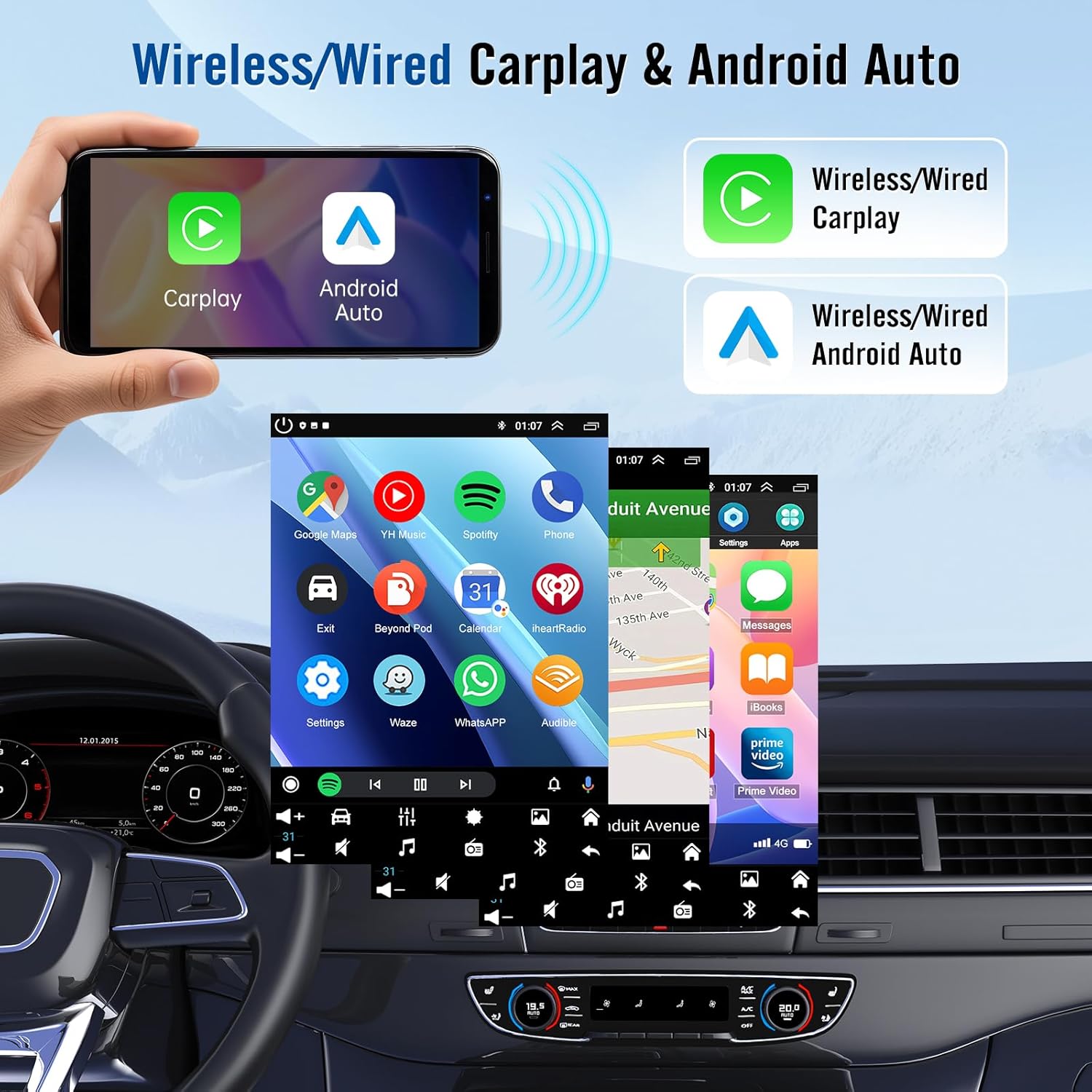
Image 5.1: Wireless CarPlay and Android Auto interface.
5.4. GPS Navigation
The unit comes pre-loaded with North American maps. To use GPS navigation:
- Ensure the GPS antenna is properly installed and has a clear view of the sky.
- Open the pre-installed navigation application or download your preferred navigation app from the Google Play Store.
- Enter your destination and follow the on-screen directions and voice prompts.
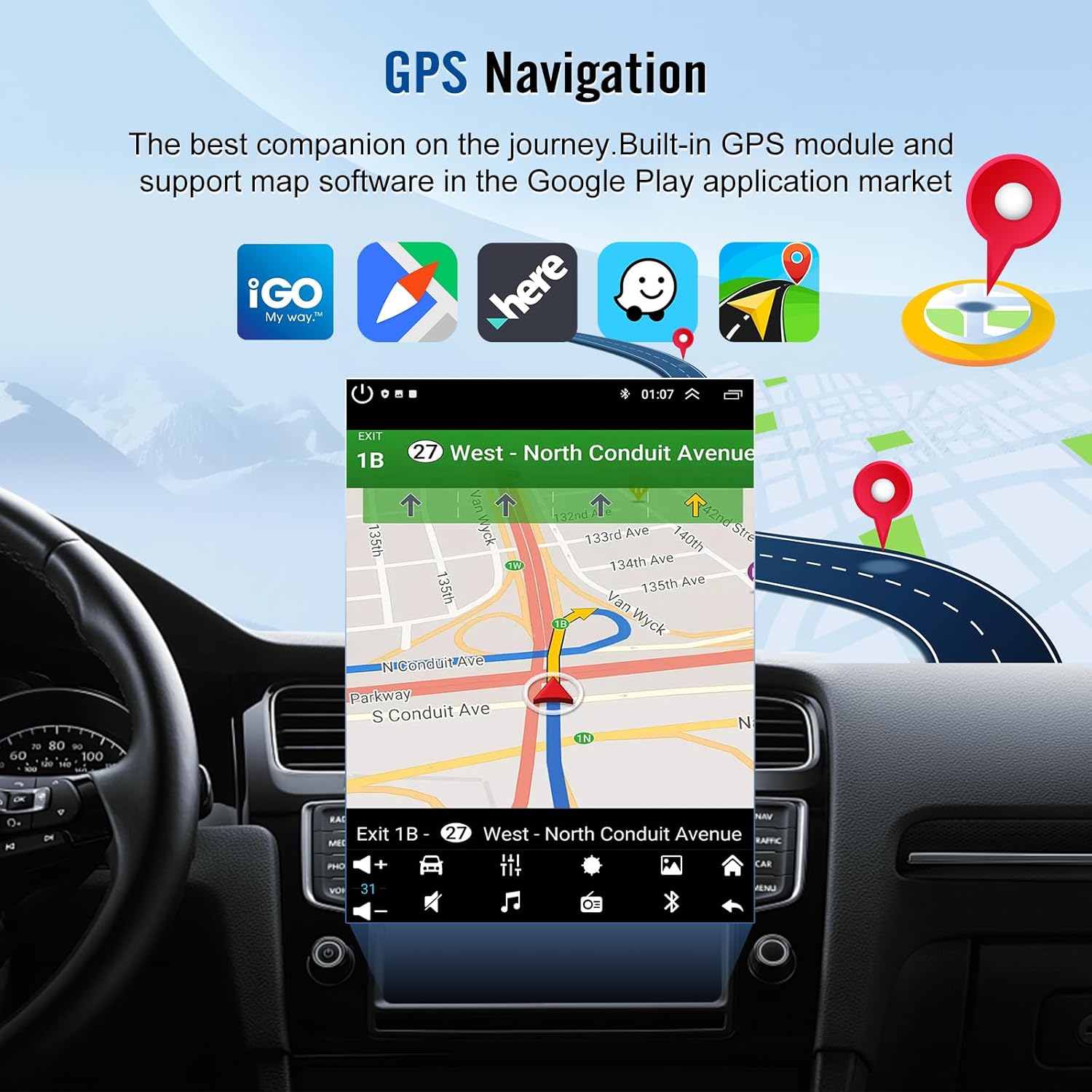
Image 5.2: GPS Navigation interface.
5.5. Bluetooth Connectivity
To pair a Bluetooth device:
- Go to the Bluetooth settings on the car stereo.
- Enable Bluetooth on your smartphone or other device and make it discoverable.
- Select your device from the list on the car stereo and confirm the pairing code.
- Once paired, you can make hands-free calls, stream audio, and sync contacts.
5.6. FM Radio
Access the FM Radio application to tune into radio stations. Use the touchscreen controls to scan for stations, save presets, and adjust settings.
5.7. Backup Camera
When the vehicle is shifted into reverse gear, the car stereo will automatically display the live feed from the connected AHD 1080P backup camera, providing a wide 170° viewing angle to assist with parking and maneuvering.

Image 5.3: Backup camera view on the car stereo display.
6. Maintenance
- Screen Cleaning: Use a soft, lint-free cloth slightly dampened with water or a screen cleaner specifically designed for electronics. Avoid harsh chemicals or abrasive materials.
- Software Updates: Periodically check for software updates through the system settings or the manufacturer's website to ensure optimal performance and access to new features.
- General Care: Avoid exposing the unit to extreme temperatures, direct sunlight for prolonged periods, or excessive moisture.
7. Troubleshooting
If you encounter issues, refer to the following common problems and solutions:
| Problem | Possible Solution |
|---|---|
| Unit does not power on | Check all power connections. Ensure the vehicle's battery is connected and charged. Verify the fuse. |
| No sound | Check speaker wiring. Ensure volume is not muted or set to zero. Verify audio output settings. |
| GPS signal lost or inaccurate | Ensure the GPS antenna is properly connected and mounted in a location with a clear view of the sky. Avoid obstructions. |
| Bluetooth pairing issues | Ensure Bluetooth is enabled on both devices and they are in pairing mode. Try restarting both devices. Clear previous pairings. |
| System is slow or freezes | Close unnecessary background applications. Restart the unit. Consider a factory reset if the issue persists (note: this will erase user data). |
| Backup camera not displaying | Check the camera's power and video signal connections. Ensure the reversing detection wire is correctly connected. |
If these solutions do not resolve the issue, please contact technical support.
8. Specifications
| Feature | Detail |
|---|---|
| Brand | Vorally |
| Model Name | VIKA-CHANZH |
| Model Number | VIKA-CHANZH-667A |
| Screen Size | 9.7 inches |
| Display Type | LCD, Capacitive Touchscreen |
| Operating System | Android 13 |
| Memory Storage Capacity | 32 GB |
| Connectivity Technology | USB, WiFi, Bluetooth, GPS |
| Bluetooth Version | 5.0 |
| Supported Navigation System | GPS |
| Map Type | North America |
| Included Components | GPS antenna, Backup camera |
| Item Weight | 1700 g |
9. Warranty Information
Specific warranty details for the Vorally Android Car Stereo (Model VIKA-CHANZH-667A) are not provided in this document. Please refer to the product packaging, the seller's website, or contact Vorally customer support directly for comprehensive warranty terms and conditions.
10. Support
For technical assistance, installation queries, or any other support needs, please contact the Vorally technical support team. You can typically reach them through the seller's contact page on the platform where you purchased the product.

Image 10.1: How to contact technical support via the seller page.
The support team aims to reply as soon as possible to assist with your inquiries.