
1. Introduction
The Niarrfi Bluetooth 6.0 Receiver (Model M6R) is designed to upgrade traditional audio equipment with wireless Bluetooth capabilities. This adapter allows you to stream audio from your Bluetooth-enabled devices, such as smartphones, tablets, and laptops, to non-Bluetooth home stereos, speakers, wired headphones, and car audio systems. It features Bluetooth 6.0 technology for stable connections, multiple audio output options, USB playback, and a microphone input for karaoke functions.
2. Product Features
- Bluetooth 6.0 Technology: Enhances compatibility and connection stability, offering a longer transmission distance and stronger anti-interference capabilities.
- Dual Device Connection: Connects two smartphones simultaneously, allowing effortless switching between devices for music playback.
- Multi-Interface Expansion: Equipped with 3.5mm AUX/RCA output ports, a 6.5mm microphone port, and a Type-C charging port.
- USB Playback: Supports direct playback from USB flash drives, compatible with multiple lossless audio formats for high-fidelity sound.
- Microphone Input: Features a 6.5mm external microphone jack for wired/wireless microphones, enabling instant karaoke functionality.
- Infrared Remote Control: Provides convenient access to volume adjustment, playback control, and mode switching from a distance.
- Automatic Reconnection: Automatically reconnects to the last paired Bluetooth device when powered on, eliminating the need for re-pairing.
- External Power Supply: Designed without a battery; automatically powers on when connected to an external power source.
- Wide Compatibility: Works seamlessly with iOS, Android, and Windows systems, compatible with various audio devices.
3. What's in the Box
Please check the package contents upon unboxing:
- Niarrfi Bluetooth Audio Adapter (M6R)
- 3.5mm AUX Audio Cable
- RCA Audio Cable
- Type-C Charging Cable
- Infrared Remote Control
- User Manual

Image: Package contents of the Niarrfi Bluetooth 6.0 Receiver, showing the main unit, remote, 3.5mm AUX cable, RCA cable, and USB-C power cable.
4. Product Overview
Familiarize yourself with the device's ports and controls:

Image: Rear panel of the receiver with DC 5V, AUX, RCA outputs, and remote control probe.

Image: Front and back view of the Niarrfi Bluetooth 6.0 Receiver, showing all ports and controls.
5. Setup Instructions
Follow these steps to set up your Niarrfi Bluetooth 6.0 Receiver:
- Power Connection: Connect the provided Type-C charging cable to the receiver's Type-C port and plug the other end into a 5V USB power adapter (not included) or a USB port on your audio device. The receiver will automatically power on.
- Audio Output Connection: Choose one of the following methods to connect the receiver to your audio system:
- 3.5mm AUX Output: Use the 3.5mm AUX audio cable to connect the receiver's AUX output port to the AUX input of your speakers, home stereo, or wired headphones.
- RCA Output: Use the RCA audio cable to connect the receiver's RCA L/R output ports to the corresponding RCA input ports on your home stereo or amplifier.
- Antenna Installation: Ensure the external 2.4G Bluetooth antenna is securely attached to the designated port on the receiver for optimal signal reception.
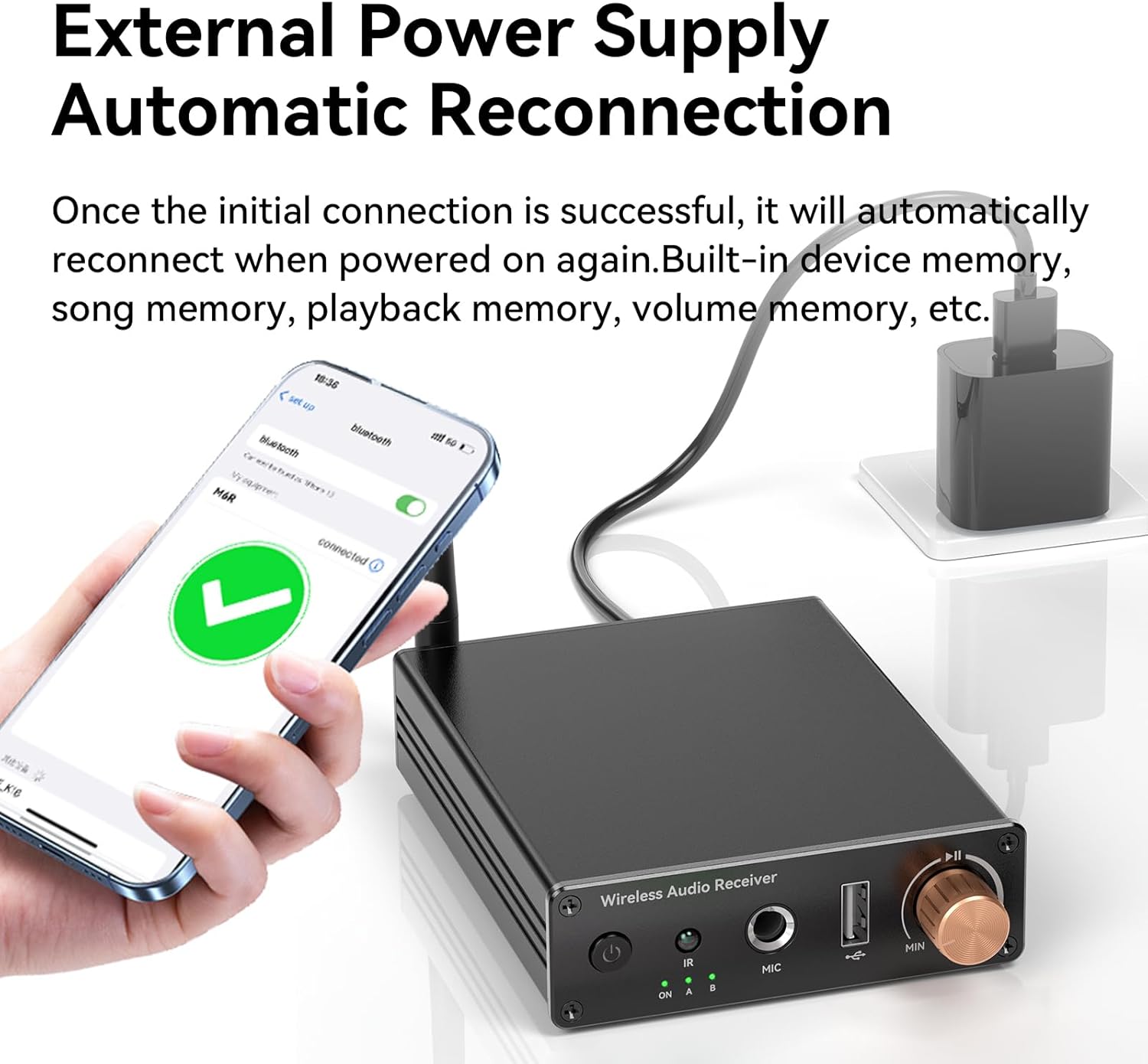
Image: The Bluetooth receiver connected to a traditional stereo system, enabling wireless audio.

Image: The receiver connected to an external power supply, indicating automatic power-on and reconnection.
6. Operating Instructions
6.1. Bluetooth Pairing
- After connecting the power, the receiver will automatically turn on and enter pairing mode. The Bluetooth indicator light will flash.
- On your smartphone, tablet, or other Bluetooth-enabled device, go to the Bluetooth settings.
- Search for available devices and select "M6R" from the list.
- Once connected, the Bluetooth indicator light on the receiver will remain solid. You can now stream audio wirelessly.
6.2. Dual Device Connection
The M6R supports simultaneous connection of two Bluetooth devices:
- Pair the first device following the steps in 6.1 Bluetooth Pairing.
- After the first device is connected, disable Bluetooth on the first device. The M6R will re-enter pairing mode.
- Pair the second device with the M6R.
- Re-enable Bluetooth on the first device. Both devices should now be connected to the M6R.
- You can switch between the two connected devices by pausing playback on one and starting playback on the other.

Image: The receiver connected to two mobile phones, allowing seamless switching between audio sources.
6.3. USB Flash Drive Playback
To play audio directly from a USB flash drive:
- Insert a USB flash drive containing audio files into the USB port on the front of the receiver.
- The receiver will automatically detect the USB drive and begin playing compatible audio formats.
- Use the remote control to navigate tracks, adjust volume, and control playback.

Image: A USB flash drive inserted into the receiver for direct audio playback.
6.4. Microphone Function (Karaoke)
To use the microphone input for karaoke or voice amplification:
- Connect a wired or wireless microphone (not included) to the 6.5mm MIC input jack on the front of the receiver.
- Ensure your audio system is powered on and set to the correct input source (AUX or RCA).
- Adjust the microphone volume and reverb effects using the remote control or the physical volume knob on the receiver.

Image: A user enjoying karaoke with a microphone connected to the receiver.
6.5. Remote Control Operation
The included infrared remote control allows for convenient operation:
- Power Button: Turns the unit on/off (when connected to power).
- Volume +/-: Adjusts the output volume.
- Play/Pause: Controls audio playback.
- Previous/Next Track: Skips between tracks during Bluetooth or USB playback.
- Mode Button: Switches between Bluetooth and USB playback modes.
- Microphone Controls: Adjusts microphone volume and reverb (if applicable).
6.6. Automatic Reconnection
The receiver is designed to automatically reconnect to the last paired Bluetooth device when it is powered on again. This feature ensures a seamless user experience without the need for manual re-pairing each time.
7. Maintenance
To ensure the longevity and optimal performance of your Niarrfi Bluetooth 6.0 Receiver, follow these maintenance guidelines:
- Cleaning: Use a soft, dry cloth to wipe the exterior of the device. Avoid using liquid cleaners, aerosols, or solvents, as they may damage the finish or internal components.
- Storage: Store the device in a cool, dry place away from direct sunlight, extreme temperatures, and high humidity when not in use for extended periods.
- Handling: Handle the device with care. Avoid dropping it or subjecting it to strong impacts, which can cause internal damage.
- Ventilation: Ensure the device has adequate ventilation and is not covered, especially during operation, to prevent overheating.
8. Troubleshooting
If you encounter issues with your Niarrfi Bluetooth 6.0 Receiver, refer to the following troubleshooting tips:
| Problem | Possible Cause | Solution |
|---|---|---|
| Device does not power on. | No power supply or faulty cable. | Ensure the Type-C cable is securely connected to both the receiver and a working 5V USB power source. Try a different cable or power adapter. |
| Cannot pair with Bluetooth device. | Receiver not in pairing mode; Bluetooth disabled on source device; too many paired devices. | Ensure the receiver's Bluetooth indicator is flashing. Enable Bluetooth on your source device. Forget previous Bluetooth connections on your source device and try pairing again. Move closer to the receiver. |
| No sound after successful pairing. | Incorrect audio input selected on stereo; volume too low; incorrect cable connection. | Verify your stereo/speaker is set to the correct input (AUX or RCA). Increase volume on both the receiver and your source device. Check that audio cables are securely connected to the correct ports. |
| Audio drops out or skips. | Interference; distance too far; obstacles; low signal strength. | Move your Bluetooth source device closer to the receiver. Ensure there are no major obstacles (walls, large metal objects) between the devices. Avoid placing the receiver near other wireless devices that may cause interference. |
| Remote control not working. | Battery depleted; line of sight blocked. | Replace the remote control battery. Ensure there is a clear line of sight between the remote and the receiver's IR sensor. |
| USB playback not working. | Incompatible file format; faulty USB drive. | Ensure audio files are in a compatible format (e.g., MP3, WAV, FLAC). Try a different USB flash drive. |
9. Specifications
| Feature | Detail |
|---|---|
| Brand | Niarrfi |
| Model Number | M6R |
| Connectivity Technology | Auxiliary, Bluetooth |
| Bluetooth Version | 6.0 |
| Audio Output Type | Bluetooth, Headphones (3.5mm AUX), RCA |
| Audio Output Mode | Stereo |
| Surround Sound Channel Configuration | 5.1 |
| Controller Type | Infrared |
| Compatible Devices | Smartphone, Tablet, Smart TV, Laptop, Speaker, Car Stereo |
| Product Dimensions (D x W x H) | 2.3" x 2" x 2" |
| Color | Black |
| UPC | 627179305509 |
10. Warranty Information
This product does not come with an explicit manufacturer's warranty as per the provided information. Please refer to the retailer's return policy for details on returns or exchanges.
11. Support
For further assistance or inquiries regarding your Niarrfi Bluetooth 6.0 Receiver, please contact the retailer or refer to their customer support channels. Keep your purchase receipt for any potential support needs.