
XIAOVV B0FT15FHVZ
XIAOVV 4K Outdoor Security Camera with 4G LTE User Manual
Model: B0FT15FHVZ
1. Introduction
This manual provides detailed instructions for the installation, operation, and maintenance of your XIAOVV 4K Outdoor Security Camera with 4G LTE. Please read this manual thoroughly before using the product to ensure proper function and safety.

Image: The XIAOVV 4K Outdoor Security Camera with its integrated solar panel, designed for outdoor surveillance.
2. Package Contents
Verify that all items are present in your package:
- XIAOVV 4K Outdoor Security Camera
- Integrated Solar Panel
- Mounting Bracket and Screws
- SIM Card (pre-installed or included separately)
- User Manual (this document)
3. Setup
3.1 Physical Installation
The camera is designed for outdoor use and can be mounted on various surfaces. Ensure the solar panel receives adequate direct sunlight for optimal charging.
- Choose a Location: Select a mounting location that provides the desired surveillance coverage and allows the solar panel to receive maximum sunlight exposure throughout the day. Avoid shaded areas.
- Mount the Bracket: Use the provided screws to securely attach the mounting bracket to the chosen surface (e.g., wall, tree trunk).
- Attach the Camera: Secure the camera unit to the mounting bracket. Adjust the angle of the camera and solar panel for optimal positioning.
- Connect Solar Panel: Ensure the solar panel cable is securely connected to the camera's power input port.

Image: An example of the security camera and solar panel mounted on a tree trunk, illustrating outdoor installation.
3.2 SIM Card and Cellular Network Setup
This camera operates using a 4G LTE cellular network. It does not require Wi-Fi connectivity.
- Insert SIM Card: If not pre-installed, open the SIM card slot cover on the camera and insert the provided 4G SIM card. Ensure it is correctly oriented.
- Activate Data Plan: The camera comes with an initial data allowance. For continued use, you will need to top up the cellular data plan through the V380 Pro application. Only the SIM card provided with the camera is compatible.

Image: The camera and solar panel mounted outdoors, highlighting its 3G/4G network capability without Wi-Fi.

Image: A close-up view of the camera's SIM card slot and information regarding cellular data plans.
3.3 App Installation and Initial Pairing
To control and view your camera, download the V380 Pro app.
- Download App: Search for "V380 Pro" in your device's app store (Android or iOS) and install it.
- Create Account: Open the app and follow the on-screen instructions to create a new user account.
- Add Device: Power on the camera. In the V380 Pro app, tap the "+" icon to add a new device. Follow the app's instructions to scan the QR code on the camera or manually add it.
- Complete Setup: Once the camera is successfully added, you can configure initial settings such as device name and time zone.

Image: Logos for downloading the companion application from the Apple App Store and Google Play Store.
4. Operating the Camera
4.1 Pan-Tilt-Zoom (PTZ) Control
The camera features 360° pan and tilt rotation, allowing you to adjust the viewing angle remotely via the V380 Pro app.
- Open the live view in the app.
- Use the directional controls on the screen to pan (horizontal movement) and tilt (vertical movement) the camera.
- Digital zoom can be performed by pinching the screen in the live view.

Image: An illustration demonstrating the camera's 355-degree pan and 90-degree tilt capabilities.
4.2 Motion Detection and Alerts
The camera is equipped with motion detection capabilities. You can configure alert settings within the V380 Pro app.
- Enable Motion Detection: Navigate to the camera settings in the app and enable motion detection.
- Adjust Sensitivity: Set the motion detection sensitivity to minimize false alarms.
- Configure Alerts: Choose how you want to receive alerts (e.g., push notifications to your phone, siren alarm, LED light alarm).
- AI Detection (Optional): Advanced AI features can distinguish between pets, packages, and vehicles. Note that these features may incur additional fees.

Image: An example of AI detection capabilities, highlighting the identification of a person, a package, and a dog.

Image: A smartphone screen showing a V380 Pro app notification indicating motion detection, with the camera in the background.
4.3 Night Vision Modes
The camera offers both full-color and infrared night vision options for clear visibility in low-light conditions.
- Full-Color Night Vision: Utilizes built-in spotlights to provide color images in dark environments.
- Infrared Night Vision: Uses infrared LEDs for black and white images in complete darkness, offering a discreet surveillance option.
- You can switch between modes or set it to auto-detect within the app.
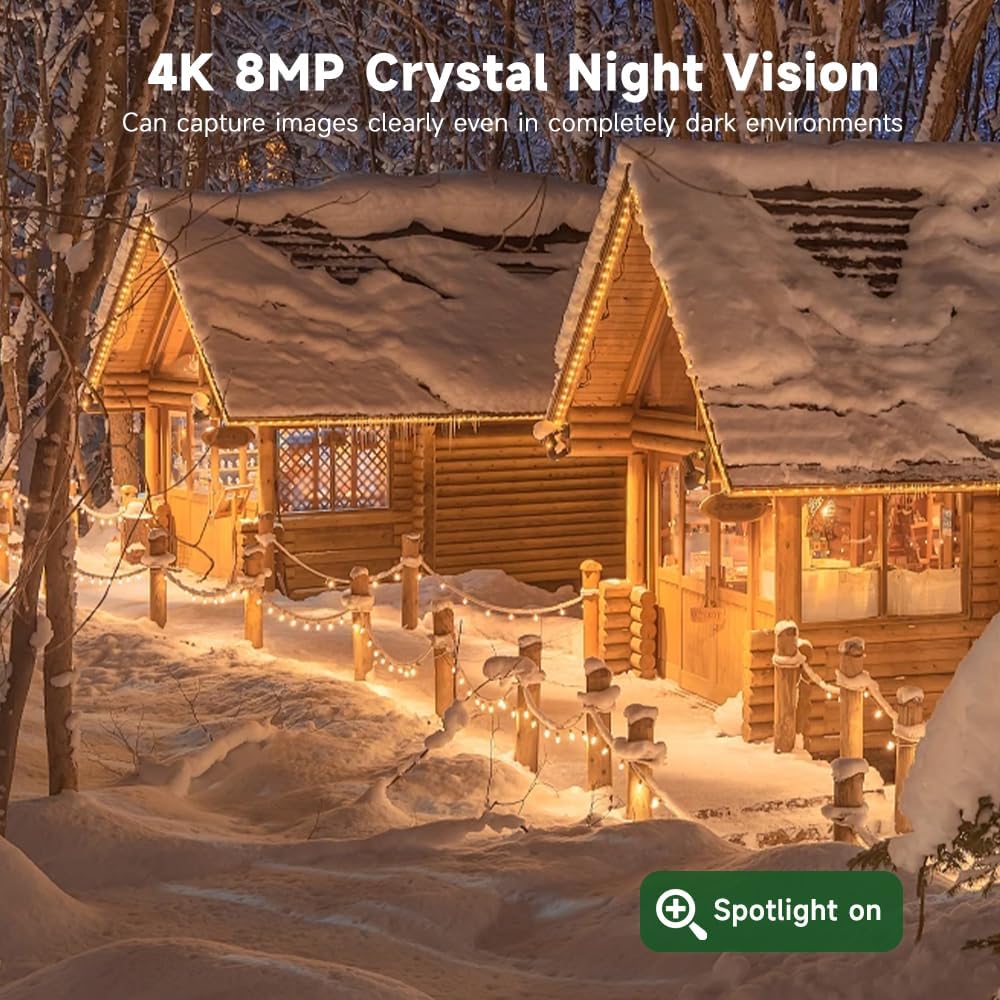
Image: A side-by-side comparison illustrating the difference between color night vision and infrared night vision.
4.4 Two-Way Audio
The camera includes a built-in microphone and speaker, enabling two-way communication.
- In the live view of the V380 Pro app, tap the microphone icon to speak through the camera.
- Tap the speaker icon to listen to audio from the camera's location.

Image: A person interacting with a delivery driver using the camera's two-way audio feature via a smartphone app.
4.5 Storage Options
Recorded footage can be stored locally or in the cloud.
- MicroSD Card: The camera supports microSD cards up to 128GB (not included). Insert the card into the designated slot for local storage.
- Cloud Storage: Subscribe to a cloud storage plan through the V380 Pro app for secure, remote access to your recordings.

Image: An illustration detailing the two storage options: local MicroSD card storage (up to 128GB) and private cloud storage.
4.6 Remote Access and Sharing
Access your camera feed and controls from anywhere using the V380 Pro app. You can also share access with others.
- Remote Viewing: Open the V380 Pro app on your smartphone or tablet to view live footage and recorded events.
- Device Sharing: In the app settings, locate the device sharing option to invite family members or trusted individuals to view the camera feed.

Image: A collage showing the camera feed being accessed remotely on a smartphone, laptop, and another smartphone.

Image: A graphic illustrating global remote access and live stream sharing capabilities of the camera.
5. Maintenance
5.1 Cleaning
- Regularly clean the camera lens and solar panel with a soft, damp cloth to ensure clear image quality and efficient solar charging.
- Do not use harsh chemicals or abrasive materials.
5.2 Solar Panel Efficiency
- Ensure the solar panel remains free from obstructions like leaves, dirt, or snow to maintain optimal charging performance.
- Periodically check the solar panel's angle to confirm it is still positioned for maximum sun exposure.
5.3 Firmware Updates
- Check the V380 Pro app periodically for available firmware updates. Updates can improve performance, add features, and enhance security.
- Follow the in-app instructions to perform firmware updates. Ensure the camera has sufficient battery charge before starting an update.
6. Troubleshooting
| Problem | Possible Cause | Solution |
|---|---|---|
| Camera not powering on. | Insufficient solar charge; faulty connection. | Ensure solar panel is clean and receiving direct sunlight. Check cable connections. Allow several hours for initial charge. |
| No 4G signal or connectivity. | SIM card not inserted correctly; no active data plan; poor cellular coverage. | Reinsert SIM card. Check data plan status in V380 Pro app and top up if necessary. Relocate camera to an area with better cellular reception. |
| Motion detection alerts are too frequent or not triggering. | Sensitivity settings are too high/low; environmental factors. | Adjust motion detection sensitivity in the V380 Pro app. Ensure detection zone is correctly configured. |
| Poor night vision quality. | Lens obstruction; incorrect night vision mode. | Clean the camera lens. Switch between full-color and infrared night vision modes in the app to see which performs better for your environment. |
| Cannot access camera remotely. | No 4G connection; app issues. | Verify 4G signal strength. Restart the V380 Pro app or your mobile device. Ensure the app has necessary permissions. |
7. Specifications
- Brand: XIAOVV
- Model: B0FT15FHVZ
- Video Capture Resolution: 4K (8MP)
- Connectivity Technology: 4G LTE Cellular
- Power Source: Solar Powered (8000mAh battery)
- Special Features: PTZ (Pan-Tilt-Zoom), Motion Detection, Full-Color Night Vision
- Indoor/Outdoor Usage: Outdoor
- Water Resistance Level: IP66 Waterproof
- Night Vision Range: 100 Meters
- Storage: MicroSD Card (up to 128GB, not included), Cloud Storage
- Operating Temperature: -30°C to 60°C
- Item Weight: 1.45 Kilograms
8. Warranty and Support
8.1 Warranty Information
Please refer to the product packaging or the official XIAOVV website for specific warranty details and terms. Keep your purchase receipt as proof of purchase for warranty claims.
8.2 Customer Support
For technical assistance, troubleshooting, or any questions regarding your XIAOVV 4K Outdoor Security Camera, please contact XIAOVV customer support through their official website or the contact information provided in the V380 Pro app.
Ask a question about this manual
Ask about setup, troubleshooting, compatibility, parts, safety, or missing instructions. Manuals+ will review the question and use this page’s manual context to help answer it.