
1. Introduction
This manual provides detailed instructions for the safe and efficient use of your Surfans F20 Pro Android Hi-Res Music Player. Please read this manual thoroughly before operating the device and retain it for future reference.
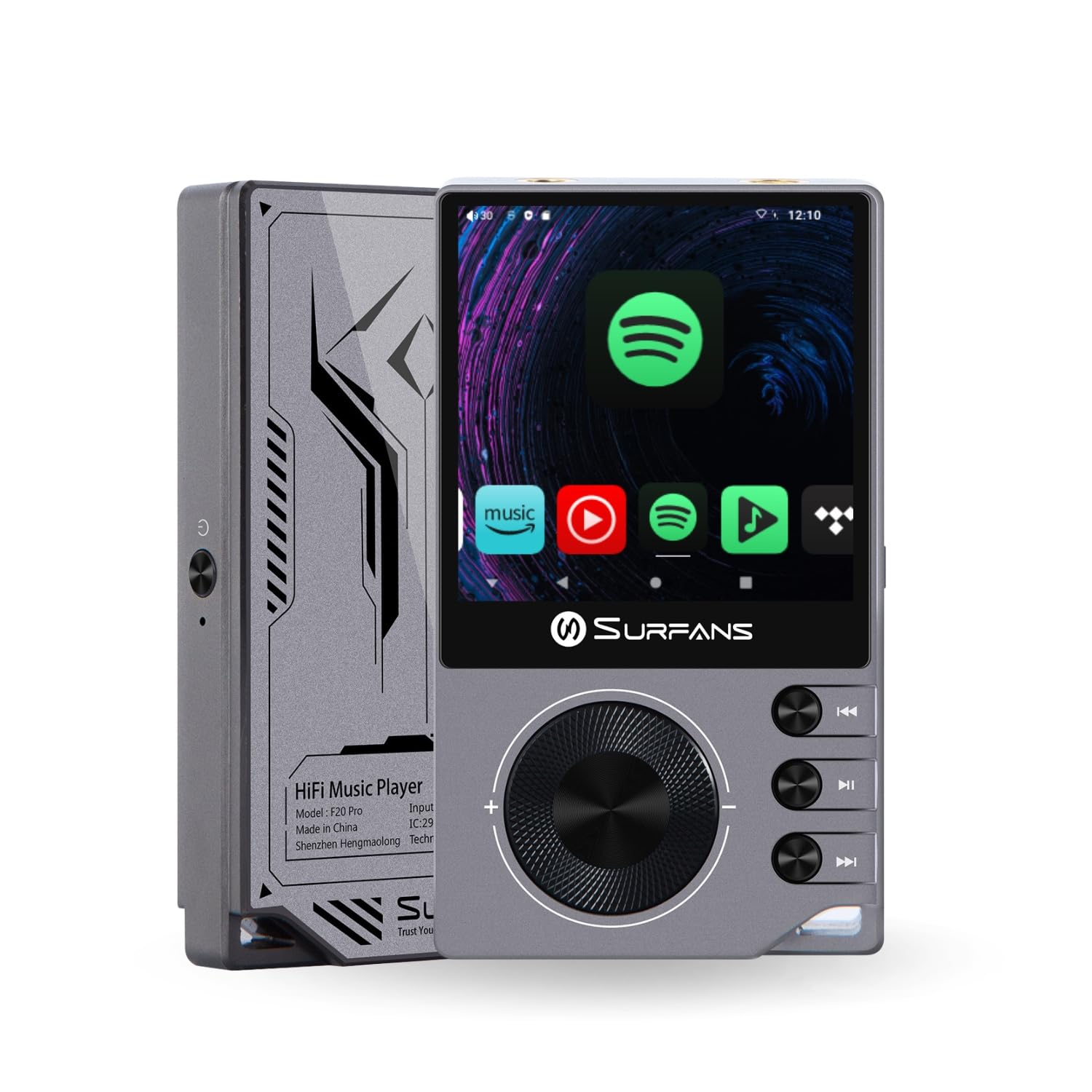
The Surfans F20 Pro Hi-Res Music Player, showcasing its compact design and touchscreen interface.
2. Package Contents
Verify that all items are present in the package:
- Surfans F20 Pro Hi-Res Music Player
- USB Type-C Cable
- 32 GB MicroSD Memory Card (pre-installed or separate)
- Protective Case
- User Manual (this document)
3. Device Overview
Familiarize yourself with the physical components and ports of your F20 Pro player.

Front and back view of the Surfans F20 Pro, highlighting its robust CNC metal chassis and button layout.
3.1. Key Features
- Dual ESS9018Q2M DACs: For high-fidelity audio processing.
- Octa-Core Android 12 System: Enables streaming app compatibility and smooth operation.
- 3.5mm Single-Ended & 4.4mm Balanced Outputs: Versatile headphone connectivity.
- Bluetooth 5.0 with LDAC: High-quality wireless audio transmission.
- Dual-Band Wi-Fi (2.4GHz & 5GHz): For stable internet connectivity.
- Expandable Storage: Supports up to 1TB via MicroSD card.
- 2.7-inch Touchscreen: Intuitive user interface.
4. Setup
4.1. Charging the Device
Before first use, fully charge the F20 Pro. Connect the included USB Type-C cable to the device's charging port and a compatible USB power adapter (not included) or computer USB port. The charging indicator will show the charging status.
4.2. Inserting a MicroSD Card
The F20 Pro supports MicroSD cards up to 1TB for expanded storage. Locate the MicroSD card slot on the side of the device. Gently insert the card until it clicks into place. To remove, push the card in again until it springs out.
4.3. Initial Power On
Press and hold the power button until the screen illuminates. Follow the on-screen prompts to complete the initial setup, including language selection and Wi-Fi connection.
4.4. Connecting to Wi-Fi
Navigate to Settings > Network & internet > Wi-Fi. Select your desired network and enter the password if prompted. The F20 Pro supports both 2.4GHz and 5GHz Wi-Fi bands.

The Surfans F20 Pro demonstrating its dual-band Wi-Fi capability for fast and stable connections.
4.5. Bluetooth Pairing
To connect Bluetooth headphones or speakers:
- Ensure your Bluetooth device is in pairing mode.
- On the F20 Pro, go to Settings > Connected devices > Pair new device.
- Select your device from the list and confirm pairing.

An illustration of the Bluetooth 5.0 chip, indicating support for high-resolution wireless audio codecs like LDAC.
5. Operating the Device
5.1. Basic Navigation
The F20 Pro features a 2.7-inch touchscreen for navigation. Swipe to scroll, tap to select, and use the physical buttons for quick controls:
- Power Button: Power on/off, screen on/off.
- Volume Wheel: Adjusts audio output volume.
- Playback Control Buttons: Play/Pause, Next Track, Previous Track.
5.2. Music Playback
The F20 Pro supports various audio formats including DSD512, 192kHz/24bit, FLAC, WAV, WMA, M4A, MP3, MP2, and AAC.
5.2.1. Local Files
Transfer music files to the device's internal storage or MicroSD card via USB connection to a computer. Use the pre-installed music player application to browse and play your library.
5.2.2. Streaming Applications
The Android 12 operating system allows installation of streaming apps like Spotify, Apple Music, Tidal, or YouTube. Connect to Wi-Fi and download apps from the Google Play Store or other compatible sources.

The Surfans F20 Pro's screen showing various streaming application icons, demonstrating its Android capabilities.
5.3. Headphone Connections
The device offers both single-ended and balanced audio outputs.
- 3.5mm Single-Ended Output: Standard headphone jack (125mW/32Ω).
- 4.4mm Balanced Output: For enhanced audio performance with compatible headphones (500mW/32Ω).

Close-up view of the 3.5mm single-ended and 4.4mm balanced audio output ports on the Surfans F20 Pro.
6. Maintenance
6.1. Cleaning
Use a soft, dry, lint-free cloth to clean the device. Avoid using abrasive cleaners or solvents, which may damage the surface.
6.2. Software Updates
Periodically check for software updates to ensure optimal performance and access to new features. Updates can typically be found in Settings > System > System update.
6.3. Battery Care
To prolong battery life, avoid fully discharging the device frequently. Store the device in a cool, dry place when not in use for extended periods.

An internal view of battery cells, representing the long-lasting battery capacity of the F20 Pro.
7. Troubleshooting
If you encounter issues with your F20 Pro, refer to the following common problems and solutions:
| Problem | Possible Cause | Solution |
|---|---|---|
| Device does not power on | Low battery; System crash | Charge the device; Press and hold the power button for 10-15 seconds to force restart. |
| No sound output | Volume too low; Incorrect output selected; Faulty headphones | Increase volume; Check headphone connection; Test with different headphones. |
| Cannot connect to Wi-Fi | Incorrect password; Out of range; Router issue | Verify password; Move closer to router; Restart router. |
| Slow performance/App crashes | Too many apps running; Low storage; Outdated software | Close background apps; Free up storage; Check for system updates. |
8. Specifications
Detailed technical specifications for the Surfans F20 Pro:
| Feature | Detail |
|---|---|
| Brand | Surfans |
| Model Name | F20 PRO |
| DAC Chips | Dual ESS9018Q2M |
| Op-Amps | Dual OPA1612 |
| Operating System | Android 12 |
| RAM | 3GB |
| Internal Storage | 32GB |
| Expandable Storage | Up to 1TB via MicroSD card |
| Screen Size | 2.73 Inches |
| Connectivity | Aux, Bluetooth 5.0 (LDAC), USB Type-C, Wi-Fi (2.4GHz & 5GHz) |
| Audio Outputs | 3.5mm Single-Ended (125mW/32Ω), 4.4mm Balanced (500mW/32Ω) |
| Supported Audio Formats | DSD512, 192kHz/24bit, FLAC, WAV, WMA, M4A, MP3, MP2, AAC |
| Color | Gray |

An illustration of the dual ESS9018K2M DAC chips, central to the F20 Pro's high-resolution audio capabilities.
9. Warranty Information
The Surfans F20 Pro comes with a 1-Year Warranty from the date of purchase. This warranty covers manufacturing defects and workmanship under normal use. It does not cover damage caused by misuse, accidents, unauthorized modifications, or normal wear and tear. Please retain your proof of purchase for warranty claims.
10. Customer Support
For further assistance, technical support, or warranty inquiries, please contact Surfans customer service through the official website or your retailer. You may also find additional resources and FAQs online.
