
Introduction
This manual provides detailed instructions for the safe and effective use of your Hangrui D102 Instant Print Children's Camera. Please read this manual thoroughly before operating the device and retain it for future reference. The Hangrui D102 is designed to allow children to capture photos and print them instantly without ink, offering a fun and interactive photography experience.
Product Overview
Key Features
- Instant ink-free black and white photo printing.
- 2.4-inch display screen.
- 1080P video recording capability.
- 10x digital zoom.
- Time-lapse and continuous shooting functions.
- MP3 playback function.
- Integrated fun comic frames, mirror effects, and color filters.
- Includes a 32GB memory card for digital storage.
- Built-in 1300 mAh rechargeable battery with USB-C fast charging.
Camera Components
Familiarize yourself with the camera's main components as shown in the diagram below.
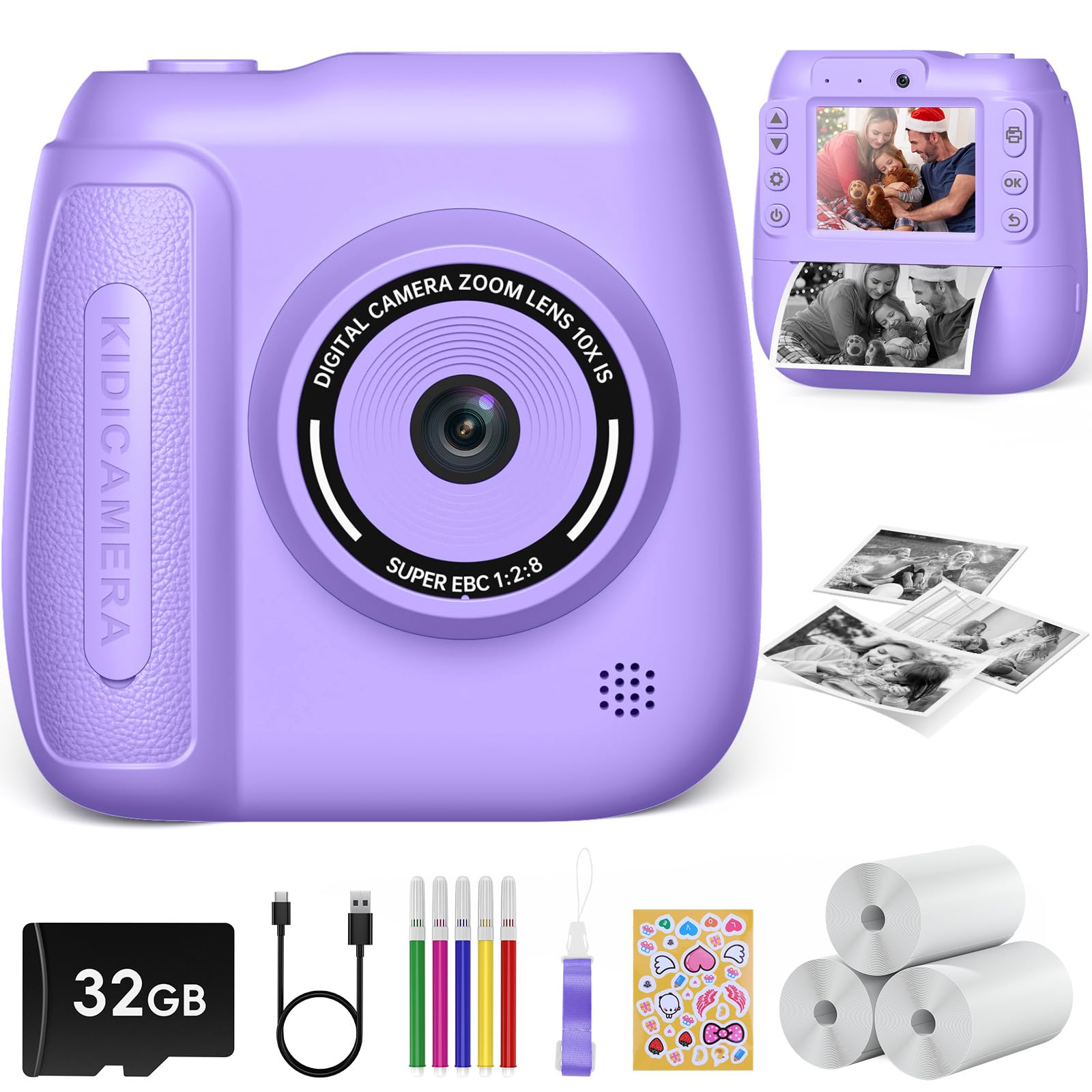
Image: Overview of the Hangrui D102 Instant Print Children's Camera, highlighting its features and dimensions.
- Power Button: Turns the camera on/off.
- Shutter/OK Button: Takes photos, confirms selections.
- Navigation Buttons (Up/Down/Left/Right): Used for menu navigation and zoom control.
- Menu Button: Accesses camera settings and modes.
- Print Output Slot: Where printed photos emerge.
- Lens: Camera lens for capturing images and videos.
- Display Screen: 2.4-inch screen for viewing photos, videos, and menus.
- USB-C Port: For charging and data transfer.
- MicroSD Card Slot: For inserting the memory card.
Setup
1. Charging the Camera
Before first use, fully charge the camera battery. Connect the included USB-C cable to the camera's USB-C port and the other end to a compatible USB power adapter (not included) or a computer's USB port. The charging indicator light will typically show the charging status and turn off or change color when fully charged. A full charge provides hours of operation.
2. Inserting the MicroSD Card
The camera comes with a 32GB MicroSD card. Locate the MicroSD card slot on the camera. Gently insert the MicroSD card with the gold contacts facing down until it clicks into place. To remove, push the card in again until it springs out.
3. Loading Printing Paper
The camera uses special thermal printing paper. Follow these steps to load a new roll:
- Open the paper compartment cover on the camera.
- Insert a new roll of printing paper, ensuring the paper feeds out from the top of the roll.
- Pull a small length of paper out of the compartment and close the cover, making sure the paper protrudes through the print output slot.
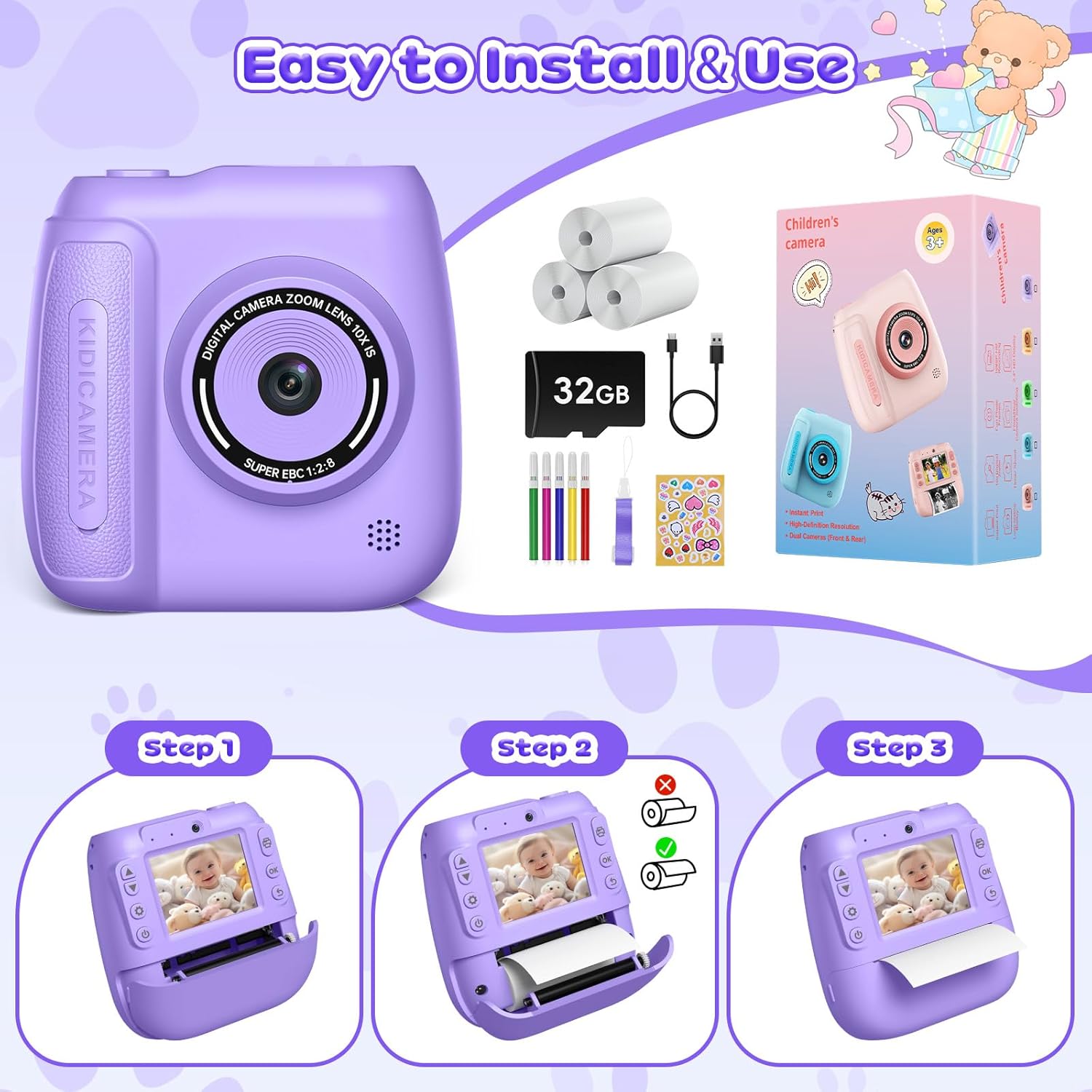
Image: Step-by-step guide for loading printing paper into the camera.
Operating Instructions
1. Power On/Off
Press and hold the Power button for a few seconds to turn the camera on or off.
2. Taking Photos and Instant Printing
- Turn on the camera. It will typically start in photo mode.
- Frame your shot using the display screen.
- Press the Shutter/OK button to take a photo.
- The camera will automatically print the photo immediately after capture.
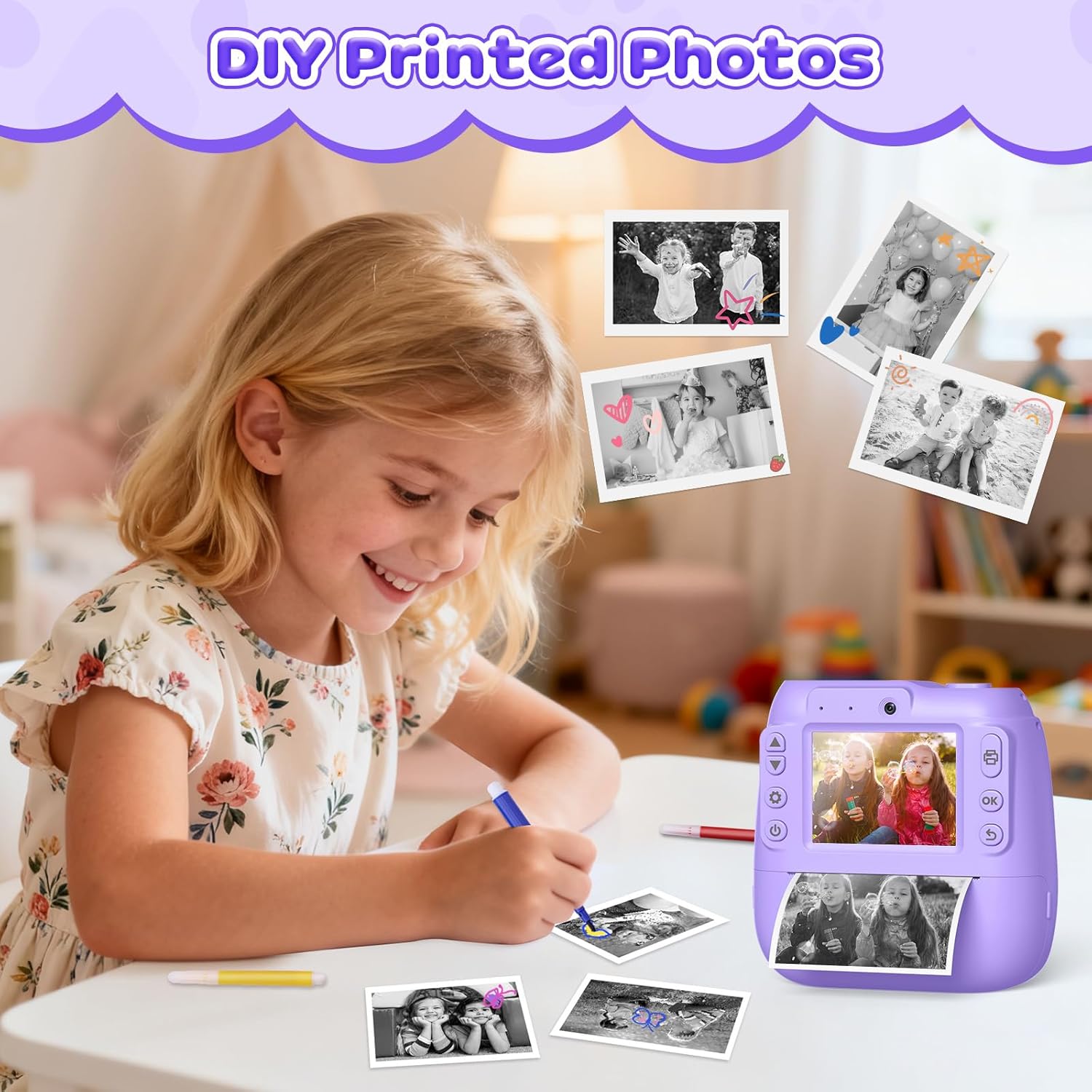
Image: Example of printed photos from the camera, ready for coloring or decoration.
3. Video Recording
- Navigate to video mode using the Menu button and navigation controls.
- Press the Shutter/OK button to start recording. A recording indicator will appear on the screen.
- Press the Shutter/OK button again to stop recording.
4. Digital Zoom
In photo or video mode, use the Up/Down navigation buttons to adjust the digital zoom level (up to 10x).
5. Time-Lapse and Burst Shooting
- Access these functions through the camera's menu settings.
- Time-Lapse: Set a delay (e.g., 3s, 5s, 10s) before a photo is taken, allowing time to get into position.
- Burst Shooting: Capture multiple photos in quick succession with a single press of the shutter button.

Image: Demonstrations of video recording, time-lapse, 10x zoom, and burst shooting features.
6. Selfie Mode
The camera supports a selfie mode, allowing users to easily take self-portraits. Use the front-facing lens and the display screen to compose your shot.

Image: The camera being used in selfie mode, highlighting its front lens and instant print capability.
7. Frames and Filters
Enhance your photos with various built-in comic frames, mirror effects, and color filters. These options can be selected through the camera's menu before taking a photo.

Image: Examples of creative frames and filters that can be applied to photos.
8. MP3 Function
The camera supports MP3 playback. Transfer MP3 files to the MicroSD card. Access the MP3 player through the camera's main menu to play music.
Maintenance
Cleaning the Camera
- Use a soft, dry cloth to clean the camera body.
- For the lens and screen, use a specialized lens cleaning cloth to avoid scratches. Do not use liquid cleaners directly on the lens or screen.
- Ensure the camera is powered off before cleaning.
Battery Care
- Charge the camera regularly, even if not in frequent use, to maintain battery health.
- Avoid exposing the camera to extreme temperatures, which can affect battery performance and lifespan.
Storage
When not in use, store the camera in a cool, dry place away from direct sunlight and moisture. Use the included lanyard to prevent accidental drops.
Troubleshooting
| Problem | Possible Cause | Solution |
|---|---|---|
| Camera does not turn on. | Battery is depleted. | Charge the camera using the USB-C cable. |
| Photos are too dark or unclear. | Insufficient lighting conditions. | Ensure adequate lighting when taking photos. The camera performs best in well-lit environments. |
| Photos are not printing. | No printing paper loaded or paper jam. | Check if printing paper is correctly loaded. Open the paper compartment and ensure there are no obstructions. |
| "Card Full" error message. | MicroSD card storage is full. | Transfer photos/videos to a computer and delete them from the card, or replace the MicroSD card. |
| Camera freezes or becomes unresponsive. | Software glitch. | Press and hold the Power button for 10-15 seconds to force a restart. If the issue persists, ensure the battery is charged. |
Specifications
| Model Name | D102 |
| Brand | Hangrui |
| Display Screen | 2.4 inches |
| Video Resolution | 1080P |
| Digital Zoom | 10x |
| Battery Capacity | 1300 mAh |
| Storage | MicroSD card (32GB included) |
| Product Dimensions (L x W x H) | 5.5 x 10 x 10 cm (approximately 2.17 x 3.94 x 3.94 inches) |
| Item Weight | 380 Grams |
| Special Features | Time-lapse, Continuous Shooting, MP3 Function |
| Included Components | Camera Body, 32GB MicroSD Card, 3 Printing Paper Rolls, USB-C Cable, Lanyard, 5 Color Pens |
Warranty and Support
Specific warranty information is not provided in the product details. For warranty claims or technical support, please contact the retailer or the manufacturer, Hangrui, directly. Please retain your proof of purchase for any warranty-related inquiries.