
Introduction
Welcome to your new HP Omen 16-AP000 Gaming Laptop. This manual provides essential information for setting up, operating, maintaining, and troubleshooting your device. Please read through these instructions carefully to ensure optimal performance and longevity of your laptop.
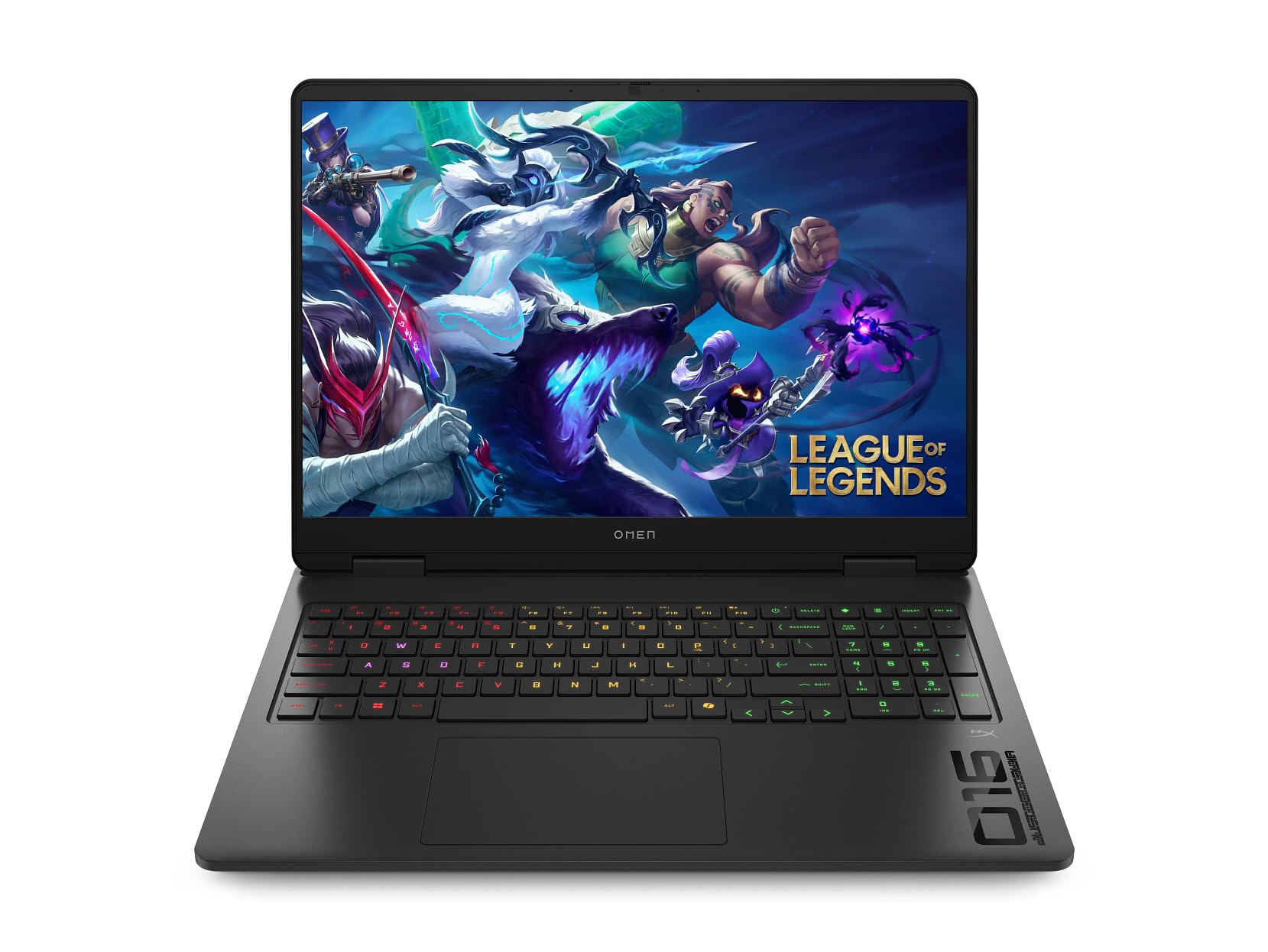
Figure 1: HP Omen 16-AP000 Gaming Laptop. This image shows the laptop open, displaying the screen and keyboard from an angled perspective.
What's in the Box
Upon unboxing your HP Omen 16-AP000 Gaming Laptop, please verify that all the following items are included:
- HP Omen 16-AP000 Gaming Laptop
- AC Adapter (230W)
- 32GB USB Drive
Setup Guide
1. Initial Power-On
- Unpack your laptop and place it on a stable, flat surface.
- Connect the AC adapter to the laptop's power input and then to a wall outlet.
- Open the laptop lid. The laptop may power on automatically, or you may need to press the power button.
- Follow the on-screen instructions to complete the Windows 11 Home setup process.
2. Connecting Peripherals
Your HP Omen 16-AP000 offers various ports for connecting external devices. Refer to the 'Ports and Connectors' section for a detailed overview.

Figure 2: Side view of the laptop, illustrating the placement of various ports and cooling vents.
Operating Your HP Omen 16-AP000
1. Power Management
- Power On: Press the power button located on the keyboard deck.
- Shut Down: Click the Start button, then Power > Shut down.
- Sleep Mode: Close the lid or click the Start button, then Power > Sleep.
2. Keyboard and Touchpad
Your laptop features a full-size backlit keyboard with a Numpad for enhanced productivity and gaming. The integrated touchpad supports multi-touch gestures for navigation.
3. Display Features
Experience immersive visuals on the 16.0-inch LED-backlit IPS display with a 1920 x 1200 resolution and a 144Hz refresh rate. The anti-glare coating reduces reflections for comfortable viewing.

Figure 3: The laptop screen displaying a high-fidelity game, showcasing the visual capabilities.
4. Ports and Connectors
The HP Omen 16-AP000 is equipped with a comprehensive set of ports for all your connectivity needs:
- 1 x USB 3.2 Gen 2 Type-C: Supports Power Delivery, DisplayPort, Power-off Charging, and 10Gbps data transfer.
- 1 x USB 3.2 Gen 2 Type-A: Supports 10Gbps data transfer.
- 2 x USB 3.2 Gen 1 Type-A: Supports 5Gbps data transfer.
- 1 x HDMI v2.1: For connecting to external displays.
- 1 x Headphone/Microphone Combo Jack: For audio input and output.
- 1 x RJ-45: For wired Ethernet connection (10/100/1000Mbps LAN).
- 1 x Coaxial plug Power Jack: For connecting the AC adapter.

Figure 4: Detailed diagram of the laptop's ports, including USB Type-A, USB Type-C, HDMI, RJ-45, and audio jack.
5. Camera and Audio
The integrated 1080p FHD Camera includes a privacy shutter for security. The laptop features HD Audio with built-in speakers and a headphone/microphone combo jack.
6. Wireless Connectivity
Your laptop supports Realtek Wi-Fi 6 (2x2) for high-speed wireless internet access and Bluetooth 5.3 for connecting wireless peripherals.
Maintenance and Care
1. Cleaning Your Laptop
- Use a soft, lint-free cloth slightly dampened with water or a screen cleaner to clean the display.
- For the keyboard and chassis, use a soft cloth. Avoid harsh chemicals.
- Regularly clean the cooling vents to prevent dust buildup, which can affect performance.
2. Battery Care
- Avoid fully discharging the battery frequently.
- Store the laptop in a cool, dry place if not used for extended periods.
- For optimal battery health, avoid prolonged exposure to extreme temperatures.
3. Software Updates
Regularly check for and install operating system (Windows 11 Home) and driver updates to ensure system stability, security, and optimal performance.
Troubleshooting Common Issues
This section provides solutions for common problems you might encounter.
- Laptop does not power on: Ensure the AC adapter is securely connected to both the laptop and a working power outlet. Try a different outlet.
- No display: Connect an external monitor to verify if the issue is with the laptop's internal display. Restart the laptop.
- Wi-Fi connectivity issues: Check if Wi-Fi is enabled in Windows settings. Restart your router and the laptop. Ensure drivers are up to date.
- Slow performance: Close unnecessary applications. Check for background processes. Ensure sufficient free storage space.
- Overheating: Ensure cooling vents are clear of obstructions. Use the laptop on a hard, flat surface.
If you continue to experience issues, please refer to the Warranty and Support section for further assistance.
Technical Specifications
| Feature | Specification |
|---|---|
| Processor | AMD Ryzen 9 8940HX 16-Core (Up to 5.3 GHz, 16 Cores, 32 Threads) |
| Graphics | NVIDIA GeForce RTX 5060 8 GB GDDR7 |
| Display | 16.0" LED-backlit IPS (1920 x 1200) 300 nits Anti-glare, 144 Hz |
| Memory | 24GB DDR5 SDRAM 5200 MHz |
| Storage | 2TB NVMe M.2 SSD |
| Operating System | Windows 11 Home |
| Keyboard | Full-size Backlit Keyboard with Numpad |
| Camera | 1080p FHD Camera with Privacy Shutter |
| Wireless Connectivity | Realtek Wi-Fi 6 (2x2), Bluetooth 5.3 |
| Wired LAN | 10/100/1000Mbps (RJ-45) |
| Ports | 1x USB 3.2 Gen 2 Type-C, 1x USB 3.2 Gen 2 Type-A, 2x USB 3.2 Gen 1 Type-A, 1x HDMI v2.1, 1x Headphone/Microphone Combo Jack, 1x RJ-45, 1x Power Jack |
| Battery | 4 Cell 83 Wh Lithium-Ion (Up to 6 hours average usage) |
| Dimensions (L x W x H) | 14.07 x 10.59 x 1.12 inches |
| Weight | 5.4 lbs |
| Color | Shadow Black |
Warranty and Support
Your HP Omen 16-AP000 Gaming Laptop comes with a 1-Year Support from HP within the US. This warranty covers manufacturing defects and hardware malfunctions under normal use conditions.
Contacting Support
For technical assistance, warranty claims, or service inquiries, please visit the official HP Support website or contact HP customer service directly. Have your laptop's serial number ready when contacting support.
- HP Support Website: support.hp.com
- HP Customer Service: Refer to your region-specific HP documentation for phone numbers.


