
1. Introduction
This manual provides detailed instructions for the proper setup, operation, and maintenance of your Mingdaln G39fense 46mm Smartwatch. Please read this manual thoroughly before using the device to ensure optimal performance and longevity. Keep this manual for future reference.
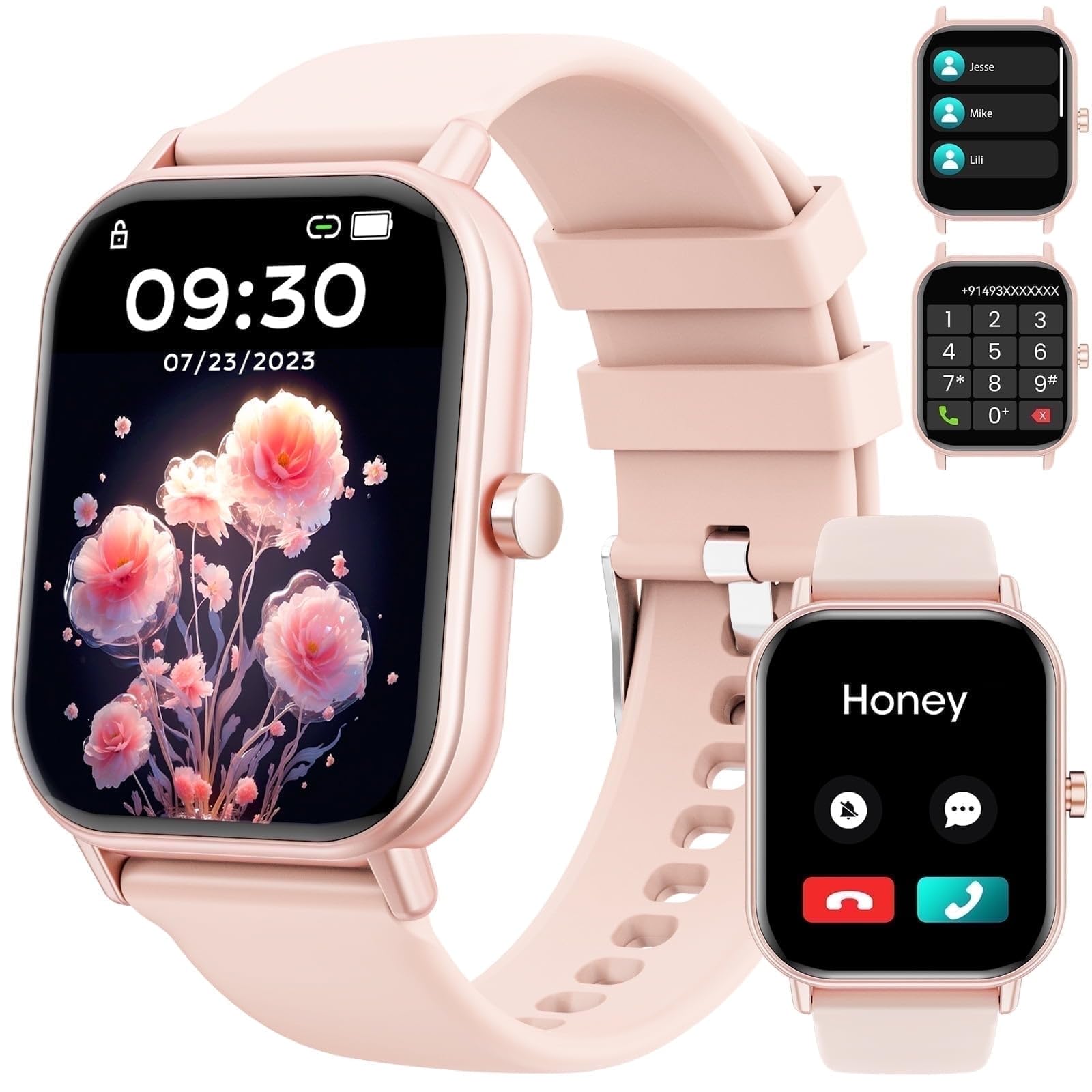
This image shows the Mingdaln G39fense 46mm Smartwatch in its Gold color variant. The circular display is active, showing typical smartwatch information such as time, date, and possibly fitness metrics. The watch features a metallic bezel and a comfortable strap, designed for daily wear and fitness tracking.
2. Package Contents
Please check the package contents upon unboxing. If any items are missing or damaged, contact your retailer or Mingdaln customer support.
- Mingdaln G39fense Smartwatch
- Magnetic Charging Cable
- User Manual
3. Setup
3.1 Charging the Smartwatch
- Connect the magnetic charging cable to the charging contacts on the back of the smartwatch.
- Plug the USB end of the charging cable into a standard USB power adapter (5V/1A recommended) or a computer's USB port.
- The watch display will show a charging indicator. A full charge typically takes approximately 2 hours.
3.2 Powering On/Off
- Power On: Press and hold the side button for 3-5 seconds until the Mingdaln logo appears.
- Power Off: Press and hold the side button for 3-5 seconds, then select 'Power Off' on the screen, or navigate to 'Settings' > 'System' > 'Power Off'.
3.3 App Installation and Pairing
To unlock the full features of your smartwatch, you need to install the companion application on your smartphone.
- Scan the QR code provided in the manual or on the watch screen (if available) to download the official app, or search for the app name (e.g., 'Smart Health' or 'WearFit Pro' - refer to packaging for exact app name) in the Apple App Store (for iOS) or Google Play Store (for Android).
- Install and open the app on your smartphone.
- Ensure Bluetooth is enabled on your smartphone.
- In the app, navigate to 'Device' or 'Add Device' and search for your smartwatch (e.g., 'G39fense').
- Select your smartwatch from the list to initiate pairing. Confirm the pairing request on both your smartphone and the smartwatch if prompted.
4. Operating the Smartwatch
4.1 Basic Navigation
- Swipe Down: Access quick settings (e.g., brightness, DND mode).
- Swipe Up: View notifications.
- Swipe Left/Right: Scroll through widgets and main functions (e.g., activity, heart rate, weather).
- Tap: Select an item or open an application.
- Side Button: Press once to return to the watch face or access the app menu. Press and hold for power options.
4.2 Call Functions
Once paired with your smartphone, the smartwatch supports Bluetooth calls.
- Answering Calls: When a call comes in, tap the green phone icon on the watch screen.
- Making Calls: Access the 'Dialer' or 'Contacts' app on your watch to make outgoing calls. Ensure your watch is connected to your phone's Bluetooth for calls.
4.3 Sport Modes
The smartwatch offers over 120 sport modes to track various physical activities.
- Navigate to the 'Workout' or 'Sport' app on your watch.
- Select your desired activity (e.g., running, cycling, swimming).
- Tap to start tracking. The watch will record duration, calories burned, heart rate, and other relevant metrics.
- Swipe right or press the side button to pause or end the workout.
4.4 Health Monitoring
The smartwatch continuously monitors key health metrics.
- Heart Rate: Access the 'Heart Rate' app to measure your current heart rate. The watch can also be set to monitor continuously.
- Sleep Tracking: Wear the watch to bed, and it will automatically track your sleep patterns (deep sleep, light sleep, awake time). View detailed reports in the companion app.
- Blood Oxygen (SpO2): Use the 'SpO2' app to measure your blood oxygen levels.
- Steps/Activity: The watch tracks your daily steps, distance, and calories burned.
4.5 Notifications
Receive notifications from your smartphone directly on your smartwatch.
- Ensure notification permissions are enabled in the companion app and your phone's settings.
- Swipe up on the watch face to view recent notifications.
5. Maintenance
5.1 Cleaning
- Wipe the watch screen and body with a soft, lint-free cloth.
- For stubborn dirt, slightly dampen the cloth with water. Avoid using harsh chemicals or abrasive materials.
- Clean the charging contacts regularly to ensure proper charging.
5.2 Water Resistance (IP68)
The Mingdaln G39fense Smartwatch is rated IP68 for water and dust resistance. This means it is protected against immersion in water up to 1.5 meters for up to 30 minutes.
- It is suitable for daily use, such as hand washing, rain, and shallow swimming.
- Avoid using the watch in hot water, saunas, or steam rooms, as steam can penetrate the seals.
- Do not press buttons underwater.
- After exposure to water, dry the watch thoroughly before charging.
6. Troubleshooting
- Watch not powering on: Ensure the watch is fully charged. Connect it to the charger for at least 10 minutes.
- Unable to pair with smartphone:
- Ensure Bluetooth is enabled on your phone and the watch.
- Make sure the watch is within Bluetooth range (typically 10 meters).
- Restart both your phone and the smartwatch.
- Clear Bluetooth cache on your phone (Android) or forget the device and re-pair.
- Inaccurate health data: Ensure the watch is worn snugly on your wrist, not too tight or too loose. Avoid tattoos or scars directly under the sensor.
- Notifications not received: Check app permissions on your phone and ensure notification access is granted to the companion app. Verify that 'Do Not Disturb' mode is not active on either device.
- Screen unresponsive: Try restarting the watch by pressing and holding the side button. If unresponsive, allow the battery to drain completely and then recharge.
7. Specifications
| Feature | Specification |
|---|---|
| Model Number | G39fense |
| Brand | Mingdaln |
| Operating System | Wear OS 1.1 |
| Special Feature | Activity Tracker |
| GPS | No GPS |
| Color | Gold |
| Compatible Devices | Smartphone (Android and iOS) |
| Water Resistance | IP68 |
| UPC | 607603387769 |
| Manufacturer | Mingdaln |
| Date First Available | September 26, 2025 |
8. Warranty and Support
For warranty information, please refer to the warranty card included with your purchase or the retailer's terms and conditions. Mingdaln provides customer support for product inquiries, technical assistance, and warranty claims.
For further assistance, please visit the official Mingdaln website or contact their customer service department using the contact information provided in your purchase documentation.