
1. Introduction
This manual provides detailed instructions for the installation, operation, and maintenance of your JOMISE A80 Pro 4K+4K Dash Cam. Please read this manual thoroughly before using the device to ensure proper functionality and safety. The JOMISE A80 Pro is designed to record high-quality video footage from both the front and rear of your vehicle, offering enhanced security and evidence in various driving conditions.
2. Product Overview
2.1 Package Contents
Verify that all items listed below are present in your package:
- A80 Pro driving recorder (main unit)
- 64GB Micro Memory Card (pre-installed)
- 11.48ft Power Cable + Car Charger
- 4K Rear Camera Unit
- 18.04ft Rear Camera Connection Cable
- GPS-enabled Bracket
- Electrostatic Stickers
- Installation Tool
- User Manual (this document)

Figure 2.1: Package Contents
2.2 Key Features
- Dual 4K Recording: Front 2560×1440P and Rear 2560×1440P for high-resolution video capture.
- STARVIS 2 Night Vision: Enhanced low-light imaging for clear recordings in dark conditions.
- Ethernet Rear Camera Processing: Dedicated processor for the rear camera ensures stable 4K performance for both channels.
- WiFi 6 Connectivity: High-speed wireless transfer for quick video downloads to your smartphone.
- 3.12-inch IPS Touch Panel: Responsive touchscreen for intuitive navigation and control.
- GPS Functionality: Built-in positioning system for route logging and speed data.
- 24H Parking Mode: Continuous monitoring with collision-triggered lock (requires hardwire kit, sold separately).
- G-Sensor: Automatically detects impacts and locks footage to prevent overwriting.
- Loop Recording: Overwrites oldest footage when the memory card is full, ensuring continuous recording.
- Wide-Angle Lenses: Front 180° field of view, Rear 160° wide view.
- WDR / HDR Imaging: Improves image quality in varying light conditions.
- Support for up to 1TB Micro Memory Card: Allows for extensive storage of video footage.
3. Setup and Installation
The JOMISE A80 Pro is designed for straightforward installation. Follow these steps for optimal placement and connection.
3.1 Mounting the Front Dash Cam
- Clean the windshield area where the dash cam will be mounted, typically behind the rearview mirror, to ensure a strong adhesive bond.
- Attach an electrostatic sticker to the cleaned area. This helps in easy removal and repositioning without leaving residue.
- Mount the GPS-enabled bracket onto the electrostatic sticker.
- Slide the main A80 Pro unit onto the bracket until it clicks into place. Ensure the lens has a clear view of the road ahead.
- Connect the power cable to the dash cam and route it along the windshield edge, down the A-pillar, and to the car's cigarette lighter socket or a hardwire kit (for parking mode). Use the provided installation tool to tuck the cable neatly.

Figure 3.1: Front Dash Cam Installation
3.2 Installing the Rear Camera
- Identify a suitable location on your rear windshield for the rear camera, ensuring a clear view. The rear camera has a 360° adjustable module for flexible positioning.
- Clean the chosen area on the rear windshield.
- Attach an electrostatic sticker and then mount the rear camera using its adhesive.
- Connect the 18.04ft connection cable to the rear camera.
- Route the rear camera cable from the rear windshield, along the headliner and side pillars, to the main front dash cam unit. Use the installation tool to conceal the cable.
- Plug the rear camera cable into the designated port on the main A80 Pro unit.
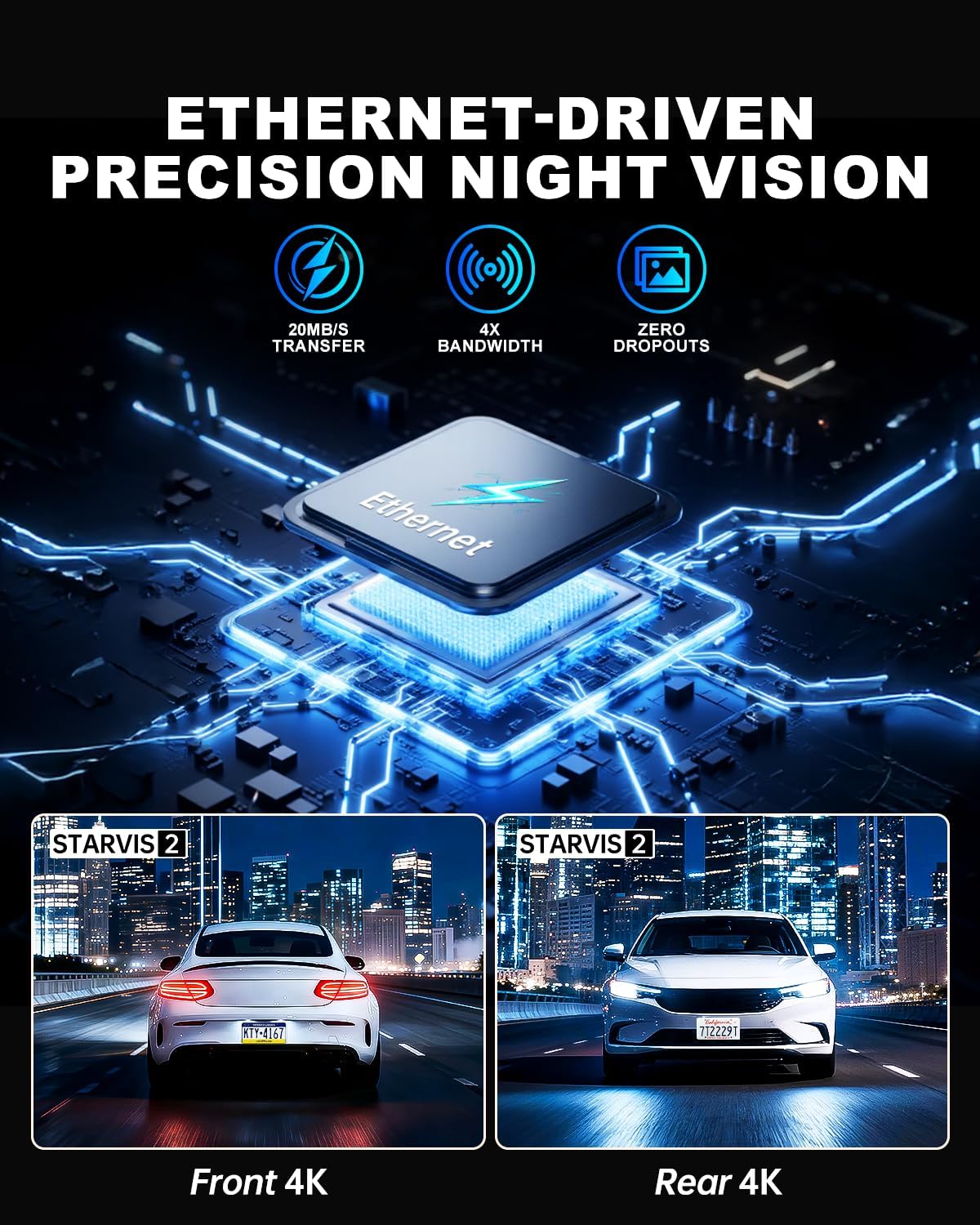
Figure 3.2: Rear Camera Installation
3.3 Power Connection
Plug the car charger into your vehicle's cigarette lighter socket. The dash cam will power on automatically when the vehicle starts and begin recording. For 24-hour parking monitoring, a hardwire kit (sold separately) is required to provide continuous power.
4. Operating Instructions
The JOMISE A80 Pro features a responsive touchscreen and physical buttons for easy operation.
4.1 Power On/Off
- Automatic: The dash cam powers on and starts recording automatically when connected to power and the vehicle ignition is turned on. It powers off automatically when the ignition is turned off.
- Manual: Press and hold the power button (if available) to manually turn the device on or off.
4.2 Basic Recording
- Upon powering on, the dash cam will automatically begin loop recording.
- Video footage is saved in TS stream format, and photos are saved as JPG.
- The 64GB micro memory card included supports continuous loop recording. The device supports up to 1TB cards.
- Audio capture is enabled by default. This can be toggled in the settings menu.
4.3 Touchscreen Interface
The 3.12-inch IPS touch panel allows for intuitive control. Navigate through menus, adjust settings, and review footage with quick touch responses (approx. 0.2 seconds).

Figure 4.1: Touchscreen Menu Navigation
5. Advanced Features
5.1 24-Hour Parking Mode
For continuous monitoring when your vehicle is parked, the 24-hour parking mode utilizes the built-in G-Sensor. If an impact is detected while parked, the dash cam will automatically record and lock the footage. This feature requires a hardwire kit (not included) to provide constant power to the device.

Figure 5.1: 24-Hour Parking Monitoring
5.2 WiFi 6 Connectivity
The integrated WiFi 6 module provides high-speed and stable connectivity for transferring video files to your smartphone. This allows for quick previewing and downloading of 4K video clips, typically within 6 seconds for a 1-minute video. Use the dedicated mobile application to access this feature.

Figure 5.2: WiFi 6 Data Transfer
5.3 GPS Functionality
The built-in GPS system records your vehicle's location and speed data, which can be viewed during video playback on a computer or via the mobile application. This provides valuable context for recorded events.

Figure 5.3: GPS Route Tracking
5.4 Night Vision with STARVIS 2
The JOMISE A80 Pro utilizes STARVIS 2 technology for both front and rear cameras, providing superior low-light performance. This ensures clear and detailed video capture in challenging lighting conditions such as dark roads, tunnels, and nighttime driving, with reduced noise and improved exposure.

Figure 5.4: STARVIS 2 Night Vision Performance
5.5 Ethernet Rear Camera Processing
Unlike traditional AHD systems, the A80 Pro uses an Ethernet-based system for the rear camera. This allows a dedicated processor in the rear camera to handle its footage independently, freeing up the main processor for the front camera. This design improves overall 4K image performance and stability for both front and rear recordings.
6. Maintenance
- Cleaning: Use a soft, dry cloth to clean the camera lenses and the display screen. Avoid abrasive cleaners or solvents.
- Memory Card: Regularly format the micro memory card (at least once a month) within the dash cam's settings to ensure optimal performance and prevent data corruption. Back up important footage before formatting.
- Firmware Updates: Check the official JOMISE website periodically for firmware updates. Keeping your dash cam's firmware up-to-date can improve performance and add new features.
7. Troubleshooting
| Problem | Possible Cause | Solution |
|---|---|---|
| Dash cam does not power on. | No power supply; faulty power cable; loose connection. | Check car charger connection. Ensure vehicle ignition is on. Try a different power source if available. |
| Recording stops or freezes. | Memory card error; full memory card; incompatible memory card. | Format the memory card. Replace with a high-speed (Class 10 or U3) micro SD card if necessary. Ensure card capacity is within supported range (up to 1TB). |
| Poor video quality. | Dirty lens; protective film still on lens; incorrect resolution settings. | Clean the lenses. Remove any protective film. Check video resolution settings in the menu. |
| Rear camera not detected. | Loose cable connection; faulty rear camera cable. | Ensure the rear camera cable is securely connected to both the rear camera and the main unit. |
| WiFi connection issues. | Incorrect password; too far from device; app issues. | Verify WiFi password. Ensure your phone is close to the dash cam. Restart the dash cam and your phone's WiFi. Reinstall the mobile application if necessary. |
8. Specifications
| Feature | Detail |
|---|---|
| Model | A80 Pro |
| Video Performance (Front) | 2560×1440P |
| Video Performance (Rear) | 2560×1440P |
| Front Lens Field of View | 180° |
| Rear Lens Field of View | 160° |
| Front Lens Aperture | F1.8 |
| Rear Lens Aperture | F1.8 |
| Rear Camera Link | Digital-powered data channel (Ethernet-based) |
| Video Format | TS stream |
| Photo Format | JPG |
| Display | 3.12-inch IPS touch panel |
| Control System | Touch + physical keys |
| Connectivity | High-speed wireless transfer module (WiFi 6) |
| Positioning System | Built-in GPS with route logging |
| Memory Card Support | Up to 1TB micro memory card (64GB included) |
| Power Input | Type-C 5V/3A |
| Working Temperature | -4°F to 158°F (-20°C to 70°C) |
| Storage Temperature | -40°F to 176°F (-40°C to 80°C) |
| Product Dimensions | 3.74 x 1.97 x 1.77 inches |
| Item Weight | 1.59 pounds |
| Frame Rate | 30 FPS |
9. Warranty and Support
JOMISE provides an extended 18-month warranty for the A80 Pro Dash Cam. For technical assistance, troubleshooting, or warranty claims, please contact JOMISE customer support.
- Warranty Period: 18 Months
- Email: jomise-us@jomise-cam.com
- Phone: +1 866 788 8775

Figure 9.1: Warranty and Support Information
10. Product Video Overview
Video 10.1: JOMISE A80 Pro Dash Cam Features and Operation. This video provides a visual overview of the dash cam's components, installation process, and key functionalities, including day and night recording examples and GPS tracking.


