
1. Introduction
Welcome to your new DreamQuest Mini PC N95. This compact desktop computer is designed for efficiency and versatility, preloaded with Windows 11 Pro and powered by an Intel N95 processor. It offers robust performance for daily computing tasks, multimedia, and office applications, supporting multiple 4K displays and a wide range of connectivity options. Please read this manual carefully to ensure proper setup and operation.
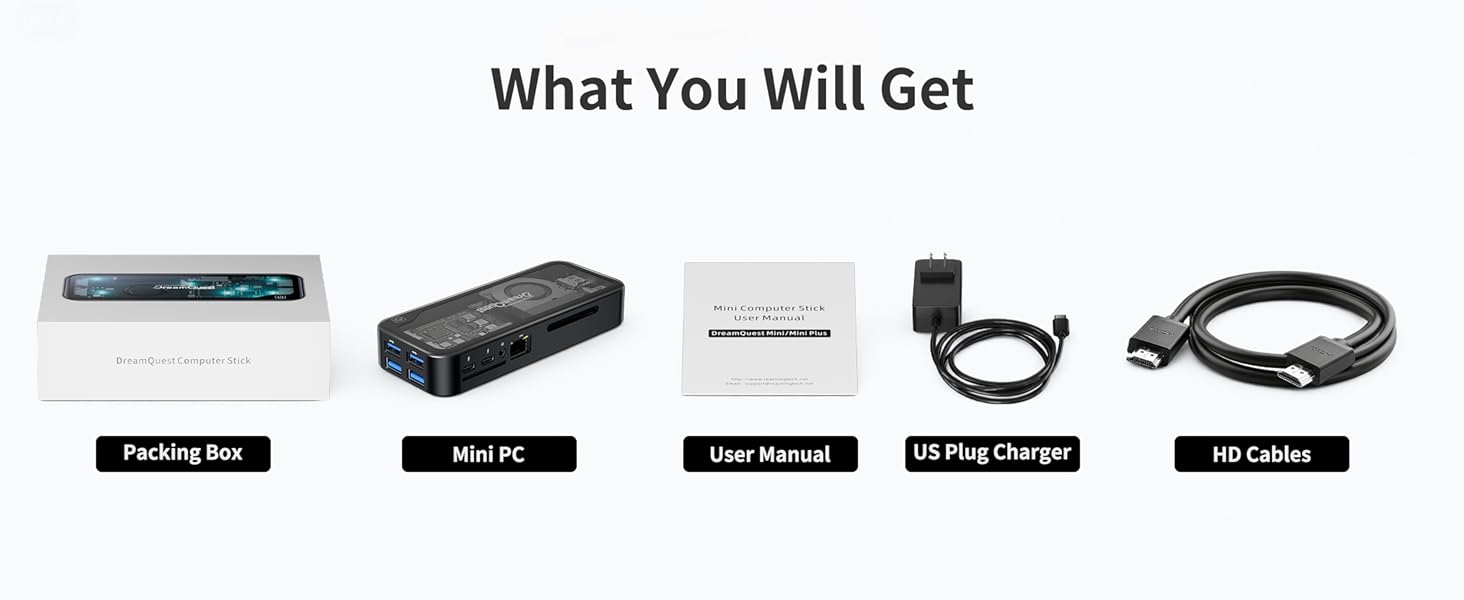
2. What's in the Box
Verify that all items are present in the package:
- DreamQuest Mini PC N95
- User Manual
- HDMI Cable
- Power Adapter

This image displays the DreamQuest Mini PC, user manual, HDMI cable, and power adapter, which are included in the product packaging.
3. Product Features and Overview
The DreamQuest Mini PC N95 is a powerful and compact computing solution with the following key features:
- Operating System: Preloaded with Windows 11 Pro, supporting Linux, PXE, Ubuntu, RTC Wake, and Auto Power On.
- Processor: 12th Gen Intel Alder Lake N95 (up to 3.4GHz), offering enhanced CPU and GPU performance compared to previous generations.
- Memory: 12GB DDR5 RAM for high-speed performance and efficient multitasking.
- Storage: Built-in 512GB M.2 2280 SSD, expandable up to 2TB.
- Connectivity: Dual full-function USB-C ports (for fast charging, data transfer, video output), dual HDMI ports, 4 USB 3.2 ports, Gigabit LAN, WiFi 6, and Bluetooth 5.3.
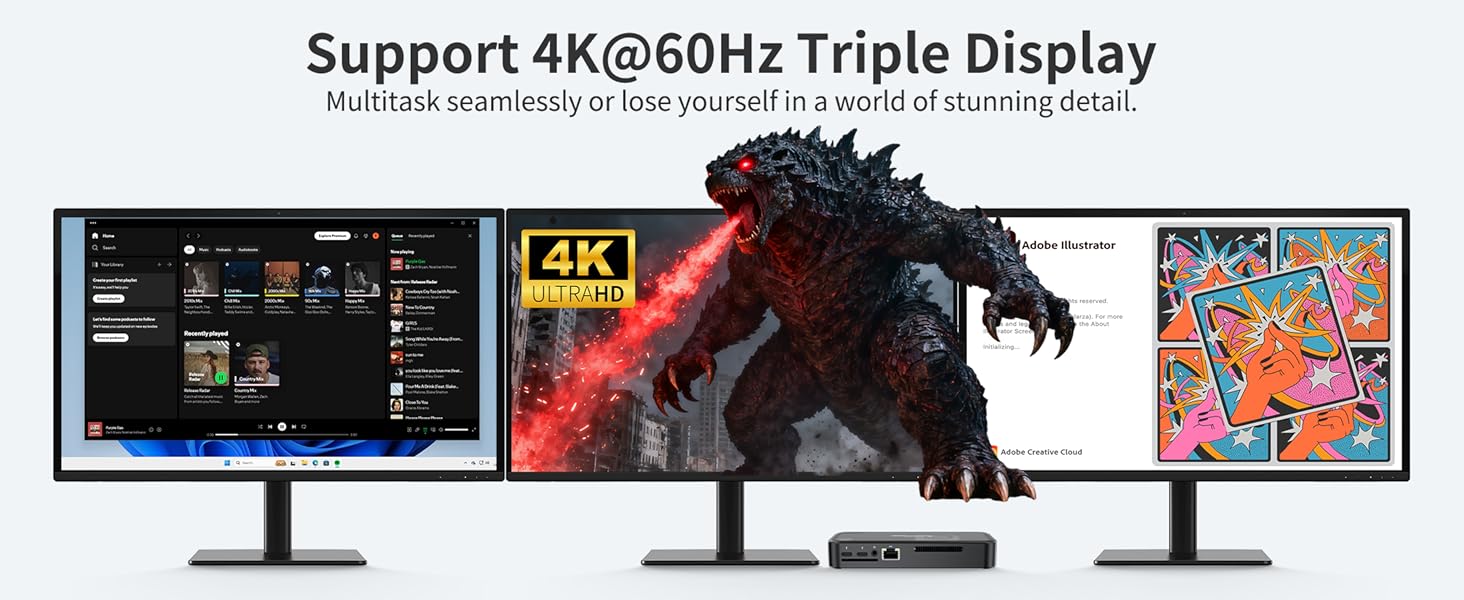
- Display Support: Supports triple-screen output with 4K@60Hz resolution via USB-C and HDMI ports.
- Portability: Compact and lightweight design for easy transport and versatile use with portable displays and projectors.

This image highlights the core specifications and capabilities of the DreamQuest Mini PC N95, including its operating system, processor, memory, storage, and display support.
This diagram illustrates the various ports available on the DreamQuest Mini PC N95, detailing their types and locations for easy connection of peripherals and displays.
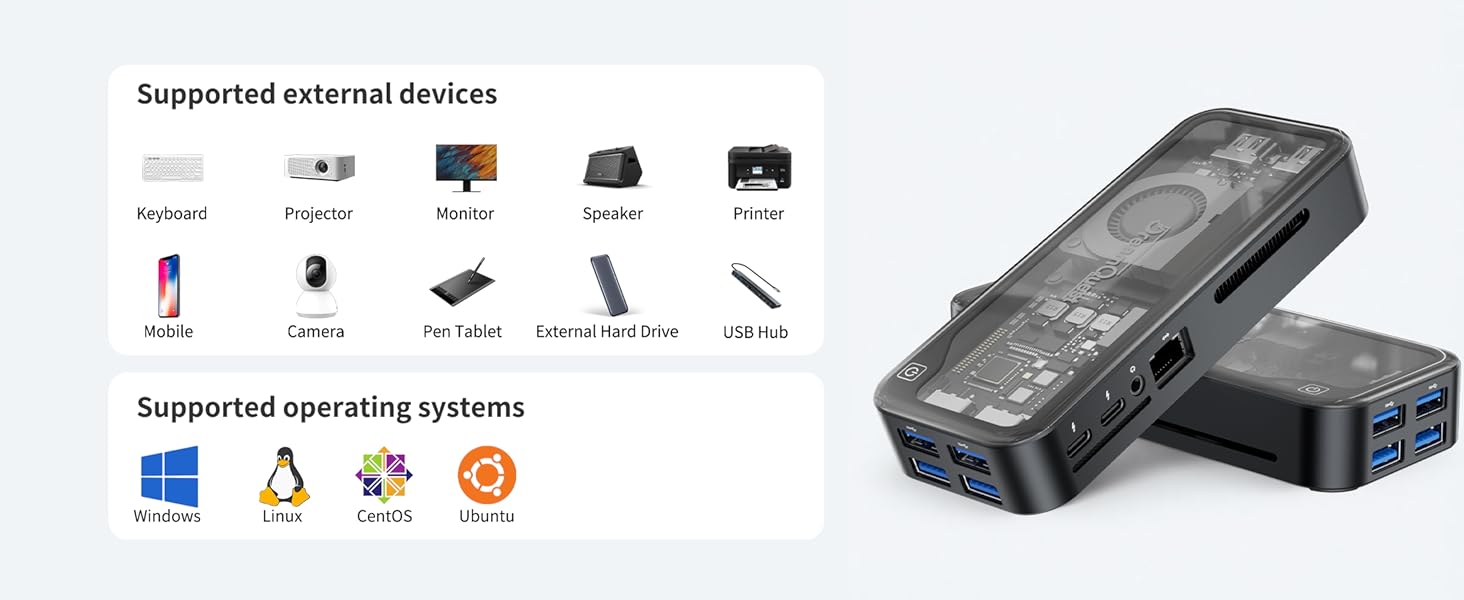
This image demonstrates the wide compatibility of the Mini PC with various external devices and operating systems, making it a versatile computing hub.

This video provides a visual overview of the DreamQuest Mini PC N95, showcasing its compact design, available ports, and general functionality.
4. Setup Guide
4.1 Connecting to a Display
- Connect one end of the provided HDMI cable to an HDMI port on the Mini PC.
- Connect the other end of the HDMI cable to an HDMI input port on your monitor or TV.
- For triple-screen output, use the additional HDMI port and one or both USB-C ports with compatible USB-C to display adapters (not included).

This image shows the Mini PC connected to a single monitor, demonstrating a basic setup for use.
This image illustrates the capability of the Mini PC to support three external displays simultaneously at 4K resolution.
4.2 Connecting Peripherals
- Connect your keyboard and mouse to the available USB 3.2 ports.
- For wired network access, connect an Ethernet cable to the Gigabit LAN port.
- For audio output, connect headphones or speakers to the 3.5mm audio jack.
4.3 Powering On
- Connect the power adapter to the Mini PC's power input port.
- Plug the power adapter into a wall outlet.
- Press the power button on the Mini PC to turn it on. The power indicator light will illuminate.
5. Operating Instructions
5.1 Windows 11 Pro Overview
Your DreamQuest Mini PC comes preloaded with Windows 11 Pro. Upon first boot, follow the on-screen instructions to complete the initial setup, including language, region, and user account creation. Familiarize yourself with the new Start Menu, Taskbar, and Snap Layouts for enhanced productivity.
5.2 Multi-Display Setup
To configure multiple displays:
- Ensure all displays are connected to the Mini PC and powered on.
- Right-click on the desktop and select "Display settings."
- Windows will detect the connected displays. You can arrange them, change their resolution, and select display modes (e.g., Extend, Duplicate) from this menu.
5.3 Network Connectivity
- Wired Connection: If an Ethernet cable is connected, the PC will automatically establish a wired network connection.
- Wireless Connection (WiFi 6): Click the network icon in the taskbar, select your desired Wi-Fi network, enter the password, and connect.
- Bluetooth 5.3: To connect Bluetooth devices, go to Settings > Bluetooth & devices, turn on Bluetooth, and pair your devices.
5.4 USB-C Functionality
The dual full-function USB-C ports support:
- Fast Charging: Powering compatible devices.
- Data Transfer: High-speed data transfer for external storage or peripherals.
- Video Output: Connecting to external displays using a compatible USB-C to display adapter.
6. Maintenance
6.1 Cleaning
- Regularly clean the exterior of the Mini PC with a soft, dry cloth.
- Use compressed air to clear dust from ventilation openings to ensure optimal cooling.
- Avoid using liquid cleaners directly on the device.
6.2 Software Updates
Keep your Windows 11 Pro operating system and drivers updated to ensure optimal performance and security. Go to Settings > Windows Update to check for and install available updates.
7. Troubleshooting
If you encounter issues with your DreamQuest Mini PC, refer to the following common problems and solutions:
| Problem | Possible Solution |
|---|---|
| No display on monitor | Ensure HDMI/USB-C cables are securely connected to both the Mini PC and the monitor. Verify the monitor is powered on and set to the correct input source. |
| Mini PC does not power on | Check if the power adapter is correctly connected to the Mini PC and a working power outlet. Try a different outlet if necessary. |
| Slow performance | Close unnecessary applications. Check for background processes in Task Manager. Ensure Windows is updated and there is sufficient free storage space. |
| No internet connection | For wired connection, check Ethernet cable. For Wi-Fi, ensure Wi-Fi is enabled, you are connected to the correct network, and the password is correct. Restart your router/modem. |
| USB devices not recognized | Try connecting the device to a different USB port. Ensure device drivers are installed. Restart the Mini PC. |
8. Specifications
Detailed technical specifications for the DreamQuest Mini PC N95:
| Feature | Detail |
|---|---|
| Brand | DreamQuest |
| Operating System | Windows 11 Pro |
| CPU Model | Intel N95 |
| CPU Speed | 3.4 GHz |
| Graphics Card | Integrated Intel UHD Graphics |
| Memory (RAM) | 12 GB DDR5 (6400 MT/s) |
| Storage | 512 GB M.2 2280 SSD (expandable up to 2TB) |
| Video Output | 2x HDMI, 2x USB-C (supports 4K@60Hz triple display) |
| USB Ports | 4x USB 3.2, 2x Full-function USB-C |
| Network Connectivity | Gigabit Ethernet (LAN), WiFi 6, Bluetooth 5.3 |
| Power Consumption | 15 Watts |
| Color | Space Black |
| Dimensions | Mini PC form factor (approx. 145mm x 60mm x 22mm) |
9. Warranty and Support
9.1 Warranty Information
The DreamQuest Mini PC comes with a 1-year warranty. For warranty service, please log into your account on the purchase platform, navigate to "My orders," find your order ID, and click "Contact seller."
9.2 Technical Support
For technical assistance or further inquiries, please contact DreamQuest customer support through the seller contact method mentioned above. Online support is also available.

