Introduction
This manual provides comprehensive instructions for the GOWENIC 4G LTE WiFi Modem, Model GOWENICdx9go2er35-12. This portable device allows you to establish a high-speed wireless internet connection using a 4G LTE SIM card, enabling multiple devices to connect simultaneously. Please read this manual thoroughly before using the product to ensure proper operation and to maximize its performance.
Package Contents
- 1 x GOWENIC 4G LTE WiFi Modem (White)
- 1 x User Manual
Product Overview
The GOWENIC 4G LTE WiFi Modem is a compact, USB-powered device designed for portable internet access. It features a standard SIM card slot and indicator lights for network status.

Figure 1: Front view of the GOWENIC 4G LTE WiFi Modem, showing the "WIFI MODEM" label and indicator lights.

Figure 2: Angled view of the GOWENIC 4G LTE WiFi Modem, highlighting the USB connector for power.
Key Features:
- High-Speed 4G LTE Connectivity: Supports network bands B1, B3, B7, B8, B20, B38, B40, B41 with speeds up to 150Mbps.
- Multi-Device Support: Connects up to 8 devices simultaneously, including mobile phones, laptops, computers, and smart TVs.
- Secure Wireless Connection: Utilizes WPA and WPA2 WiFi encryption for enhanced network security.
- Plug and Play: Simple operation by inserting a SIM card and connecting to a USB power source.
Setup Instructions
Follow these steps to set up your GOWENIC 4G LTE WiFi Modem:
- Insert SIM Card: Locate the standard SIM card slot on the modem. Carefully insert your activated 4G LTE standard SIM card into the slot until it clicks into place. Ensure the SIM card is inserted correctly according to the diagram or markings on the device.
- Connect to Power: Plug the USB connector of the modem into a compatible USB power source. This can be a USB port on a laptop, a USB wall adapter, a power bank, or any other device providing 5V USB power.
- Power On and Initialization: The modem will automatically power on when connected to a power source. Allow a few moments for the device to initialize and connect to the 4G LTE network. The indicator lights on the modem will show its status (e.g., power, network signal).

Figure 3: The modem shown in operation, connecting to a tablet, smartphone, and security camera.
Operating Instructions
Connecting Devices to WiFi:
- Identify Network Name (SSID): Once the modem is powered on and connected to the 4G network, it will broadcast a WiFi network. The default SSID (network name) is typically printed on the device itself or in the included user manual, often in the format "4G-xxxx".
- Find WiFi Password: The default WiFi key (password) is also usually printed on the device or in the manual, often "1234567890".
- Connect Your Device: On your mobile phone, laptop, or other WiFi-enabled device, go to the WiFi settings. Select the SSID of your GOWENIC modem from the list of available networks and enter the WiFi key when prompted.
- Access Internet: Your device should now be connected to the internet through the GOWENIC 4G LTE WiFi Modem.
The modem supports up to 8 connected devices simultaneously, providing a stable and fast internet experience.
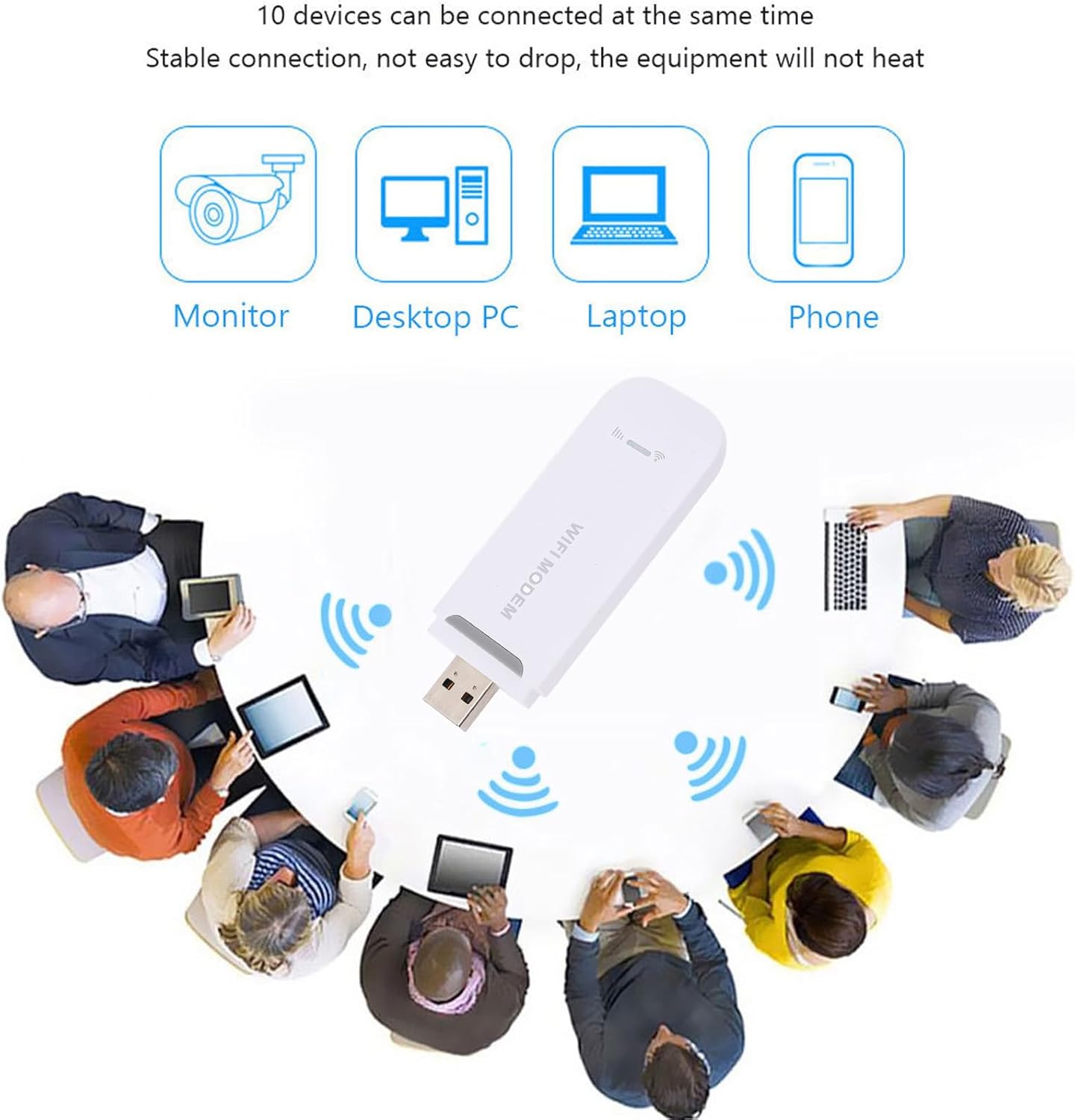
Figure 4: Illustration of the modem providing internet access to multiple devices like monitors, desktop PCs, laptops, and phones.
Security Features:
The GOWENIC modem employs WPA and WPA2 encryption protocols to secure your wireless network, protecting your data and preventing unauthorized access.

Figure 5: Graphic illustrating the high security level provided by WPA/WPA2 encryption, protecting against viruses and cracking attempts.
Maintenance
- Cleaning: Use a soft, dry cloth to clean the exterior of the modem. Avoid using liquid cleaners or aerosols.
- Storage: When not in use, store the modem in a cool, dry place away from direct sunlight and extreme temperatures.
- Handling: Handle the device with care. Avoid dropping it or subjecting it to strong impacts.
- SIM Card: Ensure the SIM card slot is free from dust and debris. Only insert standard-sized SIM cards.
Troubleshooting
- No Internet Connection:
- Ensure the SIM card is correctly inserted and activated with a data plan.
- Verify the modem is properly connected to a power source.
- Check the network indicator lights on the modem. If no signal, try moving to an area with better 4G coverage.
- Restart the modem by unplugging and re-plugging it from the power source.
- Cannot Connect to WiFi:
- Ensure the modem is powered on and broadcasting its WiFi network (SSID).
- Double-check the WiFi password (key) you are entering. It is case-sensitive.
- Move your device closer to the modem to ensure a strong WiFi signal.
- If too many devices are connected, try disconnecting some to see if it resolves the issue. The modem supports up to 8 devices.
- Slow Internet Speed:
- Check your 4G signal strength. Weak signal can lead to slower speeds.
- Ensure your data plan has not been exhausted or throttled by your service provider.
- Reduce the number of connected devices or active internet usage.
- Try restarting the modem.
Specifications
| Model Number | GOWENICdx9go2er35-12 |
| Brand | GOWENIC |
| Connectivity Technology | 4G LTE, WiFi, USB |
| Supported Network Bands | B1, B3, B7, B8, B20, B38, B40, B41 |
| Maximum Speed | Up to 150Mbps |
| Maximum Connected Devices | 8 |
| WiFi Encryption | WPA, WPA2 |
| Power Supply | USB Powered |
| SIM Card Type | Standard SIM card (not included) |
| Default IP Address | 192.168.100.1 |
| Default SSID | 4G-xxxx |
| Default WiFi Key | 1234567890 |
| Dimensions | 4.33 x 2.76 x 0.79 inches |
| Item Weight | 1.52 ounces |
| Color | White |
Warranty and Support
For warranty information, please refer to the documentation included with your purchase or contact your retailer.
For technical support or further assistance, please visit the official GOWENIC website or contact their customer service department.


