Introduction
This manual provides comprehensive instructions for the setup, operation, maintenance, and troubleshooting of your Yealink AX86R Ruggedized WiFi IP Phone. Please read this manual thoroughly before using the device to ensure proper functionality and to maximize its lifespan. The Yealink AX86R is designed for enterprise environments requiring robust and reliable wireless communication, featuring IP67 protection against water and dust, and drop resistance.
Package Contents
Verify that all items listed below are included in your package:
- Yealink AX86R IP Phone
- Rechargeable Lithium Ion Battery
- Belt Clip
- Charging Cradle
- Quick Start Guide (not included in this digital manual)
Product Overview
The Yealink AX86R is a ruggedized WiFi IP phone built for demanding environments. Key features include:
- IP67 Rating: Waterproof and dustproof, with 1.8-meter drop protection.
- Display: 2.4-inch 240×320 TFT color screen.
- Battery Life: Up to 13 hours talk time, 300 hours standby time (under ideal conditions).
- Connectivity: Dual Band 2.4G/5G Wi-Fi 802.11 a/b/g/n/ac/ax with IEEE802.11k/v/r roaming support, Bluetooth 5.0.
- Audio: HD audio, Smart Noise Cancellation, and Acoustic Shield technology.
- Functionality: Up to 4 SIP accounts, 5-way local conferencing, TRANS and Mute keys, 11 configurable keys.
- Mounting: Wall mountable and stand mountable.
- Charging: Type-C charging port.
Device Layout
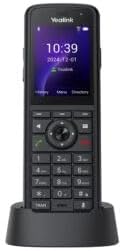
Figure 1: Front view of the Yealink AX86R IP Phone securely placed in its charging cradle. The display shows the time and date, with navigation options below.

Figure 2: Angled view of the Yealink AX86R IP Phone in its charging cradle, highlighting the ergonomic design and button layout.
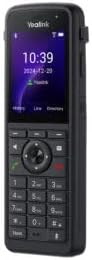
Figure 3: Side view of the Yealink AX86R IP Phone, showing its robust casing and side buttons.
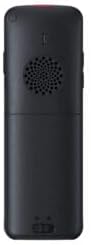
Figure 4: Back view of the Yealink AX86R IP Phone, featuring the speaker grille and battery compartment.
Getting Started
Battery Installation
- Remove the battery cover on the back of the phone.
- Insert the provided Lithium Ion battery, ensuring the contacts align correctly.
- Replace the battery cover, pressing firmly until it clicks into place to maintain the IP67 seal.
Charging the Device
To charge your AX86R phone:
- Place the phone into the charging cradle. Ensure the charging contacts on the phone align with those on the cradle.
- Alternatively, connect a Type-C USB cable directly to the phone's charging port.
- The charging indicator on the phone will illuminate to confirm charging.
Powering On/Off
- To Power On: Press and hold the Power key until the screen illuminates.
- To Power Off: Press and hold the Power key, then select "Power Off" from the options on the screen.
Basic Operation
SIP Account Registration
The AX86R supports registration of up to 4 SIP accounts. Configuration details are typically provided by your network administrator. Access the phone's menu, navigate to "Settings" > "Accounts," and follow the on-screen prompts to enter your SIP account credentials.
Making and Receiving Calls
- To Make a Call: Dial the number using the keypad and press the "Call" key (green handset icon).
- To Receive a Call: Press the "Answer" key (green handset icon) when the phone rings.
- To End a Call: Press the "End Call" key (red handset icon).
- Mute: During a call, press the Mute key to mute or unmute your microphone.
- Transfer: During a call, press the TRANS key to initiate a call transfer.

Figure 5: A worker demonstrating the use of the Yealink AX86R IP Phone for voice communication in a demanding work environment.
5-Way Conferencing
The AX86R supports local 5-way conferencing. While on a call, you can add participants by pressing the "Conf" soft key (if configured) or by initiating a new call and then merging it with the existing call. Refer to your system administrator for specific conferencing setup procedures.
Bluetooth Connectivity
The phone features Bluetooth 5.0 for connecting headsets. To pair a Bluetooth device:
- Go to "Menu" > "Settings" > "Bluetooth".
- Enable Bluetooth.
- Select "Search Device" and choose your headset from the list.
- Follow any on-screen prompts to complete pairing.
Wi-Fi Connection and Roaming
The AX86R supports dual-band Wi-Fi (2.4G/5G) and advanced roaming (IEEE802.11k/v/r) for seamless connectivity across your network.
- Go to "Menu" > "Settings" > "Wi-Fi".
- Enable Wi-Fi.
- Select your desired network from the list and enter the password if required.
- The phone will automatically connect and manage roaming between access points.
Emergency Alarm Functions
The AX86R is equipped with an emergency alarm button and features designed for user safety in hazardous environments. These include Running Alarm, Man-down Alarm, and No-movement Alarm, which can be configured to trigger alerts in specific situations.

Figure 6: Detail of the red emergency button on the AX86R, illustrating its role in activating various safety alarms such as running, man-down, and no-movement alerts.
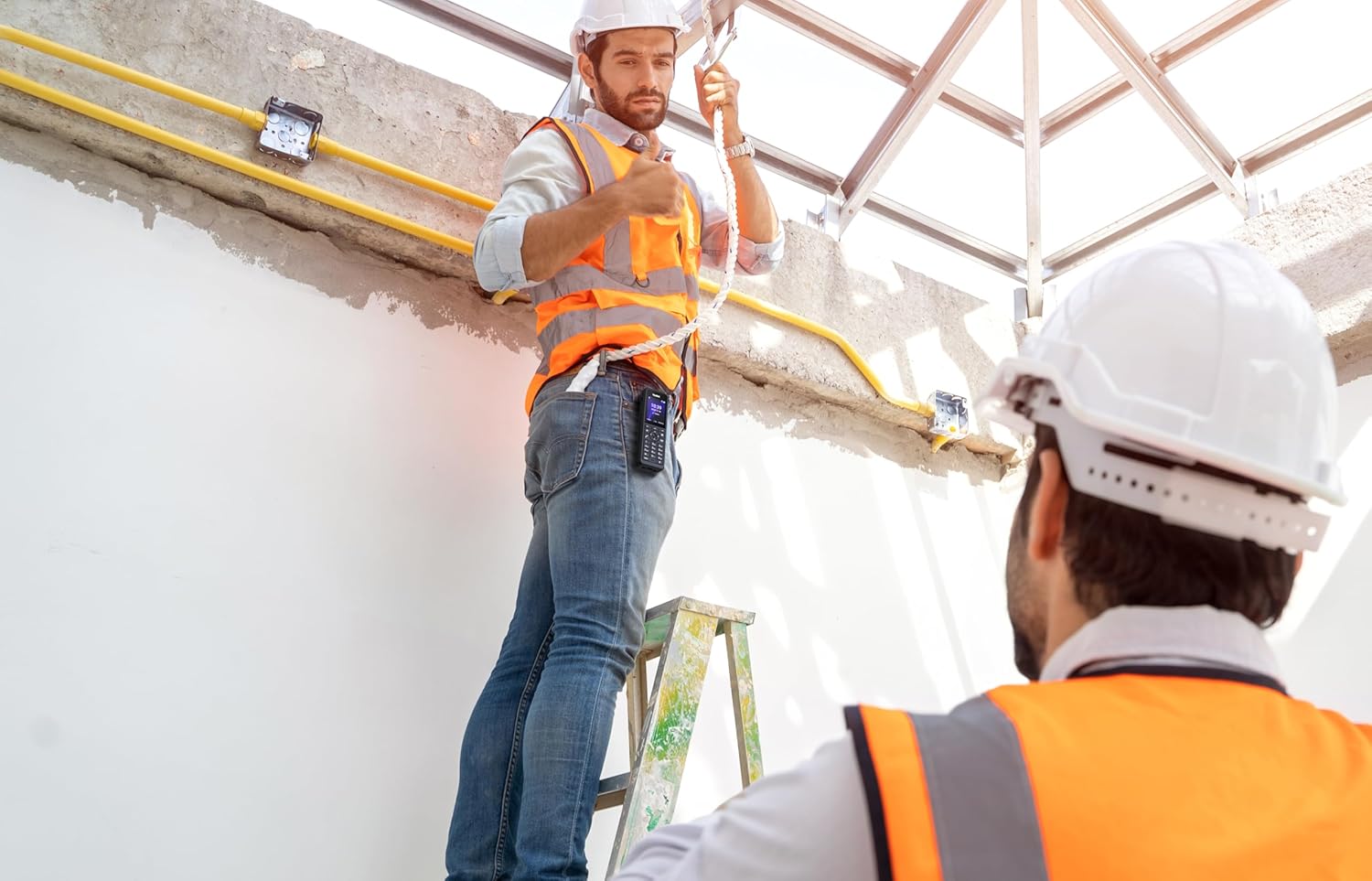
Figure 7: A construction worker utilizing the Yealink AX86R IP Phone, clipped to his belt, demonstrating its portability and suitability for active work environments.
Maintenance and Care
Cleaning
Despite its IP67 rating, regular cleaning helps maintain the device's appearance and functionality. Use a soft, damp cloth to wipe the phone. Avoid harsh chemicals or abrasive cleaners. Ensure all port covers are securely closed before cleaning with moisture.

Figure 8: Demonstrating the cleaning process for the Yealink AX86R IP Phone, highlighting its durable surface.
Battery Care
- Charge the battery fully before first use.
- Avoid exposing the battery to extreme temperatures.
- If the phone will not be used for an extended period, store it with a partial charge (around 50%) and recharge periodically.
Troubleshooting
This section addresses common issues you might encounter with your Yealink AX86R IP Phone.
| Problem | Possible Cause | Solution |
|---|---|---|
| Phone does not power on. | Low or depleted battery; battery not installed correctly. | Charge the phone using the cradle or Type-C cable. Ensure the battery is properly seated. |
| Cannot connect to Wi-Fi. | Incorrect Wi-Fi password; out of range; network issue. | Verify password. Move closer to the access point. Contact network administrator. |
| Poor audio quality during calls. | Weak Wi-Fi signal; network congestion; microphone/speaker obstruction. | Ensure strong Wi-Fi signal. Check for obstructions. Utilize noise cancellation features. |
| Bluetooth device not pairing. | Device not in pairing mode; too far from phone; interference. | Ensure Bluetooth device is in pairing mode. Keep devices close. Try re-pairing. |
Technical Specifications
| Feature | Specification |
|---|---|
| Model | AX86R |
| Dimensions (L x W x H) | 6 x 2 x 1 inches |
| Item Weight | 2 pounds |
| Display | 2.4-inch 240×320 TFT color screen |
| Battery | 1 Lithium Ion battery (included), 3100mAh |
| Talk Time | Up to 13 hours (ideal conditions) |
| Standby Time | Up to 300 hours (ideal conditions) |
| Wi-Fi | Dual Band 2.4G/5G Wi-Fi 802.11 a/b/g/n/ac/ax, IEEE802.11k/v/r roaming |
| Bluetooth | Bluetooth 5.0 |
| SIP Accounts | Up to 4 |
| Conferencing | Local 5-way conferencing |
| Protection Rating | IP67 (waterproof, dustproof, 1.8m drop-proof) |
| Charging | Type-C |
| Material | Plastic |
Warranty and Support
For warranty information and technical support, please contact Yealink customer service or visit the official Yealink website. Keep your purchase receipt as proof of purchase for warranty claims. Specific warranty terms may vary by region and retailer.


