
1. Product Overview
The Baseus Nomos 245W Charging Station is a versatile 6-in-1 desktop power solution designed to efficiently charge multiple devices simultaneously. It features dual retractable USB-C cables, multiple USB-C and USB-A ports, and a Qi2 certified magnetic wireless charger. Powered by advanced GaN technology and BPS3.0 smart power allocation, this station provides high-speed charging while maintaining a compact form factor and ensuring device safety.

Image 1.1: The Baseus Nomos 245W Charging Station showcasing its various ports and the integrated wireless charging pad.
2. What's in the Box
- 1 x Baseus Nomos Charging Station 245W
- 1 x 245W Power Adapter with 5ft Power Cord
- 1 x User Manual
3. Product Features
- 245W Total Power Output: Delivers a combined 245W across all ports for simultaneous charging of up to 6 devices.
- Dual Retractable USB-C Cables: Two built-in 80 cm (31.5 inches) braided USB-C cables with 100W max output each, designed for neat cable management and durability.
- Qi2 Certified 15W Magnetic Wireless Charger: Provides 15W fast wireless charging for compatible devices, ensuring precise alignment.
- Multiple Ports: Includes 4 USB-C ports (two retractable, two fixed) and 1 USB-A port for broad device compatibility.
- BPS3.0 Smart Power Allocation: Intelligently distributes power to connected devices for optimal charging speed and safety.
- GaN Chip Technology: Utilizes advanced Gallium Nitride (GaN) technology for a compact and efficient design.
- Visualized LCD Display: A 3-inch LCD screen shows real-time charging data, including total output, individual port power, and overall performance.
- Safety Protections: Features protection against short circuits, over-voltage, and overheating, with a modular internal design for enhanced heat dissipation.

Image 3.1: Illustration of the BPS3.0 Smart Power Allocation system distributing power to various devices.
4. Setup Instructions
- Unpack the Device: Carefully remove the charging station, power adapter, and power cord from the packaging.
- Connect Power: Insert the 245W power adapter into the designated power input port on the charging station. Connect the power cord to the adapter and then plug it into a standard wall outlet.
- Placement: Place the charging station on a stable, flat surface, ensuring adequate ventilation around the unit. The hollow base design aids in passive cooling.
- Initial Power On: The LCD display will automatically activate when powered on, showing real-time charging data.
Video 4.1: An official product video demonstrating the Baseus Nomos 245W Charging Station in use, highlighting its features and clean desk setup.
5. Operating Instructions
5.1 Wired Charging
- Using Retractable USB-C Cables: Gently pull the braided USB-C cables from their slots to extend them. Connect the USB-C end to your device. To retract, press the button next to the cable and guide it back into the station. Avoid forcing the cables.
- Using Fixed USB-C/USB-A Ports: Connect your device's charging cable to the appropriate USB-C (C3/C4) or USB-A port on the charging station.
- Power Delivery: The USB-C3/C4 ports can deliver up to 140W individually. The station's BPS3.0 system will automatically adjust power output based on the number and type of connected devices.
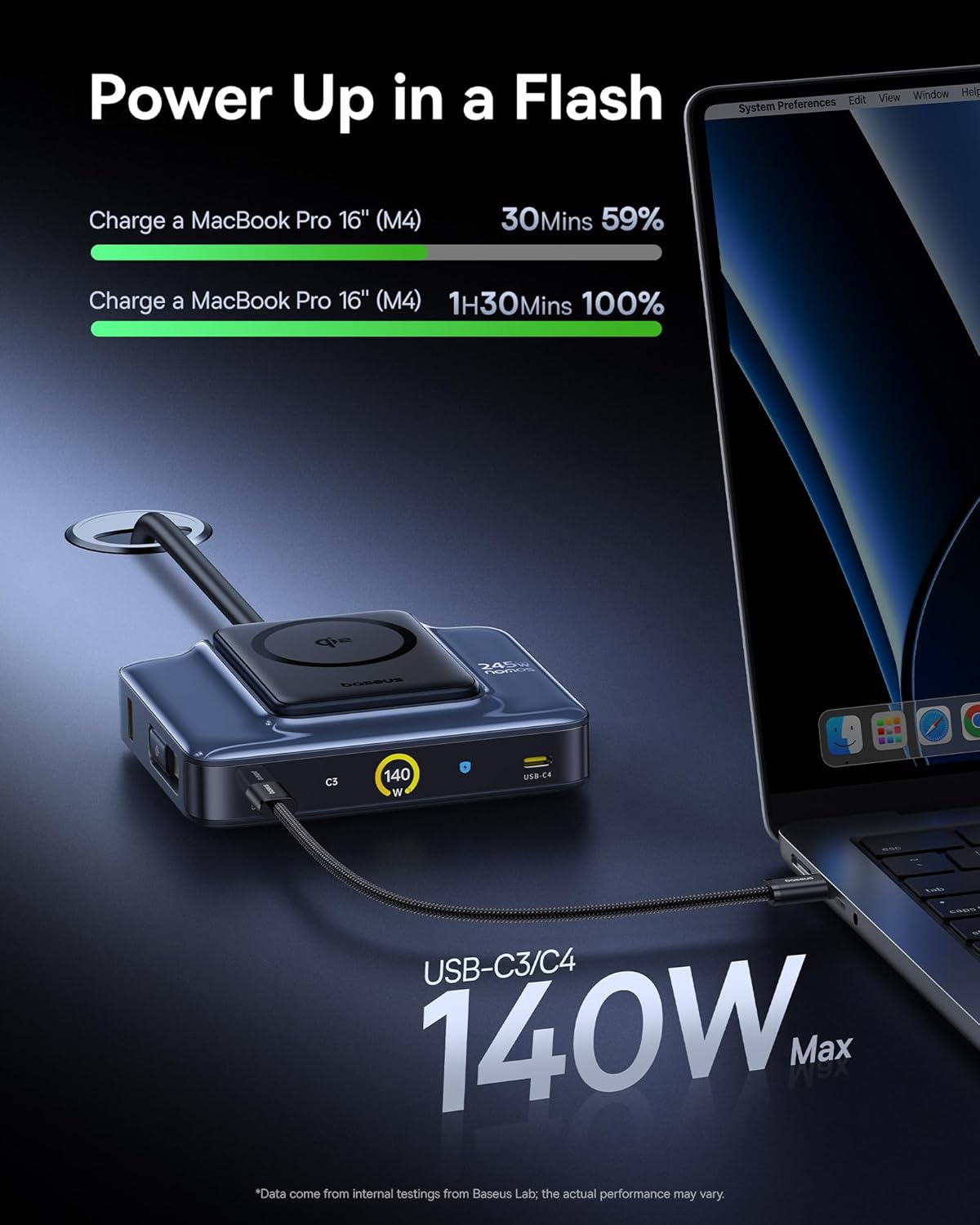
Image 5.1: The charging station providing 140W fast charging to a MacBook Pro 16 inch via a USB-C port.
5.2 Wireless Charging (Qi2)
- Positioning: Place your Qi2-compatible device (e.g., iPhone 12-17 series) onto the magnetic wireless charging pad. The magnets will ensure proper alignment.
- Charging Status: The LCD display will show the wireless charging status and power output (up to 15W).
- Case Compatibility: The wireless charger supports charging through cases up to 3mm thick.

Image 5.2: An iPhone 17 Pro being wirelessly charged on the Qi2 magnetic pad of the Baseus Nomos station.
5.3 LCD Display
The 3-inch LCD digital display provides real-time charging information. Press the button on the station to toggle between different display modes:
- Total Output: Shows the combined wattage being delivered by the station.
- Individual Port Power: Displays the wattage for each active port.
- Overall Performance: May indicate charging modes (e.g., Balanced, High Performance, Smart Cooling).
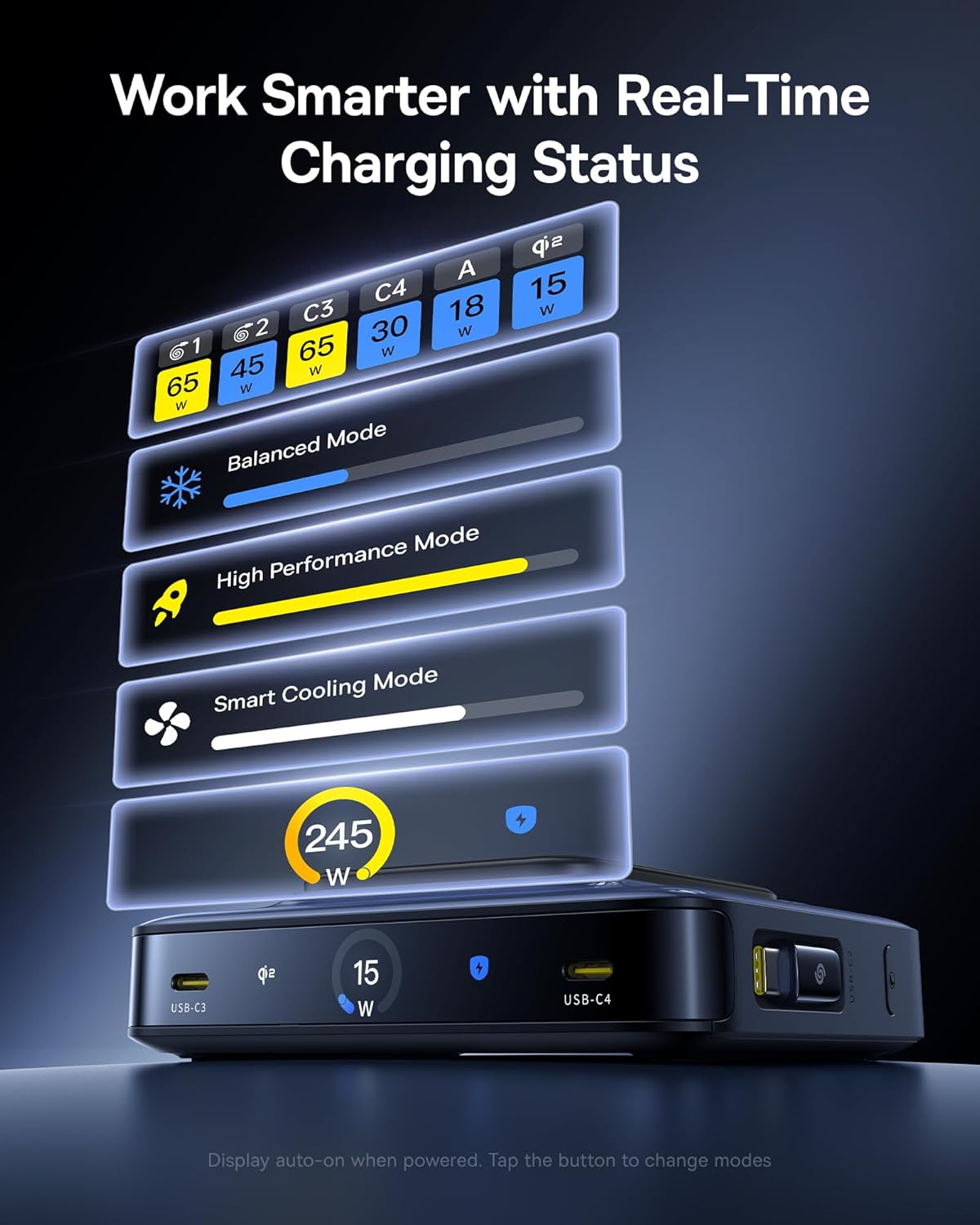
Image 5.3: The LCD display on the charging station showing real-time power output for each port and various operational modes.
6. Specifications
| Feature | Detail |
|---|---|
| Brand | Baseus |
| Model | Nomos 245W |
| Total Power Output | 245W Max |
| Input Voltage | 240 Volts |
| Output Current | 13 Amps |
| Output Voltage | 120 Volts |
| USB-C Ports | 4 (2 retractable, 2 fixed) |
| USB-A Ports | 1 |
| Retractable Cable Length | 80 cm (31.5 inches) |
| Wireless Charging | Qi2 Certified, 15W Max |
| Special Features | GaN Technology, BPS3.0 Smart Power Allocation, LCD Display |
| Color | Black |
| Compatible Devices | iPhone 12-17 series, Galaxy S20-24, OnePlus 8 Pro, Google Pixel 6-8, Sony Xperia 5, iPad, Air Pods 2-3, MacBook Pro 2023, Lenovo ThinkPad T14, Dell XPS 13, and more. |
7. Troubleshooting
7.1 Device Not Charging
- Check Power Connection: Ensure the charging station is securely plugged into a working wall outlet.
- Cable Connection: Verify that the charging cables are firmly connected to both the charging station and your device.
- Cable Integrity: Inspect cables for any visible damage. Try a different cable if available.
- Wireless Charging Alignment: For wireless charging, ensure your device is correctly centered on the magnetic pad. Remove thick cases if necessary.
- Device Compatibility: Confirm your device is compatible with the charging station's output specifications (USB-C PD, Qi2, etc.).
7.2 Slow Charging
- Cable Quality: Use high-quality, certified charging cables that support fast charging protocols.
- Power Allocation: When multiple devices are connected, the BPS3.0 system distributes power. Charging speeds may vary depending on the total load. Refer to the LCD display for individual port output.
- Device Input Limits: Ensure your device supports the higher wattage output from the charging station. Some devices have maximum input limits.
- Background Apps: Close power-intensive applications on your device during charging.
7.3 Overheating
- Ventilation: Ensure the charging station is placed in a well-ventilated area and its vents are not obstructed.
- Environmental Temperature: Avoid using the charger in excessively hot environments.
- Reduce Load: If the station feels excessively hot, temporarily disconnect some devices to reduce the load. The smart cooling mode will activate to manage temperature.
8. Safety Information
- Do not expose the device to water, moisture, or extreme temperatures.
- Avoid dropping, disassembling, or attempting to repair the device yourself.
- Keep out of reach of children.
- Use only the provided power adapter and cord.
- Ensure proper ventilation to prevent overheating.
- Disconnect the power when not in use for extended periods.
9. Maintenance
- Clean the charging station with a soft, dry cloth. Do not use liquid cleaners or aerosols.
- Regularly check cables for wear and tear. Replace damaged cables immediately.
- Keep the ports free of dust and debris.
10. Warranty and Support
The Baseus Nomos 245W Charging Station comes with a 2-year warranty from the date of purchase, covering manufacturing defects. For warranty claims, technical support, or further assistance, please contact Baseus customer service through their official website or the retailer where the product was purchased.
For more information, visit the official Baseus website: Baseus Official Store


