
Jansite T383S
Jansite T383S 4-in-1 Carplay Android Auto Display User Manual
1. Introduction
This manual provides detailed instructions for the installation, operation, and maintenance of your Jansite T383S 4-in-1 Carplay Android Auto Display. Please read this manual thoroughly before using the device to ensure proper functionality and safety. Keep this manual for future reference.
2. Package Contents
Verify that all items listed below are included in your package. If any items are missing or damaged, please contact customer support.
- Jansite T383S Display Unit
- Original Car Bracket
- Suction Cup Bracket
- AUX Audio Cable
- 1080P Rear Camera
- Cigarette Lighter Power Cable
- Instruction Manual
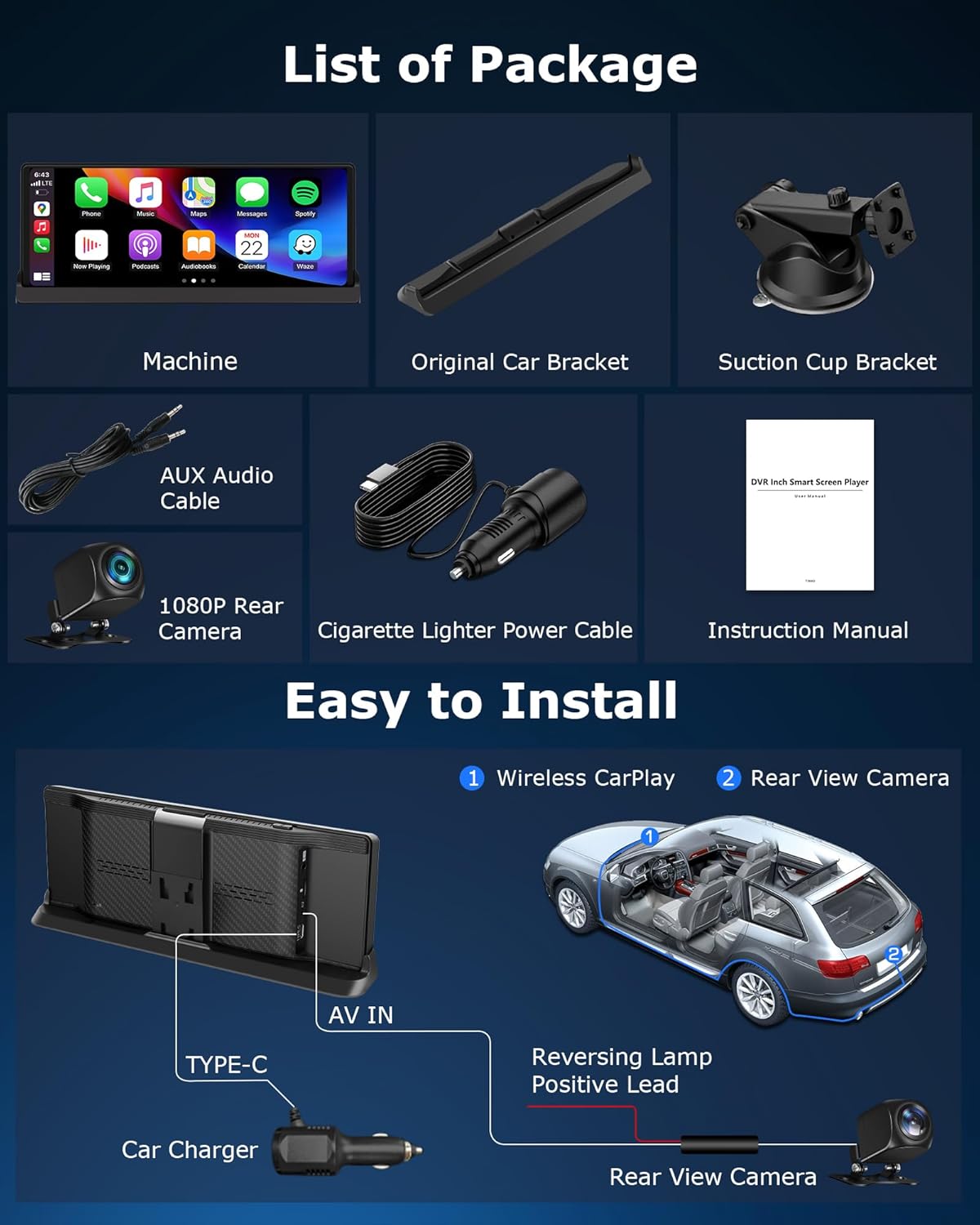
Image 2.1: Illustration of the items included in the Jansite T383S package.
3. Setup and Installation
3.1 Mounting the Display
The Jansite T383S offers flexible mounting options to suit your vehicle's interior. You can choose between the original car bracket or the suction cup bracket.
- Original Car Bracket: This bracket is designed to integrate seamlessly with your car's dashboard, providing a stable and aesthetically pleasing installation. Position the bracket to ensure minimal obstruction of your driving view.
- Suction Cup Bracket: For versatile placement, attach the suction cup to a clean, smooth surface on your dashboard or windshield. Adjust the arm and angle for optimal viewing. Ensure the suction cup is firmly secured before driving.

Image 3.1: Examples of the display mounted using various bracket options, demonstrating stability and reduced view obstruction.
3.2 Power Connection
Connect the provided cigarette lighter power cable to the display unit and then to your vehicle's 12V power outlet.
3.3 Rear Camera Installation
The rear camera provides a real-time reversing view. Follow these steps for installation:
- Mount the 1080P rear camera at the rear of your vehicle, ensuring a clear view.
- Connect the camera's video cable to the AV IN port on the display unit.
- Connect the red wire of the camera's power lead to the positive terminal of your vehicle's reversing light. This ensures the display automatically switches to the camera view when reverse gear is engaged.
Image 3.2: Installation diagram illustrating the connection of the display and rear camera to the vehicle's power and reversing light.
4. Operating Instructions
4.1 Powering On and Initial Setup
Once connected to power, the display will automatically power on when the vehicle starts. Follow the on-screen prompts for initial language and time zone settings.
4.2 Wireless CarPlay and Android Auto
The Jansite T383S supports wireless Apple CarPlay and Android Auto, allowing seamless integration with your smartphone.
- Enable Wi-Fi and Bluetooth on your smartphone.
- On the display, navigate to the CarPlay or Android Auto icon.
- Select your phone from the list of available devices to pair.
- Confirm the pairing request on both your phone and the display.
Once connected, you can access navigation, make hands-free calls, send messages, and play music directly from your phone's interface on the display.

Image 4.1: Display showing wireless CarPlay and Android Auto interfaces, highlighting voice command functionality.
4.3 Voice Control
Utilize Siri (for Apple CarPlay) or Google Assistant (for Android Auto) for hands-free control. Simply activate the voice assistant and issue commands such as:
- "Navigate to [destination]"
- "Call [contact name]"
- "Play [song/artist]"
- "Send a message to [contact name]"
4.4 Integrated Media Applications
The display comes with pre-installed applications like Netflix, YouTube, and TikTok. To use these:
- Connect the display to a Wi-Fi hotspot (e.g., from your smartphone).
- Open the desired application from the main menu.
- Log in with your account credentials if required.
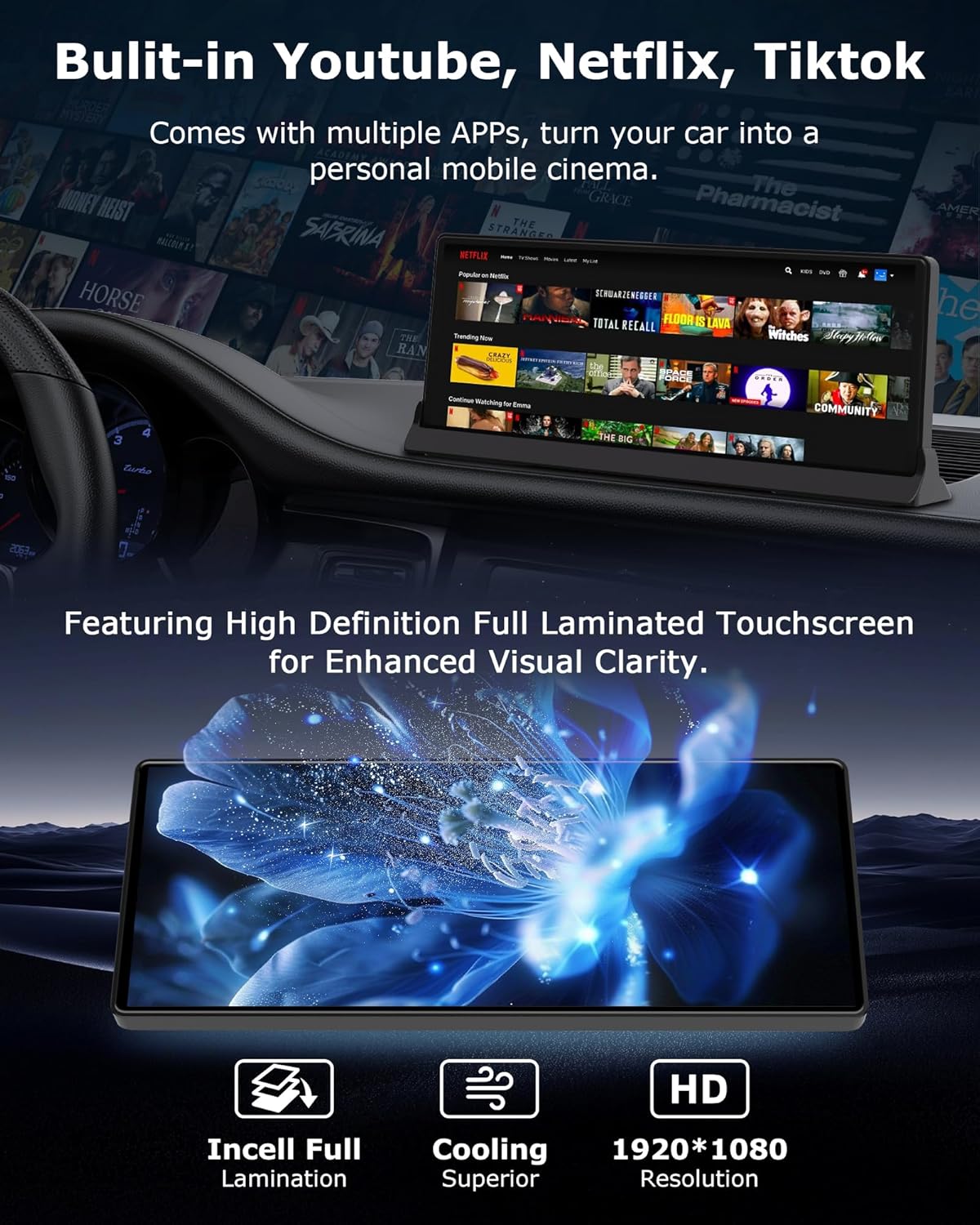
Image 4.2: The display showcasing its ability to run streaming applications like YouTube, Netflix, and TikTok, along with details on its high-definition touchscreen.
4.5 Reversing Camera View
The display provides two methods to activate the reversing camera view:
- Automatic Activation: If the camera is correctly wired to your vehicle's reversing light, the display will automatically switch to the camera view when you engage reverse gear.
- Manual Activation: Press the dedicated reverse button on the screen to manually activate the camera view at any time.
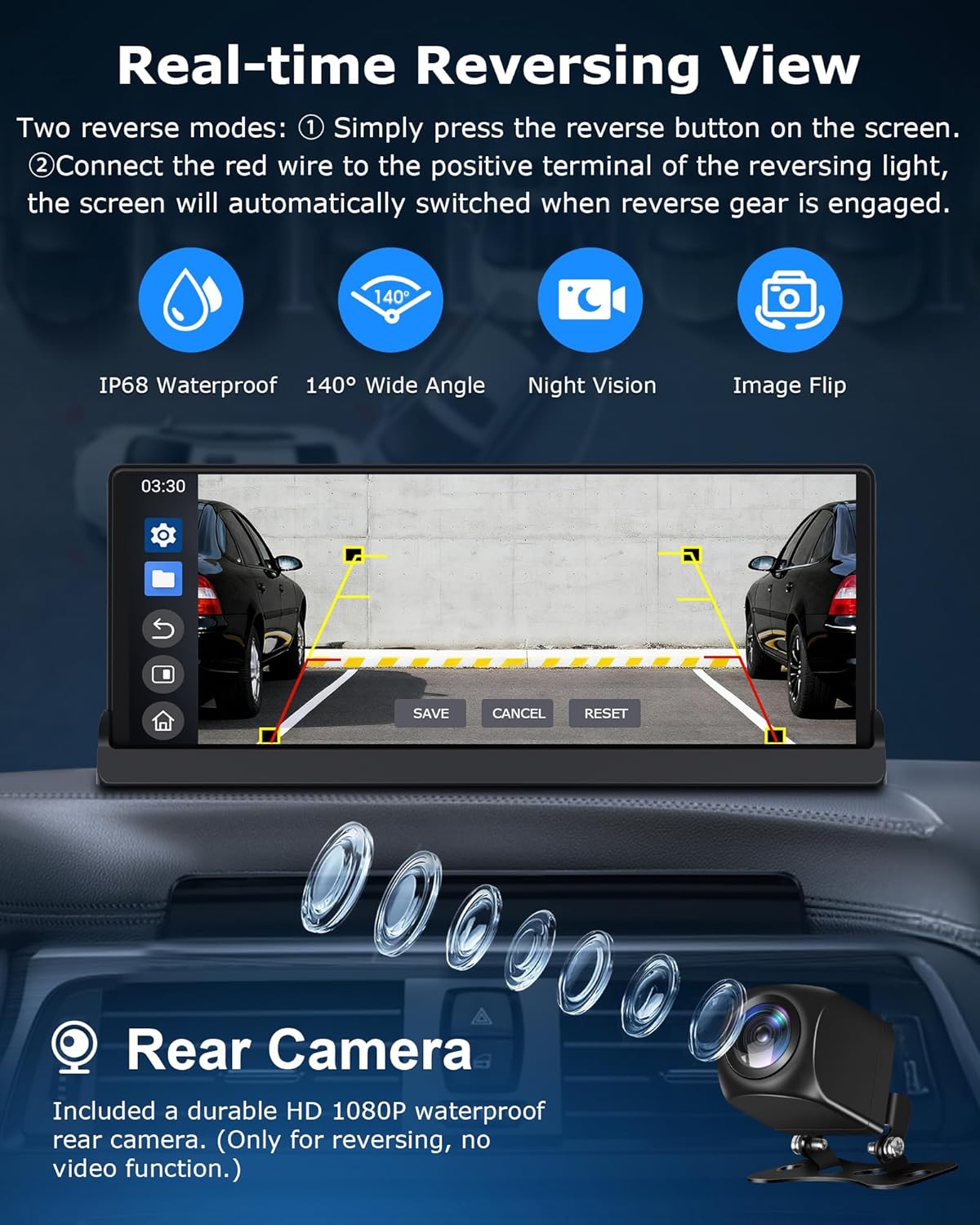
Image 4.3: The display showing a real-time reversing view, highlighting features like IP68 waterproof, 140° wide angle, night vision, and image flip for the rear camera.
5. Key Features
5.1 4-in-1 Multifunctionality
The Jansite T383S combines four essential functions into one device: Wireless Apple CarPlay, Wireless Android Auto, Online Video Streaming (YouTube, Netflix, TikTok), and a Reversing Camera System. This integration provides a comprehensive in-car experience.

Image 5.1: Visual representation of the 4-in-1 system, including CarPlay, Android Auto, video streaming, and reversing camera functionality.
5.2 High-Definition Touchscreen
The device features a 10.26-inch high-definition fully laminated touchscreen with a resolution of 1920 x 1080p, offering clear visuals and responsive touch control.
5.3 Dual-Band Wi-Fi and Bluetooth
Equipped with dual-band Wi-Fi for stable CarPlay operation and high-definition video streaming. Dual Bluetooth ensures faster and more reliable audio transmission for a lossless stereo listening experience. Multiple audio output options are available:
- Built-in Speakers: For direct audio output from the display.
- FM Transmitter: Transmit audio wirelessly to your car's FM radio.
- AUX Connection: Connect via the provided AUX cable for a wired audio connection to your car's audio system.
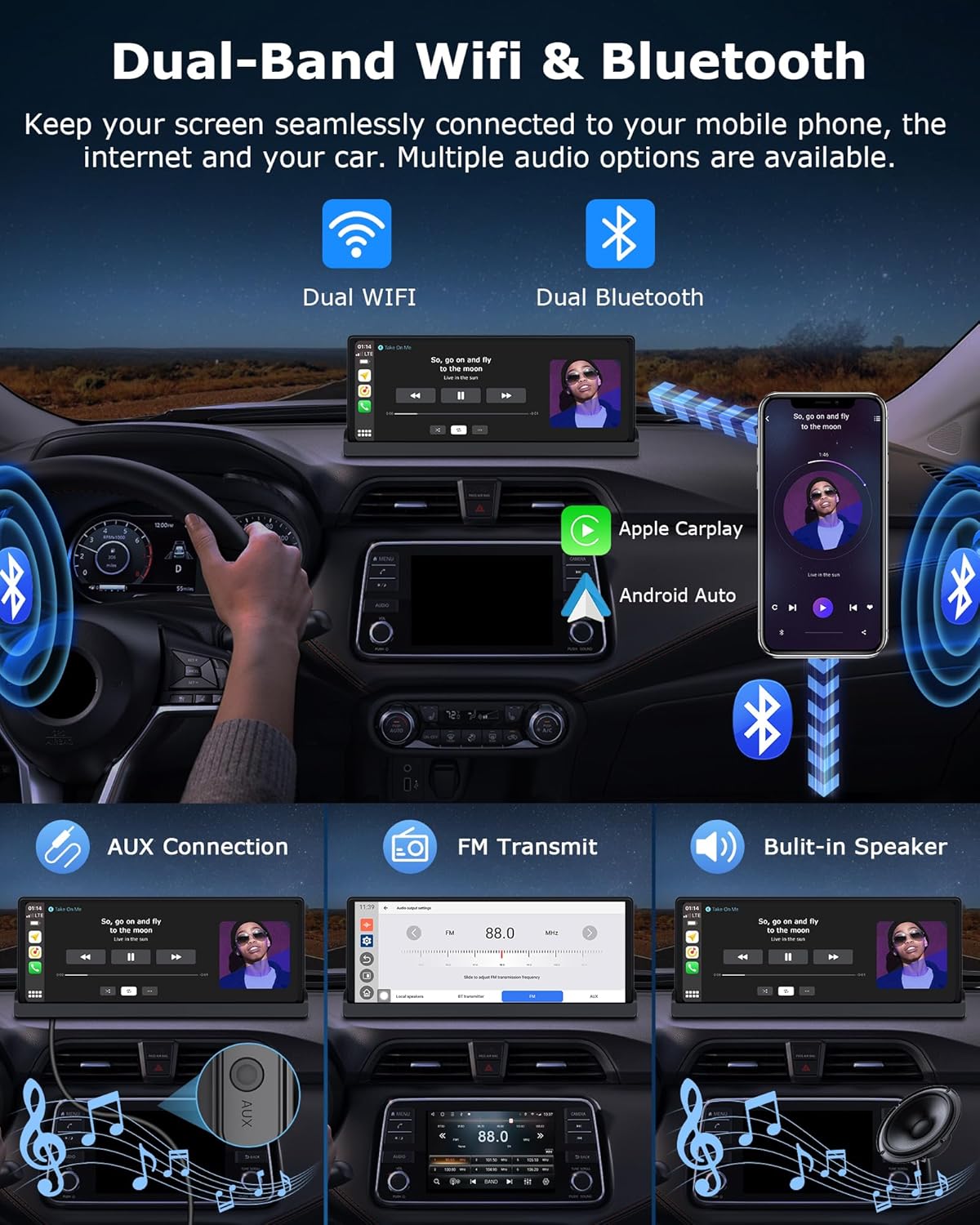
Image 5.2: Diagram illustrating dual-band Wi-Fi and Bluetooth connectivity, along with various audio output methods like AUX, FM transmit, and built-in speakers.
6. Maintenance
6.1 Cleaning the Display
Use a soft, lint-free cloth to gently wipe the screen. For stubborn smudges, slightly dampen the cloth with water or a screen-safe cleaner. Avoid abrasive materials or harsh chemicals.
6.2 Firmware Updates (OTA)
The Jansite T383S supports Over-The-Air (OTA) firmware updates. Regularly check for updates to ensure optimal performance, new features, and system improvements.
- Connect the display to a stable Wi-Fi network.
- Navigate to the 'Settings' menu on the display.
- Select 'System Update' or 'OTA Update'.
- Follow the on-screen instructions to download and install any available updates. Do not power off the device during an update.

Image 6.1: The display showing the OTA update interface and options for customizing boot-up screens and wallpapers.
6.3 Personalization
You can customize the display's boot-up screen and wallpapers. Upload desired images via an SD card (not included) to personalize your device.
7. Troubleshooting
| Problem | Possible Cause | Solution |
|---|---|---|
| Display does not power on. | No power, loose connection, faulty power cable. | Check if the cigarette lighter power cable is securely connected. Ensure the vehicle's 12V outlet is functional. Try a different power source if available. |
| CarPlay/Android Auto not connecting wirelessly. | Wi-Fi/Bluetooth off on phone, pairing issue, interference. | Ensure Wi-Fi and Bluetooth are enabled on your smartphone. Forget the device on both the phone and display, then attempt to re-pair. Move closer to the display to reduce interference. |
| No sound or poor audio quality. | Incorrect audio output setting, loose AUX cable, FM interference. | Check the audio output settings on the display (Built-in Speaker, FM, AUX). Ensure the AUX cable is fully inserted. If using FM, try a different frequency to avoid interference. |
| Rear camera not displaying. | Loose camera connection, incorrect wiring, camera malfunction. | Verify the camera's video cable is securely connected to the AV IN port. Check the power connection to the reversing light. Ensure the reversing gear is engaged or manually activate the camera view. |
| Screen is unresponsive or frozen. | Software glitch, temporary error. | Perform a soft reset by pressing and holding the power button until the device restarts. If the issue persists, disconnect power for a few minutes and reconnect. |
8. Specifications
- Brand: Jansite
- Model Number: T383S
- Display Size: 10.26 inches
- Display Resolution: 1920 x 1080p
- Connectivity: Dual-Band Wi-Fi, Bluetooth
- Special Features: Wireless Apple CarPlay, Wireless Android Auto, GPS Navigation (via smartphone), Integrated Streaming Apps (Netflix, YouTube, TikTok), Reversing Camera Support, OTA Updates
- Compatible Devices: Smartphone, Tablet
- Audio Output Mode: Stereo
- Surround Sound Channel Configuration: 2.0
- Video Encoding: H.264, H.265/HEVC
- Audio Output Type: Built-in Speakers, AUX, FM Transmitter
9. Safety Information
- Do not operate the display or watch videos while driving. Distracted driving can lead to accidents.
- Ensure the display is securely mounted and does not obstruct your view of the road or interfere with vehicle controls.
- Avoid exposing the device to extreme temperatures, direct sunlight for prolonged periods, or excessive moisture.
- Do not attempt to disassemble or repair the device yourself. Refer all servicing to qualified personnel.
- Use only the provided power cable and accessories to prevent damage or fire hazards.
Related documentsT383S


Ask a question about this manual
Ask about setup, troubleshooting, compatibility, parts, safety, or missing instructions. Manuals+ will review the question and use this page’s manual context to help answer it.