
1. Introduction
The KINDEEP Wallet Tracker Card (Model HB12D) is an ultra-slim, IP68 waterproof smart item locator designed to help you keep track of your valuables. It offers dual compatibility with both Apple Find My and Google Find Hub networks, ensuring broad usability across different smartphone platforms. With its rechargeable wireless charging and loud sound alerts, locating your items becomes simple and efficient.

Image 1: KINDEEP Wallet Tracker Card with smartphone displaying tracking interface.
2. Safety Information
- Do not attempt to disassemble, repair, or modify the device.
- Avoid exposing the device to extreme temperatures or direct sunlight for prolonged periods.
- Keep the device away from strong magnetic fields.
- Dispose of the device and its battery responsibly according to local regulations.
3. Package Contents
- KINDEEP Wallet Tracker Card (Model HB12D)
- Quick Start Guide / Instruction Manual
- Lanyard (for attaching to bags or keys)
4. Setup
4.1 Powering On/Off
To power on the KINDEEP Wallet Tracker Card, press and hold the power button (small circular button on the card) for approximately 3 seconds until you hear a beep. To power off, repeat the process.
4.2 Pairing with Apple Find My (iOS)
- Ensure your iPhone's Bluetooth is enabled.
- Open the Find My app on your iPhone.
- Tap the Items tab at the bottom of the screen.
- Tap + (Add Item) and select Other Supported Item.
- Follow the on-screen instructions to connect the KINDEEP Wallet Tracker Card. You may need to press the power button on the card to make it discoverable.
- Once detected, name your item and select an emoji to represent it.
- Agree to the terms to link the item to your Apple ID.

Image 2: Visual guide for connecting the tracker card to Apple Find My.
4.3 Pairing with Google Find Hub (Android)
- Ensure your Android phone's Bluetooth is enabled.
- Download and open the Google Find Hub app from the Google Play Store.
- The app will automatically search for nearby locators.
- Tap Connect when the KINDEEP Wallet Tracker Card appears.
- Follow the on-screen prompts to successfully connect.
- Name your item and complete the binding process.

Image 3: Visual guide for connecting the tracker card to Google Find Hub.
Note: To switch between iOS and Android pairing, you must first unbind the device from the currently connected platform before attempting to pair it with the new platform.
5. Operating Instructions
5.1 Locating Your Item
Once paired, you can locate your KINDEEP Wallet Tracker Card using the respective app:
- Play Sound: Within Bluetooth range, tap the 'Play Sound' feature in the app. The tracker card will emit a loud sound (up to 100dB) to help you pinpoint its exact location.
- Map Navigation: For items outside Bluetooth range, the app will display the last known location on a map. You can use the app's navigation features to guide you to the item's general vicinity.

Image 4: Tracker card emitting a 100dB sound for easy location.
5.2 Smart Notifications (iOS Only)
For iOS users, you can enable 'Notify When Left Behind' alerts in the Apple Find My app. This feature will send a notification to your iPhone if you leave your wallet or item behind, helping to prevent loss.
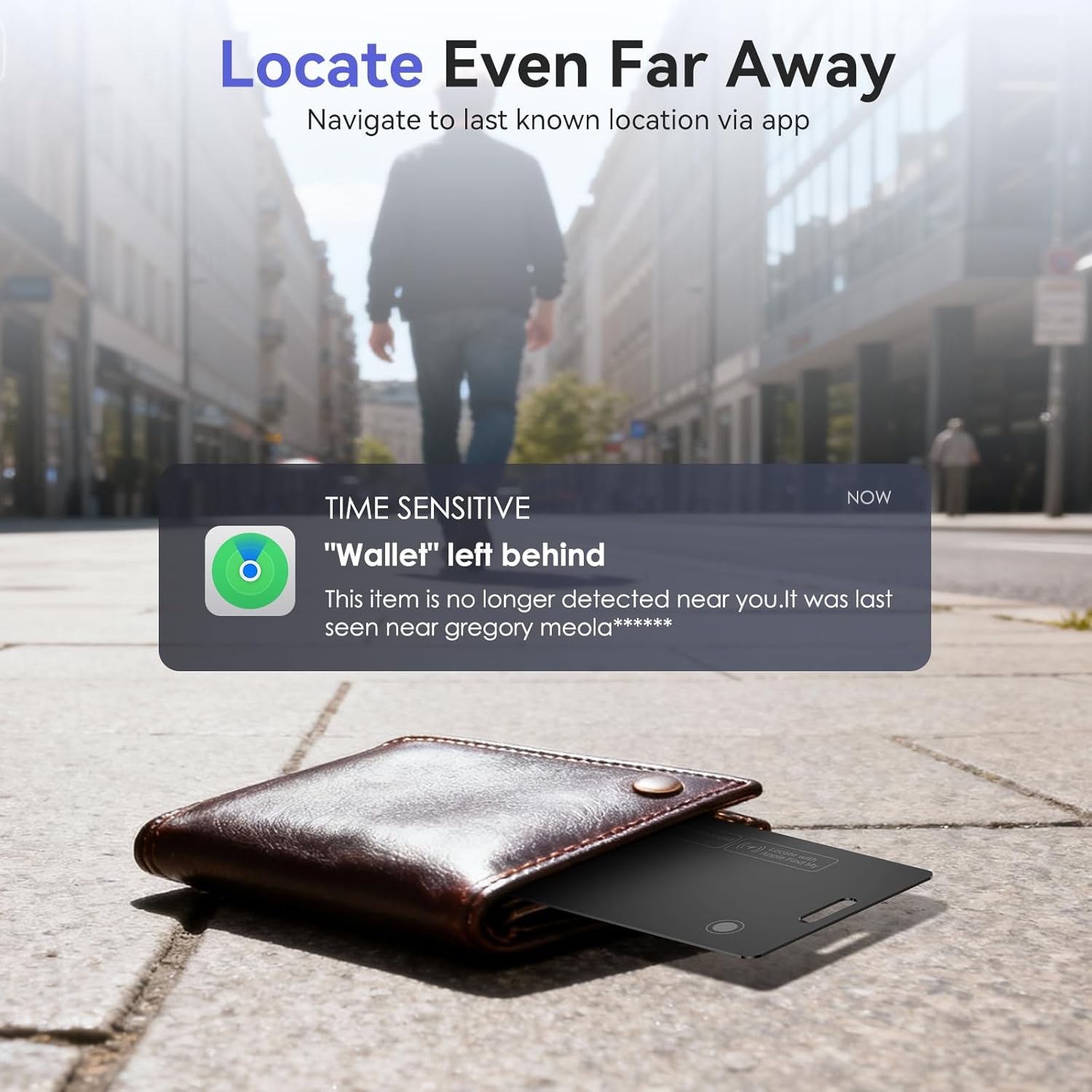
Image 5: Example of a 'left behind' notification on a smartphone.
5.3 Lost Mode
If your item is lost, you can activate 'Lost Mode' through the app. This allows you to display your contact information to anyone who finds your item, facilitating its safe return. The Find My/Find Hub network can also help update the item's location if it comes within range of other devices in the network.
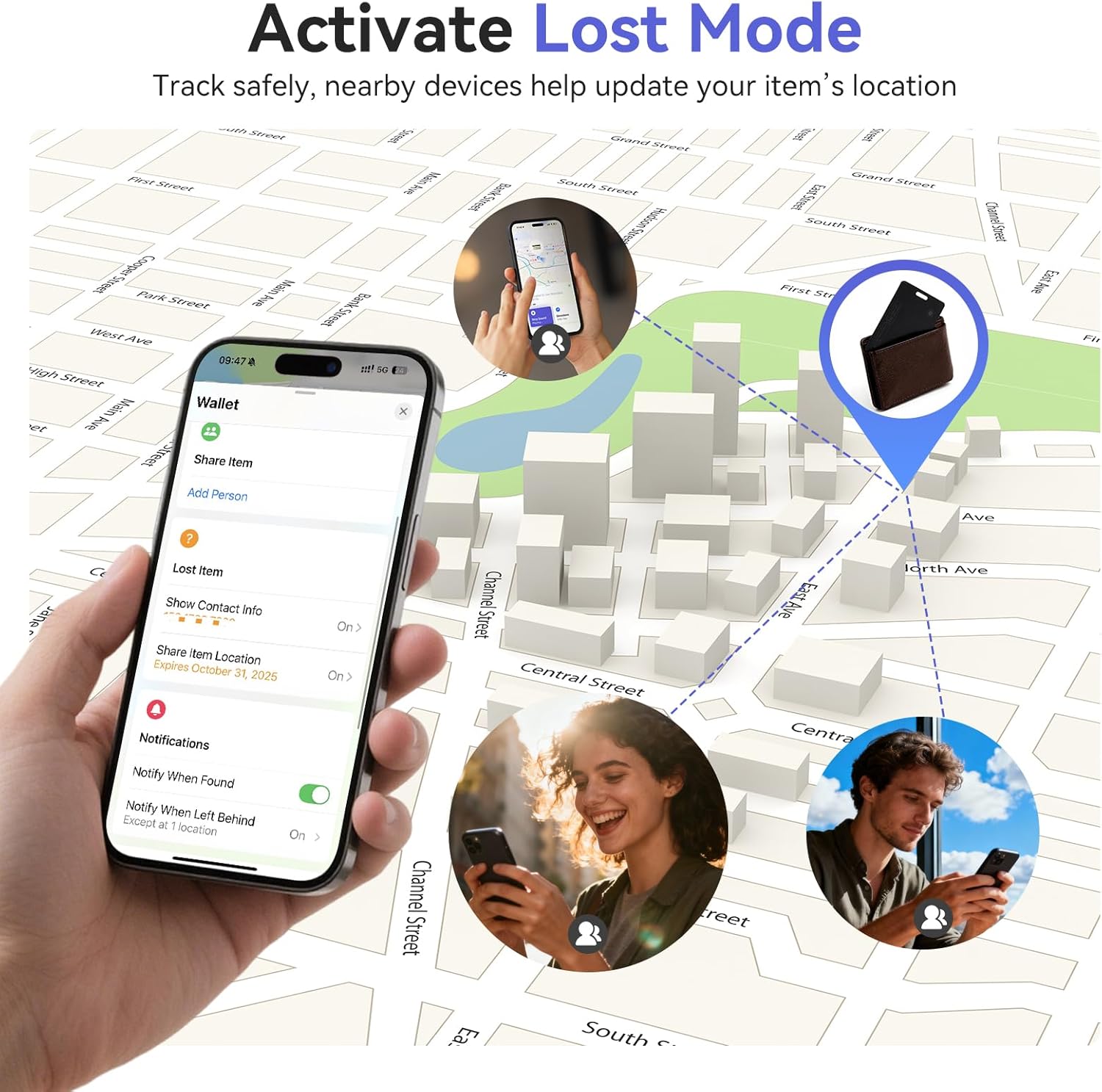
Image 6: Activating Lost Mode to display contact information and leverage network finding.
5.4 Sharing Item Location
Both Apple Find My and Google Find Hub allow you to share the location of your tracker card with trusted contacts, enabling family or friends to help locate your items.

Image 7: Sharing item location with family and friends for collaborative tracking.
6. Charging
The KINDEEP Wallet Tracker Card features a rechargeable battery that supports Qi wireless charging. Simply place the card on a compatible Qi wireless charger (not included) with the charging icon aligned. A red indicator light will show it is charging, and it will turn green when fully charged. A single charge can last up to 5 months.

Image 8: Wireless charging the KINDEEP Wallet Tracker Card.
7. Maintenance
The KINDEEP Wallet Tracker Card is IP68 waterproof, providing protection against dust, spills, and splashes. To maintain its condition:
- Wipe the device with a soft, dry cloth if it gets wet or dirty.
- Avoid using harsh chemicals or abrasive materials for cleaning.
- Store the device in a cool, dry place when not in use.

Image 9: The tracker card is IP68 waterproof.
8. Troubleshooting
- Device not pairing: Ensure Bluetooth is enabled on your smartphone and the tracker card is powered on. Try restarting both devices. Remember to unbind from one platform before pairing to another.
- Sound not playing: Check if the tracker card is within Bluetooth range of your smartphone. Ensure your phone's volume is up.
- Inaccurate location: Location accuracy can vary based on environmental factors and network coverage. Ensure your phone has a stable internet connection.
- Battery draining quickly: While designed for long battery life, frequent use of the 'Play Sound' feature or being constantly out of range can affect battery performance. Ensure the device is fully charged.
9. Specifications
| Feature | Specification |
|---|---|
| Model Number | HB12D |
| Dimensions | 0.07 x 0.07 x 0.07 inches (0.07"L x 0.07"W x 0.07"Th) |
| Item Weight | 0.634 ounces |
| Connectivity | Bluetooth |
| Battery | 1 Lithium Ion battery (included) |
| Charging | Qi Wireless Charging (charger not included) |
| Waterproof Rating | IP68 |
| Compatibility | Apple Find My, Google Find Hub |
10. Warranty and Support
For warranty information and customer support, please refer to the product packaging or contact KINDEEP customer service directly. Keep your proof of purchase for any warranty claims.
11. Product Videos
Hendari Loshall Card Wallet Tracker for Apple Find My app
Video 1: Demonstrates the Hendari Loshall Card Wallet Tracker's features and compatibility with the Apple Find My app, including its slim design, ease of carrying, global locating, and Lost Mode functionality. It also highlights wireless charging.
Detailed introduction for Eelexa dual system tracker card
Video 2: Provides a detailed introduction to the Eelexa dual system tracker card, showcasing its ultra-thin design, compatibility with both Apple and Google devices, waterproof features, and the process of pairing and locating items.
Android Tracker Card
Video 3: Focuses on the Android compatibility of the tracker card, demonstrating how to download the Google Find Hub app, pair the device, and use features like playing a sound and route navigation to find a lost item.