
1. Introduction
Thank you for choosing the Blackstorm 27-inch QHD Mini-LED Gaming Monitor. This monitor is designed to provide an exceptional visual experience for gaming enthusiasts, offering unparalleled precision and performance. Featuring a 27-inch IPS panel with advanced Mini-LED backlighting, it delivers superior image quality, making every gaming moment vivid and immersive. This manual will guide you through the setup, operation, and maintenance of your new monitor.
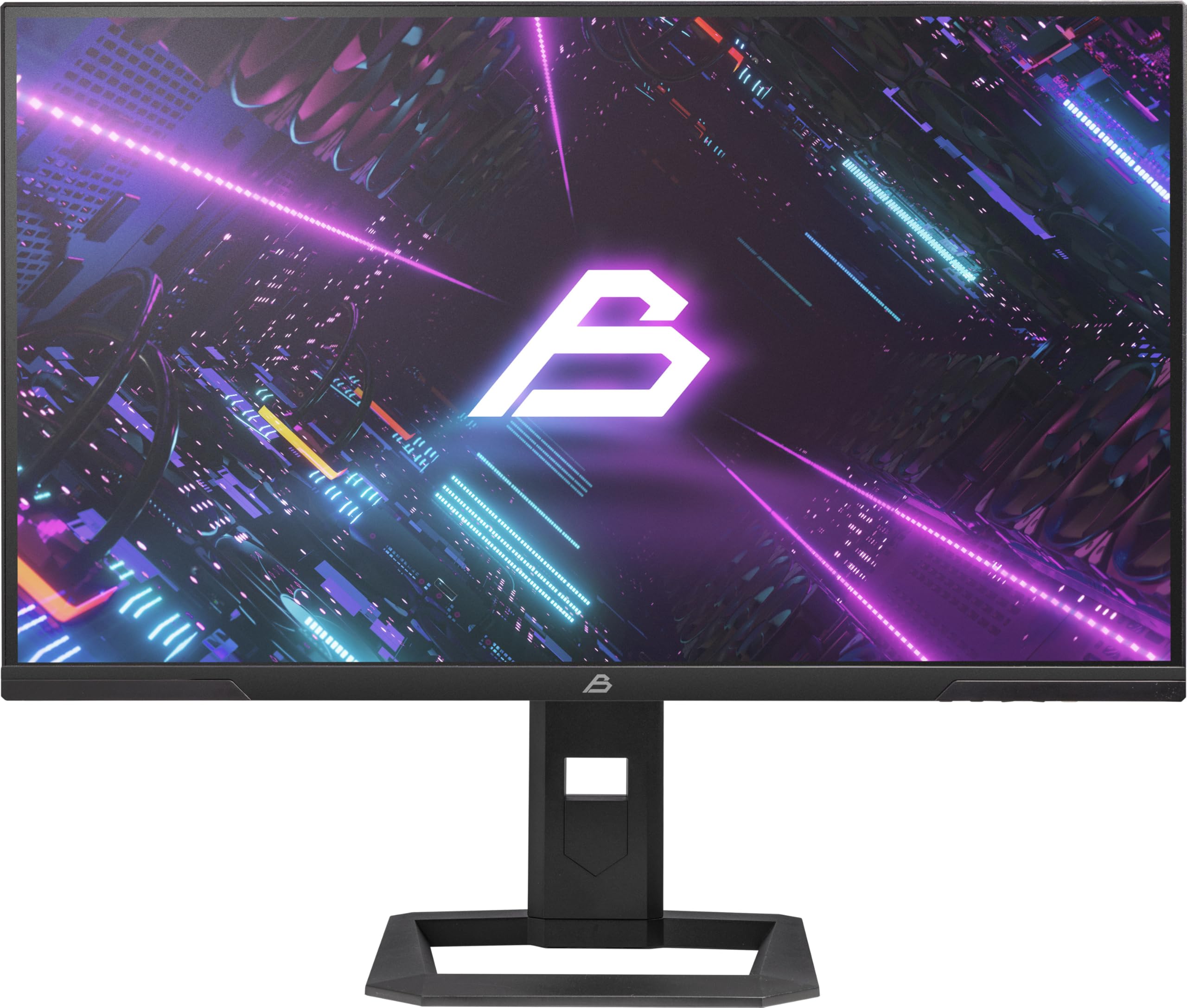
Figure 1: Front view of the Blackstorm 27-inch QHD Mini-LED Gaming Monitor.
2. Key Features
- High-Performance Gaming Display: A 27-inch IPS panel with Mini-LED backlighting provides exceptional brightness, contrast, and color reproduction, ideal for visual precision and performance in all game types.
- Smooth Gaming Experience: WQHD resolution (2560 x 1440) and a 180 Hz refresh rate ensure smooth, detailed visuals. A rapid 2 ms response time is crucial for fast-paced games.
- Superior Color Reproduction and Brightness: Covers 99% of AdobeRGB and DCI-P3 color spaces for accurate and vibrant colors. Features 450 nits (SDR) brightness and HDR1000 compatibility for an impressive gaming experience in any environment.
- Ergonomic Design and Connectivity: The ergonomic stand allows for height, tilt, swivel, and pivot adjustments. VESA 100x100 mount compatible. Includes HDMI 2.1 and DisplayPort 1.4 connections for high-resolution, fast image transfer.
- Advanced Display Technology: IPS panel with Mini-LED technology, 576 dimming zones, and a 1,000,000:1 contrast ratio.
3. Package Contents
Please check the package contents carefully. If any items are missing or damaged, contact your retailer.
- Blackstorm 27-inch QHD Mini-LED Gaming Monitor
- Monitor Stand (Base and Neck)
- Power Cable
- HDMI Cable
- DisplayPort Cable
- User Manual (this document)
- Warranty Card (if applicable)
4. Setup Instructions
4.1 Assembling the Stand
- Carefully remove the monitor and stand components from the packaging.
- Attach the stand neck to the monitor panel. Ensure it clicks securely into place or is fastened with screws as indicated in the quick start guide.
- Attach the stand base to the stand neck. Tighten any screws firmly to ensure stability.
- Place the assembled monitor on a stable, flat surface.

Figure 2: Rear view of the monitor showing the stand attachment and port area.
4.2 Connecting to a Computer
- Ensure both your computer and the monitor are powered off.
- Connect one end of the provided HDMI or DisplayPort cable to the corresponding port on your computer's graphics card.
- Connect the other end of the cable to the HDMI 2.1 or DisplayPort 1.4 input on the back of the monitor.
- Connect the power cable to the monitor's power input, then plug the other end into a power outlet.
- Power on your computer, then power on the monitor. The monitor should automatically detect the input signal.
4.3 Ergonomic Adjustments
The monitor stand allows for various adjustments to optimize your viewing comfort:
- Height Adjustment: Gently push or pull the monitor up or down to your desired height.
- Tilt Adjustment: Tilt the monitor screen forward or backward to find the optimal viewing angle.
- Swivel Adjustment: Rotate the monitor left or right on its base.
- Pivot Adjustment: Rotate the monitor 90 degrees to switch between landscape and portrait orientation.

Figure 3: Side view illustrating the monitor's adjustable stand.
5. Operating the Monitor
5.1 On-Screen Display (OSD) Menu
The OSD menu allows you to adjust various monitor settings. Typically, buttons are located on the back or bottom edge of the monitor. Refer to the quick start guide for exact button locations.
- Press the OSD button to open the menu.
- Use the navigation buttons (up/down/left/right) to browse through menu options.
- Press the select button to enter a sub-menu or confirm a setting.
- Press the exit button to return to the previous menu or close the OSD.
5.2 Adjusting Display Settings
Key settings you can adjust include:
- Brightness/Contrast: Adjust for optimal visual comfort.
- Color Settings: Fine-tune color temperature, gamma, and color space (e.g., AdobeRGB, DCI-P3).
- Refresh Rate: Ensure your computer's display settings are configured to utilize the monitor's 180 Hz refresh rate for the smoothest experience.
- HDR Mode: Enable HDR1000 for compatible content to experience enhanced dynamic range.
- Dynamic Backlight: This feature enhances depth and realism. For competitive gaming requiring extreme responsiveness, you may choose to disable dynamic backlighting for a more consistent and precise image.
6. Maintenance
Proper care ensures the longevity and optimal performance of your monitor.
- Cleaning the Screen:
- Always power off and unplug the monitor before cleaning.
- Use a soft, lint-free cloth lightly dampened with water or a non-ammonia, non-alcohol based screen cleaner.
- Wipe the screen gently to remove dust and smudges. Avoid applying direct pressure.
- Cleaning the Casing:
- Use a soft, dry cloth to wipe the monitor casing.
- Avoid using abrasive cleaners or solvents that may damage the surface.
- Ventilation: Ensure the monitor's ventilation openings are not blocked to prevent overheating.
- Storage: When not in use for extended periods, store the monitor in a cool, dry place, ideally in its original packaging.
7. Troubleshooting
If you encounter issues with your monitor, refer to the following common solutions:
| Problem | Possible Solution |
|---|---|
| No image on screen / "No Signal" message |
|
| Image is blurry or distorted |
|
| Monitor does not power on |
|
| Colors appear incorrect |
|
If the problem persists after trying these solutions, please contact Blackstorm customer support.
8. Technical Specifications
| Feature | Specification |
|---|---|
| Brand | Blackstorm |
| Model | GMF27QHD180-MLED |
| Screen Size | 27 inches |
| Display Technology | IPS with Mini-LED |
| Resolution | 2560 x 1440 Pixels (WQHD) |
| Refresh Rate | 180 Hz |
| Response Time | 2 Milliseconds |
| Brightness (SDR) | 450 candela/square meter |
| Contrast Ratio | 1,000,000:1 |
| Color Gamut | 99% AdobeRGB, DCI-P3 |
| HDR Support | HDR1000 |
| Dimming Zones | 576 |
| Aspect Ratio | 16:9 (1.77:1) |
| Hardware Interface | DisplayPort 1.4, HDMI 2.1 |
| Special Features | HDR, Height Adjustment, Tilt Adjustment, Swivel Adjustment, Pivot Adjustment, Adjustable Stand |
| VESA Compatibility | 100x100 mm |
| Product Dimensions | 23.5 x 54 x 96 cm; 12.66 kg |

Figure 4: Energy efficiency label. For more details, visit EPREL Database.
9. Warranty and Support
For warranty information, please refer to the separate warranty card included with your product or visit the official Blackstorm website. For technical support, troubleshooting assistance beyond this manual, or service inquiries, please contact Blackstorm customer support through their official channels.
You can find more information and contact details on the Blackstorm Store on Amazon.
