
Introduction
Thank you for choosing the MELOGAGA Wireless Gaming Mouse M348. This advanced gaming mouse offers triple connectivity modes (2.4GHz wireless, Bluetooth 5.4, and USB-C wired), 8 adjustable DPI levels, and an ultra-lightweight ergonomic design for extended comfort. This manual provides detailed instructions for setup, operation, maintenance, and troubleshooting to ensure optimal performance and longevity of your device.
Package Contents
- MELOGAGA Wireless Gaming Mouse (M348)
- USB Receiver (stored inside the mouse)
- USB-C Charging Cable
- User Manual
Product Overview
Familiarize yourself with the various components and controls of your MELOGAGA M348 Wireless Gaming Mouse.

Image: Detailed diagram of the MELOGAGA M348 mouse, highlighting its buttons, scroll wheel, DPI button, side buttons, USB-C port, Bluetooth reset button, mode switch, and the location of the USB receiver.
- Left Button: Standard left-click function.
- Right Button: Standard right-click function.
- Scroll Wheel: For scrolling and middle-click function.
- DPI Button: Cycles through DPI sensitivity levels.
- Forward Button: Navigates forward in web browsers or applications.
- Backward Button: Navigates backward in web browsers or applications.
- Type-C Interface: For wired connection and charging.
- Reset BT Button: Resets Bluetooth pairing.
- Mode Switch: Selects between 2.4G, Bluetooth, and Type-C (wired) modes.
- USB Receiver: For 2.4GHz wireless connection, stored in the mouse's bottom compartment.
Setup
1. Charging the Mouse
Before first use, or when the cursor slows down, charge the mouse using the provided USB-C cable. Connect the USB-C end to the mouse and the USB-A end to a power source (e.g., computer USB port, USB wall adapter).

Image: The MELOGAGA M348 mouse connected to a laptop with its USB-C charging cable, illustrating the play-and-charge functionality.
The mouse can be used in wired mode while charging, ensuring uninterrupted operation. A full charge provides up to 120 hours of wireless use.
2. Connecting the Mouse
The MELOGAGA M348 supports three connectivity modes: 2.4GHz wireless, Bluetooth 5.4, and USB-C wired. Use the mode switch on the bottom of the mouse to select your preferred connection type.
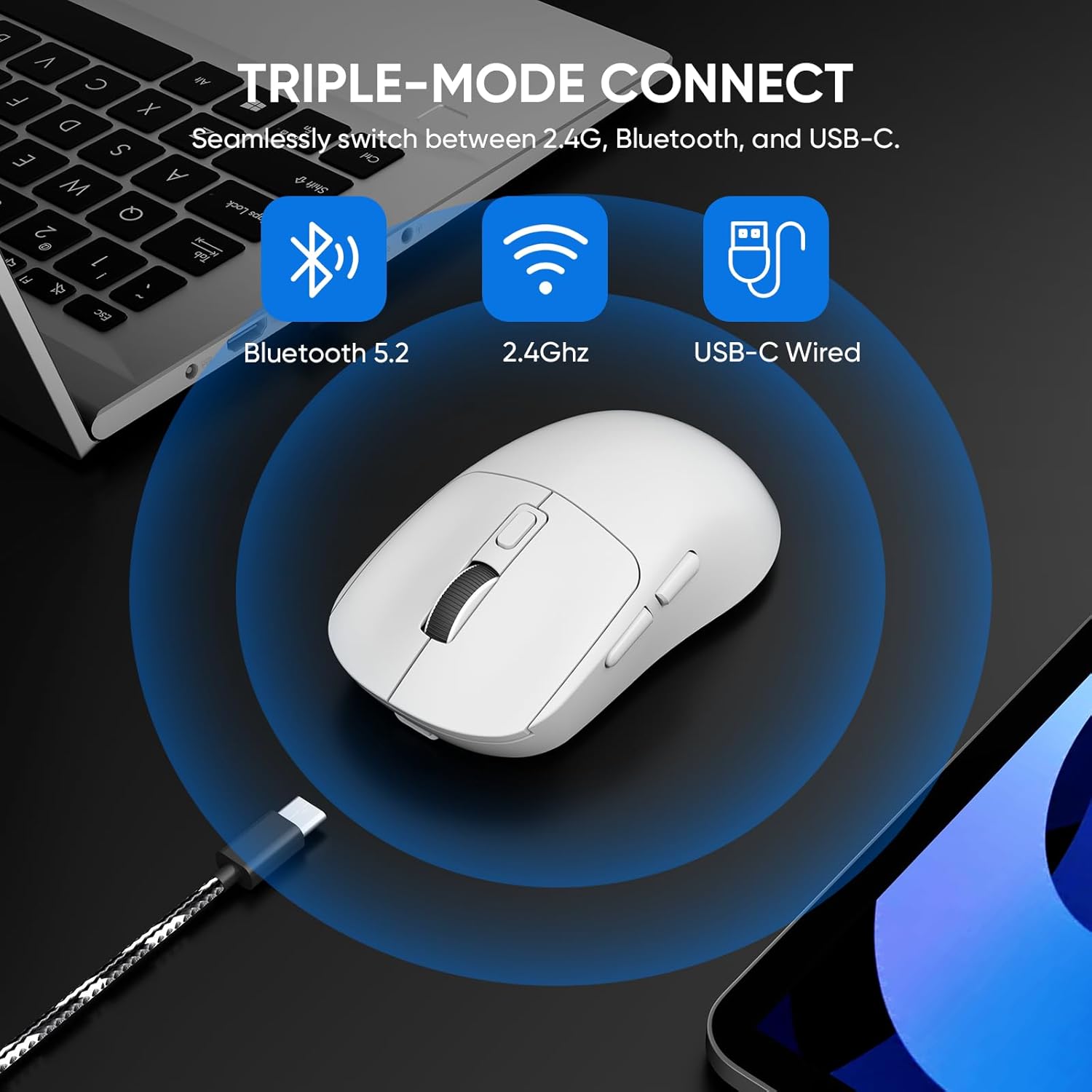
Image: An illustration demonstrating the three connectivity options for the MELOGAGA M348 mouse: Bluetooth, 2.4GHz wireless, and USB-C wired, with corresponding icons.
2.1. 2.4GHz Wireless Mode
- Locate the USB receiver stored in the compartment on the bottom of the mouse.
- Plug the USB receiver into an available USB port on your computer or device.
- Slide the mode switch on the bottom of the mouse to the "2.4G" position.
- The mouse should automatically connect. If not, try moving the mouse closer to the receiver or re-inserting the receiver.
2.2. Bluetooth 5.4 Mode
- Slide the mode switch on the bottom of the mouse to the "BT" position.
- Press and hold the "Reset BT" button on the bottom of the mouse for 3-5 seconds until the indicator light starts blinking, indicating pairing mode.
- On your device (PC, Mac, tablet, etc.), go to Bluetooth settings and search for new devices.
- Select "MELOGAGA M348" (or similar name) from the list of available devices to pair.
- Once paired, the indicator light will stop blinking and remain solid for a few seconds before turning off.
2.3. USB-C Wired Mode
- Connect the USB-C charging cable to the mouse and the USB-A end to your computer or device.
- Slide the mode switch on the bottom of the mouse to the "Type-C" position.
- The mouse will function as a wired mouse and charge simultaneously.
3. Universal Compatibility
The MELOGAGA M348 mouse is designed for broad compatibility across various operating systems and devices.

Image: An overview of the MELOGAGA M348 mouse's universal compatibility, showing it works with PCs, Macs, PS5, tablets, and supports Windows, macOS, Linux, and Android operating systems.
It is compatible with PC, Mac, laptops, tablets, and Android devices, supporting operating systems such as Windows, macOS, iPadOS, and Android.
Operating Instructions
1. Adjusting DPI Sensitivity
The mouse features 8 adjustable DPI levels (800-6400) to suit different tasks and preferences. Press the DPI button located on the top of the mouse, behind the scroll wheel, to cycle through the sensitivity settings.

Image: An illustration detailing the 8 adjustable DPI levels (800, 1200, 1600, 2400, 3200, 4000, 5000, 6400) of the MELOGAGA M348 mouse, indicating suitability for various activities like home use, office work, graphic design, and gaming.
Each press of the DPI button will change the sensitivity, allowing for precise control whether you are gaming, working, or browsing.
2. Ergonomic Design
The MELOGAGA M348 is designed with an ultra-lightweight (approx. 71g) and ergonomic shape to minimize hand strain and fatigue during prolonged use. Its contoured design supports various grip styles, including claw, palm, and fingertip grips.

Image: A user's hand resting on the MELOGAGA M348 mouse, demonstrating its ergonomic shape that provides comfortable support and reduces hand fatigue during extended use.
Maintenance
1. Cleaning
- Use a soft, dry cloth to wipe the surface of the mouse.
- For stubborn dirt, slightly dampen the cloth with water or a mild cleaning solution. Avoid harsh chemicals.
- Do not allow liquids to enter the mouse's interior.
2. Battery Care
- Avoid fully discharging the battery frequently to prolong its lifespan.
- If storing the mouse for an extended period, charge it to about 50% before storage.
- Recharge the mouse when the cursor performance degrades, as this indicates a low battery.
Troubleshooting
| Problem | Possible Cause | Solution |
|---|---|---|
| Cursor slows down or becomes unresponsive | Low battery | Recharge the mouse using the USB-C cable. |
| Mouse not connecting (2.4GHz) | USB receiver not properly inserted or out of range | Ensure the USB receiver is fully inserted. Move the mouse closer to the receiver. Try a different USB port. |
| Mouse not connecting (Bluetooth) | Not in pairing mode, or previously paired device interference | Ensure the mode switch is on "BT". Press and hold the "Reset BT" button to enter pairing mode. Remove previous pairings from your device's Bluetooth settings and try pairing again. |
| Mouse not working in wired mode | Mode switch incorrect, or cable issue | Ensure the mode switch is on "Type-C". Check if the USB-C cable is securely connected at both ends. Try a different USB port or cable. |
| Buttons or scroll wheel unresponsive | Software glitch or physical obstruction | Restart your computer. Check for any debris around the buttons or scroll wheel. If issues persist, contact support. |
Specifications
| Feature | Detail |
|---|---|
| Model Number | M348 |
| Connectivity | 2.4GHz Wireless, Bluetooth 5.4, USB-C Wired |
| DPI Levels | 800, 1200, 1600, 2400, 3200, 4000, 5000, 6400 (Adjustable) |
| Polling Rate | 1000Hz |
| Buttons | 6 (Left, Right, Scroll Wheel, DPI, Forward, Backward) |
| Movement Detection | Optical |
| Hand Orientation | Right |
| Battery Type | 1 Lithium Polymer (included) |
| Battery Life | Up to 120 hours (wireless use) |
| Weight | Approx. 71g (2.5oz) |
| Durability | Rated for 5 million clicks |
| Compatible OS | Windows, macOS, iPadOS, Android |
| Material | Plastic |
Warranty and Support
The MELOGAGA Wireless Gaming Mouse M348 comes with a 1-Year Limited Warranty from the date of purchase. This warranty covers manufacturing defects and ensures the product is free from defects in material and workmanship under normal use.
For warranty claims, technical support, or any inquiries regarding your product, please contact MELOGAGA customer service through the retailer where the product was purchased or visit the official MELOGAGA support website (if available).
Please retain your proof of purchase for warranty validation.