
1. Introduction
This manual provides detailed instructions for the Globluum SU7 MP3 Player, a versatile portable media device featuring Bluetooth 5.0, Wi-Fi connectivity, and a 4-inch touchscreen. It is designed for playing music, videos, audiobooks, and e-books, with support for various streaming services and file formats. This guide will help you set up, operate, maintain, and troubleshoot your device to ensure optimal performance.
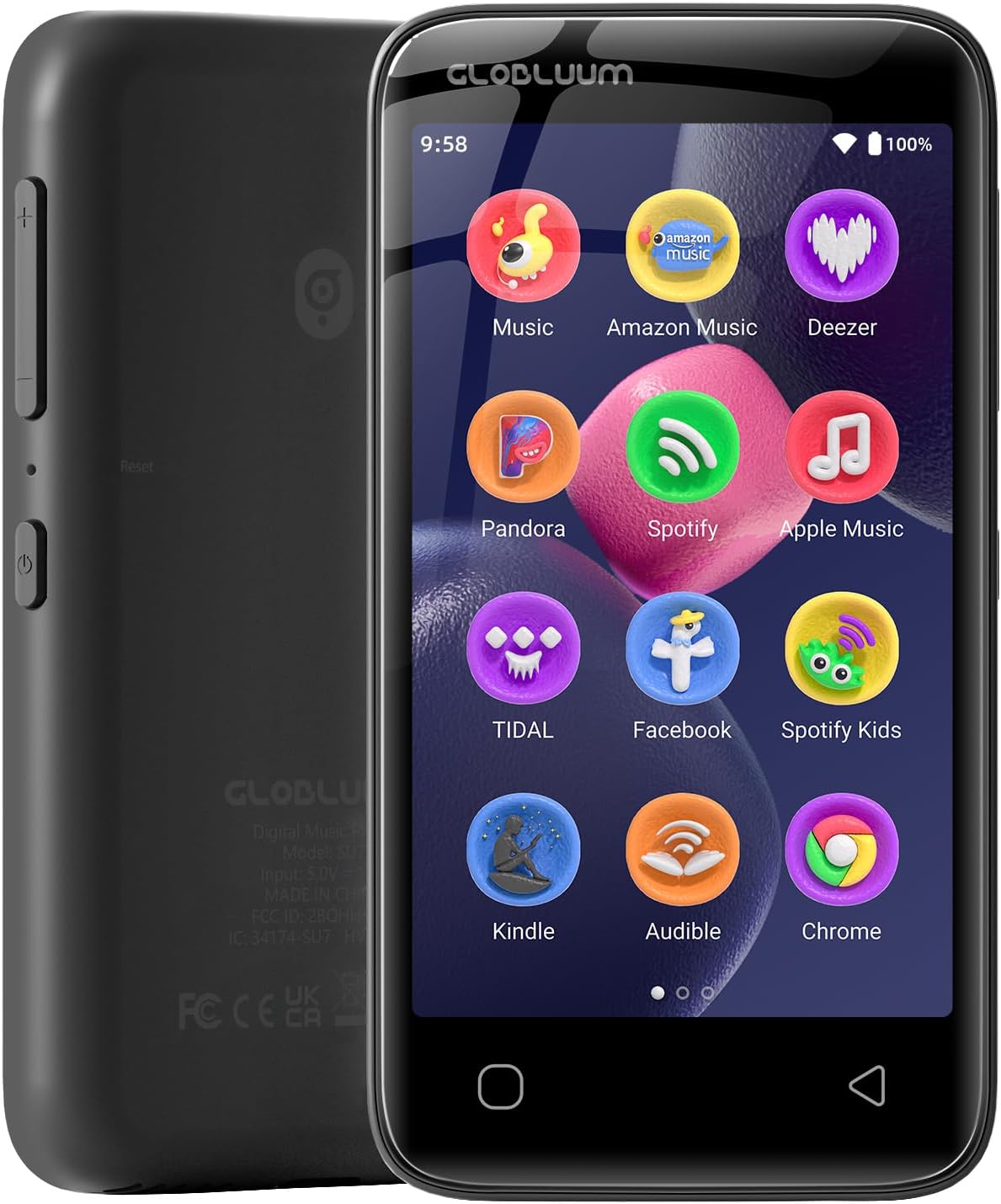
The Globluum SU7 MP3 Player, a compact device for portable entertainment.
2. What's in the Box
Upon unboxing your Globluum SU7 MP3 Player, please verify that all the following items are included:
- Globluum SU7 MP3 Player (1 unit)
- User Manual (1 copy)
- Type-C Charging Cable (1 unit)
- 3.5mm Wired Earphones (1 pair)
- 64GB microSDXC card (1 unit, pre-installed or separate)
- Protective Case (1 unit)

All components included with the Globluum SU7 MP3 Player.
3. Product Overview
The Globluum SU7 is a compact and lightweight device, weighing approximately 3.46 ounces (98g) with dimensions of 0.43"D x 2.44"W x 4.65"H. It features a 4-inch LCD touchscreen for intuitive navigation.
Physical Components:
- 4-inch LCD Touchscreen: Main interface for interaction.
- Power On/Off Button: Located on the side.
- Volume Up/Down Buttons: Located on the side.
- USB-C Port: Located at the bottom for charging and data transfer.
- 3.5mm Audio Jack: Located at the bottom for wired earphones.
- Home Button: Permanent button on the front face.
- Back Button: Permanent button on the front face.
- Built-in Speaker: For audio playback without headphones.

Front view of the Globluum SU7 MP3 Player.

Side view highlighting the power and volume controls.
4. Setup
4.1 Initial Power On
To power on the device, press and hold the side power button for approximately 3 seconds until the screen illuminates. Follow the on-screen prompts for initial Android setup, including language selection and Wi-Fi connection.
4.2 Charging the Device
Connect the provided Type-C charging cable to the USB-C port at the bottom of the player and plug the other end into a compatible USB power adapter (not included) or a computer USB port. The device will indicate charging status on the screen.
4.3 Connecting to Wi-Fi
From the home screen, navigate to Settings > Network & Internet > Wi-Fi. Select your desired network and enter the password if prompted. A stable Wi-Fi connection is necessary for streaming services and app updates.
4.4 Bluetooth Pairing
To connect Bluetooth headphones or speakers:
- Ensure your Bluetooth accessory is in pairing mode.
- On the SU7, go to Settings > Connected devices > Bluetooth.
- Toggle Bluetooth on. The device will scan for available devices.
- Select your accessory from the list to pair.

The SU7 supports stable connections via Dual-Band Wi-Fi and Bluetooth 5.0.
4.5 Transferring Files
The SU7 comes with 32GB of built-in storage and a pre-installed 64GB microSD card, totaling 96GB. You can transfer music, videos, and other files from your computer using the USB-C cable. Connect the player to your computer, and it should appear as a removable storage device. You can then drag and drop files directly into the appropriate folders.
For advanced file transfer or if the device is not recognized, you may need to enable Developer Options and change the USB connection mode to "File Transfer" (MTP). This can typically be done by tapping the build number in "About phone" settings multiple times until developer options are unlocked, then accessing USB options within developer settings.

Expandable storage allows for a massive music collection.
5. Operating Instructions
5.1 Navigating the Interface
The SU7 runs on Android 14, providing a familiar smartphone-like experience. Use the touchscreen to tap icons, swipe through menus, and interact with applications. The permanent Home and Back buttons at the bottom of the device assist with navigation.
5.2 Music Playback
The device comes preloaded with several music streaming applications including Spotify, Amazon Music, Pandora, Deezer, TIDAL, and YouTube Music. It also features HiBy Music for lossless audio playback and customizable equalizer settings. Simply open your preferred music application, select your desired content, and press play.

Access a wide range of music streaming services directly on your device.

Enjoy music throughout your home by connecting to external speakers.
5.3 Video Playback
The SU7 supports video playback through the pre-installed MX Player, compatible with formats such as MKV, AVI, MP4, and MOV. Adaptive rendering ensures stable playback. You can transfer video files to the device or stream content via supported apps.

The SU7 can be used for video entertainment, ideal for travel.
5.4 Audiobooks and E-books
For audiobooks, Audible, Libby, and LibriVox are preloaded, offering a wide selection of titles. For e-books, Kindle and Moon+ Reader Pro are available, supporting EPUB, PDF, MOBI, and TXT formats for both online and offline reading.

Enjoy audiobooks and e-books on the go with pre-installed applications.
5.5 App Management and Updates
The device runs Android 14 with Google Play, allowing for automatic app updates and the installation of additional applications. Ensure you are connected to Wi-Fi for seamless updates and downloads.

Customize your device with apps from Google Play.
6. Maintenance
6.1 Cleaning
To clean the device, use a soft, dry, lint-free cloth. For stubborn smudges on the screen, a slightly damp cloth with a screen-safe cleaner can be used. Avoid abrasive materials or harsh chemicals.
6.2 Battery Care
The average battery life is approximately 25 hours, depending on usage. To prolong battery lifespan, avoid fully discharging the device frequently. Store the device in a cool, dry place when not in use for extended periods.
6.3 Safety Precautions
Do not immerse the device in water. Avoid operating or storing the device in high-temperature environments exceeding 55°C (131°F) to prevent damage and ensure safety.
7. Troubleshooting
7.1 Device Not Powering On
- Ensure the device is sufficiently charged. Connect it to a power source using the provided USB-C cable.
- Press and hold the power button for an extended period (up to 10-15 seconds) to perform a forced restart.
7.2 Unable to Transfer Files from Computer
- Verify the USB-C cable is securely connected to both the player and the computer.
- On the player, swipe down from the top of the screen to access notifications. Tap on the USB connection notification and select "File Transfer" (MTP) mode.
- If the issue persists, enable Developer Options on the device (by tapping the build number in Settings > About phone multiple times) and then navigate to Developer Options to ensure USB debugging is off and the default USB configuration is set to File Transfer.
7.3 Bluetooth Connectivity Issues
- Ensure both the SU7 and the Bluetooth accessory are charged and within range.
- Turn Bluetooth off and then on again on the SU7.
- Forget the device in Bluetooth settings and attempt to re-pair.
7.4 Poor Audio Quality
- Check the audio source (file quality, streaming service settings).
- Ensure headphones or speakers are properly connected and functioning.
- Adjust equalizer settings within the music player application (e.g., HiBy Music).
- The device features hardware-level FLAC/APE decoding for richer details, ensure you are playing high-quality audio files for the best experience.

The SU7 supports a wide range of audio and video formats for universal playback.
8. Specifications
| Feature | Detail |
|---|---|
| Brand | Globluum |
| Model Name | A02ST (Mfr Part Number: SU7) |
| Connectivity Technology | Aux, Bluetooth 5.0, USB-C, Wi-Fi (Dual-Band) |
| Memory Storage Capacity | 96 GB (32GB internal + 64GB Micro SD card) |
| Screen Size | 4 Inches |
| Display Technology | LCD |
| Special Features | Built-In Speaker, Equalizer, FM Radio, Touch Screen, Video Playback |
| Compatible Devices | Headphones, Personal Computer, Smartphone, Speaker |
| Supported Media Type | Micro SD, Micro SDHC, Micro SDXC |
| Supported Standards | AAC (and others via preloaded apps/decoding) |
| Battery Average Life | 25 Hours |
| Item Weight | 3.46 Ounces (98g) |
| Item Dimensions (D x W x H) | 0.43"D x 2.44"W x 4.65"H |
9. Warranty and Support
9.1 Warranty Information
The Globluum SU7 MP3 Player comes with a 1-Year Manufacturer Warranty. Please retain your proof of purchase for warranty claims. The warranty covers defects in materials and workmanship under normal use. It does not cover damage caused by misuse, accidents, unauthorized modifications, or exposure to extreme conditions.
9.2 Customer Support
For technical assistance, troubleshooting beyond this manual, or warranty inquiries, please contact Globluum customer support. Refer to the contact information provided on the product packaging or the official Globluum website.

