1. Introduction
This manual provides essential information for the safe and efficient use of your coocaa DOSHISHA 32Z65 32-inch Google TV. Please read these instructions thoroughly before operating the television and retain them for future reference. This smart TV integrates advanced features for an enhanced viewing experience.

Image: Front view of the coocaa DOSHISHA 32Z65 32-inch Google TV.
2. Product Features
- Integrated Tuners: Equipped with terrestrial digital, BS, and CS tuners (two of each) for comprehensive broadcast reception.
- Pre-installed Streaming Apps: Access popular services like Netflix, YouTube, Prime Video, and Google Play directly. Additional applications can be downloaded from the Google Play Store.
- Google Assistant: Utilize voice commands to search for movies, stream apps, play music, and control TV functions hands-free.
- Dolby Vision: Experience superior HDR technology with stunning brightness, deep blacks, and vibrant colors for a cinematic visual experience.
- Dolby Atmos: Enjoy three-dimensional, dynamic sound that complements the visuals, providing an immersive audio experience with clear detail.
- Dolby Audio + DTS: Delivers an immersive soundscape with precise audio detail for movies, music, and games.
- Chameleon Extreme: An advanced image processing engine that optimizes clarity, sharpness, and color accuracy at the pixel level for an exceptional visual experience.
- Filmmaker Mode: Activates a mode that bypasses unnecessary image processing, reproducing content as the director intended for an authentic cinematic feel.
- Remote Search Function: A built-in speaker in the remote control allows for easy location with a simple 3-step operation. Note: Remote pairing is required for this feature.
- Flicker Free: Reduces screen flicker to minimize eye strain and allow for focused viewing of movies and dramas.
- Low Blue Light: coocaa's proprietary blue light reduction technology ensures comfortable and eye-friendly viewing even during extended periods.
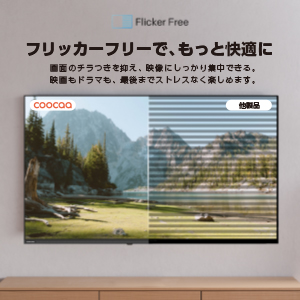
Image: Visual representation of Chameleon Extreme technology enhancing color and clarity.

Image: A television screen displaying a movie scene with palm trees, illustrating Filmmaker Mode.

Image: The Google TV home screen with various streaming app icons and content recommendations.

Image: Comparison showing a screen with and without blue light reduction, highlighting the Low Blue Light feature.
3. Setup
3.1 Unboxing and Initial Placement
Carefully remove the TV from its packaging. Place the TV on a stable, flat surface or mount it on a wall using a compatible VESA mount (sold separately). Ensure adequate ventilation around the TV.
3.2 Connecting Peripherals
- Power Connection: Connect the power cord to the TV and then to a power outlet.
- Antenna/Cable Connection: Connect your antenna or cable TV source to the appropriate input on the TV.
- HDMI Devices: Connect external devices such as Blu-ray players, game consoles, or soundbars to the HDMI ports.
- External HDD: For recording, connect a compatible external HDD to the USB port.

Image: Rear view of the TV highlighting various input ports.
3.3 First-Time Setup Wizard
Upon first power-on, the TV will guide you through the initial setup process. This includes:
- Language selection.
- Network connection (Wi-Fi or Ethernet).
- Google account sign-in for Google TV features.
- Channel scanning for broadcast TV.
- Remote control pairing (if prompted).
4. Operating Instructions
4.1 Remote Control Functions
The included remote control allows you to navigate the TV's interface, adjust settings, and access smart features. Familiarize yourself with the buttons for power, volume, channel, input selection, and dedicated app buttons.

Image: The remote control for the coocaa DOSHISHA 32Z65 TV.
4.2 Google TV Navigation
The Google TV interface organizes your content from various streaming services and live TV in one place. Use the remote's directional pad to browse recommendations, access your apps, and manage your library.
4.3 Using Google Assistant
Press the Google Assistant button on your remote and speak into the microphone to:
- Search for movies, TV shows, or actors.
- Open applications.
- Control smart home devices.
- Get weather updates or ask general questions.
4.4 External HDD Recording
To record broadcast programs, connect an external HDD to the TV's USB port. Follow the on-screen prompts to format the drive if necessary. You can schedule recordings or record the current program. The TV supports background recording, allowing you to watch one program while another is being recorded.
5. Maintenance
5.1 Cleaning the TV
To clean the screen, gently wipe it with a soft, dry, lint-free cloth. For stubborn marks, slightly dampen the cloth with water or a screen-cleaning solution. Avoid using harsh chemicals or abrasive materials. For the TV body, use a soft, dry cloth.
5.2 Software Updates
Ensure your TV's software is up to date for optimal performance and security. The TV may automatically prompt you for updates when connected to the internet. You can also manually check for updates in the settings menu.
6. Troubleshooting
If you encounter issues with your TV, refer to the following common solutions:
- No Power: Check if the power cord is securely connected to both the TV and the power outlet. Ensure the outlet is functioning.
- No Picture/Sound: Verify that the correct input source is selected. Check all cable connections (HDMI, antenna).
- Remote Not Responding: Replace the batteries in the remote control. Ensure there are no obstructions between the remote and the TV. If the remote search function is not working, ensure it is paired.
- Network Connection Issues: Restart your router and modem. Reconnect the TV to your Wi-Fi network or check the Ethernet cable connection.
- App Not Working: Try restarting the app. If the issue persists, clear the app's cache or reinstall it from the Google Play Store.
For more complex issues, please contact customer support.
7. Specifications
| Feature | Specification |
|---|---|
| Screen Size | 32 inches |
| Display Type | LCD |
| Resolution | High-Definition |
| Aspect Ratio | 16:9 |
| Refresh Rate | 60 Hz |
| Contrast Ratio | 1200:1 |
| HDMI Ports | 2 |
| Network Connectivity | HDMI, Wireless (Infrared) |
| Speaker Features | Built-in Speakers (Dolby Audio + DTS) |
| Product Dimensions (D x W x H) | 18.8 x 71.8 x 48 cm |
| Product Weight | 3.4 kg |
| Annual Energy Consumption | 39.9 kWh/year |
| Model Number | 32Z65 |
8. Official Product Videos
8.1 Google TV System Introduction
Video: An introduction to the Google TV system, showcasing its features and user interface. This video demonstrates how Google TV organizes content and provides personalized recommendations.
9. Warranty and Support
Your coocaa DOSHISHA 32Z65 TV comes with a manufacturer's warranty. Please refer to the warranty card included in the packaging for details on coverage and duration. For technical support, service, or warranty claims, please contact DOSHISHA customer service through their official channels. Contact information can typically be found on the warranty card or the manufacturer's website.