
Introduction
Welcome to the user manual for your Samsung QN65QN990FFXZA 65 Inch QN990F Neo QLED 8K TV. This document provides essential information for setting up, operating, maintaining, and troubleshooting your television. Please read these instructions carefully to ensure proper use and to maximize your viewing experience.

Figure 1: Front view of the Samsung QN65QN990FFXZA 65 Inch QN990F Neo QLED 8K TV.
Setup
1. Unpacking and Placement
- Carefully remove the TV and all accessories from the packaging.
- Place the TV on a stable, flat surface or mount it on a wall using a VESA 400mm x 300mm compatible mount. Ensure adequate ventilation around the TV.
2. Connecting the Wireless One Connect Box
The Samsung QN990F utilizes a Wireless One Connect Box to manage all external connections, reducing cable clutter around the TV. Connect all your devices to this box.

Figure 2: Wireless One Connect Box for streamlined connections.
3. External Device Connections
Connect your external devices (e.g., Blu-ray player, game console, soundbar) to the Wireless One Connect Box using the appropriate ports.

Figure 3: Detailed diagram of the Wireless One Connect Box ports.
- Cable/ANT: Connect for over-the-air antenna or cable TV signals.
- USB-A: Standard rectangular port for power or media playback.
- EX-Link: Samsung service port for external control and diagnostics.
- HDMI 1, 2, 4: Transmits high-definition video and audio from external devices. Supports 8K@120Hz / 4K@240Hz for Gaming.
- HDMI 3 (eARC): Enhanced audio return for high-quality sound and advanced formats. Supports 8K@120Hz / 4K@240Hz for Gaming.
- Ethernet: Wired internet connection for streaming, updates, and smart features.
- Audio Out (Optical): Delivers high-quality digital audio to soundbars or receivers.
- Power: Connects the power cable to the Wireless One Connect Box.
4. Power Connection
- Connect the power cable to the Wireless One Connect Box, then plug it into a wall outlet.
- Ensure the TV is properly connected to the One Connect Box.
Operating Instructions
1. Initial Setup and Smart Features
Upon first power-on, the TV will guide you through the initial setup process, including network connection, channel scanning, and smart feature configuration. The TV runs on the One UI Tizen operating system.
- NQ8 AI Gen3 Processor: This processor optimizes content for enhanced viewing.
- 8K AI Upscaling Pro: Lower resolution content is automatically upscaled to near 8K clarity.

Figure 4: 8K AI Upscaling Pro enhances content to near 8K resolution.
2. Picture Quality Enhancements
- Glare Free: This technology minimizes reflections on the screen, improving visibility in bright environments.
- Neo Quantum HDR 8K+: Experience enhanced contrast and color depth.
- Quantum Matrix Technology Pro: Precise light control for detailed images.
- Ultra Viewing Angle: Maintains picture quality from various viewing positions.
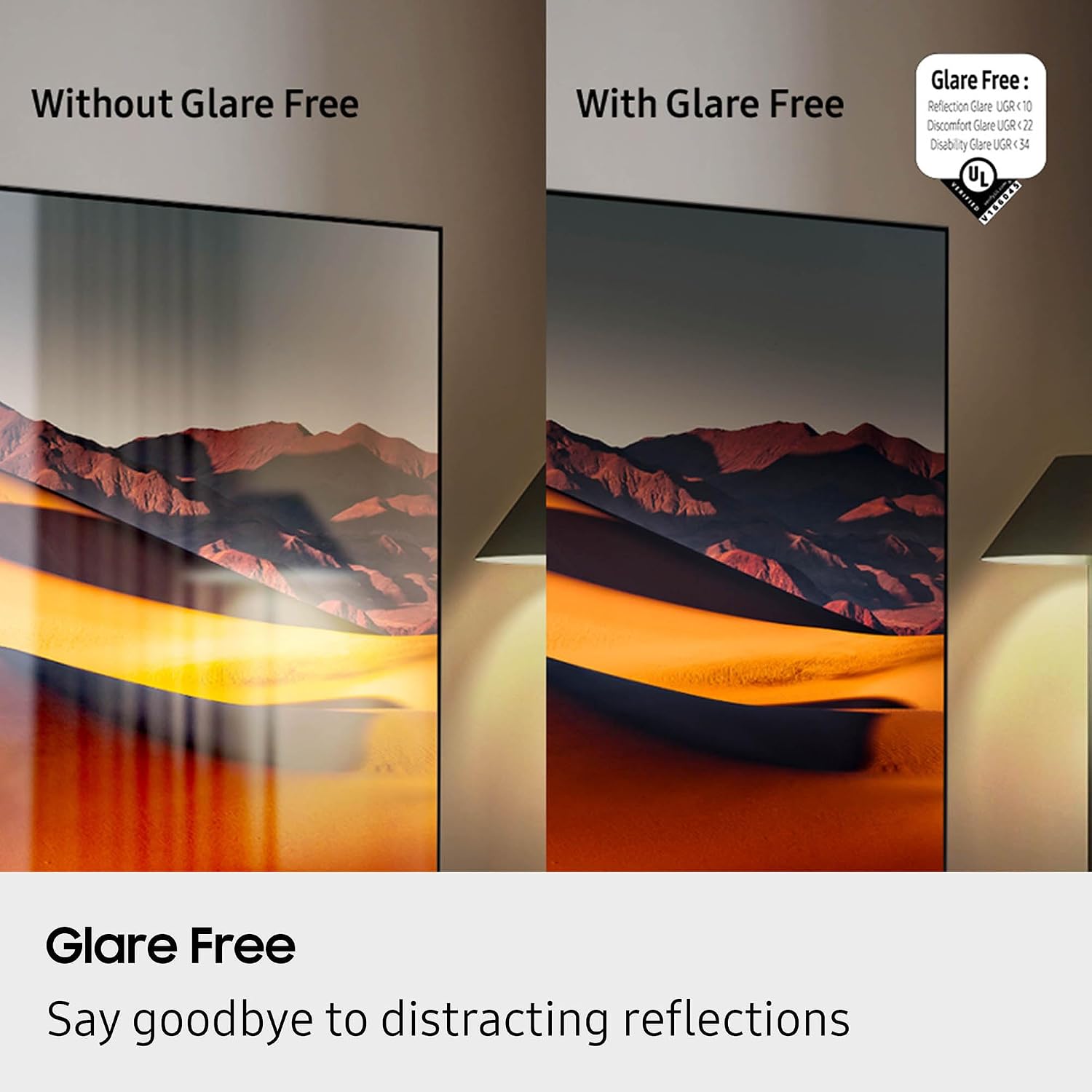
Figure 5: Glare Free technology reduces screen reflections.
3. Audio Features
- Dolby Atmos: Provides immersive, multi-dimensional sound.
- Q-Symphony: Synchronizes TV speakers with compatible Samsung soundbars for a richer audio experience.
- AVA Pro (Active Voice Amplifier Pro): Enhances dialogue clarity in noisy environments.
- Adaptive Sound Pro: Optimizes sound based on content and room acoustics.
- 6.2.4 Channel Surround Sound: Integrated speaker system for a comprehensive audio field.
4. Gaming Features
- Gaming Hub: Access cloud gaming services and console games directly from your TV.
- 120Hz Refresh Rate & VRR FreeSync Premium Pro: Ensures smooth, tear-free gaming.

Figure 6: Samsung Gaming Hub for integrated gaming experience.
5. Official Product Video
Video 1: An informational overview of the Samsung QN990F Series TV features and capabilities.
Maintenance
1. Screen Cleaning
To clean your TV screen, use a soft, lint-free cloth. For stubborn marks, a non-ammonia and alcohol-free screen cleaning solution is recommended.

Figure 7: Recommended screen cleaning solution for display screens.
- Apply cleaning solution to the cloth, not directly to the screen.
- Gently wipe the screen to remove dust, dirt, and fingerprints.
- Avoid harsh chemicals or abrasive materials.
2. Software Updates
Periodically check for and install software updates to ensure optimal performance and access to the latest features. This can usually be done through the TV's settings menu under "Support" or "Software Update."
Troubleshooting
If you encounter issues with your TV, refer to the following common troubleshooting steps.
No Power / No Picture
- Ensure the power cable is securely connected to both the One Connect Box and the wall outlet.
- Verify the One Connect Box is properly connected to the TV.
- Check if the wall outlet is functioning by plugging in another device.
- Press the power button on the remote control or on the TV itself.
No Sound
- Check the volume level on both the TV and any connected audio devices (soundbar, receiver).
- Ensure the TV is not muted.
- Verify audio cables are correctly connected to the One Connect Box.
- If using external audio, check the audio output settings on the TV.
Poor Picture Quality
- Check the source resolution. While 8K AI Upscaling Pro enhances content, native 8K content will provide the best quality.
- Adjust picture settings (brightness, contrast, sharpness, color) in the TV menu.
- Ensure all video cables are securely connected and not damaged.
- If using an antenna, check antenna positioning and signal strength.
Remote Control Not Working
- Replace the batteries in the remote control.
- Ensure there are no obstructions between the remote and the TV.
- Try re-pairing the remote control with the TV if it's a Bluetooth remote (refer to the TV's on-screen guide for pairing instructions).
Specifications
| Feature | Specification |
|---|---|
| Model Name | QN65QN990FFXZA |
| Screen Size | 65 Inches |
| Display Technology | Neo QLED |
| Resolution | 8K |
| Refresh Rate | 120 Hz |
| Processor | NQ8 AI Gen3 Processor |
| Upscaling Technology | 8K AI Upscaling Pro |
| Operating System | One UI Tizen |
| Connectivity | HDMI x 5, USB-A x 3, USB-C x 1, Ethernet, RF, Wireless One Connect, Bluetooth, Wi-Fi |
| Audio Output Mode | Surround (6.2.4 channel) |
| Integrated Surround Sound | Dolby Atmos |
| HDR Format Supported | HDR10+, HDR10 |
| Product Dimensions (D x W x H) | 10.5"D x 56.4"W x 35.1"H |
| Item Weight | 66.6 Pounds |
| VESA Mount Standard | 400mm x 300mm |
| Color | Graphite Black |
Warranty and Support
Manufacturer's Warranty
Your Samsung QN65QN990FFXZA 65 Inch QN990F Neo QLED 8K TV comes with a full 1-year manufacturer's warranty. This warranty covers defects in materials and workmanship under normal use. Please retain your proof of purchase for warranty claims.
Customer Support
For technical assistance, troubleshooting beyond this manual, or warranty service, please contact Samsung Customer Support. Refer to the official Samsung website or your product registration documents for the most current contact information.
- Online Support: Visit the official Samsung support website.
- Phone Support: Contact the Samsung customer service hotline.