
1. Introduction
This manual provides detailed instructions for the installation, operation, and maintenance of your Haudio 10.1-inch Single DIN Android Car Stereo, Model 1541-AJ. This device features a 360° rotatable IPS touchscreen, Android 13 operating system, Wireless CarPlay and Android Auto compatibility, 2GB RAM + 64GB ROM, built-in GPS, Wi-Fi, Bluetooth 4.1, DSP sound processing, and includes a 720P AHD backup camera. Please read this manual thoroughly before use to ensure proper functionality and safety.
2. Safety Information
Important Safety Notice:
- Ensure your vehicle's dashboard opening size is compatible with this car stereo. An additional dash kit may be required if sizes do not match.
- Professional installation by a qualified car audio technician is highly recommended.
- Some car models may require additional accessories, such as a wire harness adapter or radio antenna adapter, for complete installation.
- All wire connections must be fully insulated with electrical tape to prevent short circuits and ensure safe operation.
- Do not operate the device in a manner that distracts you from driving. Always prioritize road safety.
- Avoid exposing the unit to extreme temperatures, direct sunlight for prolonged periods, or excessive moisture.
3. Package Contents
Verify that all items listed below are included in your package:

Image Description: This image displays the Haudio 10.1-inch car stereo unit along with its various accessories, including cables, antennas, and mounting hardware, neatly arranged to show the complete package contents.
- Main Head Unit (10.1-inch Rotatable Screen)
- Power Cable x 1
- Rear View Interface Wire x 1
- 6P-USB Wire x 1
- 4P-USB Wire x 1
- 20P-RCA Wire x 1
- GPS Antenna x 1
- Cage Release Keys x 2
- Rear View Camera x 1 (AHD 720P)
- Installation Screw x 8
- User Manual x 1
- Reversing Camera Cable x 1
4. Setup and Installation
The following steps outline the general installation process. For a detailed visual guide, please refer to the installation video provided below. Professional installation is recommended.
Video Description: This video provides a step-by-step guide for installing the Haudio 10.1-inch car stereo, covering removal of the old unit, wiring connections, and mounting the new stereo. It demonstrates the process for a general vehicle type.
4.1. Wiring Diagram Overview

Image Description: This diagram illustrates the various wiring connections for the Haudio car stereo, including RCA, power, rear camera input, USB ports, and GPS antenna. It serves as a reference for connecting the main unit to the vehicle's electrical system and peripherals.
4.2. Step-by-Step Installation Guide
- Remove the Original Vehicle Machine: Carefully remove the existing car stereo and any surrounding trim panels. Disconnect all wiring harnesses and the radio antenna.
- Connect the Original Vehicle Line:
- Select Power Cable: Determine if your vehicle requires a universal power cable (requires manual wiring based on vehicle's power supply definition diagram) or a dedicated power cable (purchased separately for specific car models).
- Universal Power Cable Connection: If using a universal cable, connect the gifted power cord to the corresponding wires of the original car definition one by one. Ensure each connection is fully insulated with electrical tape to prevent short circuits.
- Dedicated Power Cable Connection: If using a dedicated power cable, connect it directly to the vehicle's power adapter.
- Traction Harness: Route the rear view camera cable and GPS antenna cable from their respective installation points to the stereo's location in the dashboard.
- Fix the Bracket onto the Car Machine: Attach the provided mounting brackets to the sides of the new car stereo unit using the installation screws.
- Connect the Back Interface:
- Install Camera Input: Connect the rear view camera's video input cable to the "CAMERA" port on the back of the stereo. Connect the camera's power wire (red) to the reversing trigger line (Back A6) in the power harness and the camera's ground wire to the vehicle's chassis ground.
- Install RCA: Connect the RCA cables for audio output (e.g., to external amplifiers) to the corresponding ports on the stereo.
- Install USB Wires: Connect the 6P-USB and 4P-USB wires to the designated USB ports on the back of the stereo.
- Install Radio Antenna: Connect the vehicle's radio antenna to the "ANT" port on the stereo.
- Install GPS Antenna: Connect the GPS antenna to the "GPS" port on the stereo. Position the GPS antenna in a location with a clear view of the sky for optimal signal reception.
- Install Power Cable: Connect the main power cable harness to the stereo's power input.
- Fixed Car Machine: Carefully slide the car stereo unit into the dashboard opening. Secure it in place using the mounting screws and reattach any trim panels. Ensure all connections are firm and no wires are pinched.
5. Operating Instructions
Your Haudio car stereo offers a range of features designed to enhance your driving experience. Below are key operational aspects:
5.1. 360° Rotatable IPS Touchscreen
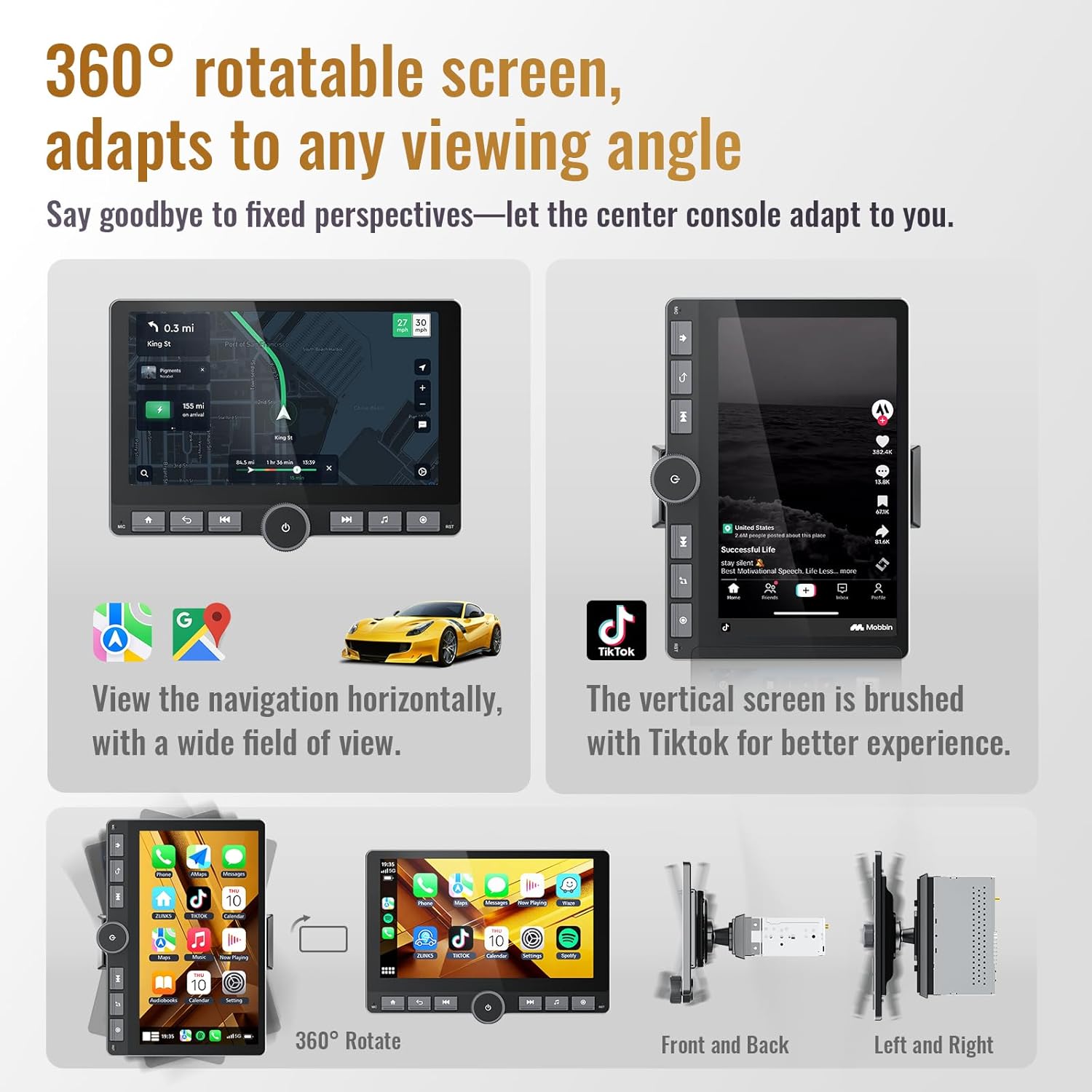
Image Description: This image demonstrates the 360° rotatable feature of the 10.1-inch IPS touchscreen. It shows the screen in both horizontal and vertical orientations, adapting to different viewing preferences for applications like navigation and media playback. The screen can be adjusted for optimal visibility and to avoid obstruction from vehicle controls.
The 10.1-inch IPS touchscreen can be rotated 360 degrees, allowing for both portrait and landscape viewing modes. This flexibility is ideal for navigation, media consumption, and split-screen multitasking. Adjust the screen angle to your preference to avoid glare and ensure clear visibility.
5.2. Wireless & Wired CarPlay & Android Auto

Image Description: The image shows the car stereo's screen with the Apple CarPlay interface active, displaying common applications like Phone, Maps, Messages, and Music. This illustrates the seamless integration of smartphone features for a connected driving experience.
Connect your smartphone seamlessly using either wireless or wired CarPlay (for iPhone) or Android Auto (for Android devices). This enables hands-free calls, music streaming, and access to compatible navigation and messaging apps. The system also supports wireless screen mirroring and Zlink compatibility for extended functionality.
- Wireless Connection: Enable Bluetooth and Wi-Fi on your smartphone. Pair your phone with the car stereo via Bluetooth. Follow on-screen prompts to activate CarPlay or Android Auto.
- Wired Connection: Connect your smartphone to one of the stereo's USB ports using a compatible USB cable. The system should automatically detect and launch CarPlay or Android Auto.
5.3. Enhanced Audio with DSP & EQ

Image Description: This image displays the Digital Signal Processing (DSP) and Equalizer (EQ) interface on the car stereo screen. It shows various audio settings and frequency adjustments, indicating the system's capability for advanced sound customization.
The built-in Digital Signal Processing (DSP) and Equalizer (EQ) settings allow for comprehensive sound tuning. Adjust audio parameters to customize your listening experience. The external SI4755 radio chip ensures superior FM/AM/RDS reception, and Bluetooth 4.1 provides clear music and phone audio.
5.4. Built-in GPS Navigation & WiFi

Image Description: This image shows the car stereo displaying a GPS navigation map on one part of the screen, alongside other audio output modes like FM/AM radio and RDS. This highlights the integrated navigation and multimedia capabilities of the unit.
The integrated GPS/QZSS/SBAS chip provides accurate real-time navigation. Connect to 2.4GHz Wi-Fi for online map updates, APK downloads, and streaming services. The open Android system allows for flexible app installation and removal.
5.5. 720P AHD Rear View Camera
The included 140° wide-angle waterproof AHD 720P rear camera provides sharp, distortion-free visuals when reversing. The camera feed is automatically displayed on the screen when shifting into reverse gear, assisting with safe parking and maneuvering.
5.6. Physical Buttons and Rotary Knob

Image Description: This image focuses on the physical controls of the car stereo, including the rotary knob for volume and power, and dedicated buttons for home, back, previous/next track, and music. It also highlights the luxury metal frame and detachable screen design.
The unit features upgraded physical buttons and a rotary knob for intuitive control. The rotary knob typically controls volume and power, while other buttons provide quick access to functions like Home, Back, Previous/Next track, and Music. These physical controls offer a tactile alternative to touchscreen interaction, especially while driving.
5.7. Split Screen Functionality

Image Description: This image illustrates the split-screen feature of the car stereo, displaying a navigation map on one side and a music player interface on the other. This allows users to perform dual tasks simultaneously, such as following directions while controlling audio playback.
Utilize the split-screen feature to run two applications simultaneously, such as navigation and music playback. This enhances convenience and allows for efficient multitasking without switching between apps.
6. Maintenance
- Screen Cleaning: Use a soft, lint-free cloth to gently wipe the touchscreen. For stubborn smudges, slightly dampen the cloth with water or a screen-safe cleaner. Avoid abrasive materials or harsh chemicals.
- General Cleaning: Keep the unit free from dust and debris. Use a soft brush or compressed air to clean around buttons and ports.
- Software Updates: Periodically check for software updates via Wi-Fi to ensure optimal performance and access to the latest features.
- Cable Connections: Ensure all cables remain securely connected. Loose connections can lead to intermittent issues.
7. Troubleshooting
| Problem | Possible Cause | Solution |
|---|---|---|
| No power | Loose power connection, blown fuse. | Check power cable connections. Inspect and replace vehicle fuse if necessary. |
| No sound | Volume too low, incorrect audio source, loose speaker wires. | Increase volume. Select correct audio source. Check speaker wire connections. |
| CarPlay/Android Auto not connecting | Bluetooth/Wi-Fi off, incompatible cable, software glitch. | Ensure Bluetooth and Wi-Fi are enabled on phone and stereo. Try a different USB cable. Restart both phone and stereo. |
| GPS signal lost | GPS antenna obstructed or disconnected. | Ensure GPS antenna has a clear view of the sky. Check antenna connection to the stereo. |
| Rear camera not displaying | Incorrect wiring, camera malfunction. | Verify camera wiring, especially the reversing trigger line. Check camera power supply. |
| Screen unresponsive or lagging | Too many apps open, temporary software issue. | Close unnecessary applications. Perform a system restart. |
8. Specifications
| Feature | Detail |
|---|---|
| Brand | Haudio |
| Model Number | 1541-AJ |
| Screen Size | 10.1 inches |
| Screen Type | Rotatable IPS Touchscreen |
| Resolution | 1280*720 HD |
| Operating System | Android 13 |
| Memory (RAM) | 2GB |
| Storage (ROM) | 64GB |
| Connectivity | Bluetooth 4.1, Wi-Fi (2.4GHz) |
| Special Features | Wireless CarPlay, Android Auto, DSP Sound, External Radio SI4755, GPS Navigation, AHD Backup Camera, Split Screen, Detachable Screen |
| Control Method | Touch, Voice, Physical Buttons, Rotary Knob |
| Audio Output Mode | Surround |
| Video Encoding | H.264, H.265/HEVC |
| Item Dimensions (D x W x H) | 1.6"D x 9.9"W x 5.76"H |
| UPC | 761709917449 |
9. Warranty & Support
Warranty: This Haudio car stereo comes with a 1-year limited warranty from the date of purchase. This warranty covers manufacturing defects and workmanship under normal use. Please retain your proof of purchase for warranty claims.
Support: For technical assistance, troubleshooting, or warranty inquiries, please contact Haudio customer support through the retailer where the product was purchased or visit the official Haudio website for contact information. Please have your model number (1541-AJ) and purchase details ready when contacting support.